
 Share
Share
 Print
Print
|
|
|
|
|


Select a part number and click on the Find  button. Be sure the Hand
  pointer is pointing to the desired record. Double click, or click on the Select
  button.
The Inventory Supervisor Detail, General tab displays batch information regarding the selected part.
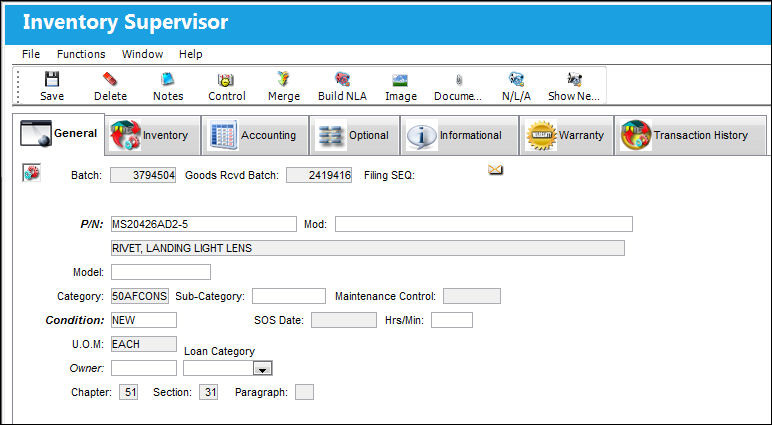
The following information/options are available in this window:
_____________________________________________________________________________________
Batch
The inventory number that is currently associated with a part or group of parts. A part's Batch number can change after various types of transactions take place.
Goods Rcvd Batch
The original inventory number assigned to the part or group of parts when initially introduced/received into inventory. This number will remain the same for a part even if/when the part's Batch number changes.
Filing SEQ
Filing Sequence number.
S/N
The Serial Number for the specific serialized part.
P/N
The Part Number reference for the aircraft part.
Mod:
Module information.
Model
Model number.
Category
The category of the part as defined in Settings/ Explorer/ System Transaction Code Explorer/ Settings/ P/N Category (e.g. Rotable, Consumable, Repairable) and entered for the particular part in the P/N Master.
Sub-Category
The Sub Category for each part.
Maintenance Control
Maintenance Control code (hard time, condition monitored, etc.)
Condition
The condition of the part.
SOS Date
The date the part is designated as SOS, or Save or Spares. This field is only available when the part's SOS eligibility is not overridden.
Hrs/Min
The length of time the part is to be designated SOS. This field is only available when the part's SOS eligibility is not overridden.
UOM
The unit of measure. This will default if associated with a Part Number as defined in the P/N Master. Transactions for parts can be conducted in a different UOM than defined in the P/N Master. However, upon receiving the UOM, conversion will automatically adjust the quantities, providing that the conversion rate is defined in the UOM System Transaction Code (via Setting/Explorer/System Transaction Code).
Owner
The name of the owner of the part, when applicable.
Chapter/Section/Paragraph
The ATA chapter/section/paragraph, as applicable.
P/N Total Times
Total time accrued against a serialized part.
Hours
Number of flight hours accrued against a serialized part.
Cycles
Number of flight cycles accrued against a serialized part.
Days
Number of installed days accrued against a serialized part.
Calendar Days
The number of Calendar Days accrued against a serialized part. This field will only appear if Switch  PNBIRTHDAY is set to Yes. For additional information, refer to Switch PNBIRTHDAY via the Receiving Switches Manual.
_____________________________________________________________________________________
Time As Of Date  button
Select this button to query for the part's accrued times since a specific date (as opposed to its total time). When a date is specified in the pop-up window, the P/N Total Times fields (above) will temporarily display the accrued time since that date. Select the Reset button (to the right) to displays the total times once again. For additional information, refer to the Time As Of Date Button, via the Inventory Transaction Detail, General Tab of the Inventory Training Manual.
Reset  button
When the Time As Of Date button is used to query for the part's accrued times as of a certain date, the Reset button is used to refresh the window and display the P/N Total Times once again. For additional information, refer to the Reset Button, via the Inventory Transaction Detail, General Tab of the Inventory Training Manual.
Time Break Down  button
Select this button to view a listing of all relevant times for a part. For additional information, refer to the Time Breakdown Button, via the Inventory Transaction Detail, General Tab of the Inventory Training Manual.
Share
Print
|
©1997-2026 Trax USA Corp. All rights reserved. This manual may not be copied, photocopied, reproduced, translated, or converted to any electronic or machine-readable form, in whole or in part, without prior written approval from Trax USA Corp. |
 |