
 Share
Share
 Print
Print
|
|
|
|
|


The Labor Reservation  button is used to reserve labor for a Work Order and all attached Task Cards. The user can use the Labor Reservation button to run a simulation for available, pending and reserved labor. The planner no longer has to first add labor to a Work Order to find out if the labor is available. The simulation will tell the planner if there is available labor for a Work Order.
1. Create one or more Task Card and add Skills to them.
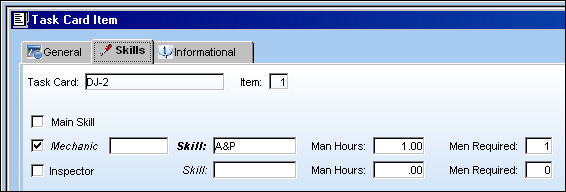
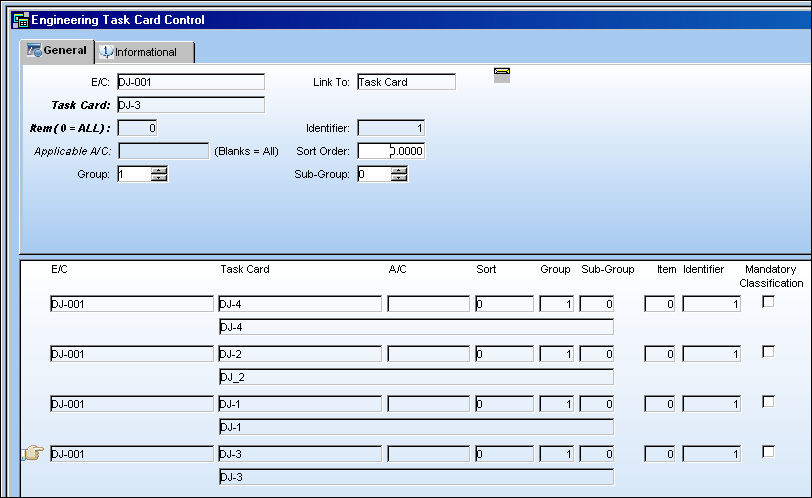
2. Create/find an E/C an add Task Cards to the E/C:
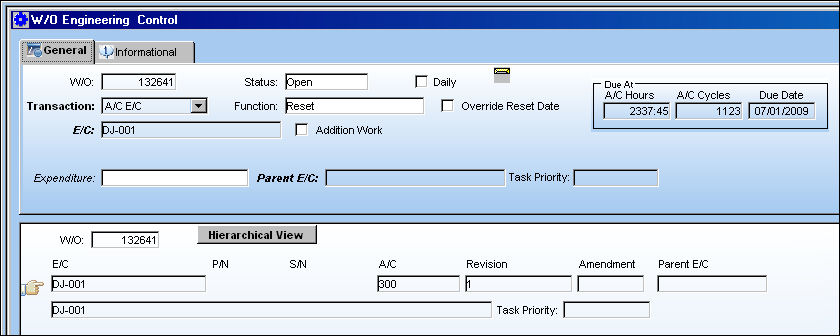
3. Create/find a Work Order. Add E/C to the Work Order.
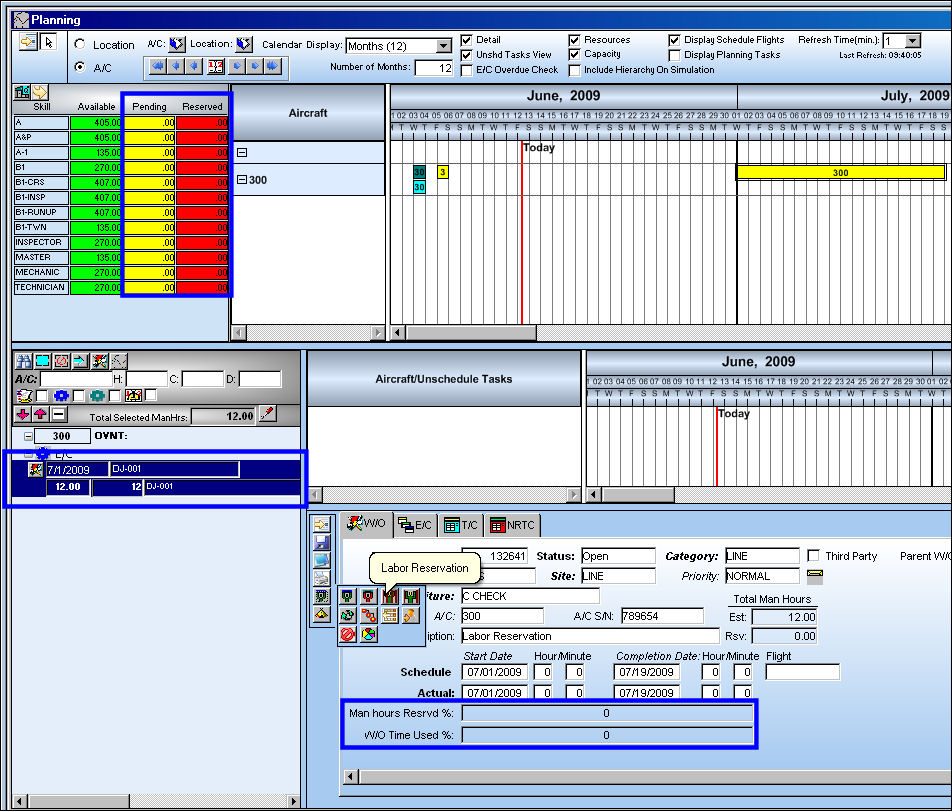
4. Go to the Interactive Planner.
Note that selected Work Order does not have any pending or reserved labor saved against it.
a. Select a task.
b. Select the Labor Reservation button.
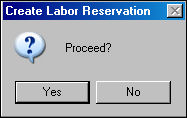
The Create Labor Reservation pop-up appears.
5. Select 'Yes.'
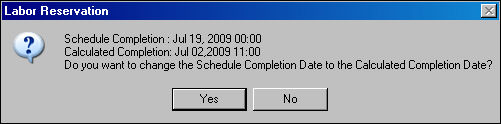
The Labor Reservation pop-up appears.
6. Select 'Yes.'
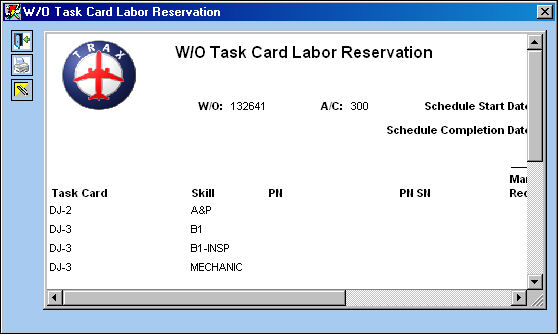
The W/O Task Card Labor Reservation print appears illustrating that the labor has been added the Work Order.
7. Exit out of this window.
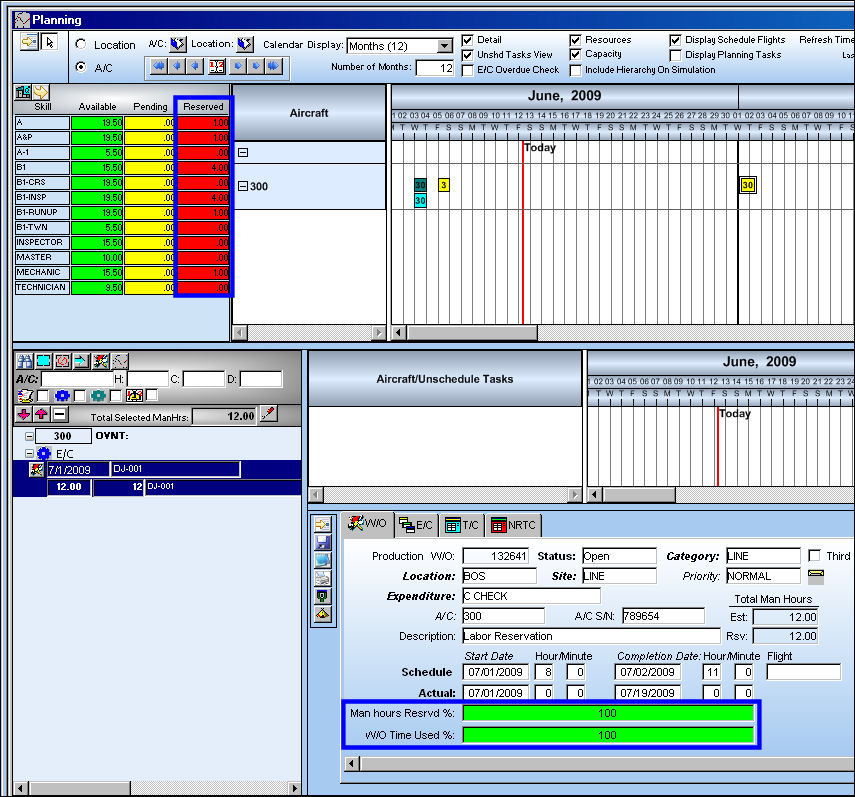
The labor is reserved as shown in the Resource Area and in the Selected Work Order Area:
Share
Print
|
©1997-2026 Trax USA Corp. All rights reserved. This manual may not be copied, photocopied, reproduced, translated, or converted to any electronic or machine-readable form, in whole or in part, without prior written approval from Trax USA Corp. |
 |