
 Share
Share
 Print
Print
|
|
|
|
|


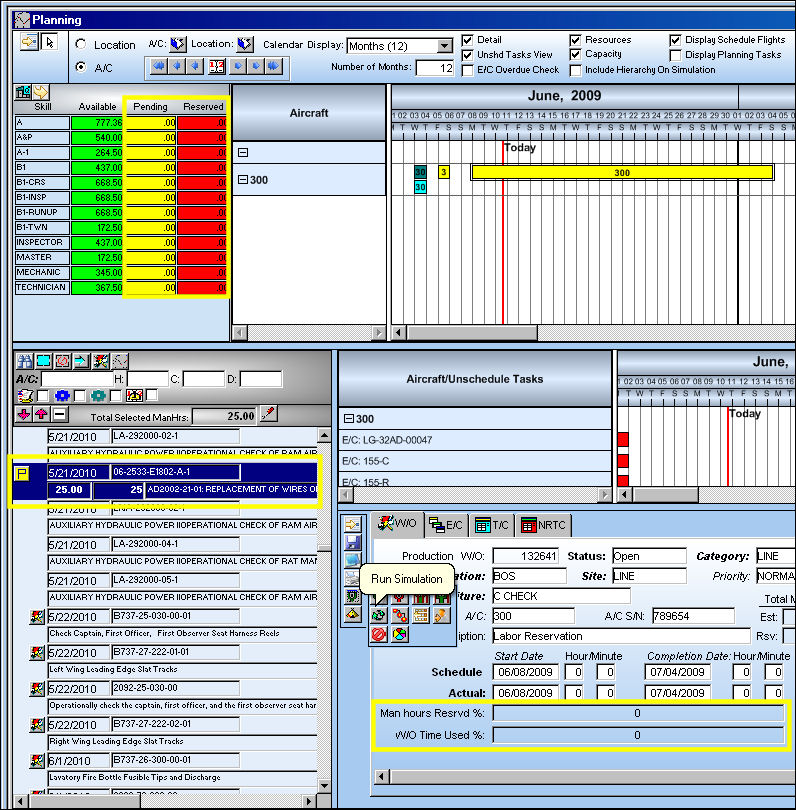
The Run Simulation  button allows planners to forecast for planning events without first scheduling man hours to complete tasks. This option allows planners to see what man hours are available and then schedule work based on the results of the availability.
From the Interactive Planner, select a Work Order. Once the Work Order information is populated in the Work Order tab select the Run Simulation button.
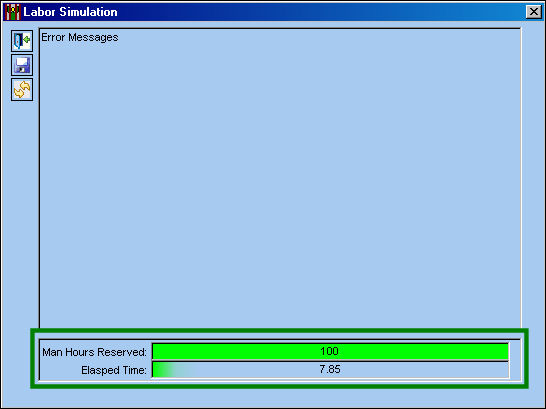
The Labor Simulation window appears displaying the available Man Hours for the selected task. Exit the window without saving the information.
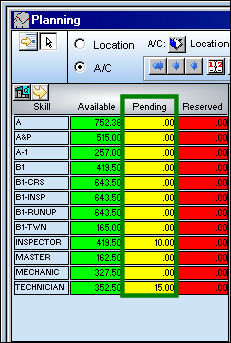
The available Man Hours appear as 'Pending in the Resource Area:
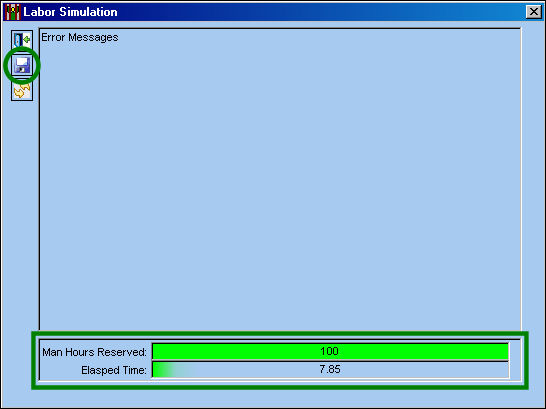
Run the simulation again, but this time, select the Save  button before exiting the Labor Simulation window.
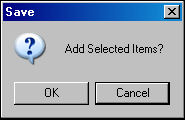
The following prompt will appear. Select 'OK.'
Employees who have schedules set up at one Location and Site can have Labor reserved for a Work Order in the same Location but with a different Site through the Run-Simulation button (as described above). While the employee is scheduled for work at one site, when labor is reserved for a W/O at a different site, the Employee Schedule Self-Management window reflects the new Work Site and time. For more information refer to the Man Hour Schedule, Capacity Area and the Employee Schedule Self Management via the Planning Training Manual.
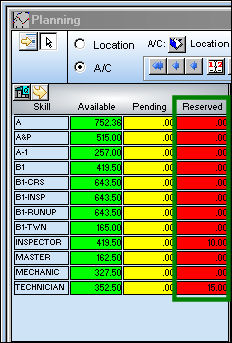
The available Man Hours are saved as Reserved in the Resource Area as shown below:
The simulation also looks for the following criteria:
Share
Print
|
©1997-2026 Trax USA Corp. All rights reserved. This manual may not be copied, photocopied, reproduced, translated, or converted to any electronic or machine-readable form, in whole or in part, without prior written approval from Trax USA Corp. |
 |