
 Share
Share
 Print
Print
|
|
|
|
|


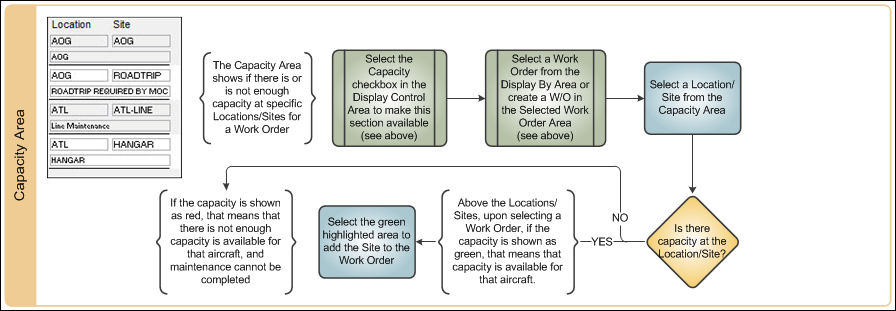
When the Capacity checkbox is selected, the Capacity Area is displayed as shown below:

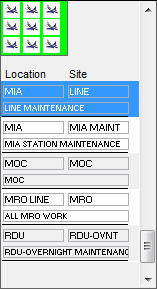
If the user selects Work Order from the Display By Area, capacity is displayed in green as shown below. Green means that capacity is available for that aircraft in that location at that particular site.
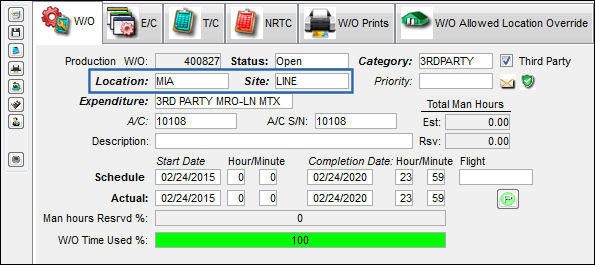
The user may double click on the above green highlighted area to add this site to a newly created Work Order as shown below:
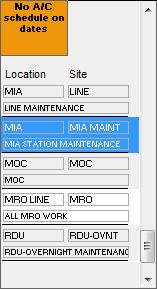
If a Work Order is selected and there is not enough capacity in that location/site, the capacity will appear in red, letting the Planner know that this maintenance cannot be completed.
Share
Print
|
©1997-2026 Trax USA Corp. All rights reserved. This manual may not be copied, photocopied, reproduced, translated, or converted to any electronic or machine-readable form, in whole or in part, without prior written approval from Trax USA Corp. |
 |