
 Share
Share
 Print
Print
|
|
|
|
|


The Planning Event Detail Area is a source of information about data that meets the criteria set in the search window.
It will display all events that match the filter criteria, sorted by aircraft and then by event type.
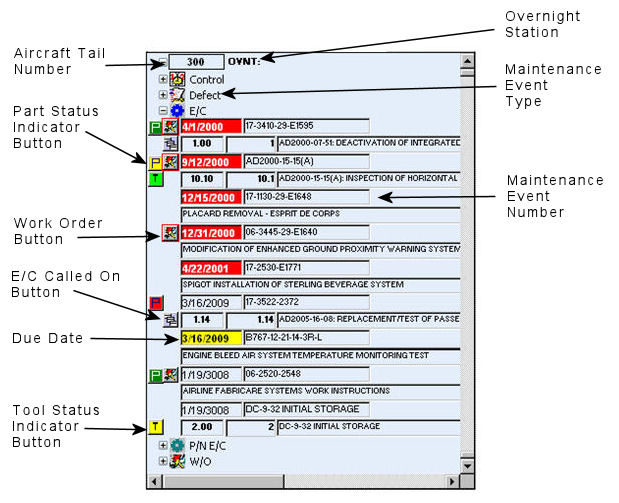
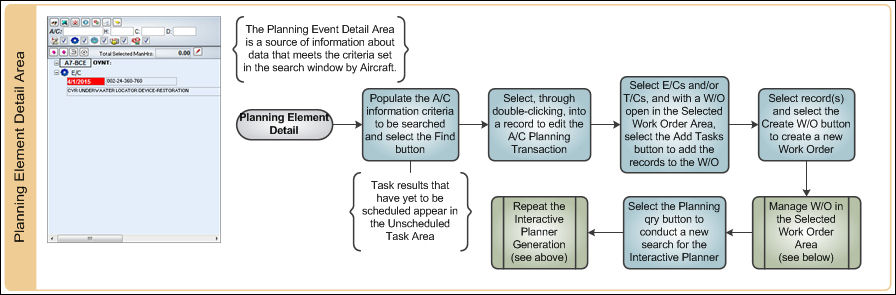

The following information/options are available in this window:
_____________________________________________________________________________________
Aircraft Tail Number
The individual aircraft tail number.
Overnight Station
The overnight station code for the aircraft. This information is being pulled from the Aircraft Master, Optional 2 Tab. Go to Settings/Update/A/C Master. For more information regarding the Overnight Station, refer to the Aircraft Master, Optional 2 Tab via the Settings Training Manual.
Maintenance Event Type
Indicates the Type of Planning Element: Defect, E/C, P/N E/C, P/N Control, W/O.
 - Defect Planning Element
 - E/C Planning Element
 - P/N E/C Planning Element
 - P/N Control Planning Element
 - Work Order Planning Element

 - Show Tasks not in a W/O - Selecting this checkbox will show all tasks that are not associated to a W/O. When not selected, both tasks that are linked to W/Os and those not linked to W/Os will be displayed.
Select the Expand  button to the left of the Planning Element icon to view all Maintenance Events associated to that Planning Element. Select the Collapse
  button to collapse the drop down. For more information, refer to the Detail/All Detail Buttons.
Part Status Indicator button
Select this button to view information regarding part availability.
Part Number Availability  button - The green button displays that all spares required are available in inventory.
Part Number Availability  button - The yellow button displays that some, but not all spares required are available in inventory.
Part Number Availability  button - The red button displays that no spares are available in inventory.
Tool Status Indicator button
Tool Status Indicator  button - The green status button displays that all tools required are available in inventory.
Tool Status Indicator  button - The yellow status button displays that some, but not all tools are available in inventory.
Tool Status Indicator  button - The red status button displays that no tools are available in inventory.
Work Order button
Illustrates that a Work Order is already assigned to the event. Select this button to view the Work Order associated to the planning event. For additional information, refer to Work Order via the Production Training Manual.
E/C Called On  button
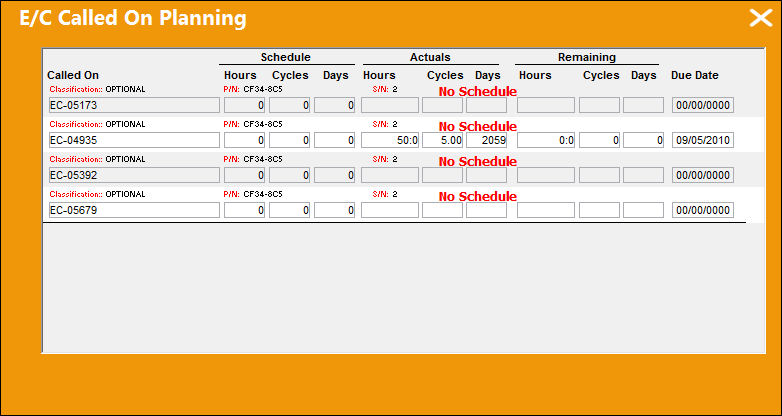
TRAX displays the E/C Called On Planning window. All of the Called On E/Cs and related information are shown in this window:
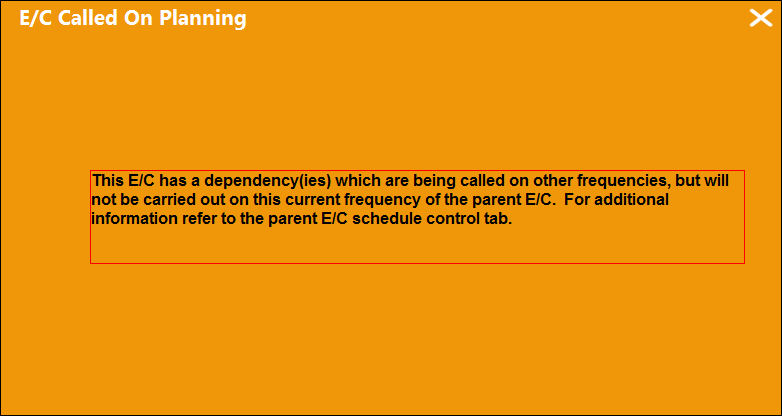
If the E/C has a dependency, etc., the following message appears:
For additional information regarding the set up of Called On E/Cs, refer to the E/C Called Button via the Planning Training manual.
Due Date
The calculated due date of the item (rounded to the nearest date).
 - The Due Date field is highlighted in grey when it is not yet close to becoming due.
 - The Due Date field is highlighted in yellow when it is close to becoming due.
 - The Due Date field is highlighted in red when it is past due.
 - The letters of the Due Date are black with a red background when the EOM checkbox is selected against the item in the Engineering Control Schedule Tab.
The Warning % determines when the Due Date is not yet close to being due (i.e 30 days), and when it is close to being due (i.e. 10 days).
For more information regarding the Due Date function, refer to the Due At section of this Manual.
Maintenance Event Number
The number of the Maintenance Event (i.e. E/C Number, Defect Number etc.).
For each Event Type, different information will be displayed. Right-click a Maintenance Event Number for more information about each event. TRAX displays the Detail button and the All Detail button.
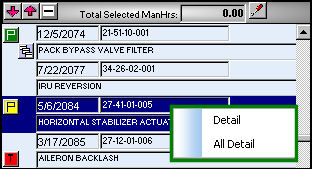
For additional information regarding the Detail and All Detail buttons, refer to the Detail/All Detail Button via the Planning Element Detail Area, of the Planning Training Manual.
_____________________________________________________________________________________
There are additional buttons that further the functionality that can be utilized in this area of the Interactive Planner. For more information, refer to the Planning Element Detail Area Buttons.
 A/C Planning Transaction Pop-up:
Select a record from the list displayed below:
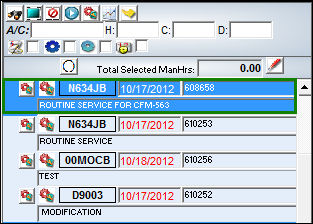
When you select the record, the following A/C Planning Transaction window appears:
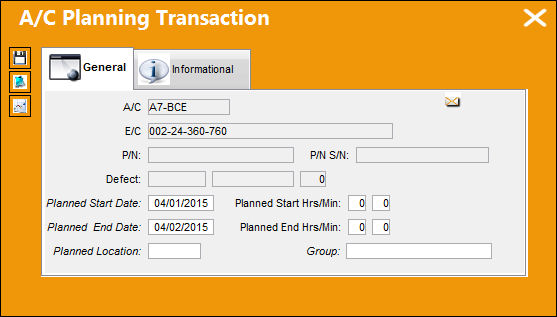
For more information regarding the functionality of the above fields, please refer to the Planning, via the A/C Planning Details section of this Manual.
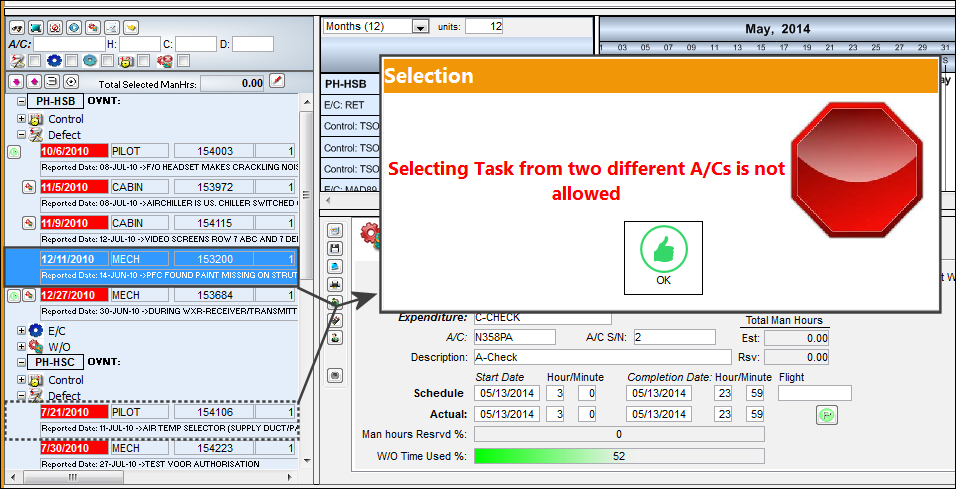
Cannot Select Tasks from Multiple Aircraft:
From the Planning Element Detail Area, when tasks from different aircraft are selected at the same time, the following warning prevents users from proceeding.
W/Os Highlighted when their Tasks are Selected:
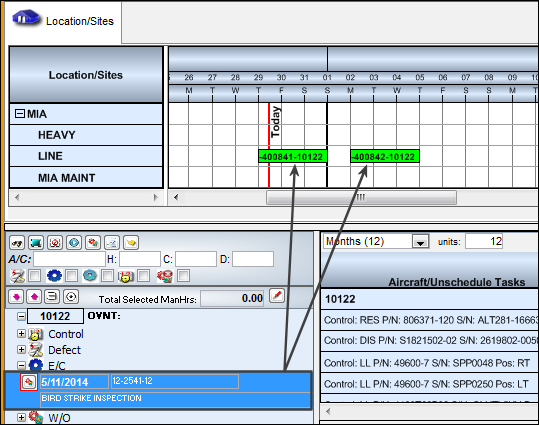
When a task is selected in the Planning Element Detail Area, the Work Order(s) linked to the task are highlighted in the Display By Area section. This functionality helps locate the Work Order(s) in the Interactive Planner quickly.
For example, notice the following task and Work Orders.
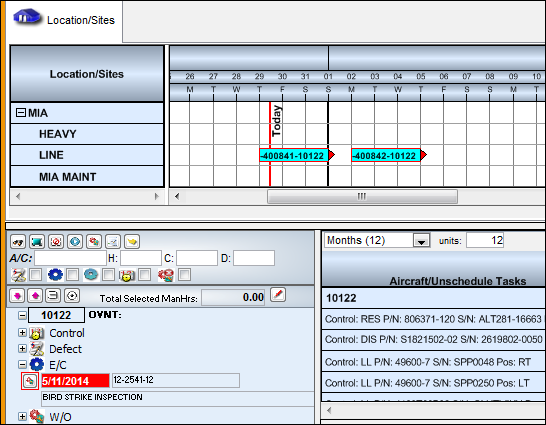
When the task is selected, the Work Orders are highlighted.
Share
Print
|
©1997-2026 Trax USA Corp. All rights reserved. This manual may not be copied, photocopied, reproduced, translated, or converted to any electronic or machine-readable form, in whole or in part, without prior written approval from Trax USA Corp. |
 |