
 Share
Share
 Print
Print
|
|
|
|
|


How to Load New TraxDoc Revisions
After loading and creating Task Cards from a manual, the user may wish to incorporate data from a more recent revision of that manual. The user can use TraxDoc to automatically reconcile many of the changes into a Task Card(s).
- The user must have an authorized manual loaded into TraxDoc as well as a set of authorized Task Cards imported from that manual.
- Create a new pending revision to the TraxDoc containing the manual, and load the new manual revision into it.
- After making any necessary changes, run the Task Card Import program. This will force a pending revision to the Task Cards loaded from the previous revision of the manual.
- TRAX will then create any new Task Cards from the new manual revision.
- Finally, it will incorporate changes from the new revision (new/deleted subtasks, effectivity changes) into the newly created Task Card revision.
- After this process is complete, the user can authorize the TraxDoc revision, make any additional changes to the pending Task Cards, and authorize them for use.
Loading the New Manual Revision:
Be sure the TraxDoc Explorer tab is visible in the TraxDoc Document.
For additional information, refer to Switch  TEXPRVIEW which can be found in the TraxDoc Switches manual.
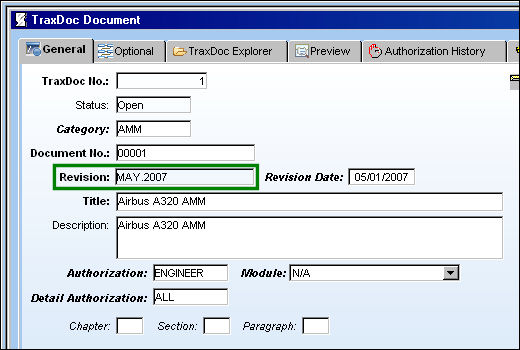
Select the Traxdoc record which contains a previous version of the manual. In this example, the user will be updating an Airbus A320 AMM from the May 2007 revision to the May 2009 revision.
Select the Revision Control  button.
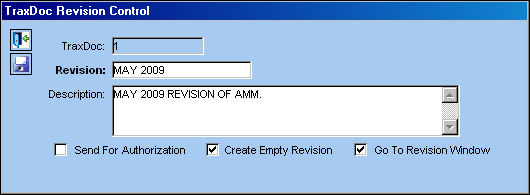
TRAX displays the TraxDoc Revision Control window.
Create the new revision. Make sure that the ‘Create Empty Revision’ checkbox is selected.
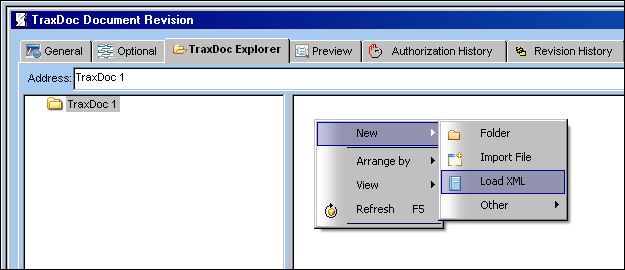
Select the TraxDoc Explorer tab.
Right click in the right panel of the window. Select New>Load XML.
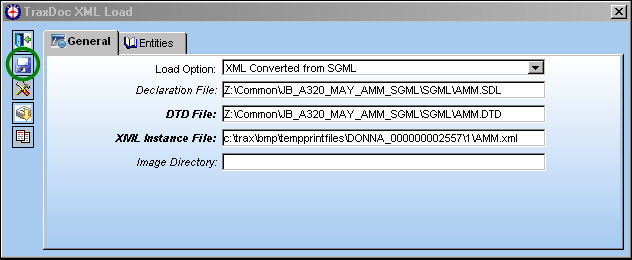
TRAX displays the TraxDoc XML Load window. Populate all mandatory and optional fields.
Select the Import  button.
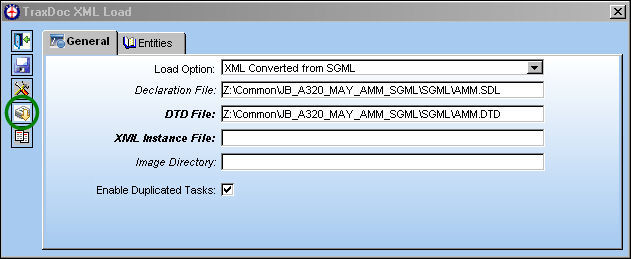
The following information/options are available in this window:
_____________________________________________________________________________________
Load Option
Select from one of the following load options:
- XML Converted from SGML
- Graphics
- XML
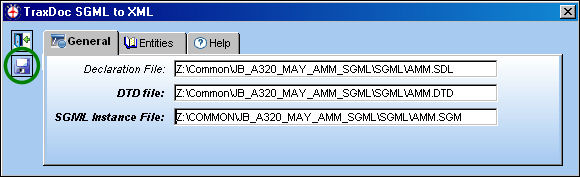
Declaration File
Select the manual’s declaration file, if any. This file is located in the SGML folder and will end should end in .sdl.
DTD File
Select the manual’s DTD (Document Type Definition) file. This file is located in the SGML folder and should end in .dtd.
XML Instance File
This will auto populate later.
Image Directory
Browse the directory (on the portable media) where images are stored and and select media to be imported.
Enable Duplicate Tasks checkbox
Select this checkbox to load duplicate tasks from duplicate chapters. The TraxDoc XML Load program will add the last four digits of the XML file name to each task, regardless if the task is repeated or not.
_____________________________________________________________________________________
Select the Save  button.
Select the Entities tab.
_____________________________________________________________________________________
SGML Instance File
Select the SGML file that contains the OEM manual. This file is located in the SGML folder and will end in .sgm.
_____________________________________________________________________________________
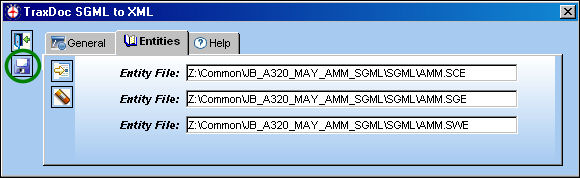
Load any files that are in the SGML folder (or any sub folders) other than the declaration, DTD, and SGML files:
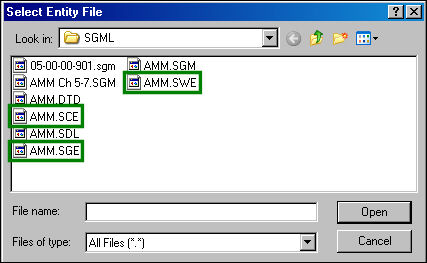
Once files are loaded, select the Save button.
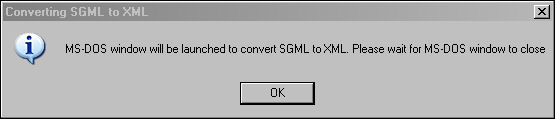
The Converting SGML to XML window will appear to warn the user not to close the below window until the import is complete:
Select 'OK.'
The following DOS window will appear while the file is being imported:
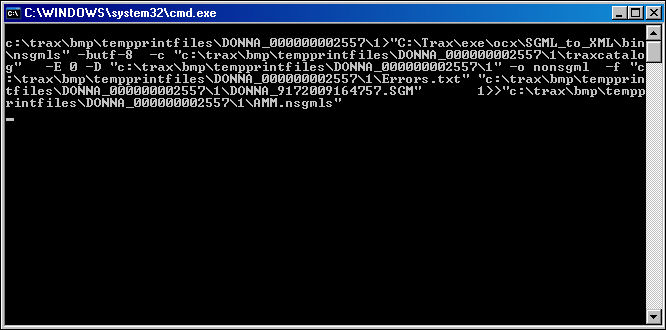
All fields are automatically populated in the below window:
Select the Save button to load the manual.
The following information box appears. Select 'OK.'

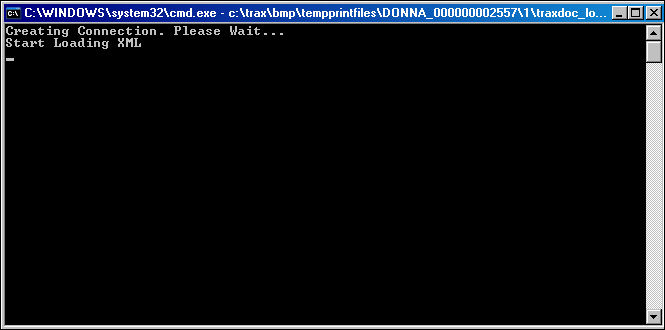
The following DOS window will appear while the file is being imported:
Now that the manual has been loaded, return to the TraxDoc Explorer tab. Right click in the right panel of the window. Select New>Import file.
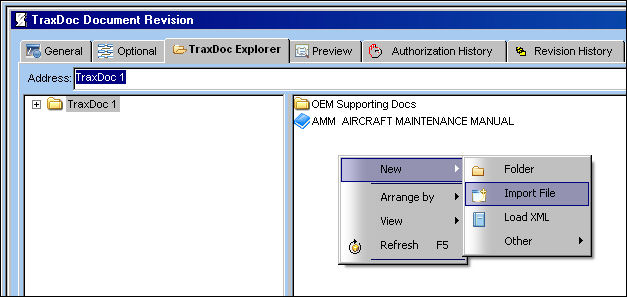
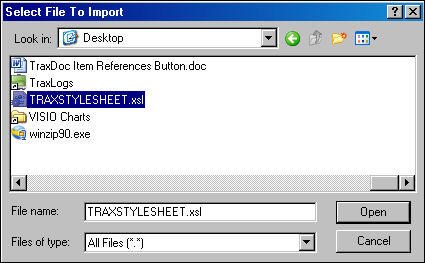
The following pop up appears. Navigate to a stylesheet file to use for the manual. Select 'Open.'
In the Traxdoc File Import window, change the File Type to 'STYLESHEET.'
Select the Save button. The Save prompt will appear. Select 'OK.'
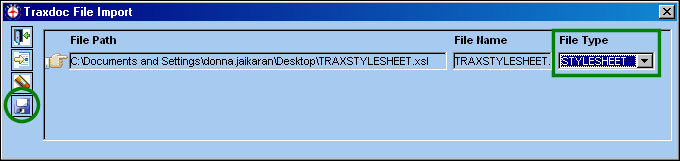
The same procedure can be used to load any file into the Traxdoc. The user must only omit the step where the File Type is changed to 'STYLESHEET'. One use of this is to load Document Control attachments into a Traxdoc record so that documents are stored and located inside the database instead of on a disk which may or may not be available to all users at all times. With the stylesheet loaded, the user can now print portions of the manual, or Task Cards that link to the manual.
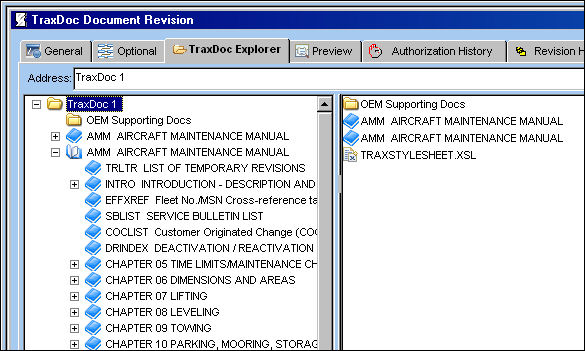
The manual has been loaded as shown below:
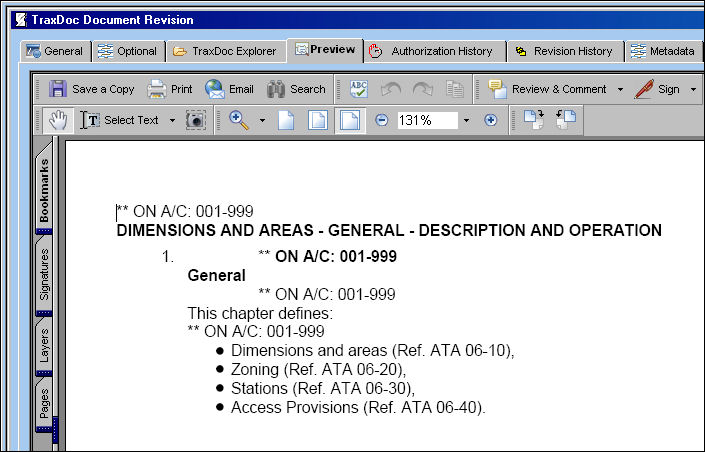
Select on any image to view a PDF:
Share
Print
|
©1997-2026 Trax USA Corp. All rights reserved. This manual may not be copied, photocopied, reproduced, translated, or converted to any electronic or machine-readable form, in whole or in part, without prior written approval from Trax USA Corp. |
 |