
 Share
Share
 Print
Print
|
|
|
|
|


How to Use Fault Code Reporting With TraxDoc
The purpose behind this new fault code management system is:
- To allow the fault to come to TRAX in an automated manner (interface) so they can be managed fully using the TRAX system.
- To allow the user to manage/work the handling of fault codes, via the fault manuals loaded into TRAX.
Go to Settings/Update/Fault Code Master.
It is recommended that the user create one 'Manual Set' and have an aircraft effective to at least one Fault Code manual, before entering fault codes against it, even if the possible listing of fault codes will not be defined.
Setup a fault code manual. The user may wish to have one manual/set per A/C type, etc.
If there is a TraxDoc manual loaded with the fault codes, the user can reference it as well. This is the desired concept behind the Fault Code Master – loading an SGML manual used for handling Fault Code(s) to represent one manual within the Fault Code Master.
For additional information regarding the fields in the below window, refer to the Fault Code Master, General Tab via the Fault Code Master which can be found in the Settings Training manual.
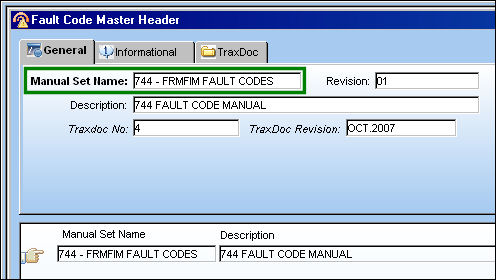
SGML Fault Code/Troubleshooting SGML manuals:
Ideally, users should load a SGML manual into TraxDoc which contains a listing of the Fault Codes. Examples of this include:
- Boeing – FRMFIM – Fault reporting manual and fault isolation manual
- Airbus – TSM – Troubleshooting Manual
- Bombardier – FIM – Fault isolation manual
A data import program can then be run against these manuals to create a listing of fault codes in the fault code master, as well as creating task cards for the corrective tasks listed within. See separate documentation for this data import.
Effectivity:
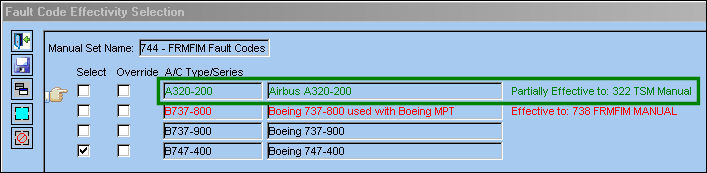
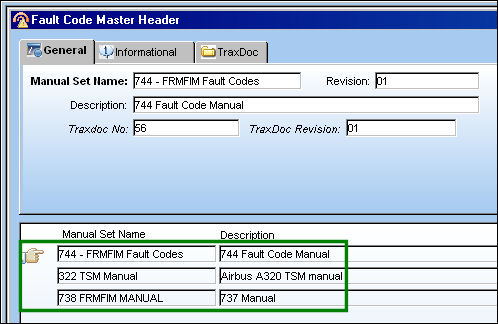
The system allows for one effective Fault Code against various aircraft or aircraft type. (i.e. A manual may be effective to 737-600, 737-700, 737-800, etc. However, one aircraft can only be effective to one manual/set.
If all the aircraft of one type are effective to another manual/set (738 and 744), it won’t let you make it effective to your current one (322 TSM Manual).
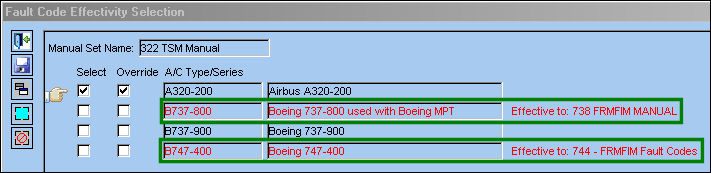
If some of the aircraft of a type are effective to another set, the system lets the user know that they can only make some of that type’s aircraft effective.
Fault Code Master Detail:
To access the Fault Code Master, Detail, place the Hand  pointer is pointing to a desired record. Select the Detail
  button, or double click on the record.
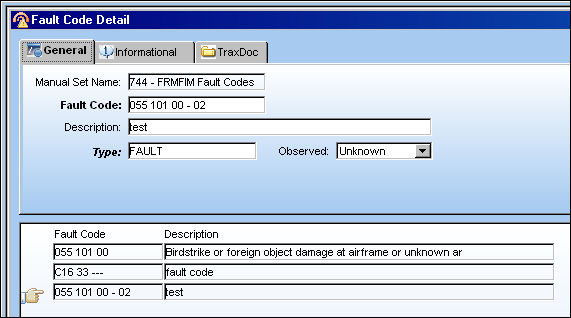
TRAX displays the Fault Code Detail window:
The following is a sample Fault Code within the Fault Code manual. The FC can be created manually, but ideally it was created via a data import of a Fault-Code manual.
For information regarding the fields in the below window, refer to the Fault Code Master Detail, General Tab via Fault Code Master, which can be found in the Settings Training manual.
Select the TraxDoc tab.
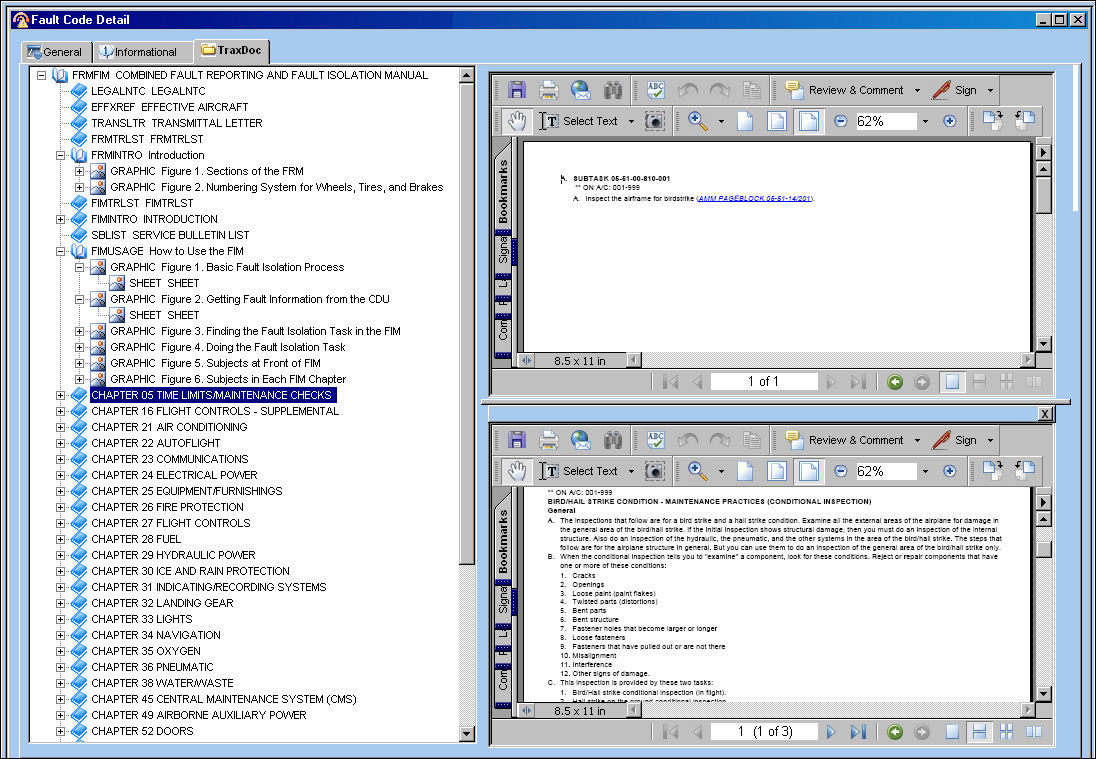
The user is taken directly to that fault code within the fault code manual that was loaded in TraxDoc.
The Fault Code opens as a PDF and references a TASK within the manual. Clicking the hyperlink for that task opens the task within the bottom pane. That task then references a manual reference within another manual (an AMM Pageblock in this example). If the fault code manual is linked to the manual containing this manual reference (see TraxDoc documentation for manual linking for information) then clicking that link will open that particular reference. The user may use this hyperlink to perform the trouble-shooting process for actual fault codes reported against the aircraft.
Technical Records, Fault Code Reporting:
Go to Technical Records/Update/Fault Code Report.
Ideally, the fault codes being reported against the aircraft are being received via an automated feed/interface. If not, they may be manually entered as well.
Manual Entry
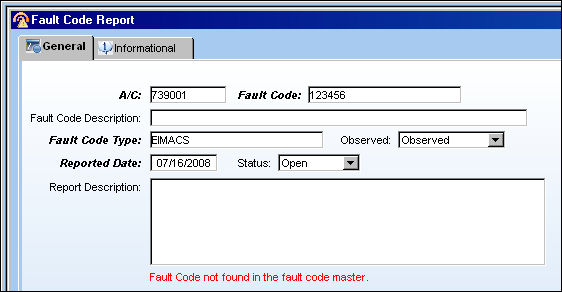
Populate the below fields as described. If the user selects a Fault Code within the Fault Code Master manual for that aircraft, some of the fields will be populated by default (i.e Fault Code Type, Observed, Status, Fault Code Description).
A soft warning will appear if the Fault Code is not listed within the Fault Code manual for that aircraft. This is shown below in red text:
Monitoring incoming Fault Codes:
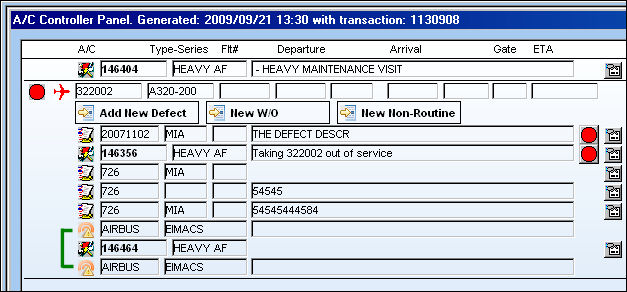
Users can view incoming/open FC’s by searching for them or by viewing them within the A/C Controller Panel.
Working Fault Codes:
The concept behind fault codes is that Fault Codes must be 'Opened' (received via an interface or manually entered) and then 'Closed.'
Closing can be done as follows:
- Manually changing status to closed
a. This is typically used for fault codes that are resolved quickly, and don’t need a lengthy process to be closed.
b. Also used to close FC’s that are benign or unimportant.
- Placing fault code on a defect
a. This will close the fault code, because now the fault code will be handled via the defect.
b. As usual for a defect, the defect can be resolved or deferred.
c. The user can create a new defect for the fault code, or place it on an existing defect.
Working Fault Codes via A/C Controller Panel:
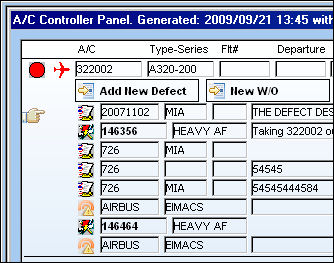
Open Fault Codes are visible against an aircraft in the Controller Panel, if the FC’s type is one as being marked to show on the controller panel (Tran code property). Select the Fault Code  icon to access the Fault Code Report window.
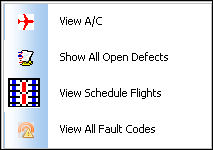
Right click on the A/C  icon.
icon.
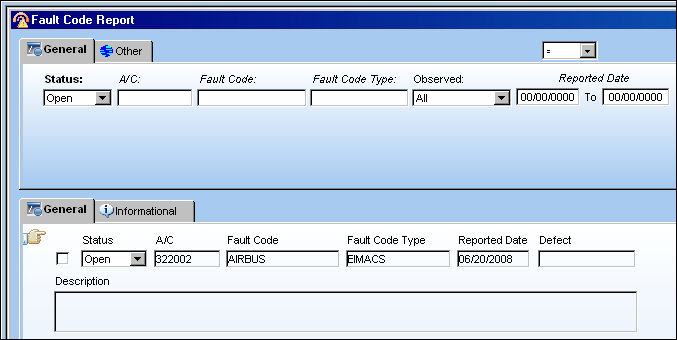
TRAX displays a listing of all open FC’s against the aircraft, whether they are marked to show on the A/C Controller panel or not.
Working Fault Code via Selection Window:
From the FC Selection Window, select/double-click a single FC to go to the FCR detail window for it.
To work the Fault Codes more quickly, there are several options on the FC Selection screen the user can make use of:
Linking one or more Fault Codes to a defect:
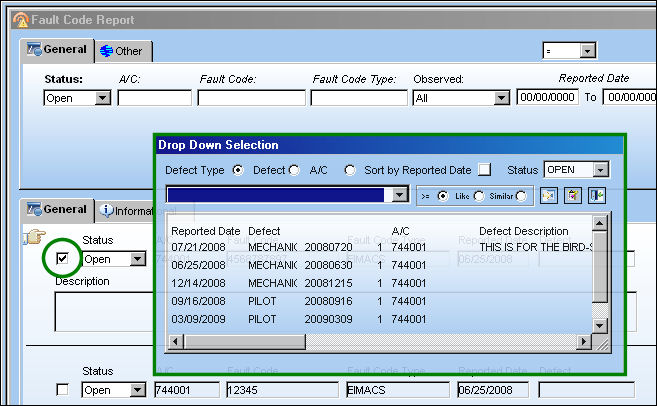
Select the below circled checkbox.
Select the Select All  button to select all records or select the Deselect All
  button to deselect all records.
Select the Defect  button to select an open defect to place the defects against, or select the New
  button (must have security to create defects) to create a new one for them. Once this is done, the FC’s will be closed because they are now handled via the open defect.
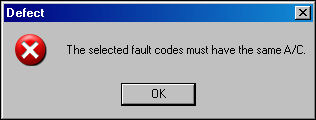
When using this method, the user must place the FC’s for an aircraft onto an aircraft, one aircraft at a time, since a defect only represents one aircraft. If not, the following error will appear:
Closing one or more fault codes:
One or more FC’s can be closed from the selection window. Change the status of each one individually to Closed, and click save when done or, check each FC to be closed, and select the Close  button. This will change the status each selected FC to ‘Closed.'
Select the Save  button to save this change.
Fault Code Report Detail Window:
This window represents an actual instance of a Fault Code against an aircraft that occurred at a certain date.
Go to Technical Records/Update/Fault Code Report Detail.
Select the New button on the FC selection window to create a new FC. Or, go to detail of an existing FC from the FC Selection Window, or from the AC Controller Panel window.
Ideally, you are using this window to work/troubleshoot fault codes received via an automated feed.
If the Fault Code is known within the Fault Code Master for that aircraft, and the Fault Code was created via an TraxDoc-loaded SGML manual, the user is able to go to the TraxDoc tab.
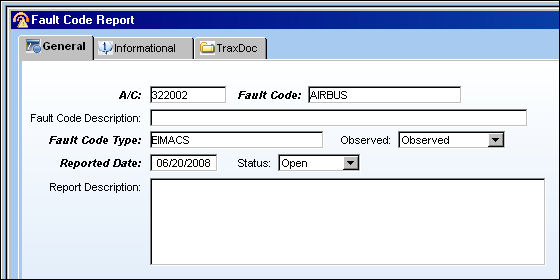
TraxDoc tab:
At this point, the user may handle the FC however they like. For any easy or unimportant fault code, set the status to ‘Closed’ and save it.
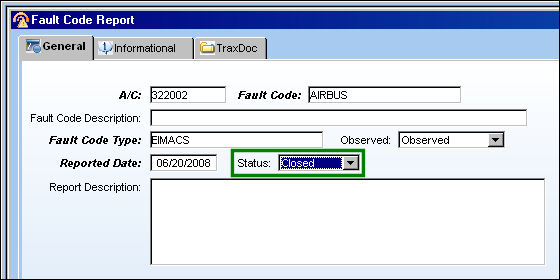
For a more complicated FC, the user may place it on a defect. Select the Defect button to place the FC on an existing defect, or select the New button from the drop down menu to create a new defect.
Populate all mandatory and desired fields and save the Defect Report. The Save prompt will appear. Select 'OK.'
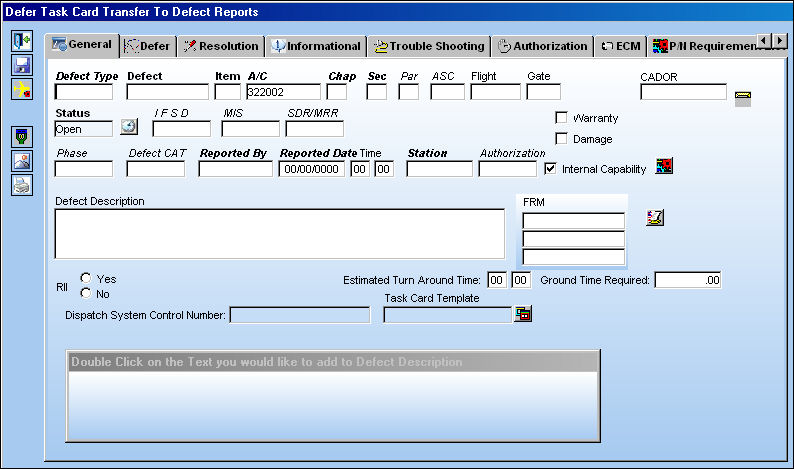
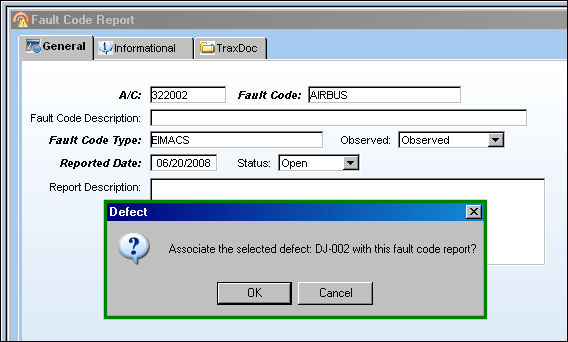
The following soft warning appears, re-confirming if the user would like to link the Fault Code to the Defect, therefore closing the Fault Code.
Select 'OK.'
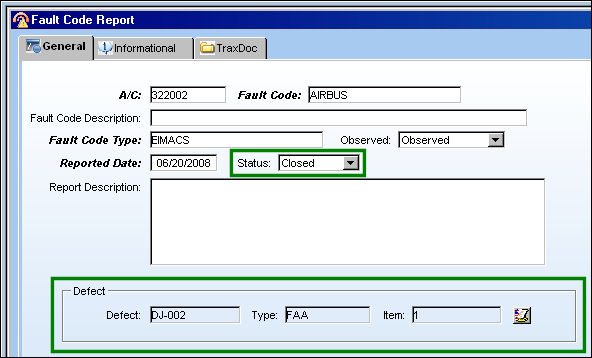
The Fault Code is now closed and linked to a Defect. The user may select the Defect button to access the Defect Report.
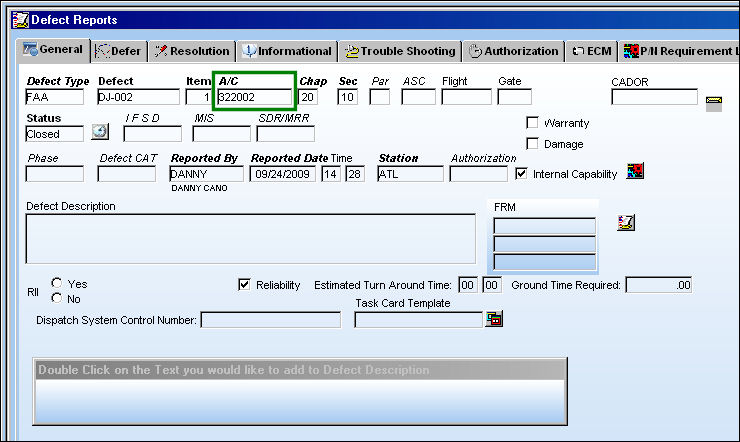
The Defect Report is shown below:
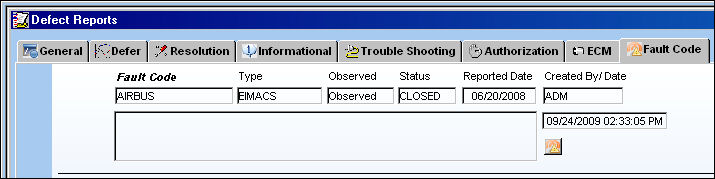
Select the Defect Report, Fault Code tab to view the Fault Code.
Select the Fault Code button to return to the Fault Code Report.
Share
Print
|
©1997-2026 Trax USA Corp. All rights reserved. This manual may not be copied, photocopied, reproduced, translated, or converted to any electronic or machine-readable form, in whole or in part, without prior written approval from Trax USA Corp. |
 |