
 Share
Share
 Print
Print
|
|
|
|
|


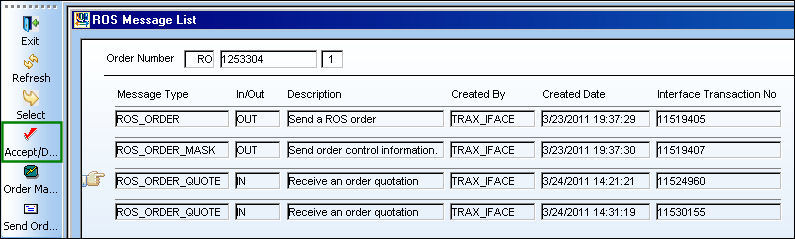
Select the Accept/Decline  button to accept or decline a quotation message.
The Accept/Decline button only appears when a quotation message is sent.
From the ROS Message List window, select the Accept/Decline button. Be sure the Hand  pointer is located on the correct record (a ROS_ORDER_QUOTE message type).
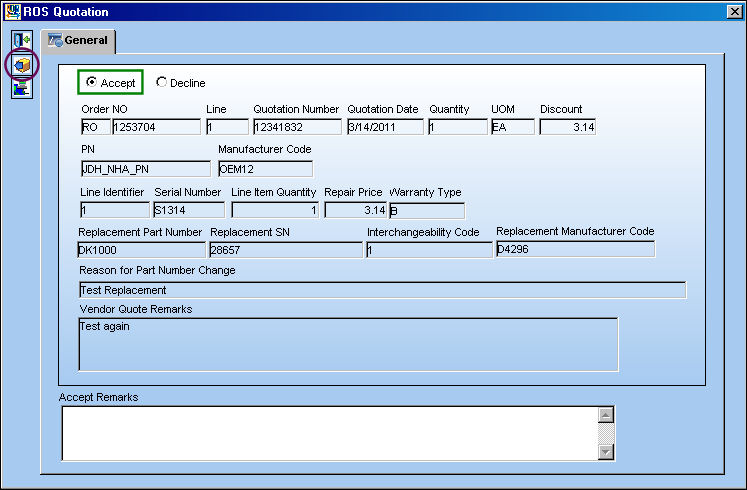
TRAX displays the ROS Quotation window. The user may choose to accept or decline the message in this window. In this example, the user will choose to 'Accept' the message.
Select the Accept radio button. Enter any remarks in the Accept Remarks field and select the Send  button.
The Decline radio button is selected by default.
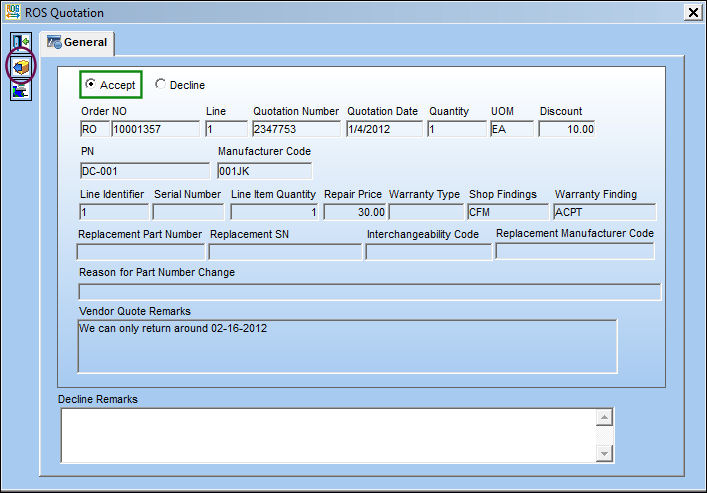
The following information/options are available in this window:
_____________________________________________________________________________________
Accept/Decline radio buttons
Select the 'Accept' radio button to accept the ROS Quotation or the 'Decline' radio button to decline the ROS Quotation.
Order NO
An auto-generated unique sequential number is assigned to each order. All Order Types which exist under the Order Module will receive their number for the following configuration:
 POSEQ - (Orders Next Sequence Number) - Next number for an Order. The start number is set at implementation. The Config Number field is used.
Line
The specific Line item of the Order. Each Line item could represent a different part included in the same order.
Quotation Number
The System Quote number reference.
Quotation Date
Date on which the Vendor made the quote.
Quantity
The number of parts for the transaction.
UOM
The unit of measure. This will default if associated with a Part Number as defined in the P/N Master. Transactions for parts can be conducted in a different UOM than defined in the P/N Master. However, upon receiving the UOM, conversion will automatically adjust the quantities, providing that the conversion rate is defined in the UOM System Transaction Code (via Setting/Explorer/System Transaction Code).
Discount
The discount for the part quoted.
P/N
The Part Number reference for the aircraft part.
Manufacturer Code
The Manufacturer or main Vendor for this part. The Vendor must be flagged in the Vendor Master as a Manufacturer to populate this Manufacturer field.
Line Identifier
The order line number.
Serial Number
The Serial Number for the specific serialized part.
Line Item Quantity
The quantity for the line item.
Repair Price
The cost to repair the part.
Warranty Type
Warranty type provided by vendor.
Shop Findings
Findings by the shop based on the teardown, Possible values are:
- BER: Beyond Economic Repair
- CFM: Failure Confirmed
- ITD: In Transit Damage
- NFF: No Fault Found
- OTH: Other
- ROG: Rogue Unit
- UNR: Unrepairable
Warranty Finding
Response to the warranty claim, possible values are:
- ACPT: Warranty claim is accepted.
- DEXP: Warranty Denied - Expiration
- DSCH: Warranty Denied - Schedule Removal
- DSCP: Warranty Denied - Out of Scope Repair Process
- DSHF: Warranty Denied - Shop Findings
- DUSE: Warranty Denied - Improper use
- NOTA: Warranty is not applicable to this claim
Replacement Part Number
If a part is beyond economic repair, the vendor will suggest another part to replace the part on the original RO. This is the replacement part number.
Replacement SN
The serial number of the part to replace the original part on the RO.
Interchangeability Code
This is the interchangeability code of the replacement part.
Replacement Manufacturer Code
The manufacturer of the part to replace the original part on the RO.
Reason for Part Number Change
The reason for suggesting another part be used. (i.e. Part is beyond economic repair).
Vendor Quote Remarks
Here are any remarks the vendor may place regarding the quote.
Accept Remarks
Enter any remarks regarding accept/decline of the quote provided by the vendor.
_____________________________________________________________________________________
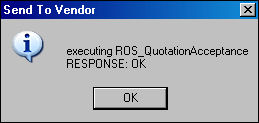
The Send To Vendor information box appears. Select 'OK'.
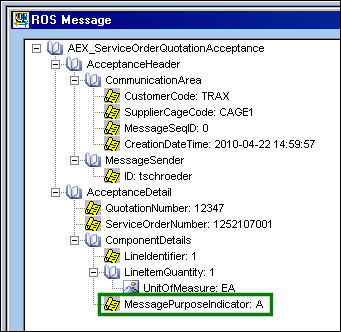
The MessagePurposeIndicator = A (Accepted):
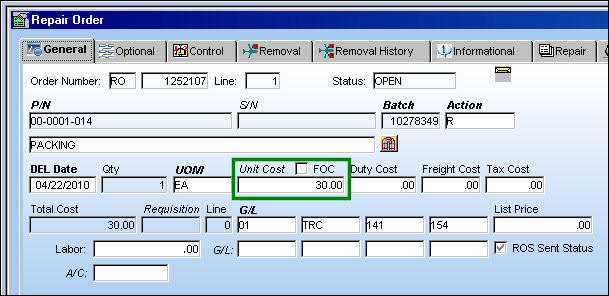
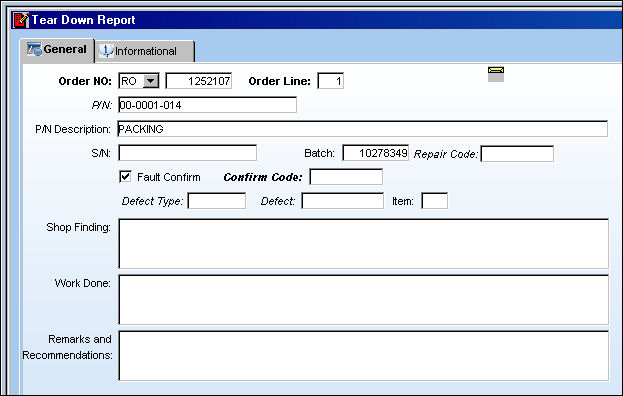
Once the quotation has been accepted, the quoted price in the quotation message will be populated in the Unit Cost field of the Repair Order Detail, General tab, and some information will be filled in P/N Tear Down report window.
Information from the Repair Order will auto populate in the Tear Down Report:
Additional Functionality:
The vendor has the option to replace a part rather than repair it. This would happen if a part is beyond economical repair.
In the following example, the vendor has elected to replace the part, rather than repair it. If the customer chooses to accept this quote, they must select the 'Accept' radio button.
Select the Send button.
The Decline radio button is selected by default.
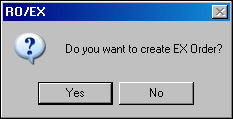
The system will automatically generate the following prompt, because the Repair Order must now be changed to an Exchange Order. Select 'Yes.'
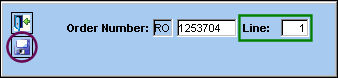
Enter the Line item and select the Save  button.
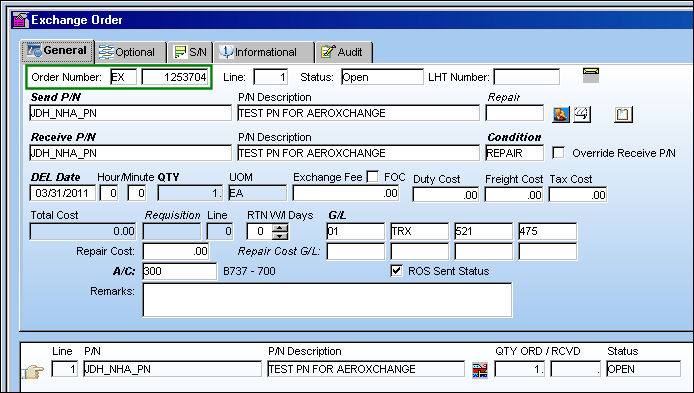
The Exchange Order is automatically created, as shown below:
Share
Print
|
©1997-2026 Trax USA Corp. All rights reserved. This manual may not be copied, photocopied, reproduced, translated, or converted to any electronic or machine-readable form, in whole or in part, without prior written approval from Trax USA Corp. |
 |