
 Share
Share
 Print
Print
|
|
|
|
|


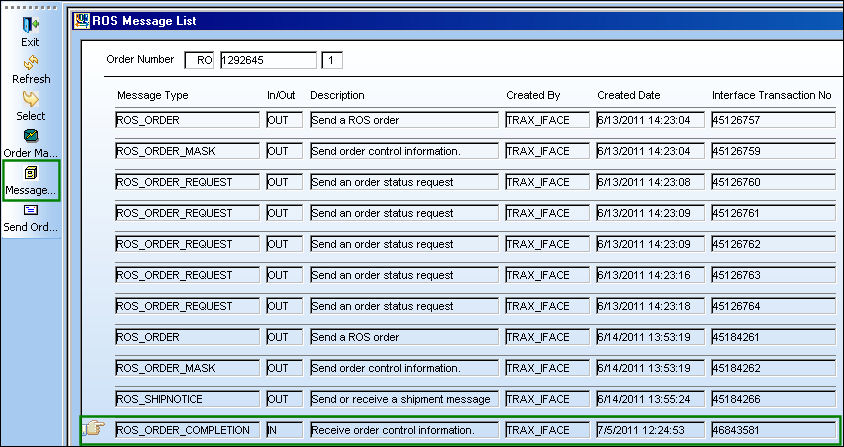
Select the Message Load  button to view the Work Scope Required and the Work Scope Completed.
The Message Load button only appears when a completion message is received.
From the ROS Message List window, select the Message Load button. Be sure the Hand  pointer is located on the correct record (a ROS_ORDER_COMPLETION message type).
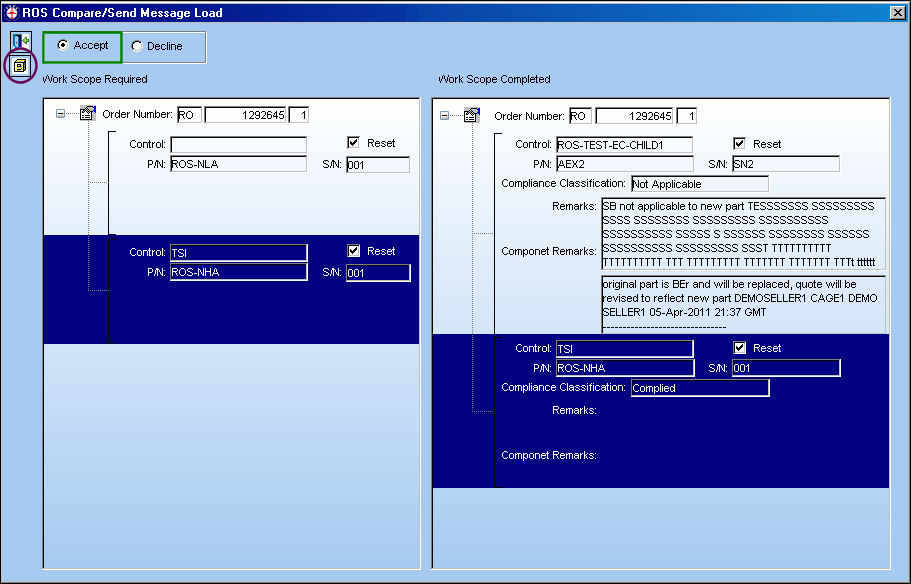
TRAX displays the ROS Compare/Send Message Load window.
The user can elect to 'Accept' or 'Decline' the Work Scope Complete. In this example, the user will Accept the Work Scope Completed.
Select the Accept radio button and select the Message Load button.
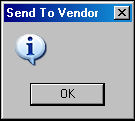
The Send To Vendor pop up appears. Select 'OK.'
Share
Print
|
©1997-2026 Trax USA Corp. All rights reserved. This manual may not be copied, photocopied, reproduced, translated, or converted to any electronic or machine-readable form, in whole or in part, without prior written approval from Trax USA Corp. |
 |