
 Share
Share
 Print
Print
|
|
|
|
|


The Quick Entry  button at the top of the window allows users to enter new Defect Reports that can be viewed from the Defect Report window. When the button is selected the following window appears:
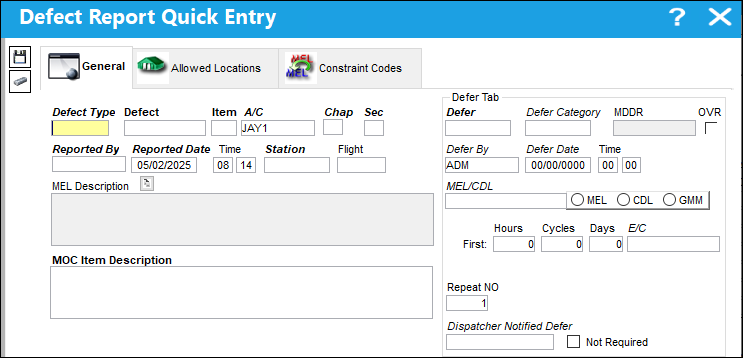
The following information/options are available in this window:
_____________________________________________________________________________________
Defect Type
The type of defect found on the aircraft (for example, Pilot Report, MX Report). For additional information, refer to the Defect Type Transaction Code, via the Technical Records Transaction Code Manual.
Defect
The defect number (or log book number).
Item
The defect log item number.
A/C
The individual aircraft tail number.
Chap
The ATA Chapter classification of the Defect. The chapters which appear for selection are those ATA Chapters which are flagged for Defect in the ATA Master.
Sec
The ATA Chapter Section being referenced.
MDDR (Maintenance Defect Deferral Report)
This is also known as a Deferred Maintenance Item (DMI). This field allows the user to enter the deferment on one defect report (aircraft log page) by using the MDDR number on another defect report (aircraft log page) the user may resolve the MDDR.
Override checkbox
This checkbox is selected by default once the settings are overridden in the MEL Master window.
Reported By
The Person reporting the Defect.
Reported Date
The Date other Defect was reported.
Time
The reported time of the Defect.
Station
The Station where the Defect was reported.
Flight
The inbound flight number associated with the Defect Report.
MEL Description
A description of the MEL.
Copy MEL Description to MOC Item Description  button
Copies the information from the MEL Description field into the MOC Item Description field.
MOC Item Description
The MOC item description.
Constraint Code 1
The first Constraint code. This field is Transaction Code controlled. For more information refer to the Defect Report Constraint via the Technical Records Transaction Code Manual.
Constraint Code 2
The second Constraint code. This field is Transaction Code controlled. For more information refer to the Defect Report Constraint via the Technical Records Transaction Code Manual.
Defer
Reason for the defect deferment; for example M.E.L., Dent, No Parts, WATCH item, etc. This field is part of the Functional System Transaction Codes and contents embedded functionality which includes Authorization Requirements, Default Requisitions prompts and Defaulted MDDR Closings.
Defer Category
The Defer Category code.
Defer By
The Mechanic/Maintenance employee who is deferring the defect.
Defer Date
The date that the defect is being deferred to.
Defer Time
The Time in which the Defect was Deferred.
MEL/CDL (Minimum Equipment List/ Configuration Deviation List)
The MEL/CDL field allows the user to enter the MEL or CDL reference related to the deferment. MEL/ CDL may be defined, entered or digitally imported in the MEL Master. Once the MEL or CDL is entered, many of the other fields in the Quick Entry window will be populated based on the information entered in the MEL Master window. For more information refer to the MEL Master via the Settings Training Manual.
MEL/CDL/GMM radio buttons
Select to indicate whether an MEL, CDL or GMM is being used.
First
The first schedule of the E/C associated to the Defect.
Hours - The E/C's scheduled hours.
Cycles - The E/C's scheduled cycles.
Days - The E/C's scheduled days.
E/C - The E/C's associated to the Defect.
Repeat No.
The number of occasions to repeat this E/C. If this is set to 9999, then the E/C will be infinitely repetitive. For additional information, refer to the Engineering Control, Schedule Tab via the Engineering - E/C Training Manual.
_____________________________________________________________________________________
Once all pertinent information has been entered, select the Save  button. Once saved a Defect Report is created based on the entered information.
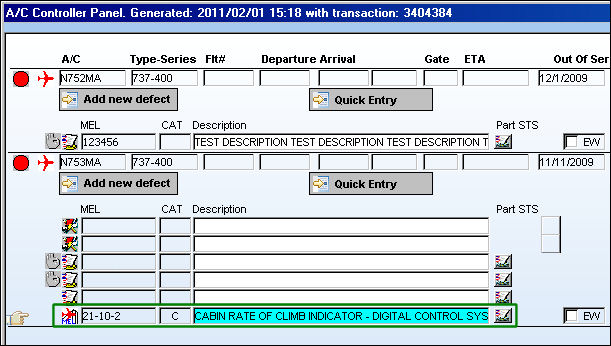
The MEL information entered in the Quick Entry window will affect the creation of the Defect Report. MEL functionality that can affect the the Quick Entry Defect Report creation are the Conflict MEL and Linked MEL functionality. For more information refer to the MEL Master, Conflict Tab and the MEL Master, Linked MEL Tab via the Settings Training Manual.
When the new Defect Report is selected in the A/C Controller Panel window, the Defect Report detail window appears.
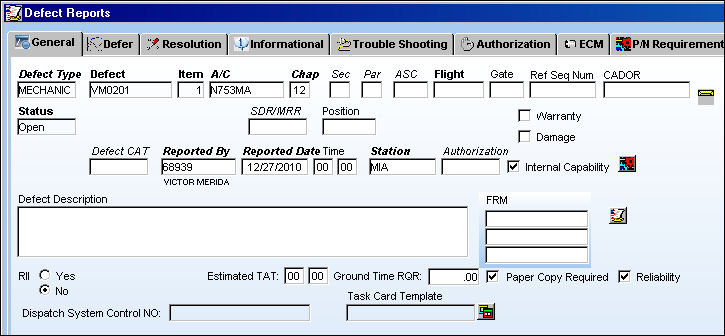
For more information refer to the Defect Report via the Technical Records Training Manual.
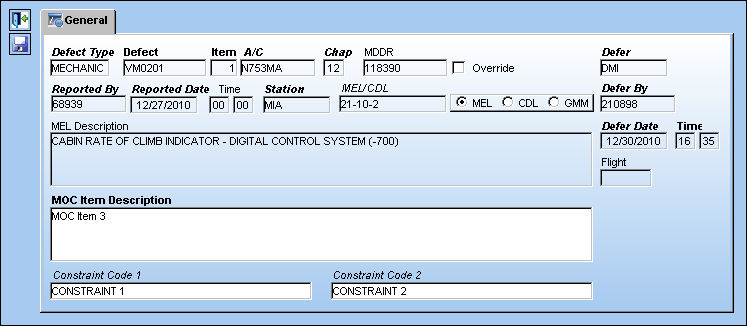
From the A/C Controller Panel, users can also select the Quick Entry  button to the right of each Defect Report to open the Defect Report pop-up window (as displayed above) and edit the MOC Item Description, Constraint Code 1 and Constraint Code 2 fields.
The following Switches  are also applied to the Defect Reports created through the Quick Entry window:
For more information refer to the above switches via the Technical Records Switches Manual.
Share
Print
|
©1997-2026 Trax USA Corp. All rights reserved. This manual may not be copied, photocopied, reproduced, translated, or converted to any electronic or machine-readable form, in whole or in part, without prior written approval from Trax USA Corp. |
 |