
 Share
Share
 Print
Print
|
|
|
|
|


Formulas
From the Formulas window, users can create P/N Control tracking formulas for Helicopter Aircraft. Formulas can be based on common Helicopter Aircraft data (i.e., 'total-landings,' 'total_hoist_hours,' 'total_np_cycles,' etc.), but they can also include configurable information. Previously created formulas can even be used within newer formulas (see below for details). These formulas are then applied to Rotor Wing P/N Controls by first selecting the Rotor Wing checkbox in the P/N Control tran code, then by selecting the desired formula. The Rotor Wing / K Factor fields of the P/N Master, Technical Engineering tab can also be applied to these formulas as well.
For information on how the Formulas are used to plan for Helicopter P/N Controls, refer to Planning P/N Controls for Helicopters.
 Rotor Wing Aircraft Integration
The Formulas window appears as follows.
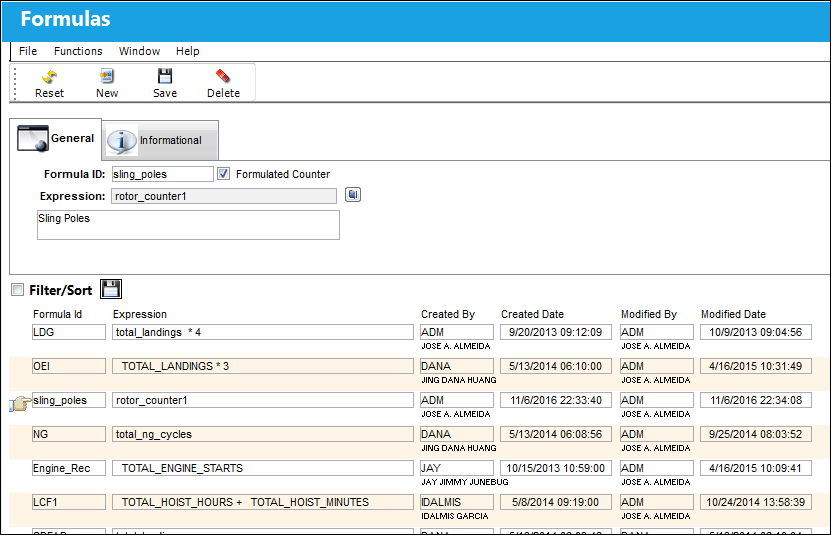
 This window is security-controlled via Settings/Update/Formula. For more information refer to the Security Explorer via the System Administration Training Manual.
The following information/options are available in this window:
_____________________________________________________________________________________
Formula ID
The name that identifies the formula. This field cannot contain more than twelve (12) characters.
Formulated Counter checkbox
When selected, the formula is displayed in the Formulated Counter drop down field of the P/N Control transaction code. The Formulated Counter field is only available in the P/N Control transaction code when the Rotor Wing checkbox is selected. For more information refer to P/N Control via the Settings Transaction Code Manual.
Expression
The formula expression created through the Formula  button.
Formula button
Select the button to access the Formula pop-up window. From this window, formulas are created by selecting the number buttons (1, 2, 3, etc.) and the calculation buttons (+, -, *, /, etc.). Users can also insert Rotor Wing Aircraft tracking options ('total-landings,' 'total_hoist_hours,' 'total_np_cycles,' etc.). When selected, the Formula prompt pops up as follows:
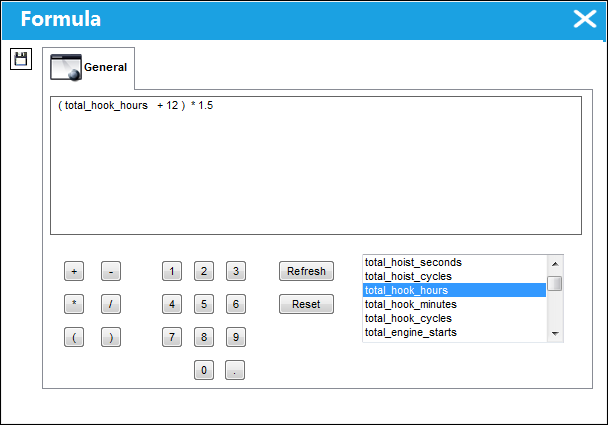
The following formula counters are available. Each counter is linked to a field in the system (such as A/C Actual Flights, Z-Records button, P/N Engine Recorder, P/N Master [Technical Engineering tab], P/N Controls, E/C [Schedule tab], etc.). Keep in mind that new formulas can be created by combining existing counters (see below).
- total_landings
- total_hoist_hours
- total_hoist_minutes
- total_hoist_seconds
- total_hoist_cycles
- total_hook_hours
- total_hook_minutes
- total_hook_cycles
- total_engine_starts
- total_ng_cycles
- total_np_cycles
- total_oei
- k1_factor
- k2_factor
- k3_factor
- index
- hours
- rotor_counter1
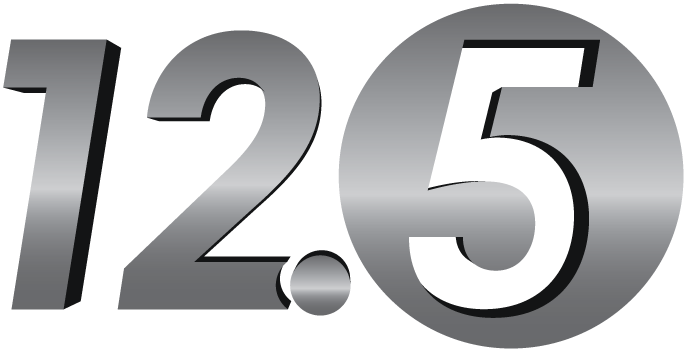 (for Sling Pole actual tracking)
 - rotor_counter2
- rotor_counter3
- rotor_counter4
- rotor_counter5
Description
A description of the formula.
Created By
The user who created the record.
Created Date
The date the record was created.
Modified By
The user who last modified the record.
Modified Date
The date the record was last modified.
_____________________________________________________________________________________
Creating New Formulas
Formulas within formulas allow users to modify existing formulas without having to re-create certain elements. For example, notice that the formula 'duty_cycle' is composed of (total_hoist_minutes / 120).
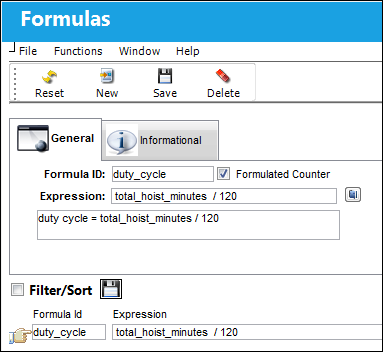
If a new formula is needed that requires the already existing formula, the existing formula can be the basis of the new formula. To do so, select the New  button then the Formula button. Then select the existing formula to apply it to the new formula.
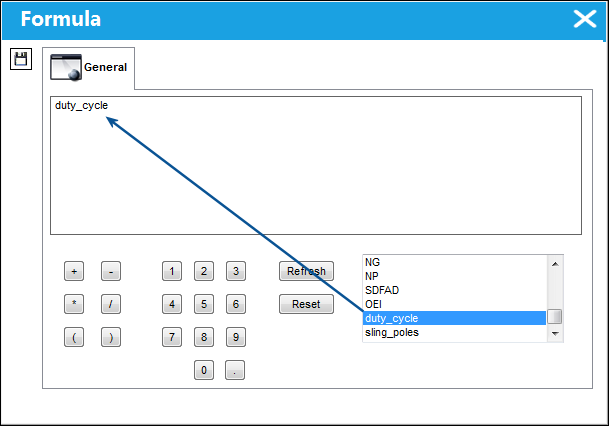
Then add a calculation and a number or another type of data. Once the formula expression is completed, select the Save  button.
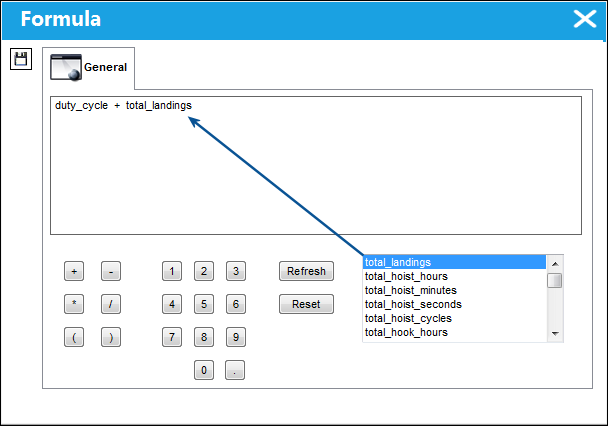
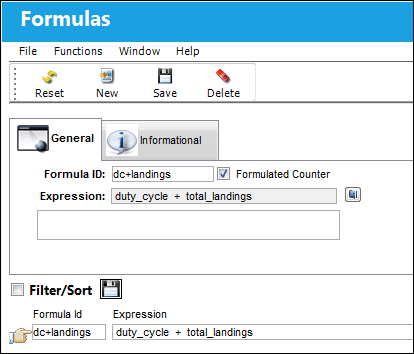
The new formula is then listed in the Formulas window. Notice that the entire formula, in this example, is explained in the description field.
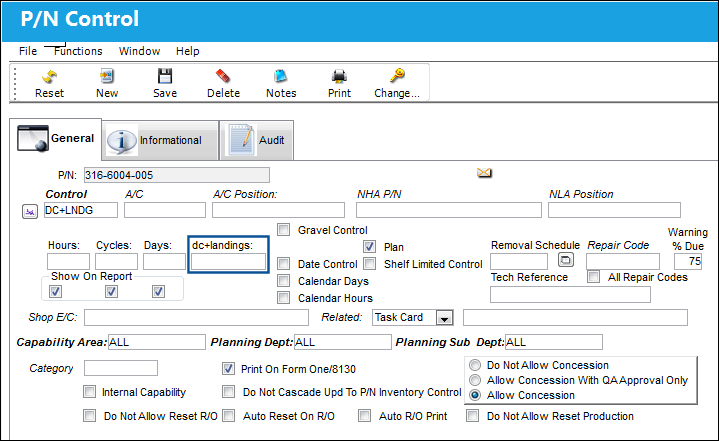
This formula can then be selected in the P/N Control transaction code if the Rotor Wing checkbox is selected. From the P/N Control window, notice that the Formula 'dc+landings' is selected for the P/N Control.
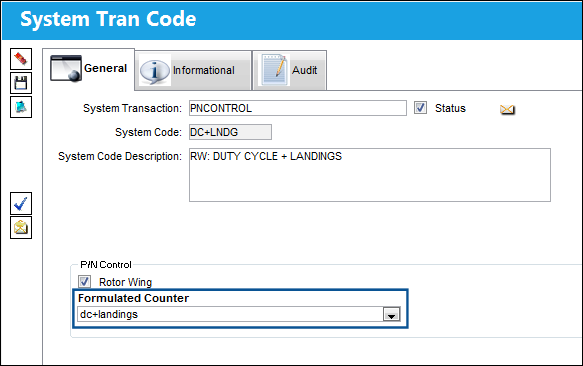
For more information refer to P/N Control via the Settings Transaction Code Manual.
When that same P/N Control is added to a helicopter part, a formula field is added to window called 'dc+landings'. The amount of time added in this field will be counted via the 'dc+landings' formula that was created in the Formulas window.
Share
Print
|
©1997-2026 Trax USA Corp. All rights reserved. This manual may not be copied, photocopied, reproduced, translated, or converted to any electronic or machine-readable form, in whole or in part, without prior written approval from Trax USA Corp. |
 |