
 Share
Share
 Print
Print
|
|
|
|
|



Select this button to allow the user to apply a Schedule to all effective A/Cs or multiple A/Cs under the same A/C Type/Series. They can be updated/changed by creating a range for A/C, S/N, Line, Variable No, SGML Designator, or IPC.SGML Designator, or IPC.
From the Engineering Effectivity Override window, select the Assign Schedule By Range  button:
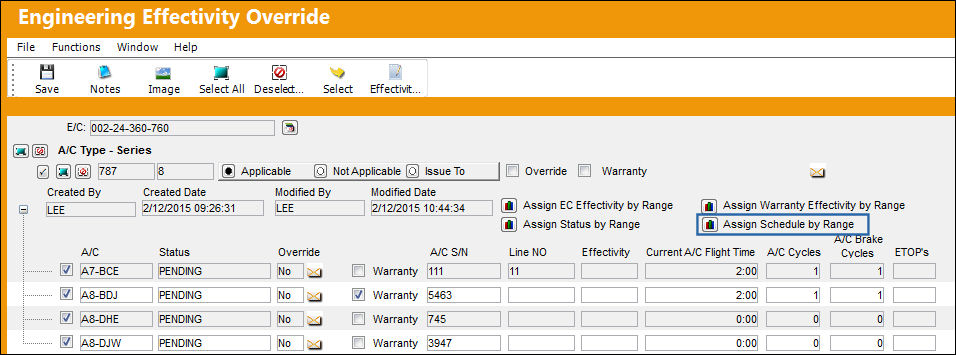
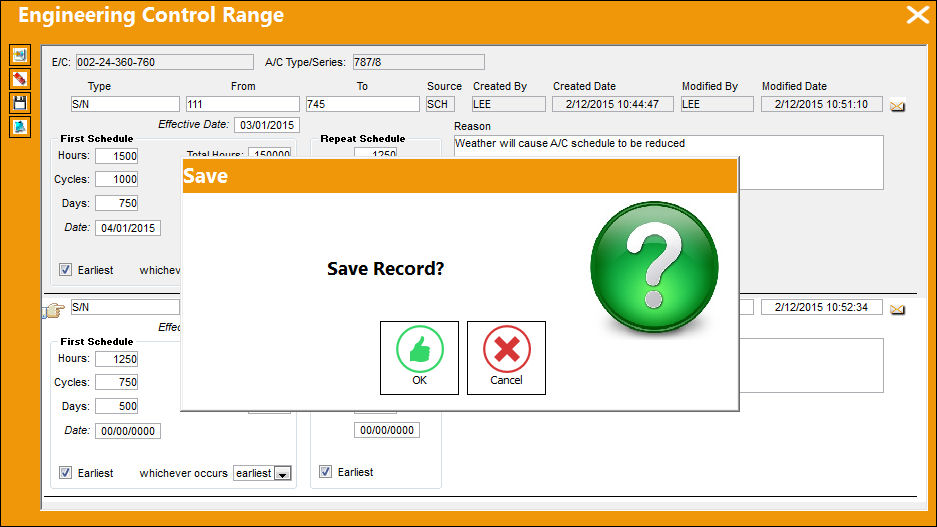
TRAX displays the Engineering Control Range window:
Select the New  button to create a Schedule range of effectivity for the E/C.
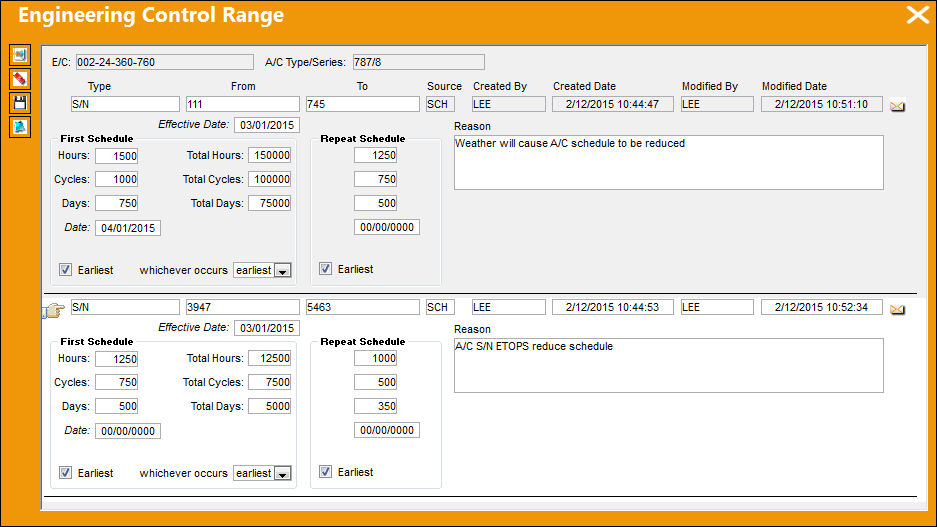
The following information/options are available in this window:
_____________________________________________________________________________________
Type Drop Down
Select the Range Type from the drop down menu. This option allows the user to easily enter a range without having to override the E/C to the A/C S/N level. For example, this option is used when an AD states a specific range that the AD is effective to. The user does not have to override the A/C Type/Series to manually select/deselect the necessary A/C Tail Numbers.
A/C - Apply effectivity by Aircraft. This information is pulled from the A/C Master, General tab, via the A/C Master.
S/N (Serial Number) - Apply effectivity by specific Aircraft Serial Number. This information is pulled from the A/C Master, General tab, via the A/C Master.
Line - This information is pulled from the A/C Master, Optional 2 tab, via the A/C Master.
Variable No - This information is pulled from the A/C Master, Optional 2 tab, via the A/C Master.
SGML Designator - This information is pulled from the A/C Master, Optional 2 tab, via the A/C Master.
IPC - This information is pulled from the A/C Master, Optional 2 tab, via the A/C Master.
From-To Range
Enter the range of aircraft with effectivity being applied or not.
Source
The way that the range was imported/created. This field is updated automatically. The available options are E/C, IPC, and MAN (Manual). The Source is 'MAN' when any part of the range was entered or altered manually.
Created By
The user who created the record.
Created Date
The date the record was created.
Modified By
The user who last modified the record.
Modified Date
The date the record was last modified.
First Schedule Hours/Cycles/Days
The First Schedule is the parameter and threshold for the initial occurrence and compliance of the E/C, as some E/Cs may have multiple schedules. The First Schedule only takes effect if there is no previous compliance against the E/C. The Effective Date based schedule is the initial Schedule Hours/Cycles/Days threshold parameter for this E/C. The hours/cycles/days are being calculated based on the effective date of the E/C. The system will default to the Earliest occurrence of these parameters, unless the Earliest flag is unchecked, then it will be the latest occurrence.
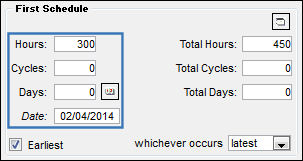
The Total Hours/Cycles/Days are calculated based on whatever the E/C is effective to. If the E/C is effective to an aircraft, the Totals will be based on the Total Hours/Cycles/Days of the aircraft. If the E/C is effective to a component, the Totals will be based on the Total Hours/Cycles/Days of the component.
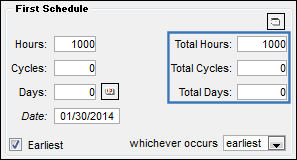
Planning Switch  PN_EC_INSTDAYS and the Calendar Days field selection will determine whether a P/N E/C's Due Date is calculated based on the part's installed date or on the P/N E/C's Effective Date. For more information refer to Switch PN_EC_INSTDAYS via the Planning Switches Manual.
Earliest checkbox
The Earliest checkbox option is selected if the E/C Schedule parameters are to be planned at the earliest occurrence. By selecting the Earliest checkbox, the schedule will be determined by which occurrence comes first: the Hours, Cycles, Days, or Date. For the latest occurrence, this checkbox should not be selected. This same logic is used independently by the parameters of the Effective Date-based Schedule (left) and of the Total Schedule (right).
If a combination of the Schedule Hours, Schedule Cycles, Schedule Days, and Schedule Date fields are populated with a schedule, checking the Earliest checkbox will make the E/C become due at whichever schedule option comes due first.
First Schedule Date
The initial Schedule Date limit (due date) on this E/C. For example, an AD might have a NLT (No Later Than) Date for the First Schedule of the E/C.
The First Schedule Date can now be populated and saved, even if the First Schedule A/C Total Hours/Cycles/Days is populated.
Whichever Occurs
This dropdown field selection allows users to control which schedule option will be used between both the Effective Date-based Schedule (left) and the Total Schedule (right). Select the 'Earliest' dropdown option to have the system default to the schedule that reaches the earliest occurrence between the Hours/Cycles/Days/Date parameters (left) or the Total Hours/Total Cycles/Total Days parameters (right). Select the 'Latest' option to default to the schedule that reaches the latest occurrence between the two schedule types.
Repeat Schedule
If the E/C has a Repeat Number greater than 1, then the Repeat Schedule is the parameter for the subsequent repetitive occurrences of the E/C for repeat compliance requirements. As with the First Schedule, some E/Cs may have multiple schedules. When an E/C has multiple schedules, the Earliest checkbox is pivotal in the configuration as the E/C may call for the compliance to be accomplished at the latest occurrence. The First Schedule information must be entered in order for the Repeat Schedule to be applicable.
The First and Repeat Schedules are not meant to be utilized by Shop E/Cs.
Repeat Schedule Hours/Cycles/Days
The Repeat Schedule Hours/Cycles/Days threshold parameter for this E/C (If applicable). The system will default to the Earliest occurrence of these parameters, unless the Earliest flag is unchecked, then it will be the latest occurrence.
If the EOM (End Of Month) checkbox is activated, the event will be set to the end of the month of the due date (i.e. if an event becomes due on the 21st day of a month, it will be set to the 30th or the 31st day.)
Repeat Schedule Date
The Repeat Schedule Date limit (due date) on this E/C. This is most common for an initial inspection and a follow up inspection.
Reason
Reason for the Schedule Effectivity to be updated/changed for the range.
_____________________________________________________________________________________
Select a Type from the Type drop down menu. In this example, the user has selected the S/N Type. Populate the From-To range, the Schedule information for the range to be changed to, a reason for the change (optional) and select the Save  button. The Save prompt appears. Select 'OK'.
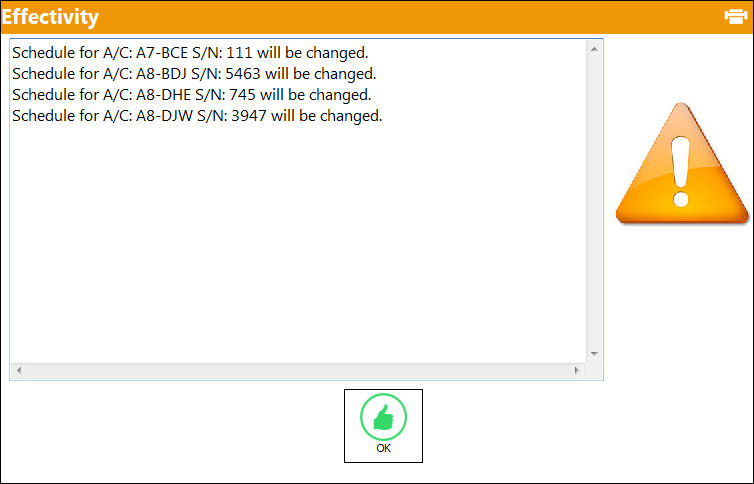
The following effectivity pop-up window will appear informing the user of the Schedule change(s).
Select 'Yes' to continue.
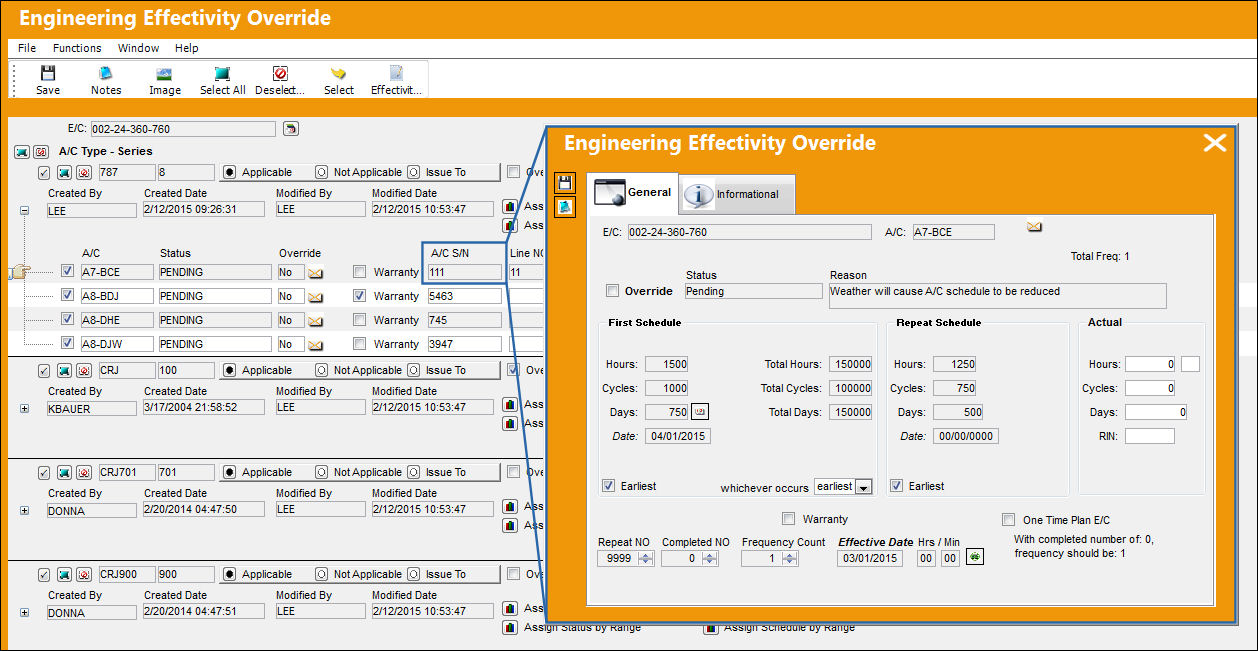
The Schedule Effectivity has been applied to the below aircraft range:
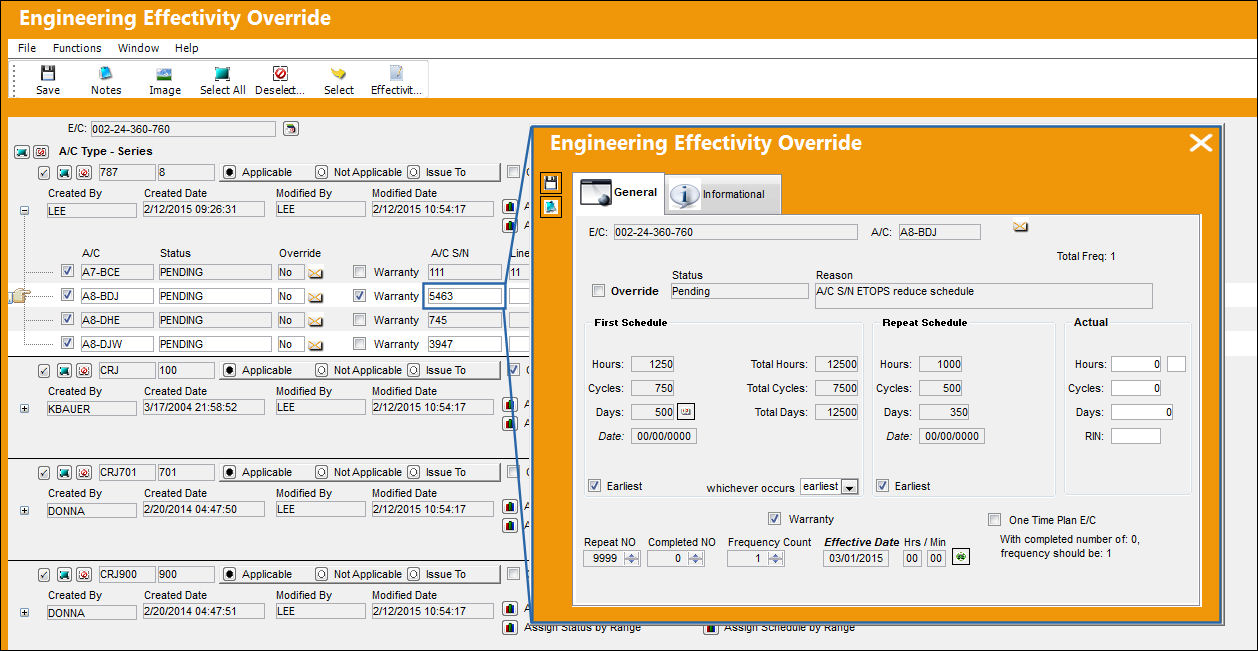
The different Schedule Effectivity has been applied to a different aircraft range:
Additionally, the Notes  button allows information relevant to the record to be included.
Share
Print
|
©1997-2026 Trax USA Corp. All rights reserved. This manual may not be copied, photocopied, reproduced, translated, or converted to any electronic or machine-readable form, in whole or in part, without prior written approval from Trax USA Corp. |
 |