
 Share
Share
 Print
Print
|
|
|
|
|


The A/C CTL  button allows the user to set up aircraft effectivity for the Engineering Control. Effectivity can be set up for the entire aircraft type/series or for individual A/C tail numbers. The aircraft that appears in the window for a user's selection depends on how the security access is configured at the aircraft level in Security Explorer. For more information, refer to the A/C Control Button, About Setting Security at the Aircraft Level, via Engineering Control.
When the A/C CTL button is selected, the Engineering Effectivity Override window appears as shown below:
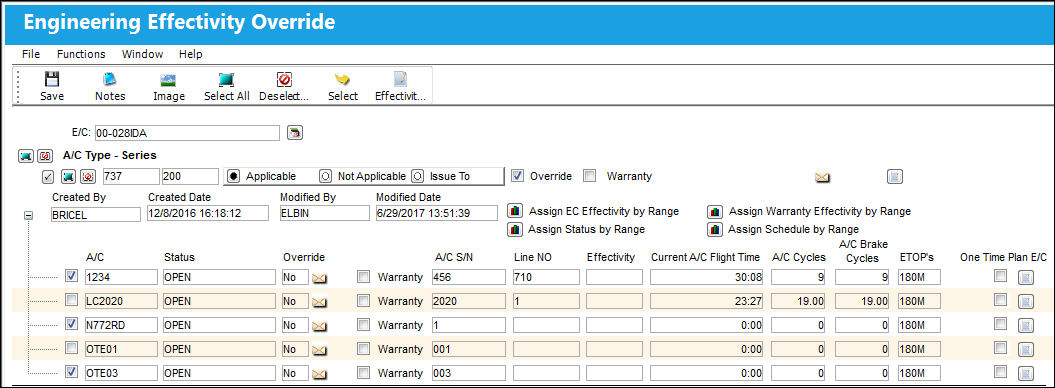
The following information/options are available in this window:
_____________________________________________________________________________________
E/C
The Engineering Control that specifies aircraft or component scheduled maintenance intervals. This is the Engineering Control having aircraft effectivity applied.
Fleet Select All  / Deselect All
  button
Use these buttons to select all fleets (including every aircraft) or to deselect all fleets.
A/C Type-Series  checkbox
Select this checkbox to add effectivity to the entire fleet.
Aircraft Select All / Deselect All button
Use these buttons to select all of a fleet's aircraft or to deselect all of a fleet's aircraft. The part will be effective to only those selected aircraft.
A/C Type-Series
The Aircraft Type and Series/Fleet assignment.
Applicable radio button
Select this radio button if the record is applicable (effective) to the associated A/C of the specified Type/Series. This can also be selected through the Effective checkbox of the A/C. If a record is 'Applicable' to a particular A/C and has an existing compliance history, and is changed to 'Not Applicable,' the association between the existing compliance history and the effectivity will be broken. This will adversely affect the records: 'Completed No.' data, last Reset Date, compliance history, and Planning Query forecasting.
To avoid this, once an A/C Type/Series is made 'Applicable', any necessary changes should be made at the A/C Tail number level. To do this, select the Override  button, select the specific A/C tail number (where the user wants to make changes), select the Override button, select the Override checkbox, and change the Status to N/A. Do not change the Effective Date and Completed No. fields.
When the Applicable radio button is selected for the A/C Type/Series, individual aircraft tail numbers can be manually overridden (selected/deselected) for E/C effectivity. To apply effectivity to clusters of aircraft tail numbers for the selected Type/Series, the following Range buttons are available:
Assign E/C Effectivity by Range  button - This option allows the user to apply effectivity to aircraft tail numbers under the same A/C Type/Series by using ranges based on the serial number, line number, variable number or SGML Designator of the aircraft. Select this button to access the Engineering Control Range window. For additional information, refer to the Engineering Control Range Button, via Engineering Control of the Engineering - E/C Training Manual.
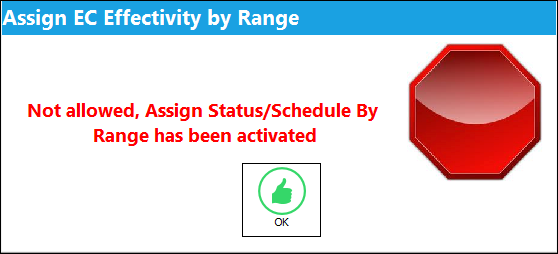
 There are various different range options used to apply E/C Effectivity for clusters of Aircraft. However, once one range option is used to assign E/C Effectivity, then other range options should not be used as conflicts could occur. Therefore, if the below 'Assign Status by Range' option has already been utilized to assign tail number effectivity, then the 'Assign E/C Effectivity by Range' option cannot also be applied. The system will display the following hard warning:
Assign Warranty Effectivity by Range button  - Select this button to access the Warranty Range window. This window allows the user to apply effectivity to an aircraft by using the serial number, line number, variable number or SGML Designator of the aircraft. For additional information, refer to the Assign Warranty Effectivity By Range Button, via Engineering Control Buttons of the Engineering - E/C Training Manuals.
Assign Status by Range button - Select this button to allow the user to apply a Status to all effective A/Cs or multiple A/Cs under the same A/C Type/Series. They can be updated/changed by creating a range for A/C, S/N, Line, Variable No, SGML Designator, or IPC.SGML Designator, or IPC. For additional information, refer to the Assign Status By Range Button, via Engineering Control Buttons of the Engineering - E/C Training Manuals.
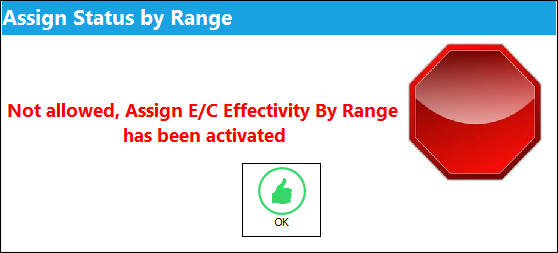
There are various different range options used to apply E/C Effectivity for clusters of Aircraft. However, once one range option is used to assign E/C Effectivity, then other range options should not be used as conflicts could occur. Therefore, if the above 'Assign E/C Effectivity by Range' option has already been utilized to assign tail number effectivity, then the 'Assign Status by Range' option cannot also be applied. The system will display the following hard warning:
Assign Schedule by Range button - Select this button to allow the user to apply a Schedule to all effective A/Cs or multiple A/Cs under the same A/C Type/Series. They can be updated/changed by creating a range for A/C, S/N, Line, Variable No, SGML Designator, or IPC.SGML Designator, or IPC. For additional information, refer to the Assign Schedule By Range Button, via Engineering Control Buttons of the Engineering - E/C Training Manuals.
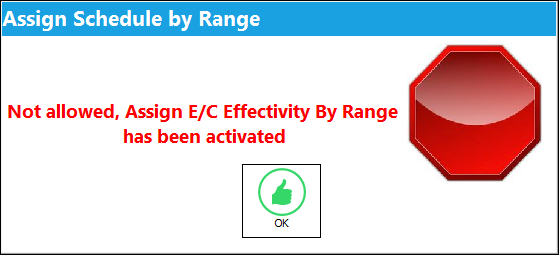
There are various different range options used to apply E/C Effectivity for clusters of Aircraft. However, once one range option is used to assign E/C Effectivity, then other range options should not be used as conflicts could occur. Therefore, if the above 'Assign E/C Effectivity by Range' option has already been utilized to assign tail number effectivity, then the 'Assign Schedule by Range' option cannot also be applied. The system will display the following hard warning:
Not Applicable radio button
Select this radio button if the record is not applicable (not effective) to the associated A/C of the specified Type/Series. This can also be conducted through deselecting the Effective checkbox of the A/C.
Issue To radio button
Select this radio button if the record has been issued to this fleet type, but does not need to be put into effect. If the record is for the A/C Type/Series that the company operates, but is not effective to the current aircraft, possibly because only certain line numbers apply, then the Issue To radio button can be selected.
Override checkbox
This will show as selected if an override has been applied to this individual aircraft's Effectivity.
Warranty checkbox
This will show as selected to indicate that warranty information is applied for a particular tail number of this A/C Type/Series.
Individual Engineering Control Audit (A/C Type/Series) 
Select this button to view an audit trail of all Aircraft Type/Series Effectivity changes made to the currently selected E/C.
Note: If effectivity for one specific A/C that is part of this Type/Series has been changed, the Audit record will show those individual changes. Otherwise, it will show only a single record for the entire Type/Series.
Expand  / Collapse
  buttons
Use these buttons to view all of a fleet's aircraft or to hide all of a fleet's aircraft. Once expanded, individual aircraft can be selected or deselected for effectivity.
Created By
The user who created the record.
Created Date
The date the record was created.
Modified By
The user who last modified the record.
Modified Date
The date the record was last modified.
Override Sampling Schedule  button
When selected the Engineering Schedule Override window appears where users can create override sampling schedules for aircraft. Applying these sampling override schedules and effectivity to certain aircraft is dependant on a Sampling Effective percentage and the sampling method selected through this window. For additional information, refer to the Override Sampling Schedule Button, via Engineering Control Buttons of the Engineering - E/C Training Manual.
A/C checkbox
A selected A/C checkbox indicates that the aircraft is effective to the E/C.
A/C
The individual aircraft tail number.
Status
The current E/C status for the Aircraft.
Override
This field indicates whether or not the E/C schedule has been overridden. To view and/or override the E/C's schedule, click the Select  button. For more information refer to the Engineering Effectivity Override (A/C E/C), via Engineering Control Buttons.
Warranty checkbox
Indicates whether or not this E/C is under warranty for the selected Aircraft tail number. This field can me manually selected/deselected.
A/C S/N
The Aircraft's Serial Number which is provided by the manufacturer. This serial number is like a registration number, but it is not dependent on a country code and therefore never changes.
Line No
A number provided by the manufacturer that works like a serial number. Some TraxDocs assign effectivity via this line number.
Effectivity
This field provided by the manufacturer and functions like a Line Number, only it is specific to engineering effectivity (like a reference to Service Bulletins, for example). It is entered through the A/C Master and is only informational.
Current A/C Flight Time
The current number of accumulated aircraft Flight Hours and Minutes as of the current Time As Of date.
A/C Cycles
The current number of accumulated Aircraft Cycles as of the current Time As Of date.
A/C Brake Cycles
The current number of accumulated Aircraft Brake Cycles as of the current Time As Of date.
ETOPS 
Indicates that this E/C is ETOPS rated with an extended range allotted to the aircraft.
One Time Plan E/C checkbox 
Indicates that the Child E/Cs schedule is being overridden as a one-time only E/C for the selected Aircraft. For Child E/Cs that are adopting its parent E/Cs schedule for a Work Order, if the Child E/C is transferred from that Work Order to another W/O, then this checkbox is selected for the W/Os specific Aircraft. Once the Child E/C is complied with for that Aircraft, the checkbox is automatically deselected. The One Time Plan checkbox should only be used through the functionality of Switch  ECCHLDTRC (when set to Yes). The functionality of this checkbox is for correcting purposes through the switch's automated functionality, and should therefore not be selected manually from the override window.
This checkbox can be selected or deselected for a specific aircraft either from this window (the main Engineering Effectivity Override window), or by selecting into the specific aircraft's Engineering Effectivity Override (A/C E/C) window.
- ECCHLDTRC - (Set One Time Plan to Checked status if Transferred/Canceled from a W/O) - When set to Yes, when a child E/C is TRANSFERRED or CANCELED (via TC cancel) from a W/O; the respective Child E/C will set to 'one time plan' on its own. After it takes the next compliance, the E/C will reset the one time plan. This functionality works if the transferred Child E/C has its own schedule; if not, the system will prevent the transfer/cancel.
The Child E/C must be brought onto the Work Order via a Parent E/C for this to function correctly.
Individual Engineering Control Audit (Individual A/C)
Select this button to view an audit trail of individual Aircraft Effectivity changes made to the currently selected E/C.
_____________________________________________________________________________________
Additionally, the following buttons offer functionality:
The layout and functionality of this window has been modified in TRAX Version 11 and all later releases. Notice that effectivity can be applied to entire fleets and/or individual aircraft all from the same window. The Override button is no longer required to apply individual aircraft effectivity in V11. For information on the previous layout, refer to the A/C Control Button, via Engineering Control.
 A/C Control - Multi Company Functionality
Depending on the Company entered in the E/C Company field, only those aircraft with the same G/L Company (via the A/C Master, Other 1 tab) will appear in the Engineering Control Effectivity window.
This is part of the Multi-Company functionality. The Company field of the E/C window only appears when G/L Interface Switch COMPANYMULTI is set to 'Yes.'
Share
Print
|
©1997-2026 Trax USA Corp. All rights reserved. This manual may not be copied, photocopied, reproduced, translated, or converted to any electronic or machine-readable form, in whole or in part, without prior written approval from Trax USA Corp. |
 |