
 Share
Share
 Print
Print
|
|
|
|
|


The Document  button allows the user to create a reference to a document (in any format) that exists at your facility which may or may not be entered into the system (i.e. Foreign Directives).
The associated document(s) appear in the AD Status report (Engineering/Print/Engineering Control Print) in the Document/Service Bulletin column.
From the E/C Window, select an E/C. Select the Document button. The following window will appear. Select the New  button to create a new record.
On the system Query, Print, and Explorer, the user can select any one of these documents and get information about the main E/C it is associated with.
Additional functionality can be utilized through the Engineering Document, Informational tab and the Notes  and Import
  buttons.
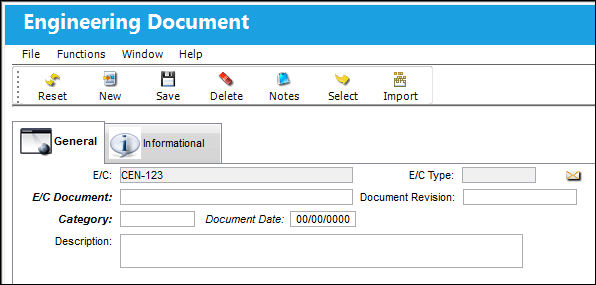
The following information/options are available in this window:
_____________________________________________________________________________________
E/C
The Engineering Control that specifies aircraft or component scheduled maintenance intervals. The selected E/C to which document association is to be made to.
E/C Type
The Engineering Control Type.
E/C Document
The document reference number associated to the E/C.
Document Revision
The documents most recent revision number.
Category
The category code of the document that is being referenced. This is set up via System Tran Code Explorer/Engineering/E/C Document Category.
Document Date
The date of the document being entered into the system.
Description
A short description of the document.
_____________________________________________________________________________________
This window allows the user to view documents (explained above) as well as E/Cs that have been linked using the E/C Link  button.
For example, the user can utilize the Document button to organize E/Cs and then run E/C Prints. The user is given an Airworthiness Directive (AD) that is the same or similar to that of a French Directive (CN). Instead of setting up one E/C for the AD and one E/C for the CN, the user can create the E/C Document Category of “CN” (Settings/ Explorer/System Transaction Code), set up the one E/C for the AD, and use the Document button. In the E/C Document field, enter the CN name. In the Category field, enter “CN”. Once the E/C is complied with, the user can look up compliance information via Engineering/Print/Engineering Control Print. Enter either the CN or AD number into the Document field in the Engineering Compliance prints and the associated data will display in the prints (i.e. compliance prints).
 E/C Document via Non-Routine Express:
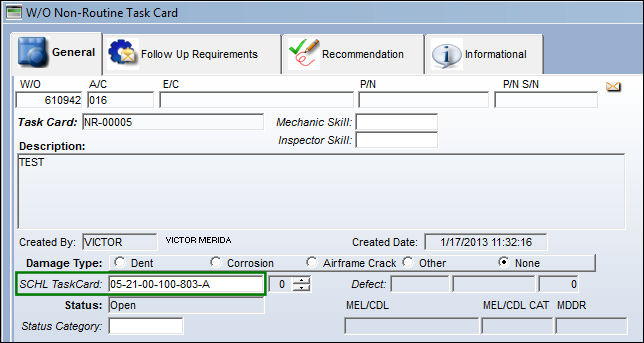
When a FUR is created via the Follow Up Requirement button of the W/O Non-Routine Express window, the Scheduled Task Card entered in the Non-Routine Express window automatically becomes the E/C Document for the FUR E/C. For example, notice that the following Non-Routine Task Card is associated to a Scheduled Task Card.
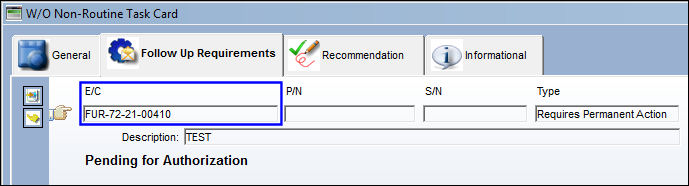
A FUR E/C is then created for the N/R T/C by selecting the Follow Up Requirement button.
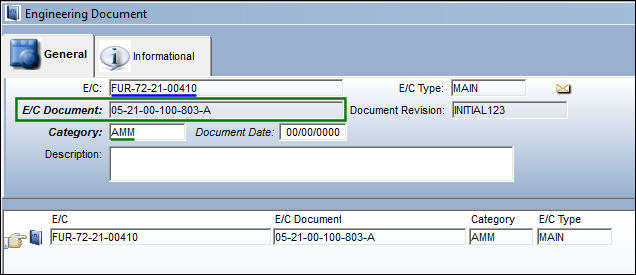
The automatically created E/C is then viewed from the Engineering Control window. When the Engineering Document button is selected from the Engineering Control window, notice that the E/C Document for the FUR E/C is the Scheduled Task Card that was entered in the N/R Express.
Share
Print
|
©1997-2026 Trax USA Corp. All rights reserved. This manual may not be copied, photocopied, reproduced, translated, or converted to any electronic or machine-readable form, in whole or in part, without prior written approval from Trax USA Corp. |
 |