
 Share
Share
 Print
Print
|
|
|
|
|


Select the Document Control  button to create a “shortcut” from a pre-existing document to this E/C. The document must remain in the location specified (address or path) in order for the “shortcut” to the document to be maintained. This “shortcut” will not have any functionality and will be linked for reference only on E/C Detail Reports.
Select the Document Control button. The Document Control window appears. Select the New  button. The Select Document File window will open. Select a file to be attached to the E/C.
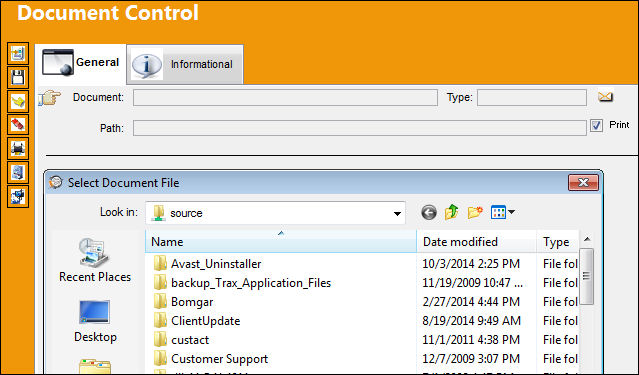
The document may be in a variety of formats including Microsoft Word (.DOC), Microsoft Excel (.XLS) or Adobe Portable File Document (.PDF) format, video, HTML, CGM, audio, etc.
Select the file to be attached to the E/C and select the Open button to attach.
TRAX displays the following pop-up. Select OK to confirm the Document is to be linked to the E/C.
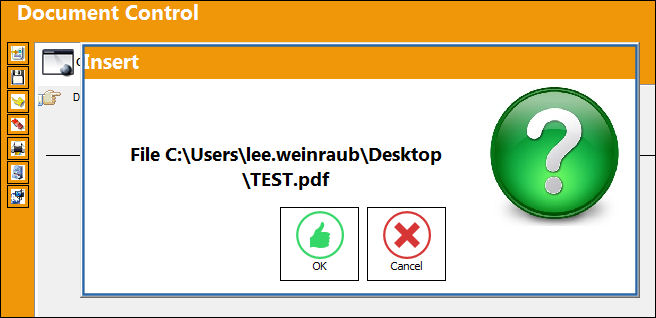
The file will be linked to the E/C upon selecting the Save  button. Select the Save button.
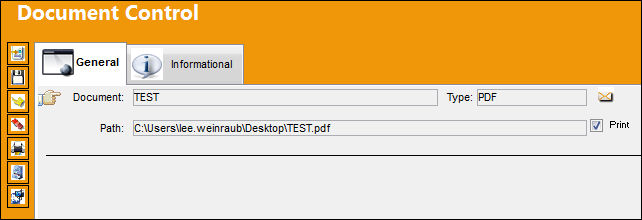
The Save prompt appears. Select OK.
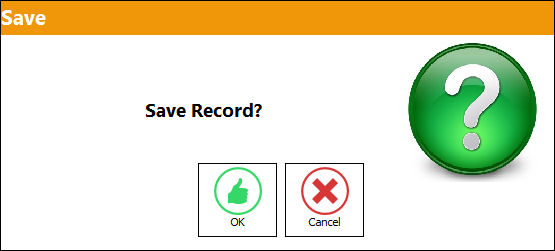
Exit the Document Control Window. The file is now attached to the E/C as shown below:
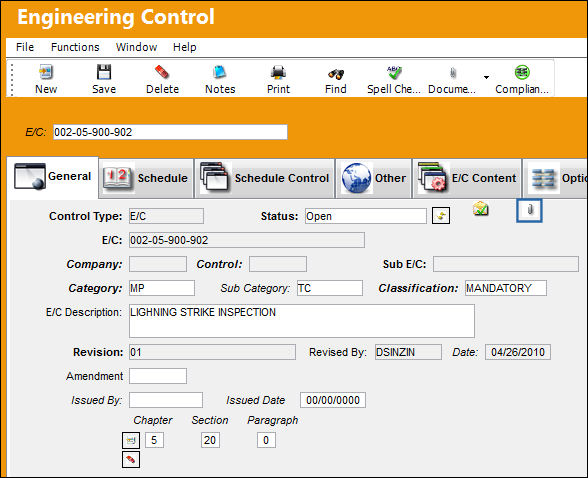
The user can create shortcuts to an unlimited amount of documents as desired by selecting on the New button and repeating the process.
For information regarding the TraxDoc  button, refer to the TraxDoc Button Via the Document Control Button.
For information regarding the Web Link  button, refer to the Web Link Button Via the Document Control Button.
Share
Print
|
©1997-2026 Trax USA Corp. All rights reserved. This manual may not be copied, photocopied, reproduced, translated, or converted to any electronic or machine-readable form, in whole or in part, without prior written approval from Trax USA Corp. |
 |