
 Share
Share
 Print
Print
|
|
|
|
|



The New Express  button allows the user to create an Engineering Control and their associated Task Card concurrently. The New Express feature combines much of the functionality of the Engineering Control and the Task Card into one window, the Engineering Task Card Express. Utilizing this creates both an Engineering Control and a Task Card, with the same name and effectivity, along with associating the Task Card to the Engineering Control.
Aside from the General and Schedule tab, the tabs in the Engineering Task Card Express window feature the same functionality as those in the Engineering Control window. For more information, refer to the Schedule Control, Other, E/C Content, Optional, P/N Effectivity Control, Warranty, Affected Manuals, Schedule Controlled By, Authorization History, Location/Site Ban Control, Restrictions, Informational, Revision History, and Vendor Restrictions tabs.
The Engineering Task Card Express, General tab includes information from the Engineering Control's General and Schedule tabs along with general information regarding the Task Card, as seen in the following:
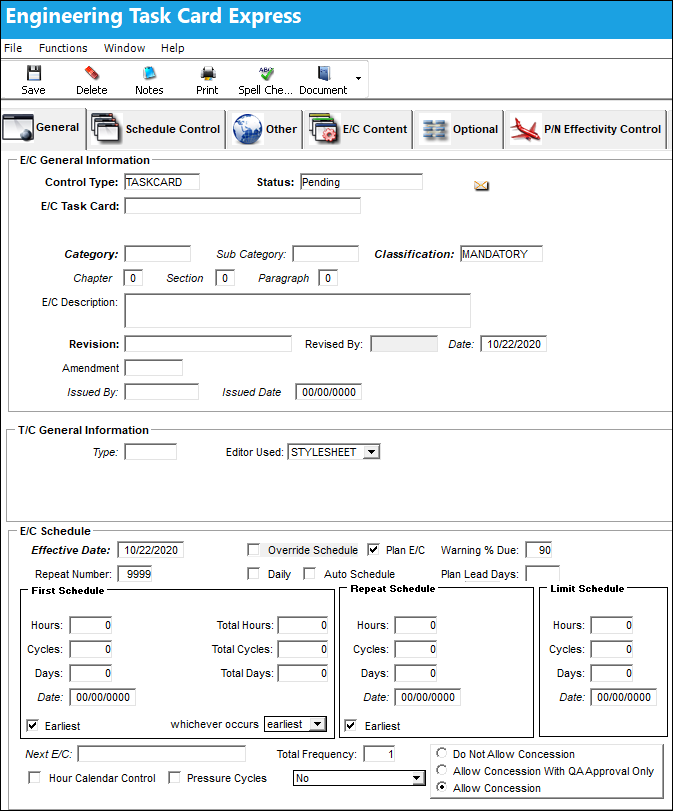
The following information/options are available in this window:
_____________________________________________________________________________________
Control Type
As an Engineering Task Card, this will default to TASKCARD.
Status
The status of the E/C. When creating a new E/C the initial status will default to Pending; if the user requires to hold this E/C until ready it can be left as Pending, or alternatively it can be changed to another status.
When an E/C Status is changed, the status, in most cases, cascades down to the E/C effective items. For more information refer to E/C Status Cascade Functionality via the Engineering - E/C Training Manual.
The following Status options are available:
Applicable/Not Embody - The E/C is applicable to an A/C Type/Series or Part Number, but may not be mandatory. This status allows the E/C to be entered in the system, but does not require compliance.
Cancel - The E/C has been cancelled.
N/A - The originating document (AD, SB, MOD, etc.) has been evaluated and is deemed not effective to a specific A/C or P/N.
Open - The E/C is Open.
Pending - This is the default status. This will be the status until the E/C is authorized. If the user requires holding this E/C until ready, it can be left as Pending even after the record has been saved. Once the E/C is authorized the status will show as Open.
Rejected - The E/C was rejected or not authorized and may need to be sent back through the authorization process for revision. This status should not be selected manually.
Terminated - The E/C is no longer in use. It has either been complied with for all effective aircraft or components, or the action of another E/C has terminated it. When an E/C is terminated, the termination applies to the entire fleet. This status should not be selected manually.
E/C Task Card
The name/number given to the Engineering Task Card. This will be applied to both the Engineering Control and Task Card.
Company
The name of the airline company for which the E/C will be utilized. The Company used to auto generate the E/C reference. When this field is populated, only those aircraft with the same G/L Company via the A/C Master, Other 1 tab can be made effective to the E/C. When the 'ALL' option is selected the Company field will not auto generate the E/C reference. The E/C reference will auto generate from the Sub E/C field.
This field appears only when G/L Interface Switch  COMPANYMULTI is set to 'Yes.' This feature is part of the Multi-Company functionality. Parent company's airlines are entered into this field. Then, when the P/N is entered into the detail window, the G/L field will be auto-populated with this airline's previously created G/L Account. When the switch is set to 'No' the field is titled Category and functions as defined above. For more information see the G/L Interface Switch COMPANYMULTI via the G/L Interface Switches Manual.
Category
The category of the E/C (e.g., AD, SB, CHECK). The E/C Category System Transaction Code is set up via Settings/ Explorer/ System Transaction Code/ Engineering. E/C Authorization Steps and System Notifications can also be set-up within the E/C Category. The category can be used for searching and reporting data in prints. For more information, refer to the E/C Category via the Engineering Transaction Codes Manual.
Sub Category
A Sub Category can be used to further define the E/C Category, if applicable. For example, users may want to classify their ADs for Engines, APUs, and Landing Gear separately. The Sub Category System Transaction Code is set up via Settings/ Explorer/ System Transaction Code/ Engineering.
Classification
The classification of the E/C (i.e. Mandatory, Optional, etc.). E/C classifications can be made mandatory by selecting the mandatory property checkbox in the E/C Mandatory Classification transaction code (via Settings/ Explorer/ System Transaction Code/ Engineering). If a P/N E/C has a classification where the mandatory property checkbox is selected, the system will force compliance at the next vendor or shop repair order visit and cannot be overridden. A part with a mandatory P/N E/C should only be added to a R/O when compliance is required and the work will be accomplished during that repair visit; these P/N E/Cs will not receive automatic compliance upon receipt of the R/O. E/C classifications with the mandatory property checkbox selected will trigger mandatory flags and alerts throughout the system (i.e. planning query results); and when the E/C or P/N E/C planning element checkboxes are selected in the Planning Query, the E/C Classification field appears in the planning filters. For more information refer to the E/C Mandatory Classification via the Engineering Transaction Code Manual.
ATA Chapter, Section, and Paragraph
The ATA chapter/section/paragraph, as applicable. Please refer to the ATA Specifications section of the Settings manual for more information.
System Notifications can be sent to select users whenever a new P/N Serial Number is received into Inventory that is associated to an Engineering Control with the specified ATA Chapter(s). The notifications are sent once the E/C for the P/N is accepted via the P/N E/C Selection window at Order Receiving, Receiving Inspection, or P/N Initial Load (see Receiving Switch ENGCOMP for more information). This System Notification is called 'RECEIVED PART WITH EFFECTIVE EO.'
Description
The description is the basic title of the E/C. The number of characters is limited in this field and a longer description can be entered in the E/Cs E/C Content Tab.
Revision
The revision number of the E/C. This can be alpha numeric. When the revision is changed and saved, the system will prompt the user with a revision control record, where the changes made for the specific revision can be saved for auditing purposes. The 'Revised By' field will be automatically updated with the user's user code, and the revision date can be set as required.
If Switch ECAUTH is set to Yes, authorization will be required for all E/Cs that have been revised.
Revised By
The user who creates and/or authorizes the E/C revision.
Date (Revision Date)
The date the E/C was put into revision (if E/C is currently in revision), or the date the final authorization step was completed in the E/C revision authorization process.
Amendment
The amendment field normally relates to AD amendment numbers. This is alpha numeric and issued by the authority or company issuing the P/N E/C.
Issued By
The vendor or authority (i.e. FAA, JAA Task Card.) who issued the E/C.
Issued Date
The date the E/C was issued by the vendor or authority.
Type (Task Card)
The Task Card Type, as defined in the Transaction Code. This code can be used to sort and locate Task Cards.
- TCTMAND - (Task Card Type Mandatory) - If set to Yes, the Type field in the Task Card window will be mandatory.
Editor Used (Task Card)
The application that will be used to edit the Task Card information. The application will also be used to edit Task Cards when those Task Cards are placed on Work Orders via Production/Update/Work Order. Selectable formats include: Word ®, TASKCARD, or the default Powerbuilder ® RTF (i.e. NONE). This is a customized layout for the Task Card.
Only the TASKCARD Editor allows for Items to be added directly from this window after the initial save.
NONE - This is the system default editor and should be entered in all capital letters. For additional information regarding how the NONE Editor functions, refer to NONE (Default TRAX Editor) via the Task Card Editor section of the Engineering - T/C Training Manual.
WORD - This should be entered in all capital letters. This application is a Rich Text Editor with embedded images. For additional information regarding how the WORD Editor functions, refer to the WORD Editor via the Task Card Editor section of the Engineering - T/C Training Manual.
TRAXDOC - The TRAXDOC Editor uses uploaded Style Sheets in TRAXDOC as a template for a print. The Task Card print layout can be defined by a TRAXDOC Style Sheet. Task Cards of each TRAXDOC can have a different layout based on the criteria of the TRAXDOC (i.e. fleet type, customer). TRAXDOC allows the user to modify Task Cards using Style Sheets. The TRAXDOC Editor is not a RTF Editor. When the TRAXDOC Editor is selected, the following field and button appears. For additional information regarding how the TRAXDOC Editor functions, refer to the TRAXDOC Editor via the Task Card Editor section of the Engineering - T/C Training Manual.
STYLESHEET - The Style Sheet Editor is a RTF (Rich Text Format) Editor which allows the user to enter the Task Card item text using the available RTF options. Please see descriptions for the various options and buttons below. For additional information regarding how the STYLESHEET Editor functions, refer to the STYLESHEET Editor via Task Card Editor section of the Engineering - T/C Training Manual.
TASKCARD - When selected, this editor makes additional information available in the Task Card window for convenience. Users can view, add, and/or modify the Materials, Zones, Panels, and Items associated to the Task Card. For more information, refer to the TASKCARD Editor via the Engineering - T/C Training Manual.
Effective Date
Entered as the date from which the user requires to track time on the E/C being set up unless a Total Schedule has been defined. Once the effective date is entered and the A/C or P/N Effectivity for the E/C is applied, changing the effective date on this Tab will not change the effective dates on each individual aircraft or component that the E/C is effective to. Either the Effectivity will need to be removed and re-applied, or the effective date field will need to be changed individually in the Effectivity Override window for each tail number or component.
If the effective date is greater than the current date, planning will not forecast for this E/C until the effective date has been met.
Override Schedule checkbox
The Override Schedule checkbox will display as checked when an Override Schedule has been activated for the E/C. The Override  button allows an alternate schedule to be activated for this E/C once a specific set of criteria is met. The alternate schedule can be applied against either the First Schedule or the Repeat Schedule of the E/C. For more information, please refer to the Override button via the Engineering Control, Schedule Tab.
For date controlled E/Cs, the actual date of compliance will be changed to the Work Order's date once the Work Order is closed.
Plan E/C checkbox
The Plan E/C checkbox must be selected for the E/C to appear in the A/C Planning Query option. If de-selected, the E/C will not appear in the A/C Planning Query. This checkbox may be de-selected in the event that the user does not want to plan for an E/C that is a known daily occurrence and allows for more flexibility in planning convenience items verses mandatory items.
This will default to being selected.
Warning % Due
The Warning Percentage Due field is used to make planners more effective so as not to perform an E/C too early. For example, if an E/C has a schedule of 100 days with a Warning Percentage Due of 90%, when the E/C has accumulated 90 days of actual time (usage from the last compliance) the planner will be flagged in Planning, via the Due Date/ Overdue field. For additional information, refer to Due At, via A/C Planning Details of the Planning Training Manual.
If an E/C has Lead Days, this will also influence the Warning % Due and impact the Due Date in the A/C Planning Query. Enter the percentage of the schedule that must be used before this E/C Due Date becomes highlighted in yellow within the A/C Planning Query.
The default percentage that will appear is based upon the configuration of Switch PLANDUE%. The default percentage can be overridden on the specific E/C as required by entering a different value in the Warning % Due field.
Repeat Number
The number of occasions the E/C will be repeated. If the Repeat Number is set to 1, the E/C is a one time only E/C and only the First Schedule is applicable. If the Repeat Number is set to 9999, the E/C will be carried out on the First Schedule 1 time and then the Repeat Schedule indefinitely. If the Repeat Number is a specific number, such as 5, the E/C will be carried out on the First Schedule 1 time and then be repeated 4 times according to the parameters configured on the Repeat Schedule (and then terminated).
If the Repeat Number is set to 1, the Redo checkbox appears:
Redo E/C checkbox - Select this checkbox if a company has a one time only E/C that has been complied with, but for some reason one section of the E/C or the entire E/C must be performed again. In this scenario, the E/C must be re-opened.
This checkbox is informational only.
Daily checkbox
When the Daily checkbox is selected, actual hour/cycles (time) are reset and a compliance record is written for this E/C upon the completion of the Task Cards on an 'Open' Work Order rather than at the closing of the W/O. This feature is useful for the scheduling of recurrent daily E/Cs. Note that a Daily E/C should only have one Task Card linked to it. And once that one T/C is closed on the Work Order, the Daily E/C's compliance is recorded.
The First and Repeat Schedule Days field on the (Schedule Tab) must be set to 1 for proper functioning of Daily E/C compliance.
Plan Lead Days
The number of days prior to the Due Date that the event will show up in the A/C Planning Query results window in the Planning Date field. For example, if the maintenance event is due on May 20, and the Plan Lead Days field is 10, the event will show as planned for May 10.
The color coding for the Planning Date field is configured in the Planning Transaction Conditions System Transaction Code, where a color can be selected.
First Schedule Hours/Cycles/Days
The First Schedule is the parameter and threshold for the initial occurrence and compliance of the E/C, as some E/Cs may have multiple schedules. The First Schedule only takes effect if there is no previous compliance against the E/C. The Effective Date based schedule is the initial Schedule Hours/Cycles/Days threshold parameter for this E/C. The hours/cycles/days are being calculated based on the effective date of the E/C. The system will default to the Earliest occurrence of these parameters, unless the Earliest flag is unchecked, then it will be the latest occurrence.
The First and Repeat Schedules are not meant to be utilized by Shop E/Cs.
Total Schedule section
The Total Hours/Cycles/Days are calculated based on whatever the E/C is effective to. If the E/C is effective to an aircraft, the Totals will be based on the Total Hours/Cycles/Days of the aircraft. If the E/C is effective to a component, the Totals will be based on the Total Hours/Cycles/Days of the component.
The Total Schedule works for both A/C E/Cs and P/N E/Cs and a mixed Schedule can be utilized between the Effective Date Based Schedule and the Total Schedule. For E/Cs created with a Total Days schedule, the planning is driven by the Manufacturer Date, via A/C Master, Other 1 tab. However, if the Manufacturer Date is not populated, then Planning will be driven by the Service Date, via A/C Master, General tab.
Planning Switch PN_EC_INSTDAYS and the Calendar Days field selection will determine whether a P/N E/C's Due Date is calculated based on the part's installed date or on the P/N E/C's Effective Date. For more information refer to Switch PN_EC_INSTDAYS via the Planning Switches Manual.
Earliest checkbox - The Earliest checkbox option is selected if the E/C Schedule parameters are to be planned at the earliest occurrence. By selecting the Earliest checkbox, the schedule will be determined by which occurrence comes first: the Hours, Cycles, Days, or Date. For the latest occurrence, this checkbox should not be selected. This same logic is used independently by the parameters of the Effective Date-based Schedule (left) and of the Total Schedule (right).
If a combination of the Schedule Hours, Schedule Cycles, Schedule Days, and Schedule Date fields are populated with a schedule, checking the Earliest checkbox will make the E/C become due at whichever schedule option comes due first.
First Schedule Date - The initial Schedule Date limit (due date) on this E/C. For example, an AD might have a NLT (No Later Than) Date for the First Schedule of the E/C.
The First Schedule Date can now be populated and saved, even if the First Schedule A/C Total Hours/Cycles/Days is populated.
EOM checkbox - If the EOM checkbox is selected, the E/C will be due at the end of the month of the calculated due date (i.e. if an E/C is calculated to be due April 20, it will show up in Planning as due at the end of the month, i.e. April 30).
This checkbox is only available when the Days field is populated.
First Schedule RIN - The Retirement Index Number is the retirement life based on fatigue damage from normal helicopter lifts and takeoffs. New components will begin with an accumulated RIN of zero that will be increased as lifts and takeoffs are performed. Operators must record the number of lifts and takeoffs and increase the accumulated RIN accordingly. When the maximum RIN or retirement flight hours is reached, whichever occurs first, the component will be removed from service. This schedule pertains to Rotor Wing aircraft. For additional information regarding Rotor Wing aircraft, refer to the Rotor Wing Aircraft Integration Process.
This field only appears when Switch RINCONTROL is set to Yes. For additional information, refer to Switch RINCONTROL via the Engineering Switches Manual.
Rotor Wing Schedule drop down - This drop down field allows users to select specific Rotor Wing Aircraft data to track such aircraft. This active field replaces the RIN field (above). The options are Landings, Hoist Time, Hook Time, Hoist Cycles, and Hook Cycles. Select one of the options then add a tracking amount in the field to the right of the drop down. The Rotor Wing Schedule fields are only available when a Rotor Wing Aircraft Type/Series are made effective to the E/C. Aircraft are designated as Rotor Wing when the Rotor Wing Aircraft checkbox is selected via the A/C Type/Series, General tab. To make an A/C Type/Series effective to the E/C, select the A/C Control  button. For additional information regarding Rotor Wing aircraft, refer to the Rotor Wing Aircraft Integration Process.
Date to Days Calculator  button - The Date to Days Calculator allows users to select future dates. Once selected, the button calculates the difference between the Effective Date and the Selected Date.
Override Standard Schedule button (A/C E/C) - The Override Standard Schedule button allows an alternate schedule to be activated for the selected Aircraft E/C once a specific set of criteria is met. The alternate schedule can be applied against either the First Schedule or the Repeat Schedule of the E/C. Once the scheduling parameters that are defined in the upper fields of this window are met, the information appearing in the Override Schedule area of the window will be enacted and override the default schedule that appears on the Schedule Tab. For additional information, refer to the Override Standard Schedule (E/C) Button, via The Engineering Control, Schedule Tab.
Override Standard Schedule  button (P/N E/C) - This Override button works like the above Override button but for P/N E/Cs. For more information refer to the P/N CTL Button, via Engineering Control.
Whichever Occurs - This dropdown field selection allows users to control which schedule option will be used between both the Effective Date-based Schedule (left) and the Total Schedule (right). Select the 'Earliest' dropdown option to have the system default to the schedule that reaches the earliest occurrence between the Hours/Cycles/Days/Date parameters (left) or the Total Hours/Total Cycles/Total Days parameters (right). Select the 'Latest' option to default to the schedule that reaches the latest occurrence between the two schedule types.
Repeat Schedule section
If the E/C has a Repeat Number greater than 1, then the Repeat Schedule is the parameter for the subsequent repetitive occurrences of the E/C for repeat compliance requirements. As with the First Schedule, some E/Cs may have multiple schedules. When an E/C has multiple schedules, the Earliest checkbox is pivotal in the configuration as the E/C may call for the compliance to be accomplished at the latest occurrence. The First Schedule information must be entered in order for the Repeat Schedule to be applicable.
The First and Repeat Schedules are not meant to be utilized by Shop E/Cs.
Repeat Schedule Hours/Cycles/Days - The Repeat Schedule Hours/Cycles/Days threshold parameter for this E/C (If applicable). The system will default to the Earliest occurrence of these parameters, unless the Earliest flag is unchecked, then it will be the latest occurrence.
If the EOM (End Of Month) checkbox is activated, the event will be set to the end of the month of the due date (i.e. if an event becomes due on the 21st day of a month, it will be set to the 30th or the 31st day.)
Repeat Schedule Date - The Repeat Schedule Date limit (due date) on this E/C. This is most common for an initial inspection and a follow up inspection.
Repeat Schedule RIN - Retirement Index Number. This is the Repeat Schedule RIN threshold parameter for this E/C (If applicable). The system will default to the Earliest occurrence of these parameters, unless the Earliest flag is unchecked, then it will be the latest occurrence.
Repeat Rotor Wing Schedule drop down - This drop down field allows users to select specific repeat Rotor Wing Aircraft data to track such aircraft. This active field replaces the Repeat Schedule RIN field. Select one of the options then add the a tracking amount in the field to the right of the drop down. The Rotor Wing Schedule fields are only available when a Rotor Wing Aircraft Type/Series are made effective to the E/C. For more information refer to the Rotor Wing Schedule.
Limit Schedule section
The Limit Schedule allows users to more accurately accomplish a schedule for an E/C. If the limit schedule is reached, the next time compliance is accomplished, the E/C will terminate, regardless of the number of occurrences of the Repeat No.
 Note: The limit schedule should not be used if there are no terminating actions on the E/C airframe life of the aircraft.
Limit Schedule Hours/Cycles/Days - The Limit Schedule Hours/Cycles/Days is the termination parameter for this E/C once it has been complied with. These parameters will be compared to the aircraft's total hours/cycle/days calculated from the aircraft's Service Date (via A/C Master, General tab). (For example, after the E/C has been complied, the system will refer to the Aircraft's Service Date. If the Limit Schedule Days (1825) are met in the time between the Service Date (2007) and the Compliance Date (2014), then the E/C will be terminated once complied with.) The system will default to the Earliest occurrence of these parameters, unless the Earliest flag is unselected, then it will be the latest occurrence.
Limit Schedule Date - The Limit Schedule Date is the termination parameter for this E/C once it has been complied with. This parameter will be compared to the E/C's compliance date; if the Limit Date has been surpassed by the complied date, then the E/C will be terminated. (For example, if the Limit Date occurs before the complied date, then the E/C will be terminated once complied. If the Limit Date occurs after the Complied Date, then the E/C may remain open (depending on repeat parameter setup). The system will default to the Earliest occurrence of these parameters, unless the Earliest flag is blank, then it will be the latest occurrence.
Limit Schedule Warning Message - The Limit Schedule Hours/Cycles/Days and Date fields cannot be less than the information in the First or Repeat Schedule fields.
Hours Calendar Control
Select this checkbox to control the E/C Schedule by calendar hours instead of flight hours.
Pressure Cycles checkbox
If the cycles limitation is controlled by Brake Landings or Pressurized Cycles (not Cycles or Touch and Go's), the Pressure Cycles checkbox is defaulted to unchecked (OFF). If checked (ON), the system will count one (1) Pressure Cycle, regardless of the number of Touch and Go's (crew training) that occurred on that Flight Log. If unchecked, the system will use the total number of cycles indicated on the flight logs.
Calendar Days
The Calendar Days drop down allows the user to determine how the E/C's due date will be calculated in the planning forecast:
- - The planning forecast calculates the E/C's due date based on calendar days starting from the E/C's Effective Date (reset/last compliance date).
- - The planning forecast calculates the E/C's due date based on calendar days starting from the P/N S/N installed date (if the P/N S/N's installed date is after the E/C's Effective Date). For P/N E/Cs Only.
 No Fly - The planning forecast calculates the E/C's due date based on calendar days starting from the A/C last flight date or E/C last compliance date, whichever is more recent. For A/C E/Cs Only. Note: In Trax Version 12.5, the Calendar Days drop down has replaced the Calendar Days checkbox. The Calendar Days drop down appears regardless of the Planning Switch PN_EC_INSTDAYS setting, however the available drop down options are dependent upon if the switch is set to Yes or No. When Calendar Days is set to Yes, the planning forecast will account for and track:
1. Off-wing days, between installations and removals; and
2. Manually entered days that represent historical time accruals. In TRAX Version 11, the Calendar Days checkbox has replaced the P/N E/C Use E/C Effective Date checkbox. The Calendar Days checkbox is only available if Planning Switch PN_EC_INSTDAYS is set to Yes.
For more information, refer to Switch P/N_E/C_INSTDAYS via the Planning Switches Training Manual.
Next E/C
Used to set up a dependency between a group of E/Cs that will follow each other at the time of compliance. For example, if an A-Check has four phases (A1, A2, A3, A4) with each phase having its own requirements, each phases can be set up independently and then associated to the next E/C in sequential order. For the functionality to work the first E/C (A1) requires its effective date to be set and then each of the subsequent E/Cs (A2, A3, A4) must have their effective date set to 00/00/0000. The E/Cs repeat number should be set to 9999 so the cycle continues.
Once the initial E/C (A1) is complied with, the system will automatically change the next E/C’s (A2) effective date to the initial E/C’s (A1) compliance date. For example, E/C A1 has been set up with an effective date of 11/21/2017, and E/C A2, A3, and A4 have be set up with an effective date of 00/00/0000. At the time of A1’s compliance – which, in this example is 04/28/2018 – A2’s effective date automatically changes to 04/28/2018 while A1’s effective date reverts to 00/00/0000; A2 is now the next E/C due and will show in a Planning Query.
The Select Next E/C Query  button will display the next E/C subsequent to the current E/C being viewed.
The Schedule Control Tab is a preferred method of creating E/C relationships and dependencies.
It is important to select the the current phase of the Next E/C when deferring a defect. For additional information, refer to How to Query for the Current Phase of the Next E/C via Troubleshooting Tips of the Engineering - E/C Training Manual.
Total Frequency
Indicates how many frequencies (occurrences) the E/C is to be performed for one frequency cycle to be completed. This field works in conjunction with the frequency field in the Schedule Control (By) tabs, where the users specifies at which frequency child E/Cs should be called on.
Note: Using frequencies allows users to create simple and/or complex relationships between a parent E/C and its called on child E/Cs. Using frequencies eliminates the need to use the Next E/C field.
Please review the Engineering Control, Schedule Control Tab section of this manual for more information.
Do Not Allow Concession radio button
This option is selected so Concessions CANNOT be applied to this E/C.
Allow Concession with QA Approval Only radio button
This option is selected so Concessions can be applied to this E/C ONLY with QA Approval.
Allow Concession radio button
This option is selected so Concessions can be applied to this E/C.
Please review the Concession Registry section in the Technical Records manual for more information.
First Schedule Override A/C HoursCycles)
Allows user to override the First Schedule Hours/Cycles with the Override Schedule which will become effective if the A/C or P/N has accumulated the configured amount of hours and/or cycles.
Repeat Schedule Override A/C Hours/Cycles
Allows user to override the Repeat Schedule Hours/Cycles with the Override Schedule which will become effective if the A/C or P/N has accumulated the configured amount of hours and/or cycles. For more information regarding the Schedule Override, refer to the Override Standard Schedule (E/C) button.
_____________________________________________________________________________________
When creating a new E/C, if Switch ECINTREV is set to Yes, when the E/C is saved, the revision window will pop up where the user will enter the revision description. The system does not allow the revision window to be closed without saving. If set to No the revision window will not pop up.
Users can receive an email or TRAX notes message when any action is performed against an E/C by setting up the Notifications through the E/C Category System Transaction Code. For more information refer to the E/C Category via the Engineering Transaction Codes Manual.
Share
Print
|
©1997-2026 Trax USA Corp. All rights reserved. This manual may not be copied, photocopied, reproduced, translated, or converted to any electronic or machine-readable form, in whole or in part, without prior written approval from Trax USA Corp. |
 |