
 Share
Share
 Print
Print
|
|
|
|
|



The Display Control Area allows the user to manipulate the type of information being viewed in the Interactive Planner.

The following information/options are available in this window:
_____________________________________________________________________________________
New  button
Select this button to create a new Work Order. For additional information, refer to the New Button, via the Interactive Planner.
Click  button
Select this button to adjust the Schedule Start and End Date of an existing Work Order or move the Work Order to another time frame. For additional information, refer to the Click Button, via the Interactive Planner.
No Fly  button
Select this button to create a No Fly Work Order. For additional information, refer to the No Fly Button, via the Display Control Area.
Calendar Buttons
These buttons allow users to change the displayed date. With these buttons users can move forward and/or backward or the exact date can be searched for through the Calendar button.

Year back  - Moves the display date backward one year.
Month Back  - Moves the display date backward one month.
Day Back  - Moves the display date backward one day.
Select Date  - Click to select a specific date to view.
Day Forward  - Moves the display date forward one day.
Month Forward  - Moves the display date forward one month.
Year Forward  - Moves the display date forward one year.
Select A/C  button
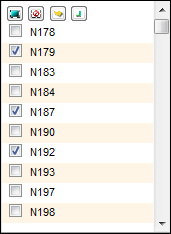
Select this button to view a list of all aircraft. Select or de-select all aircraft to be included in the view.
Calendar drop down
Select from the Calendar drop down selection to view a list of time frames in which to view Planning Job(s). The options are Week (7 days), or Day.
Days to Display drop down
If in the Calendar drop down, 'Day' is selected, the 'Days to Display drop down' appears. The user can select (by use of the up/down) arrows the number of days in which to view Planning Job(s).
Search W/O
This field allows the user to enter a Work Order. Once the user clicks on the Search W/O  button, the Work Order pop up window appears and the details of the Work Order can be viewed.
Refresh Aircraft Tab on Selection
Select this checkbox to have the system refresh the Aircraft tab every time a user enters the window. When the checkbox is deselected, the user must manually refresh the Aircraft tab by selecting the Refresh  button. Having this checkbox deselected allows the user to move easily between tabs in order to view information quickly and easily.
Resources checkbox
When the Resources checkbox is selected, the Resources Area appears in the Interactive Planner. For additional information, refer to the Resource Area via the Interactive Planner View which can be found in the Planning Training manual.
Refresh Time(min) drop down

This window does not automatically refresh. The user may use the drop down menu to select the value (number of minutes) to determine the refresh rate of data displaying in the window.
Last Refresh
This displays the last time (hour/minute/seconds) the window was refreshed.
_____________________________________________________________________________________
Share
Print
|
©1997-2026 Trax USA Corp. All rights reserved. This manual may not be copied, photocopied, reproduced, translated, or converted to any electronic or machine-readable form, in whole or in part, without prior written approval from Trax USA Corp. |
 |