
 Share
Share
 Print
Print
|
|
|
|
|



The W/O (Work Order) tab functions similarly to the Work Order window via Production/Update/W/O.
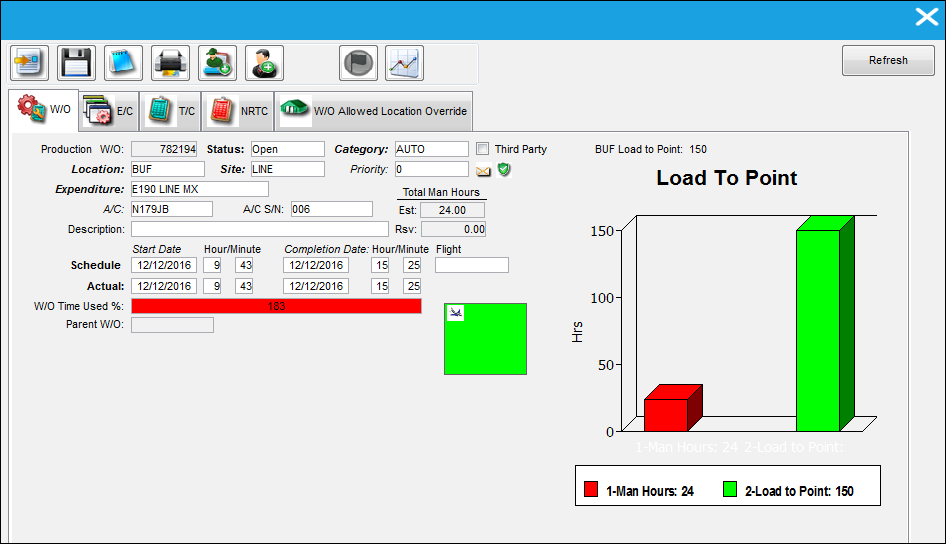
The following information/options are available in this window:
_____________________________________________________________________________________
Production W/O
The Work Order used to categorize, manage, and schedule work requirements for aircraft maintenance.
Status
The current status of the Work Order.
Category
Work Order Category code.
Note: In the Interactive Planner, the W/O Category can allow for graphical color assignment by category.
Third Party checkbox
If the W/O is for a Third Party, then the Third Party Flag should be selected. The system will automatically go to the Customer Orders Window upon Save. If the aircraft is in the A/C Master, and is identified with the ownership control and is 'Managed', the Third Party Checkbox will default upon selecting that A/C.
Location
The Location for maintenance events, inventory stores, orders, transactions, or training events. The location of the Work Order. Must be a maintenance facility or station.
Site
The Site where the work is to be carried out (if applicable).
Priority
The priority of the W/O (i.e. Urgent).
Expenditure
Choose which expenditure code will be associated with this Work Order. The Expenditure Code related to this W/O and all associated Task Cards W/O.
A/C
The individual aircraft tail number.
A/C S/N
The Aircraft's Serial Number which is provided by the manufacturer. This serial number is like a registration number, but it is not dependent on a country code and therefore never changes.
Estimated Total Man Hours
The total number of estimated man hours required to carry out the work.
Self Assignment  icon
icon
This icon illustrates that this Work Order has been self assigned to an employee.
Description
The description of the W/O.
Reserved Total Man Hours
The total number of reserved man hours to carry out the work.
Formula = Man Hours x Men Required.
Schedule Start Date
The start date/time. The Start Date does not affect whether the W/O may be deleted or not. However, if the work has been started, the W/O may not be deleted.
Schedule Completion Date
The schedule completion date/time.
Flight
Allows mechanics working on W/O to identify which flight (gate) the A/C will be arriving at.
Actual Start Date
The start date/time. does not affect whether W/O may be deleted or not. If W/O has been started, it cannot be deleted.
Actual Completion Date
The actual completion date/time.
Man hours Resrvd %
This is the total of reserved man hours to carry out the work.
Formula = Man Hours x Men Required.
W/O Time Used %
The elapsed hours of the time taken to complete the work. (i.e. If a Work Order is scheduled for 6 days and was completed in 36 Man Hours, the W/O Time Used will equal 50%, because it only took 3 days to complete the work.)
Parent W/O
If this Work Order acts as a "child" to a Parent Work Order, that parent Work Order reference number should appear here.
Load To Point Data
A graphical representation of the Load To Point data. This view displays the number of Man Hours available for overnight maintenance (Load To Point) in green. The red bar graph indicates the amount of scheduled work against the Work Order. For additional information, refer to the Load To Point Button, via the Interactive Planner Buttons.
_____________________________________________________________________________________
For more information on the above fields, or how to create a Work Order, please refer to Creating a Work Order via Work Order in the Production Training Manual.
Note For planning purposes, users can be sent System Notifications when a Production Work Order schedule date or time is changed. For more information refer to the Production W/O Schedule Date/Time Change via the Settings Training Manual.
Share
Print
|
©1997-2026 Trax USA Corp. All rights reserved. This manual may not be copied, photocopied, reproduced, translated, or converted to any electronic or machine-readable form, in whole or in part, without prior written approval from Trax USA Corp. |
 |