
 Share
Share
 Print
Print
|
|
|
|
|



The E/C (Engineering Control) Tab allows the user to view all E/Cs related to the Work Orders in the Display By Area.
Note: There is an audit table in Trax Quick Print called 'WO_EC_EXCEPTION' that allows the user to create a Quick Print to view all exceptions when adding an E/C to a Work Order.
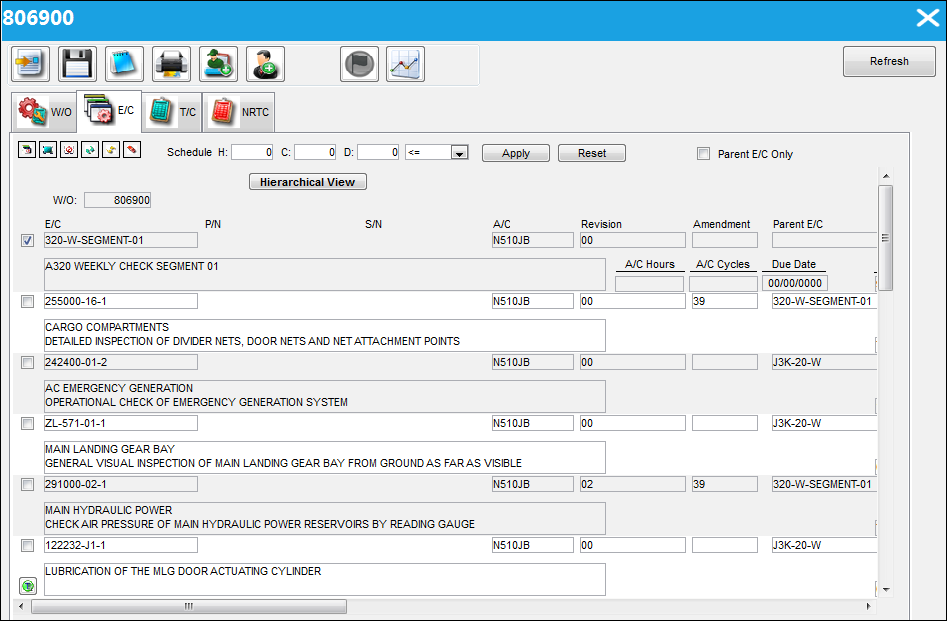
The following information/options are available in this window:
_____________________________________________________________________________________
Schedule H (Hours)
Enter the Hours to filter for E/Cs that are driven by scheduled hours.
Schedule C (Cycles)
Enter the Hours to filter for E/Cs that are driven by scheduled hours.
Schedule D (Days)
Enter the Hours to filter for E/Cs that are driven by scheduled hours.
Apply button
Select this button to apply the filters defined in this section.
Reset button
Select this button to reset any previously applied filters.
Hierarchical View button
Select this button to view a graphical representation of the Parent E/Cs, their Child E/Cs and any Task Cards associated to both Parent and Child E/Cs.
Parent E/C Only checkbox
This checkbox defaults to selected status. When selected, the user is able to view only the main E/C. When the checkbox is deselected, all E/Cs, Child E/Cs and Called On E/Cs within the Engineering Control tab are visible.
W/O
The Work Order used to categorize, manage, and schedule work requirements for aircraft maintenance.
E/C
The Engineering Control that specifies aircraft or component scheduled maintenance intervals.
P/N
The Part Number reference for the aircraft part.
S/N
The Serial Number for the specific serialized part.
A/C
The individual aircraft tail number.
Revision
The Engineering Control Revision number.
Amendment
The Amendment field normally relates to the AD amendment number. This is alphanumeric.
Parent E/C
The Parent E/C associated with the E/C. This is in the E/C which contains the schedule. When the Parent is selected, it will bring in all dependent E/Cs (Child E/Cs) on to the Work Order as required. For more information, please refer to the Engineering Control, Schedule Tab via the Engineering - E/C Training Manual.
Note: Not all E/Cs have Parent E/Cs.
Task Priority
The Priority of the E/C.
Description
A description of the E/C.
A/C Hours
The Aircraft Hours that the item is due at.
A/C Cycles
The Aircraft Cycles that the item is due at.
Due Date
The Due Date of the E/C.
Refresh Due At Info  button
Select the Refresh Due At Info button to refresh the Due At field information upon compliance of the E/C.
Delete checkbox 
Users can select each E/C they wish to delete by selecting this checkbox to the far right of each E/C. Once all selections have been made, select the Delete E/C(s)  button.
_____________________________________________________________________________________
The following information/options are available in this window:
_____________________________________________________________________________________
Engineering Control  button
Select the Engineering Control button. TRAX takes the user to the W/O Engineering Control window.For more information, regarding the W/O Engineering Control window, please refer to the Engineering Control Button via the Engineering Training - E/C Manual.
Select All  button
Click on the Select All button to select all E/Cs associated to the Work Order.
Deselect All  button
Click on the Deselect All button to deselect all E/Cs associated to the Work Order.
Transfer E/C  button
Select the Transfer E/C button to transfer E/Cs from an old Work Order to a new Work Order. For additional information, refer to Transfer E/C Button via Engineering Control Tab.
Refresh Due At Info All E/Cs button
Select the Refresh Due At Info All E/Cs button to refresh the A/C Hours, A/C Cycles and Due At field information upon compliance of the E/C.
Delete E/C(s) button
Deletes the selected E/Cs. E/Cs can be selected for deletion by selecting the Delete checkbox located to the far right of each E/C.
_____________________________________________________________________________________
Share
Print
|
©1997-2026 Trax USA Corp. All rights reserved. This manual may not be copied, photocopied, reproduced, translated, or converted to any electronic or machine-readable form, in whole or in part, without prior written approval from Trax USA Corp. |
 |