
 Share
Share
 Print
Print
|
|
|
|
|



The Load to Point  button provides a graphical representation of the Load To Point locations defined via the Locations
  button. For additional information, refer to the Locations Button, via the Interactive Planner Buttons. The objective is to maximize the Load To Point (The number of Man Hours that are available at this location during the time frame specified in the Locations Load to Point button, via Interactive Planner.) in relation to the number of Man Hours scheduled for work during the From-To hours. Ideally, the Load to Point and Man Hours will be a 1:1 ratio.
In the following example, location BOS will be used to demonstrate the functionality of the Load to Point button. Notice that the Load To Point for location BOS is 200 Man Hours for 1 to 10 hours America/Havana time.
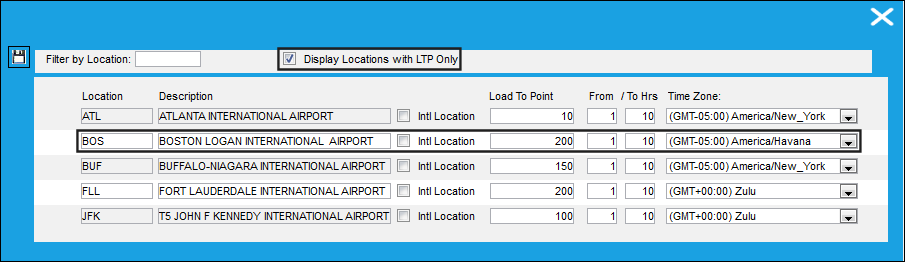
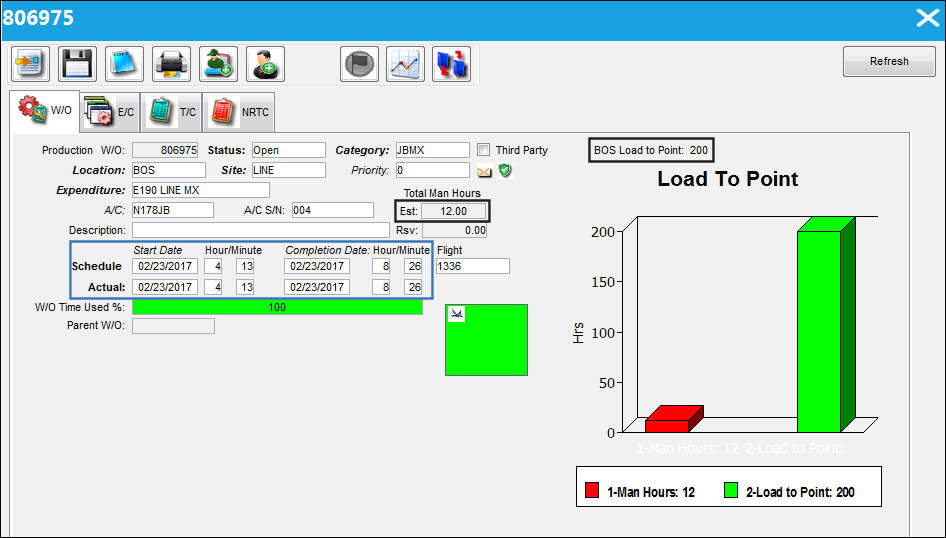
The following Work Order is created for location BOS. Notice that the Scheduled Start and Completion time of the Work Order falls in between the From-To Hrs defined in the screen above.
Note: The Scheduled Start and Completion time of the Work Order must coincide with the From-To Hrs set up via the Locations button. If the Work Order is scheduled outside of the From-To range, the Man Hours will not be reflected against the Work Order or the Load to Points graph via the Load to Point button.
After the Work Order is created, tasks have been added that require a total of 12 Man Hours. The Load to Point (200) and the Man Hours for the Work Order (12) are reflected in the Work Order below.
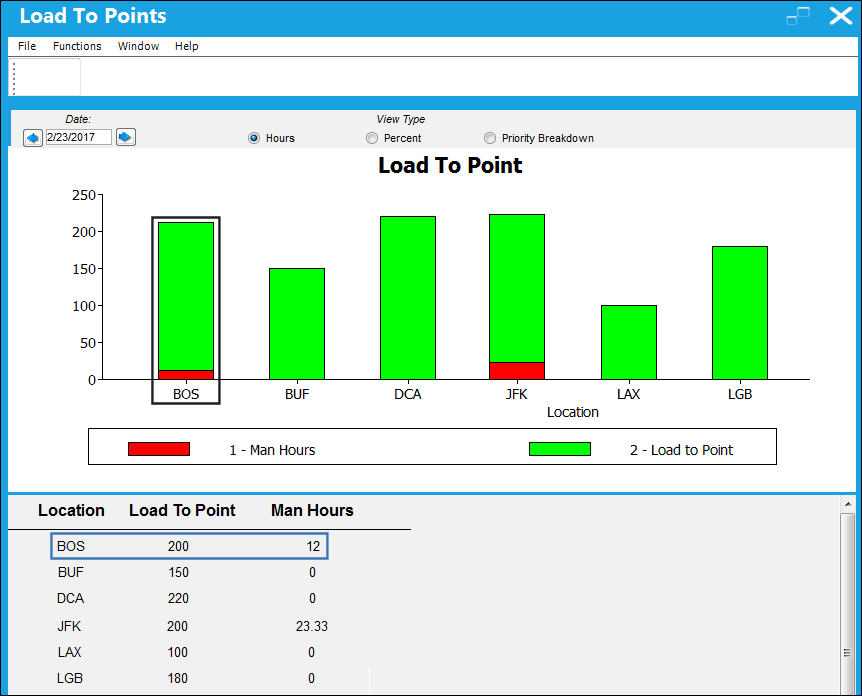
Hours View Type:
When the Load to Point button is selected, the required Man Hours for the tasks against the Work Order are displayed (in red) in the bar graph below, and the Load to Point available Man Hours (in green).
Note: This is the default view type for the Load To Point graphical display.
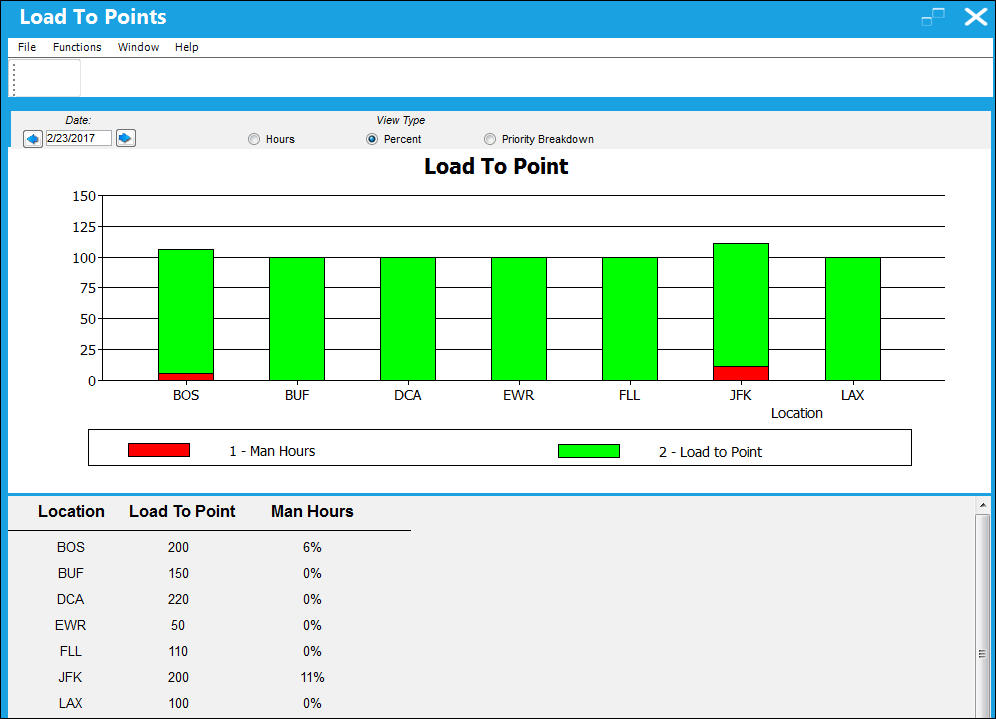
Percent View Type:
When the Percent View Type radio button is selected, the required Man Hours for the tasks against the Work Order are displayed (in red) in the bar graph below, and the Load to Point available Man Hours (in green). This view type is similar to the Hours View Type, except that the Man Hours is displayed in a percentage rather than hours.
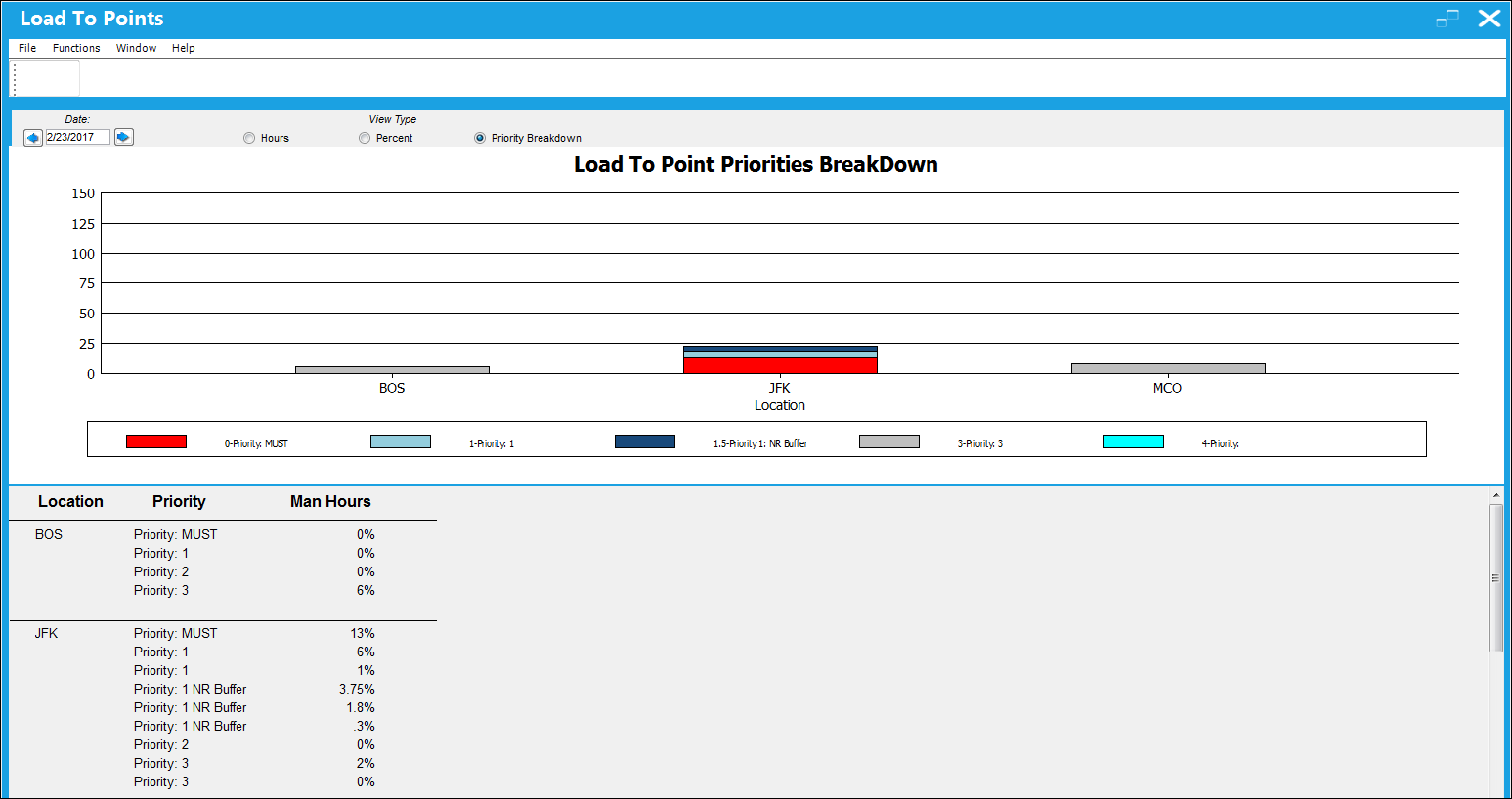
Priority Breakdown View Type:
The Priority Breakdown View displays a stacked view of the percentage of work required by priority level. This view type does not display the Load To Point.
Share
Print
|
©1997-2026 Trax USA Corp. All rights reserved. This manual may not be copied, photocopied, reproduced, translated, or converted to any electronic or machine-readable form, in whole or in part, without prior written approval from Trax USA Corp. |
 |