
 Share
Share
 Print
Print
|
|
|
|
|



The Task Card Conflicts  button allows the user to create multiple conflict relationships with a Task Card. In previous versions, users could crate a 1:1 ratio with a main Task Card and a Conflict Task Card. Now, users can add multiple Conflict Task Cards to ta main Task Card. The conflict relationships created in this window are linked the the Conflict Task Card field via the Task Card, Optional tab. If a Task Card already exists on a Work Order, this will result in a conflict.
This functionality is designed to work with the Auto Schedule functionality, not manually generated Task Cards. Conflict Task Cards will not be validated against Task Cards that are manually generated.
 This button is security controlled via Planning/ Query/ Interactive Planner/ Task Card Conflicts Setup button. For additional information, refer to the Security Explorer.
From the Interactive Planner, select the Task Card Conflicts  button.
The Conflicts Task Card window appears. Right click into the Task Card field.
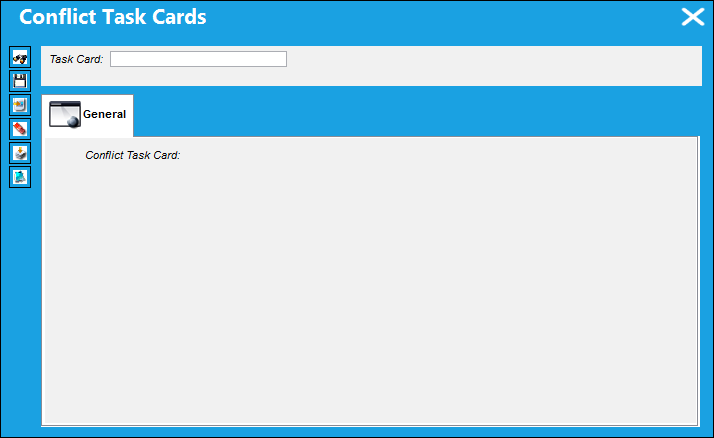
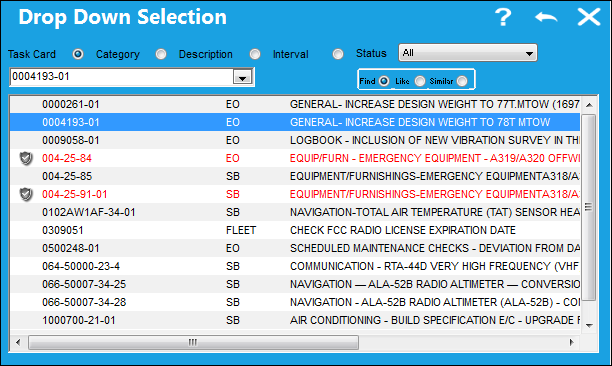
Conflict Task Cards can be added by right clicking into the main Task Card field and accessing the following Drop Down Selection window. The user may select the New  button to add one or multiple Conflict Task Cards.
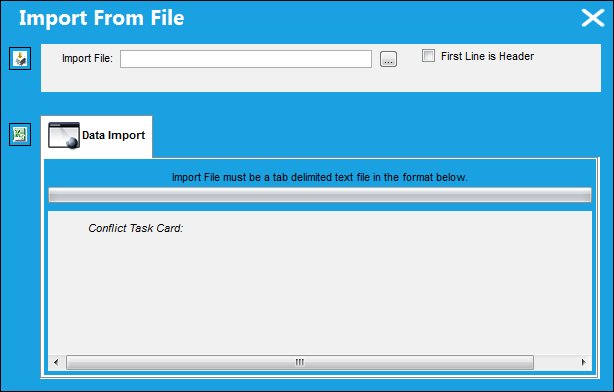
The user may also utilize the Import  button to add multiple Conflict Task Cards to a main Task Card in one instance.
For additional information, refer to the Import Button, via Standard Buttons of the System Standards Training Manual.
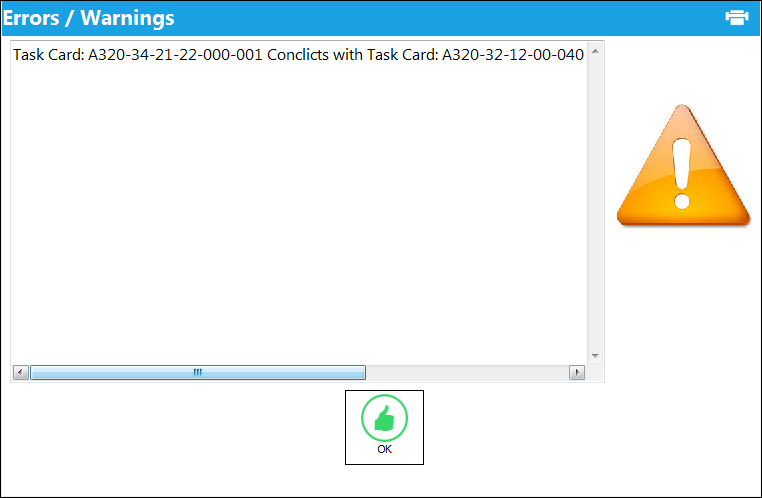
Once Conflict Task Card dependencies are established, the user will receive the following error when attempting to utilize Conflict Task Card.
Share
Print
|
©1997-2026 Trax USA Corp. All rights reserved. This manual may not be copied, photocopied, reproduced, translated, or converted to any electronic or machine-readable form, in whole or in part, without prior written approval from Trax USA Corp. |
 |