
 Share
Share
 Print
Print
|
|
|
|
|



The Work Order Auto New  button allows users to automatically create individual Work Orders for each unique aircraft that appears in the Planning Query Results. Only records that have the Select checkbox checked will be affected by the Work Order Auto button functionality (i.e. the Select checkbox must be checked for those items that Work Orders are to be created for). Each Work Order will contain one aircraft but can contain several line items. All selected items appearing in the current Planning Query results that are associated with the one aircraft and that have not been previously assigned to a Work Order will be a line item on the Work Order.
Select an item from the Interactive Planner, Detail tab and select the Work Order Auto New button to create a Work Order for the item.
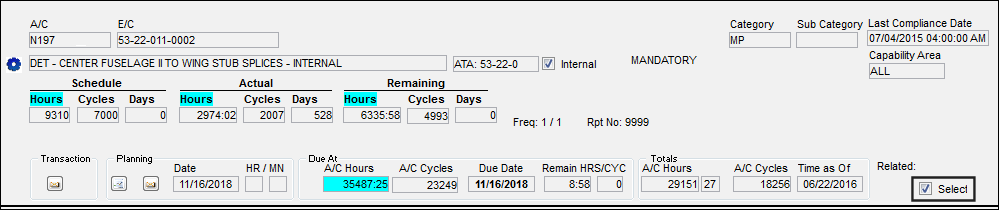
TRAX takes the user to the Work Order Window. The user may create a new Work Order.
Note: Only those selected Planning items that are not already associated to a Work Order will be associated to a newly created Work Order once the Work Order Auto New button is selected, however the user may override this functionality by setting Switch  ALWMULTTSK to Yes.
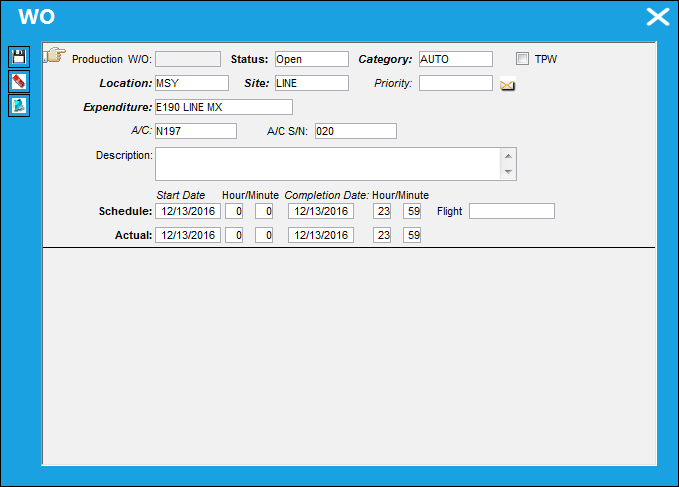
The information in the W/O window is populated by the information entered in the A/C Master, Auto W/O tab for the queried Aircraft in the A/C Planning Query window.
The TPW checkbox will be automatically selected when creating a Work Order from the Planning window, if the A/C being used for the Work Order is 'Managed.'
For more information refer to the A/C Master, Auto W/O Tab via the Settings Training Manual. For additional information regarding the creation of Work Orders, please refer to the Creating A Work Order section of the Production Manual.
Once a record has been assigned to a Work Order, the Work Order button will appear with the Work Order information on that record.
Note: If the Work Order Auto New button is selected after a currently selected item has been assigned to a Work Order, the relevant list of Work Orders will appear to view. Use the Vertical scroll bar to view all records in the list. This information is view only.
Note: For warnings associated to E/Cs, refer to E/C Control Warnings via the Production Training Manual.
Share
Print
|
©1997-2026 Trax USA Corp. All rights reserved. This manual may not be copied, photocopied, reproduced, translated, or converted to any electronic or machine-readable form, in whole or in part, without prior written approval from Trax USA Corp. |
 |