
 Share
Share
 Print
Print
|
|
|
|
|


Engineering Authorization Explorer
The Engineering Authorization Explorer allows the user to review, reserve, accept, and/or reject Engineering Controls (E/Cs) that have been released for authorization. The authorization process can be as simple as a one step authorization, or as complex as the user would like, such as a five or ten step authorization process. The actual authorization configuration process is user-defined based upon each users' individual business process needs, and can be set up via the E/C Category System Transaction Codes.
In order to use the Engineering Authorization Explorer, the ECAUTH configuration switch must be set to Yes. When set to Yes, an authorization will be required for all E/Cs initially created or revised. When set to No, authorization will not be required when creating new E/Cs. For more information, refer to Switch  ECAUTH via the Engineering Switches Manual.
Once an E/C has been released for authorization via Engineering Authorization Management, go to Engineering/Explorer/Engineering Authorization option.
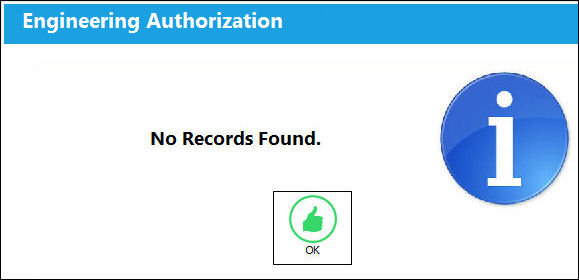
If no E/Cs are currently awaiting authorization, or there are no E/Cs pending authorization that fit the users' criteria based upon the setup of the E/C Category System Transaction Code, the following message will appear:
When entering the Engineering Authorization Explorer window, TRAX displays the following screen:
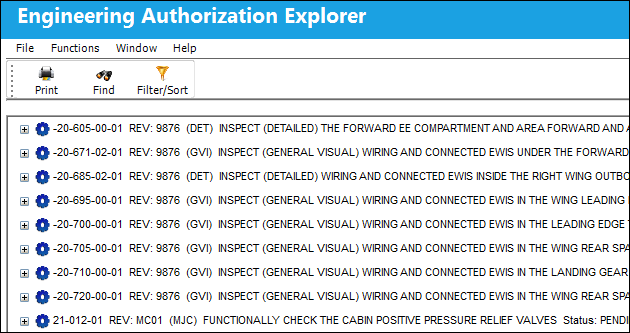
The following information/options are available in this window:
_____________________________________________________________________________________
E/C  icon
icon
Identifies each E/C pending authorization; includes the E/C Number, pending Revision Number, E/C Category, E/C Description, and status of the Revision.
Current/Pending Step  icon
icon
The current Authorization Step(s) pending acceptance. There may be more than one Authorization Step open due to Parallel Steps being created in the configuration of the E/C Category System Transaction Code.
Reserved  icon
icon
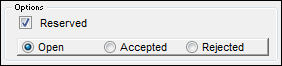
The reserved icon appears when a step has been reserved and the Reserved checkbox has been selected as shown below:
Accepted Status  icon
icon
An Authorization Step that has been accepted. These steps can be viewed in Query Mode if required.
Upcoming Status  icon
icon
An Authorization Step that is waiting for a prior step to be actioned. These steps cannot be actioned until the prior step(s) have been accepted, however, these steps can be viewed in Query Mode.
_____________________________________________________________________________________
Authorization Steps can be configured in the E/C Category System Transaction Code to be accepted by a user that meets the Department, Division and Section or Authorization Group criteria that is set up. This is a user defined configuration based upon the business requirements of the customer. For additional information regarding Authorization Groups, refer to Engineering Authorization Group Explorer.
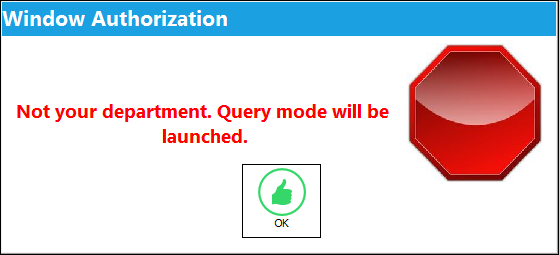
When in the Engineering Authorization Explorer window and attempting to access and authorize a step that is not configured for the department or group that the user belongs to, the user cannot Accept or Reject the step. The user may only view the Authorization Step in Query Mode due to the E/C Category configuration stipulating that another department is set up to authorize this specific step. TRAX will display this query only warning message and allow the user to enter the Authorization Step only to view the information:
By right clicking on the Current Authorization Step, TRAX displays the following pop-up window:

Select the Authorization option and TRAX displays the Engineering Authorization window:
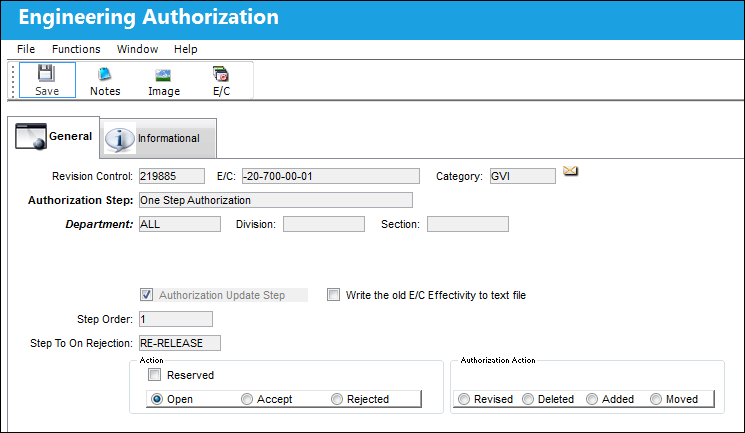
The following information/options are available in this window:
_____________________________________________________________________________________
Revision Control
Automatically generated control number for each revision step.
E/C
The Engineering Control that specifies aircraft or component scheduled maintenance intervals.
Category
The category of the E/C (e.g., AD, SB, CHECK).
Authorization Step
A description of the Authorization Step; each Authorization Step can have its own unique description to describe the steps general purpose.
Department
The department which has authority for approval of this step. The Authorization Step can only be performed by an individual in the department specified here. See Settings/ Update/ Employee Master to verify that the employee is assigned to the appropriate department. Authorizing employees must have security access to the appropriate Authorization Explorer option. When this field is left blank, the Authorization Group field is available.
Division
The division which has authority for approval of this step. The Authorization Step can only be performed by an individual in the division specified here.
Section
The section which has authority for approval of this step. The Authorization Step can only be performed by an individual in the section specified here.
Authorize Update Step checkbox
When selected, the checkbox indicates that the current Authorization Step will be the last step in the authorization process. During the creation of the Authorization Steps, this checkbox should only be selected for the final step before the record is to be released from authorization.
Write the old E/C effective to text file checkbox
Select this checkbox to have the system save the E/C effectivity information to a text file upon completion of this task. The user will be informed of the location upon selecting the Save  button.
Step Order
This number indicates the order of Steps if one or multiple Steps are created. This number is automatically created and can be overridden and changed to any number. It is recommended that the user enter Steps in a standard incremental pattern (i.e. Step 5, Step 10, Step 15, etc.) to allow for the insertion of Steps into the sequence at a later time if required.
Step To On Rejection
This indicates how the Authorization Process will react when a Step is rejected (Start, Return To, Re-Release). When an authorization step has been rejected, the Step To On Rejection process begins based on the configuration of the E/C Category System Transaction Code.
Start - Will return the Authorization Process to the first step.
Return To - Will return the Authorization Process to a specific Authorization Step as specified by the 'Return To' Step number in the Return To Step Order field.
Re-Release - Will return the Authorization Process to the queue where it will await Release For Authorization.
Reserved checkbox
This allows a user to reserve the step. This will lock that user into that specific authorization step and does not allow another user to accept the step. The name of the user who Reserved the Authorization Step will appear in the Reserved By field.
Open radio button
All authorization steps are initially in Open status, until either Accepted or Rejected. A step can also be Open and Reserved at the same time.
Accept radio button
This option is selected when the user accepts the authorization step.
Rejected radio button
This option is selected when the user is rejecting the Authorization Step when there are reasons that do not permit the step from remaining open or being accepted. The Rejection Reason field is mandatory upon the Authorization Step becoming Rejected.
Rejection Reason - A Rejected Reason must be entered when Rejecting an Authorization Step. An authorization Step can be Rejected and Reserved at the same time so that when the authorization process comes back to that specific step, the same person who rejected it will have to authorize that same previously. This is especially beneficial due to the original person who rejected the step knowing first hand why it was rejected.
Authorization Action
Select any of the below authorization actions. These actions will be recorded in the Revision History tab of Engineering Control.
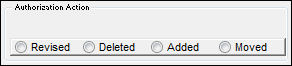
For additional information refer to Engineering Control, Revision History Tab via Engineering Control of the Engineering - E/C Training Manual.
Revised radio button - This is informational only.
Deleted radio button - This is informational only.
Added radio button - This is informational only.
Moved radio button - This is informational only.
_____________________________________________________________________________________
Engineering Authorization Explorer Supervisor has the ability to alter the configuration for the E/C Authorization for this specific revision, it will not make any changes to the actual E/C Category System Transaction Code configuration Authorization Steps.
To accept this Engineering Authorization Step, select the Accept radio button and select the Save button.
To reject this Engineering Authorization step, select the Rejected radio button and select the Save button. When rejecting an Authorization Step, the Rejection Reason field shows in the window. It is mandatory to populate the reason when rejecting an Authorization Step. The user also has the option to Reserve the Authorization Step as well.
If selecting the Accept option on the radio bar, select Yes in the Save Record pop-up window. TRAX will automatically refresh the Engineering Authorization Explorer view and display the Explorer Screen.
The Authorization Step is now displayed with the Accepted Status icon indicating that it has been accepted, whereas the next authorization step is shown with the Current/Pending Step icon.
Remaining authorization steps are now displayed with the Upcoming Status icon indicating that these steps still await the approval of previous steps to be authorized.
Parallel steps can be accepted, or rejected, in any order. When Parallel steps are configured, this usually occurs when multiple departments accept and/or reject their portion of the E/C Authorization process simultaneously.
The user then accepts the next step and the Engineering Authorization Explorer window refreshes again.
The authorization process will not continue until all steps in any particular Parallel Group Number have been Accepted during the authorization process.
The Parent Step Order field in the E/C Category System Transaction Code allows for the creation of a Parent/Child relationship between steps in the Authorization Process. This may be useful if two individuals from the same department may need to authorize a particular Step, for example a Director and a Manager.
The Authorization Update Step can only be assigned to one step, and once that Authorization Step has been accepted, the E/C will be authorized. Normally the final authorization step is also the Authorization Update Step, this is configured in the E/C Category System Transaction Code. The Authorization Update Step checkbox is selected for this last step in the authorization process.
If required, a text file can be created with the old E/C Effectivity by selecting the 'Write the old E/C Effectivity to text file' checkbox. This is an optional selection and can only be selected on the Authorization Update Step. The generated file is saved and will be located in the default TRAX directory folder.
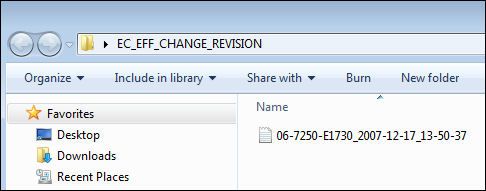
If Switch SAVEASEC is set to Yes, the user will be able to select the save location of the Old E/C Effectivity text file (Mass Authorization Pending E/C and Engineering Authorization Windows). However, if the switch is set to NO, the file is automatically saved in the TRAX Directory: TRAX\bmp\EC_EFF_CHANGE_REVISION folder.
In the event that the E/C being revised and authorized is on an Open Work Order, the user will be prompted with the E/C Conflict with Open W/O message window. An example of the window displays as follows:
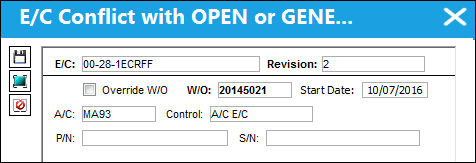
For additional information regarding the above window, refer to the Conflict Work Order button.
By selecting the Override W/O checkbox and selecting the Save button, the user is updating the E/C on the Open Work Order with the newly revised E/C. By not selecting the Override W/O checkbox, the user is not updating the E/C with the newly revised E/C revision.
If there are multiple Open Work Orders with the newly authorized E/C attached, the user also has the option to select the Select All  button to place a check mark in every Override W/O checkbox (i.e. update all the Work Orders with this E/Cs previous revision included).
Switch PENDAUTH has a direct affect on this window and its functionality.
Upon selecting the Save button, the E/C is then accepted and authorized. The revision is created and replaces the previously existing revision, or creates the initial revision if it is a new E/C.
After the E/C has been authorized, the E/C will no longer show in RED text in the drop down selection menu.
The following can also be utilized from the Engineering Authorization Explorer window.
- Filter/Sort Button


 Share
Print
Share
Print
|
©1997-2026 Trax USA Corp. All rights reserved. This manual may not be copied, photocopied, reproduced, translated, or converted to any electronic or machine-readable form, in whole or in part, without prior written approval from Trax USA Corp. |
 |