
 Share
Share
 Print
Print
|
|
|
|
|


The Requisition Vendor Analyzer  button allows users to choose from all open requisitions to consolidate different parts that share a common preferred vendor.
This is in contrast to the Requisition Analyzer, which is designed to allow the user to match open requisitions for a particular part with stock available at any location. For more information on the Requisition Analyzer, refer to the Requisition Analyzer Button, via Requisition Management.
For more information on how to set up preferred vendors for individual parts, refer to the Cost Button, via P/N Master.
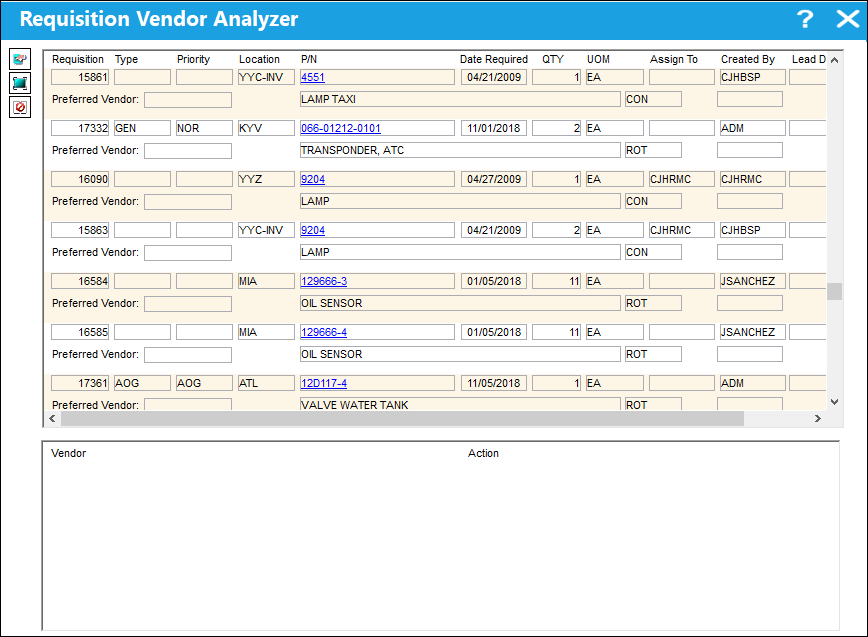
The window is divided into two sections. The upper section shows all requisitions in the system that are currently in 'Open' status. When a requisition record is selected from the list, the lower section will display any preferred vendors that have been set up for the relevant part.
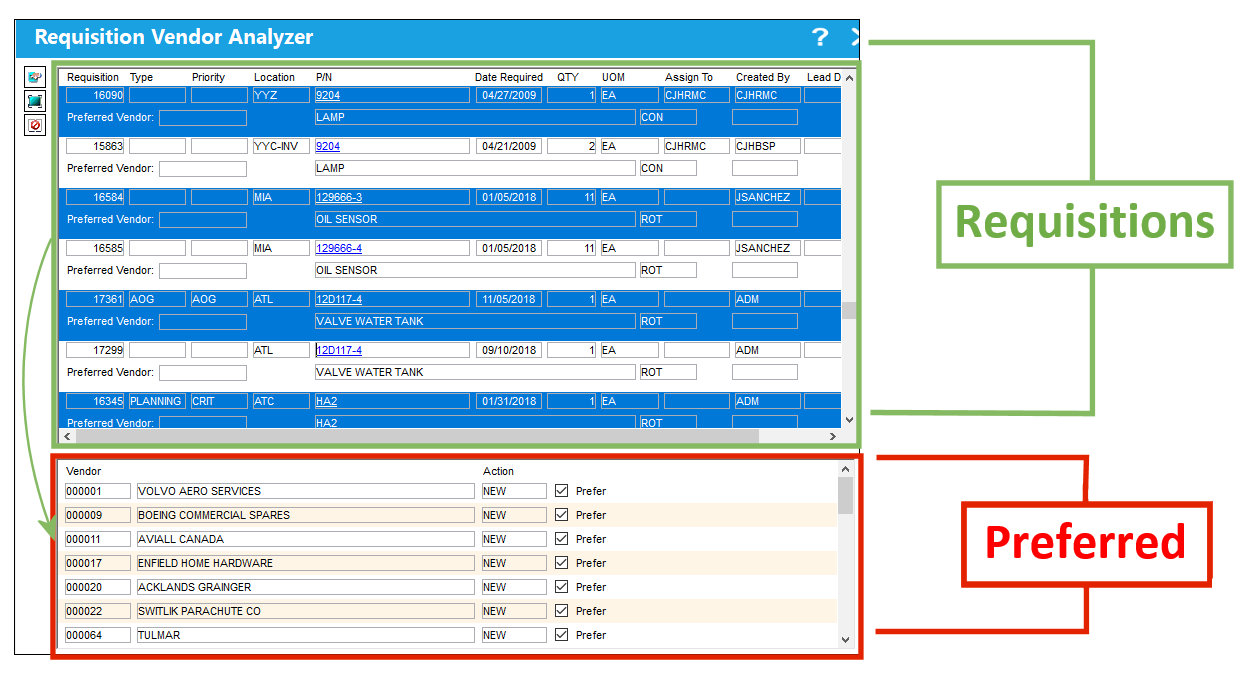
The user may also use the Select All  button to select all Requisitions or the Deselect
  button to deselect all Requisitions.
Each requisition record in the list links to the associated part's P/N Detail Information window.
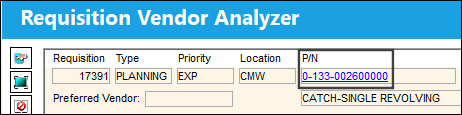
For more information on the P/N Detail Information window, refer to the Requisition Analyzer Button, via Requisition Management.
To create a purchase order for the requisitioned parts, first select one or more requisitions from the list. Every preferred vendor that was set up for all of the selected requisition's parts will appear. From the bottom section, select a preferred vendor that is shared by all selected requisitions.
The system will issue a hard warning when users attempt to select a vendor that is not set as the preferred vendor for every selected requisition's P/N. The preferred vendor needs to be shared by all selected requisition's P/Ns in order to create a purchase order.
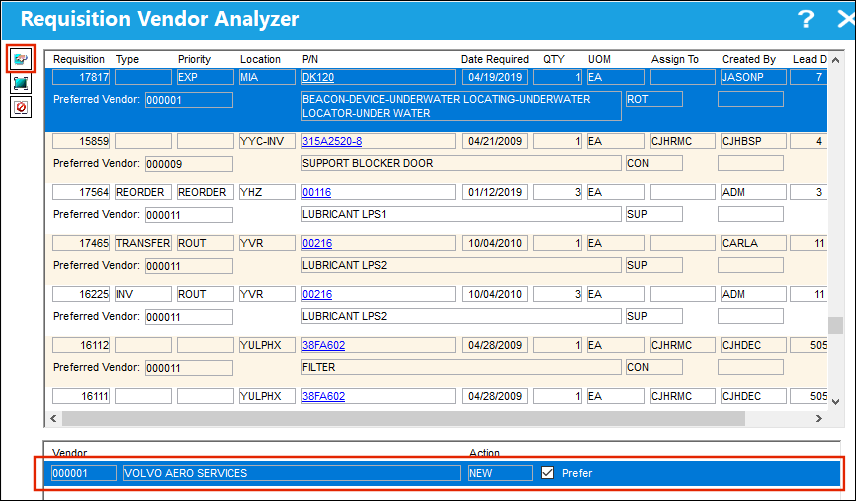
With the preferred vendor and all relevant requisitions selected, pressing the Purchase Order  button will allow users to create the P/O.
The following pop up will appear once the record is saved. Populate all mandatory fields and select the Save  button.
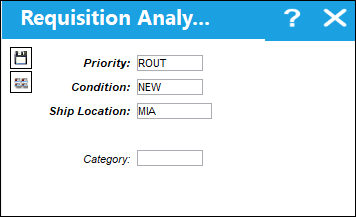
The following information/options are available in this window:
_____________________________________________________________________________________
Priority
The level of importance placed on the need for a part. Notification based on the requisition priority may be defined by location. These codes are defined in the Priority System Transaction Code.
Expedite days and priority level are defined in the Priority Transaction Code.
Condition
The condition of the part.
Ship Location
The location where the transaction will be shipped to. All locations are defined in the Location Master. All Ship Locations must be identified as an Inventory Location in the Location Master, if a physical part or item is to be received. If the Location is not identified in Inventory a warning will be received upon entry and the user will not be able to save the order header.
Category
The Category of the Requisition.
Company
The airline the Requisition is being created for. This field replaces the Category field only when G/L Interface Switch  COMPANYMULTI is set to 'Yes.' This feature is part of the Multi-Company functionality. Parent company's airlines are entered into this field. Then, when the P/N is entered into the detail window, the G/L field will be auto-populated with this airline's previously created G/L Account. When the switch is set to 'No' the field is titled Category and functions.
If a Company is specified to an aircraft, and that aircraft is populated in the A/C field of the Requisition, General Tab, the Company will auto populate based on the settings saved in the A/C Master, Other Tab. For additional information, refer to the A/C Master, Other Tab, via Aircraft Master of the Settings Training Manual.
This field will auto populate upon save if a Company is associated to the user logged into the system. This is set up in the Security Explorer. For additional information, refer to Switch COMPANYMULTI and the Security Explorer, General Tab, via Security Explorer of the System Administration Training Manual.
_____________________________________________________________________________________
The PO is consequently auto-generated, but users can still manually modify any of the order details before selecting the Save button to finalize the P/O.
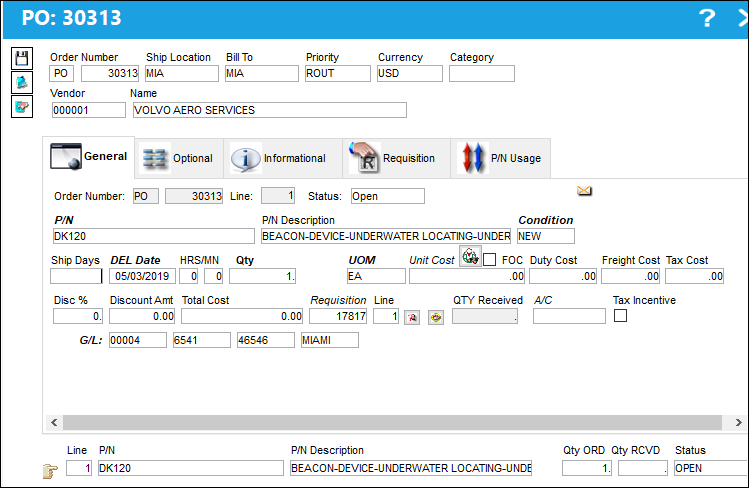
 Note: The Unit Cost field will auto-populate based on the prices set up inside the preferred vendor's Vendor P/N Information window. Whether it will default to the first price specified in that window, or the best price based on the specified minimum quantity depends on the Requisition Switch VENBESTPRICE.
Once the PO is created, the Requisition is removed from the Requisition Vendor Analyzer window.
For information regarding the Purchase Order Header button, refer to Purchase Order Header Button, via Requisition Analyzer Purchase Order.
Share
Print
|
©1997-2026 Trax USA Corp. All rights reserved. This manual may not be copied, photocopied, reproduced, translated, or converted to any electronic or machine-readable form, in whole or in part, without prior written approval from Trax USA Corp. |
 |