
 Share
Share
 Print
Print
|
|
|
|
|


The P/N Requirement Tab allows users add parts to the Defect Report that are needed to correct the defect. The associated parts will appear on the Non-Routine Task Card on the Work Order related to the Defect Report.
If parts are available at the required location, a Picklist can be created. For additional information regarding Picklist creation, refer to the Picklist Process.
If the parts required are not available, the user must create a Requisition by selecting the Requisition  button.
A Picklist or a Requisition must be created in order to fulfill the P/N Requirement List. The Picklist can also be accomplished by selecting the Picklist button. The Requisition may also be accomplished by selecting the Requisition button.
Select the New  button to add parts and their respective quantities.
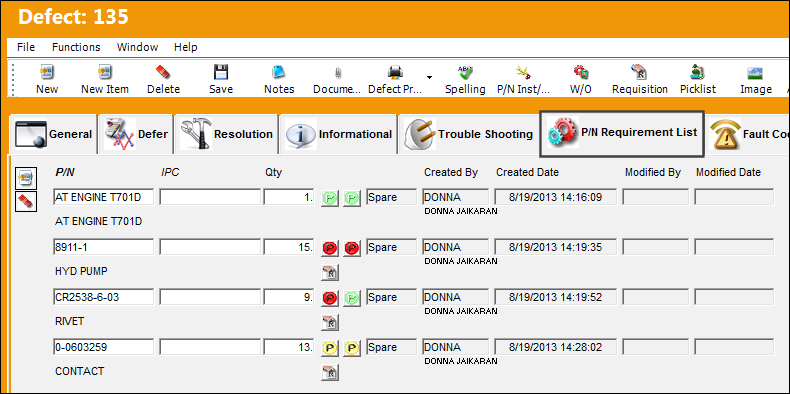
The following information/options are available in this window:
_____________________________________________________________________________________
P/N
The Part Number reference for the aircraft part.
A P/N will only appear in the drop down if it is effective to the A/C Type/Series used to create the Defect Report.
IPC
Illustrated Parts Catalog (IPC). Select into the IPC field to locate the IPC in the TraxDoc.
Qty
The required quantity of the P/N being requested.
Part Number Availability  button
Select the Part Number Availability button (green, yellow or red). The system displays an Inventory Status Preview. For additional information regarding the above fields, refer to the Summary option via Inventory Transaction.
P/N Availability button (at Defect Station)
The green button indicates that all required spares are available in inventory at the Station listed in the General tab or at a Centralized Location. When selected, the P/N Inventory Summary window pops up.
P/N Availability  button (at Defect Station)
The yellow button indicates that some, but not all spares are available in inventory at the Station listed in the General tab or at a Centralized Location. When selected, the P/N Inventory Summary window pops up.
P/N Availability  button (at Defect Station)
The red button indicates that no spares are available in inventory at the Station listed in the General tab or at a Centralized Location. When this button is selected, the following pop-up window appears:
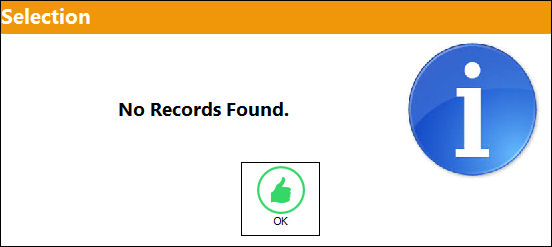
The Part Number Availability button will only display the required parts that are available at the Station where the Defect Report was created (Defect Report Detail, General Tab) or at a Centralized Location.
P/N Availability button (at all Stations)
The green button displays that all spares required are available in inventory at the Station listed in the General tab or at any of the other Stations.
P/N Availability button (at all Stations)
The yellow button displays that some, but not all spares are available in inventory at the Station listed in the General tab or at any of the other Stations.
P/N Availability button (at all Stations)
The red button displays that no spares are available in inventory at the Station listed in the General tab or at any of the other Stations.
Requisition button
Select the Requisition button. Any requisitions created from this tab will also cause the Requisition Tab to appear. For additional information, refer to the Requisition section via the Requisition Training Manual.
Created By
The user who created the record.
Created Date
The date the record was created.
Modified By
The user who last modified the record.
Modified Date
The date the record was last modified.
_____________________________________________________________________________________
Select the Delete  button to delete parts and their respective quantities.
System Generated Prompts:
If the user enters a P/N that does not exist in the P/N Master, the following prompt will appear:
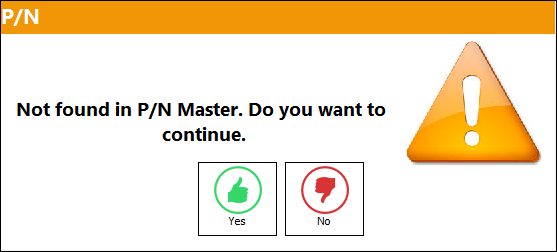
If the user selects 'Yes,' the Save prompt will appear. Select 'OK.' The record will be saved in this window.
If the user selects 'No,' the record will not be saved.
If the user selects a P/N that is not effective to the aircraft, the following warning box will appear:
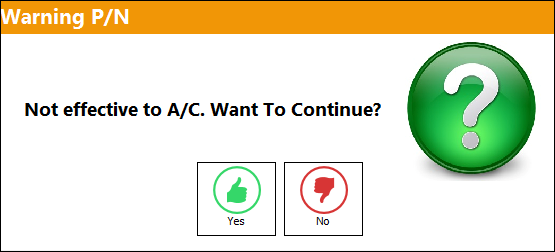
If the user selects 'Yes', the record will be saved in this window.
If the user selects 'No', the record will not be saved.
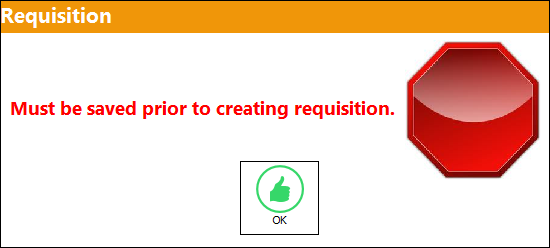
If the user attempts to save a P/N List Requirement item before selecting the Requisition button, the following warning message will appear:
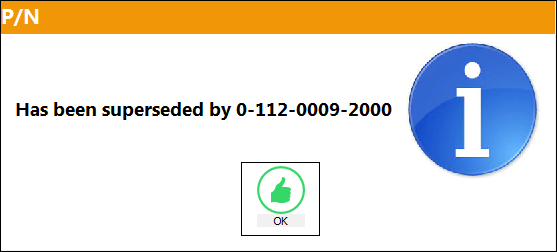
If a P/N has been superseded by another P/N, the following pop-up will appear:
Share
Print
|
©1997-2026 Trax USA Corp. All rights reserved. This manual may not be copied, photocopied, reproduced, translated, or converted to any electronic or machine-readable form, in whole or in part, without prior written approval from Trax USA Corp. |
 |