
 Share
Share
 Print
Print
|
|
|
|
|


Select the Requisition  button to create a Part Requisition or attach an existing one to the Defect Report.
TRAX displays the Requisition pop-up window as follows:
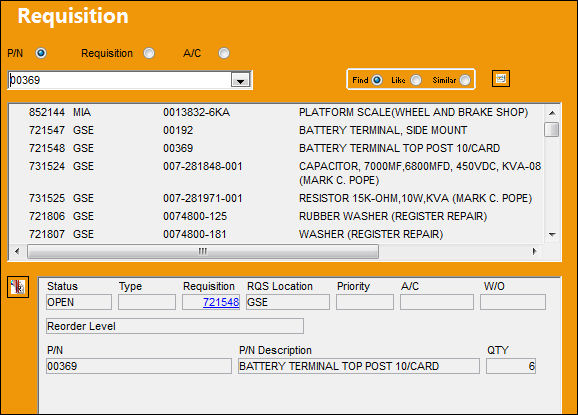
The selected Requisitions are placed in the bottom of the pop-up window so that the user can view more information.
Users can de-select the Requisition by selecting the Requisition De-Link  button.
In the right hand corner of this pop-up window, select the New  button and TRAX displays the following window where Requisition information may be entered:
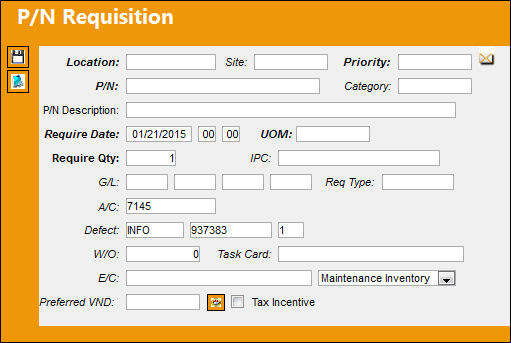
Additional information relevant to the record can be included through the Notes  button.
Refer to the Requisitions Manual for more information.
The Requisitions tab appears in the Defect Report Detail window once a Requisition is attached.
Share
Print
|
©1997-2026 Trax USA Corp. All rights reserved. This manual may not be copied, photocopied, reproduced, translated, or converted to any electronic or machine-readable form, in whole or in part, without prior written approval from Trax USA Corp. |
 |