
 Share
Share
 Print
Print
|
|
|
|
|


If entering several Defect Reports sequentially, select the Defect Template  button to create a template that will be the basis for each new Defect Report in the sequence.
Many of the standard fields available in the Defect Report will be available in the Defect Template. Mandatory fields are illustrated and described below:
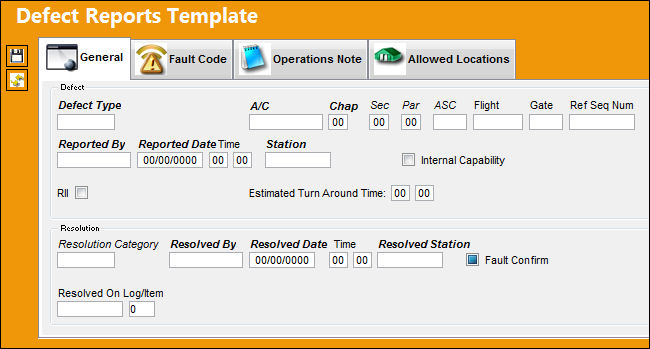
The following information/options are available in this window:
_____________________________________________________________________________________
Defect Type
The type of defect found on the aircraft (for example, Pilot Report, MX Report). For additional information, refer to the Defect Type Transaction Code, via the Technical Records Transaction Code Manual.
A/C
The individual aircraft tail number.
Chap/Sec/Par
The ATA chapter/section/paragraph, as applicable.
ASC
The Aircraft System Code.
Flight
The flight reference number/information.
Gate
The gate information for the flight.
Reference Sequence Number
The reference sequence number of this Defect.
 RFSQNODP - (Defect Report Show Sequence And Previous Sequence Numbers). If set to Yes, the system will automatically display the following fields in the Defect Reports, General and Defer Tabs.
Reported By
The Person reporting the Defect.
Reported Date
The Date the Defect was reported.
Station
The Station where the Defect was reported.
Internal Capability checkbox
When selected, this flag will appear in the Planning Query to allow planners to know that the work can be carried out internally as opposed to having a third party maintenance organization carry it out.
RII checkbox
Select this checkbox if this Defect will be a Required Inspection Item. When selected, the RII By field will appear so that the inspecting employee can be defined.
Estimated Turn Around Time
The estimated turn around time.
Resolution Category
The Resolution Category, categorized by the available resolution category types. For additional information, refer to the Resolution Category code via the Technical Records Transaction Code manual.
Resolved By
The employee who resolved the defect.
Resolved Date/Time
The date/time of the resolution.
Resolved Station
The station where the defect was resolved.
Fault Confirm checkbox
If the defect was fault confirmed for reliability reporting. If blank, fault was not confirmed. If grey, fault is pending decision. If black, fault was confirmed. This checkbox appears in the Reliability module, in the A/C Planning Query, and in several reports in the Technical Records module.
Resolved On/Log Item
This is used to reference the Resolved On Log/Item from the Defect Report.
Non-Routine
If you specify a Work Order, the Defect Reports that are created from the Defect Template will be associated with that Work Order. If the Auto Generate NRTC checkbox is checked, a Non-Routine Task Card will be created and associated with the Work Order. The Defect Report will be associated with the Non-Routine Task Card.
_____________________________________________________________________________________
For additional information regarding the Fault Code tab, refer to the Defect Report Detail, Fault Code Tab.
Share
Print
|
©1997-2026 Trax USA Corp. All rights reserved. This manual may not be copied, photocopied, reproduced, translated, or converted to any electronic or machine-readable form, in whole or in part, without prior written approval from Trax USA Corp. |
 |