
 Share
Share
 Print
Print
|
|
|
|
|


Select the Intelli Form  button to view forms (Damage Chart or Cockpit) associated with the A/C Type/Series. This feature is used for Dent Mapping. For additional information, refer to the Dent Mapping section via the Technical Records Training Manual.
Intelli Forms must be previously set up and made effective to each individual A/C Type Series. For information regarding the set up of Intelli Forms, refer to Intelli Forms Button via A/C Type/Series of the Settings Training Manual.
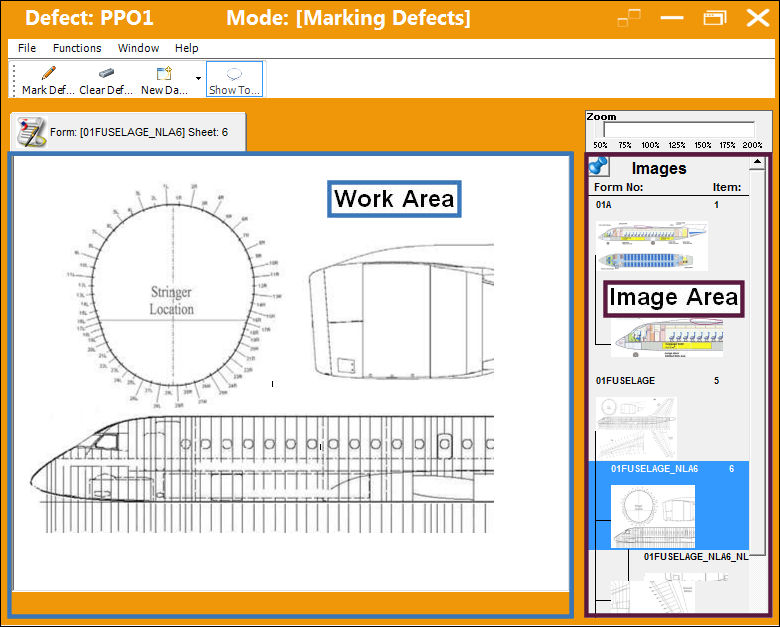
Select the required form from the Image Area. TRAX displays an aircraft image, where the dents may be illustrated more clearly in the Work Area.
 Only Defects that are in Open status will appear in the Intelli Form in Trax Version 12 and later releases. For additional information regarding the Defects on a form, refer to the Dent Mapping program. This program allows the user to filter For Defects using a variety of search criteria.
For additional information, refer to the Image Area and the Work Area, via Dent Mapping of the Technical Records Training Manual.
The functionality available in this window works the same way as explained in the Work Area, via Dent Mapping.
Select the Mark Defect  button to mark where the defects occurred on the below diagram:
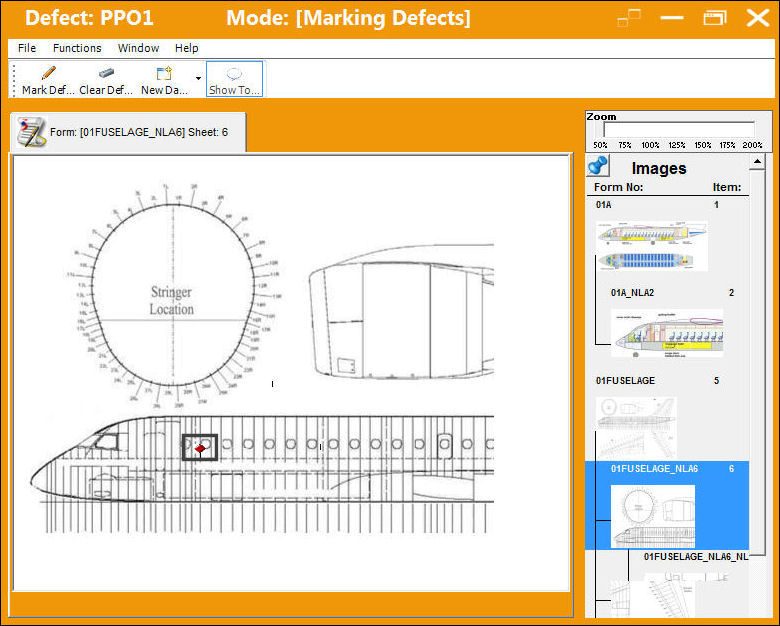
The dent is marked as shown below.
The Show Tool Tip button can be utilized to view additional details when hovering over a particular defect.
The user may select the Clear Defect  button to clear or remove and dent markings.
Additional marks:
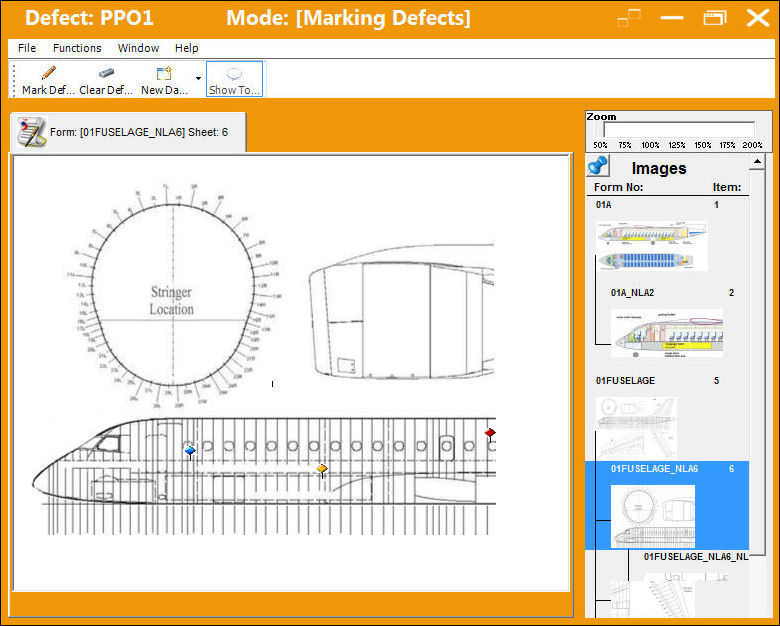
View/verify the following information:
_____________________________________________________________________________________
Red Dent  Mark
Mark
When a dent marking appears in red, this indicates that a dent has been associated to the form.
Blue Dent  Mark
Mark
When a dent marking appears in blue, this indicates that there is an existing damage report associated to the dent. For information regarding damage reports, refer to the Update Damage Chart Button via the Work Area.
Yellow Dent  Mark
Mark
When a dent marking appears in yellow, this indicates that a specific dent has been selected.
_____________________________________________________________________________________
Share
Print
|
©1997-2026 Trax USA Corp. All rights reserved. This manual may not be copied, photocopied, reproduced, translated, or converted to any electronic or machine-readable form, in whole or in part, without prior written approval from Trax USA Corp. |
 |