
 Share
Share
 Print
Print
|
|
|
|
|


If required, a Deferred Item can be placed on a Non-Routine Task Card on a Work Order to be carried out as required. The user will have two options in performing this function:
- Add the Defect to an already existing Work Order.
- Create a new Work Order.
Add the Defect to an already existing Work Order:
From an already existing Defect Report, select the W/O  button.
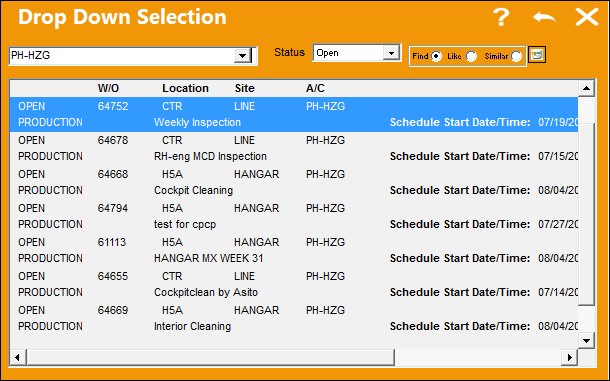
The following Work Order selection window appears. The user may add the Defect to an existing Work Order by double clicking on a Work Order from the window.
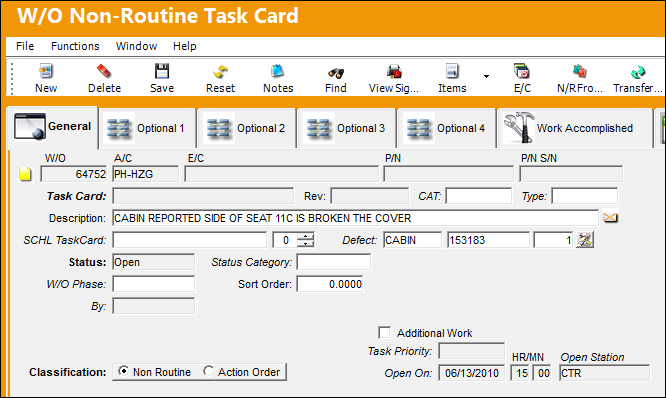
TRAX displays the W/O Non-Routine Task Card window. Some field information will auto-populate. Select the Save  button. The Save prompt will appear. Select 'OK' to save the W/O Non-Routine Task Card to the defect.
Create a New Work Order:
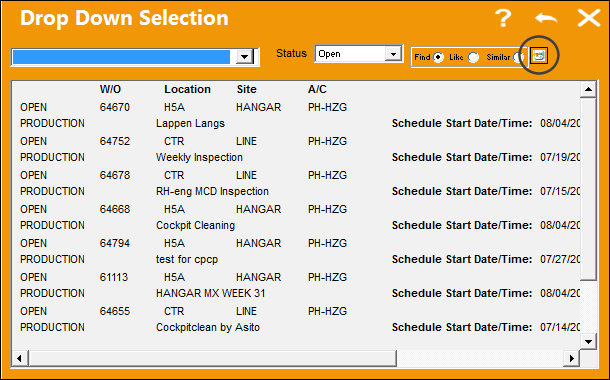
From the following Drop Down Selection window, select the New  button.
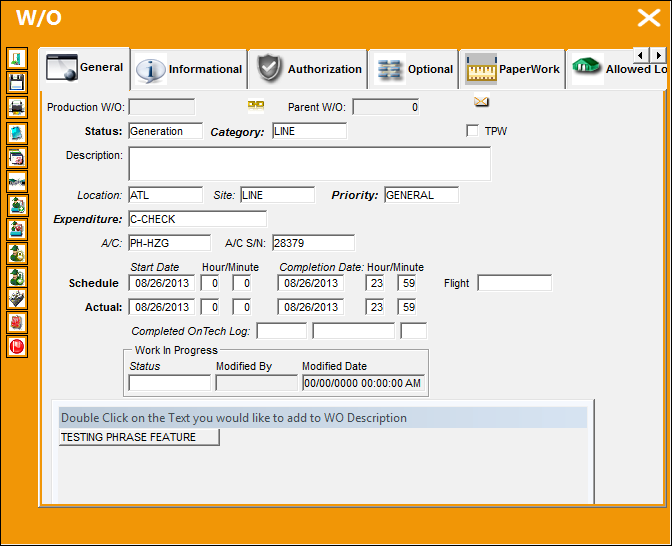
The W/O window will appear. Populate all mandatory information and select the Save button. The Save prompt will appear. Select the Non-Routine Task Card  button.
TRAX displays the W/O Non-Routine Task Card window. The defect has been added to the newly created Work Order. Some field information will auto-populate. Select the Save button to save an additional information that has been added to the Non-Routine Task Card.
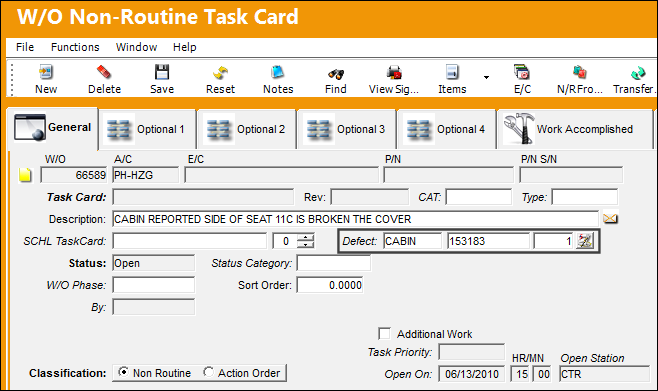
Select the Save button. The system will take the user to the Card Items screen with the text from the Deferred item automatically copied into the Card field. The Deferred Defect will have the W/O and Task Card (Non-Routine reference) on the Resolution Tab.
Following completion of the Non-Routine Task Card (in Production), the system will automatically update the Deferred item to Closed status and enter text saying that it was closed on the 'W/O and Task Card.'
A deferred item can be closed just by entering the resolution data.
For additional information regarding the Non-Routine Task Card window, refer to the Non-Routine Task Card Button, General Tab via the Production Training manual if the user elects to create a new Work Order.
For additional information regarding the above fields, refer to Work Order via the Production Training manual.
 Additional Functionality:
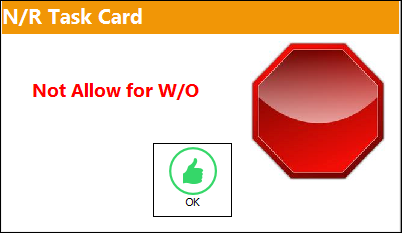
The following hard warning will appear when selecting the Work Order button if the 'Allow N/R Creation' checkbox is deselected for the specified Work Order. For additional information, refer to the Work Order Header, Optional tab.
Share
Print
|
©1997-2026 Trax USA Corp. All rights reserved. This manual may not be copied, photocopied, reproduced, translated, or converted to any electronic or machine-readable form, in whole or in part, without prior written approval from Trax USA Corp. |
 |