
 Share
Share
 Print
Print
|
|
|
|
|


The Recommendation tab of the Non-Routine Express window is available for lead mechanics to recommend procedures to the mechanic working on the Non-Routine task during the authorization process. This tab also condenses information and functionality from multiple windows throughout TRAX such as fields from the Task Card Items window, the ability to associate P/Ns to the Non-Routine, and multiple information fields from Non-Routine Task Card windows and tabs.
When selected, the Recommendation tab appears as follows:
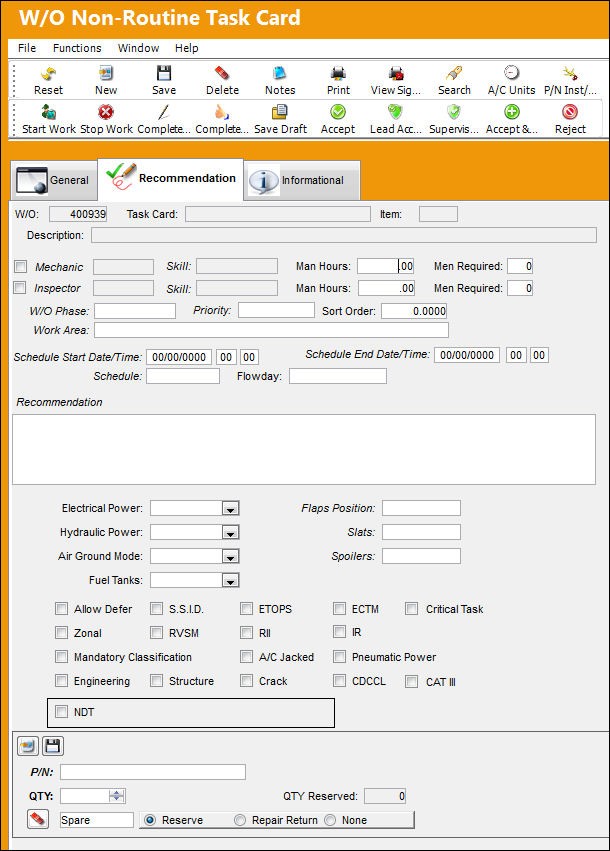
 This tab is security-controlled via Production/ Update/ W/O Non Routine Express Recommendation Tab. For more information refer to the Security Explorer via the System Administration Training Manual.
The following information/options are available in this window:
_____________________________________________________________________________________
W/O
The Work Order used to categorize, manage, and schedule work requirements for aircraft maintenance.
Task Card
The Task Card / Job Card that details the scheduled maintenance work.
Item
The item from the N/R T/C being authorized by the lead mechanic.
Description
The description of the N/R T/C. This field is auto-populated from the General tab.
Mechanic checkbox
Use this checkbox to enter any code number related to the mechanic (i.e. skill level). The field only appears when the checkbox is selected.
Skill (Mechanic)
The skill required to complete the item.
Man Hours (Mechanic)
The number of hours (per man) required to complete the item.
Men Required (Mechanic)
The number of men required to complete the item.
Inspector checkbox
Use this checkbox to enter any code number related to the inspector (i.e. skill level). The field only appears when the checkbox is selected.
Skill (Inspector)
The skill required to complete the item.
Man Hours (Inspector)
The number of hours (per man) required to complete the item.
Men Required (Inspector)
The number of men required to complete the item.
W/O Phase
The particular phase of the work flow that this particular Task Card pertains to.
Priority
The Priority level of the Task Card.
Sort Order
The Sort Order (Printing Sequence) of the Task Card.
Work Area
Allows users to move Task Cards along with the progress of the check. This field is controlled via the Production System Transaction Code 'W/O Area.'
This field is security-controlled via Production/ Update/ W/O/ W/O Non Routine Express Work Area Field. For more information refer to the Security Explorer via the System Administration Training Manual.
Schedule Start Date/Time
The Task Card's scheduled start date/time.
This field will auto-populate based on the Scheduled Start Date/Time of the Work Order. This field will not auto-populate for Items attached to a Non-Routine Task Card. This is different from N/R T/Cs which have a Scheduled Start Date/Time that varies depending on the time of creation. For more information regarding N/R T/C Schedules, refer to the Non-Routine Task Card Button, Schedule Tab via the Production Training Manual.
Any Task Cards that are called on to a W/O from another E/C will adopt its Schedule Start from the W/O, not the parent T/C. No matter what schedule is assigned to the parent, the child T/C will be scheduled for the beginning of the W/O.
Schedule End Date/Time
The Task Card's scheduled end date/time.
This field will auto populate based on the number of elapsed Man Hours for each Item on the Task Card. (For example, if a T/C has an Item requiring 5hrs of work to be performed by 2 people, the elapsed time would be 5hrs, not 10. Therefore, the End date/time would be 5hrs after the Start date/time.) This field will not auto populate for items attached to a Non-Routine Task Card. This is different from W/O N/R Task Cards which have the same Schedule End Date/Time as the Work Order. For more information regarding the W/O N/R Task Card Schedules, refer to the Non-Routine Task Card Button, Schedule Tab via the Production Training Manual.
Schedule
The Task Card's scheduled Code.
Flowday
This is the day during the W/O schedule where the T/C or N/R T/C is scheduled to begin. For instance, if the W/O schedule starts January 4, and the T/C is scheduled to begin Jan 5, then that T/C's Flowday is '2.'
Recommendation
In this field lead mechanics can enter recommendations for the suggested repair. If the recommendation is a common repair, users can right-click in the field to choose from multiple recommendations (these preset recommendations can be edited in the field by users). Once a recommendation is entered and saved, the information is copied over to the Recommendation field of the General tab. These common repair recommendations are controlled via transaction code.
Electrical Power drop down
Select 'Yes' if electrical power is required to perform the Task Card, select 'No' if it is not required, or select 'Optional' if it can be performed, but is not required.
Flaps Position
The condition of the flaps based on the amount that they have been extended.
Hydraulic Power drop down
Select 'Yes' is hydraulic power is required to perform the Task Card, select 'No' if it is not required, or select 'Optional' if it can be performed, but is not required.
Slats
The condition of the slats based on the amount that they have been extended.
Air Ground Mode drop down
This is used to simulate the condition of the aircraft, in flight, indicated by selecting 'Air,' or on the ground, indicated by selecting 'Ground.'
Spoilers
The condition of the spoilers based on the amount that they have been extended.
Fuel Tanks drop down
This is the condition of the fuel tanks in relation to the amount of fuel capacity, indicated through selecting 'Empty' or 'Full.'
Allow Defer checkbox
Select this checkbox to indicate that this card is allowed to be deferred.
S.S.I.D. checkbox
Select this checkbox to indicate that this is a Supplemental Structural Inspection Detail Card.
ETOPS checkbox
Select this checkbox to indicate that the Task Card is relevant to ETOPS operations.
ECTM checkbox
Engine Trend Condition Monitoring (reliability report).
Critical Task checkbox
Identifies critical maintenance Task Cards.
Zonal checkbox
Select this checkbox to have the work “ZONAL” printed on Task Cards.
RVSM checkbox
Reduced Vertical Separation Minimum. Select this checkbox to reduce the vertical distance between aircraft in the air.
RII checkbox
Required Inspection Item. Select this checkbox if the item requires inspection.
IR checkbox
Incident Report (injuries, not fatalities). Select this checkbox to report any injuries.
Mandatory Classification checkbox
Select this checkbox to indicate that this Task Card holds a mandatory classification and is required to be accomplished (i.e. cannot be canceled from the Work Order).
A/C Jacked checkbox
Select this checkbox to indicate if aircraft jacking is needed to perform the Task Card.
Pneumatic Power checkbox
Select this checkbox to indicate if pneumatic power is needed to perform the Task Card.
Engineering checkbox
Informational only.
Structure checkbox
Informational only.
Crack checkbox
Informational only.
CDCCL checkbox
Critical Design Configuration Control Limitation. This is informational only.
CAT III checkbox
Indicates that the N/R T/C is a Category III. If this checkbox is selected in this tab, the same checkbox is automatically selected in the General tab.
NDT checkbox
Select this checkbox to indicate that this is a Non-Destructive Testing Task Card.
ET checkbox
Eddy-current testing. When this checkbox is selected, an additional print will be generated along with the Non-Routine Task Card print. This checkbox only appears when the N.D.T checkbox is selected.
MT checkbox
Magnetic particle testing. When this checkbox is selected, an additional print will be generated along with the Non-Routine Task Card print. This checkbox only appears when the N.D.T checkbox is selected.
PT checkbox
Penetrant testing. When this checkbox is selected, an additional print will be generated along with the Non-Routine Task Card print. This checkbox only appears when the N.D.T checkbox is selected.
UT checkbox
Ultrasonic testing. When this checkbox is selected, an additional print will be generated along with the Non-Routine Task Card print. This checkbox only appears when the N.D.T checkbox is selected.
Part Number section
New  button - Select to associate multiple parts to the N/R T/C.
This button is security-controlled via Production/ Update/ W/O/ W/O Non Routine Express New P/N Button. For more information refer to the Security Explorer via the System Administration Training Manual.
Save  button - Select to save the P/N information against the N/R T/C.
This button is security-controlled via Production/ Update/ W/O/ W/O Non Routine Express Save P/N Button. For more information refer to the Security Explorer via the System Administration Training Manual.
P/N - The Part Number reference for the aircraft part.
QTY - The quantity of the part(s) required.
Only those parts effective to the A/C Tail number will be reserved or requisitioned as part of the Pick List Generation in the Production module.
QTY Reserved - The quantity of items on reserve status.
Part Status Indicator  icons - The green status button displays that all spares required are available in inventory. The yellow status button displays that some, but not all spares are available in inventory. The red status button displays that no spares are available in inventory.
Delete  button - Select to delete P/N entries.
This button is security-controlled via Production/ Update/ W/O/ W/O Non Routine Express Delete P/N Button. For more information refer to the Security Explorer via the System Administration Training Manual.
Spare - If the item required is a spare, this can be either an Expendable or a Rotable part.
Tool - If the item required is a tool, the P/N must be configured as a Tool in P/N Master via Settings/Update/P/N Master.
Reserve radio button - Select this button to reserve the spare or tool when W/O P/N reservation is applied. When a Picklist Reservation is made via a Work Order, only parts that have the Reserve radio button checked will be reserved.
Repair Return radio button - Select this button to repair/return the spare when W/O P/N reservation is applied. When a Picklist Repair/Return is made via a Work Order, only parts that have the Repair/Return radio button checked will be repaired or returned.
None radio button - Select this button if no spare or tool has been reserved or repaired.
_____________________________________________________________________________________
Share
Print
|
©1997-2026 Trax USA Corp. All rights reserved. This manual may not be copied, photocopied, reproduced, translated, or converted to any electronic or machine-readable form, in whole or in part, without prior written approval from Trax USA Corp. |
 |