
 Share
Share
 Print
Print
|
|
|
|
|


When the N/R Express window is opened, the General tab is displayed as follows:
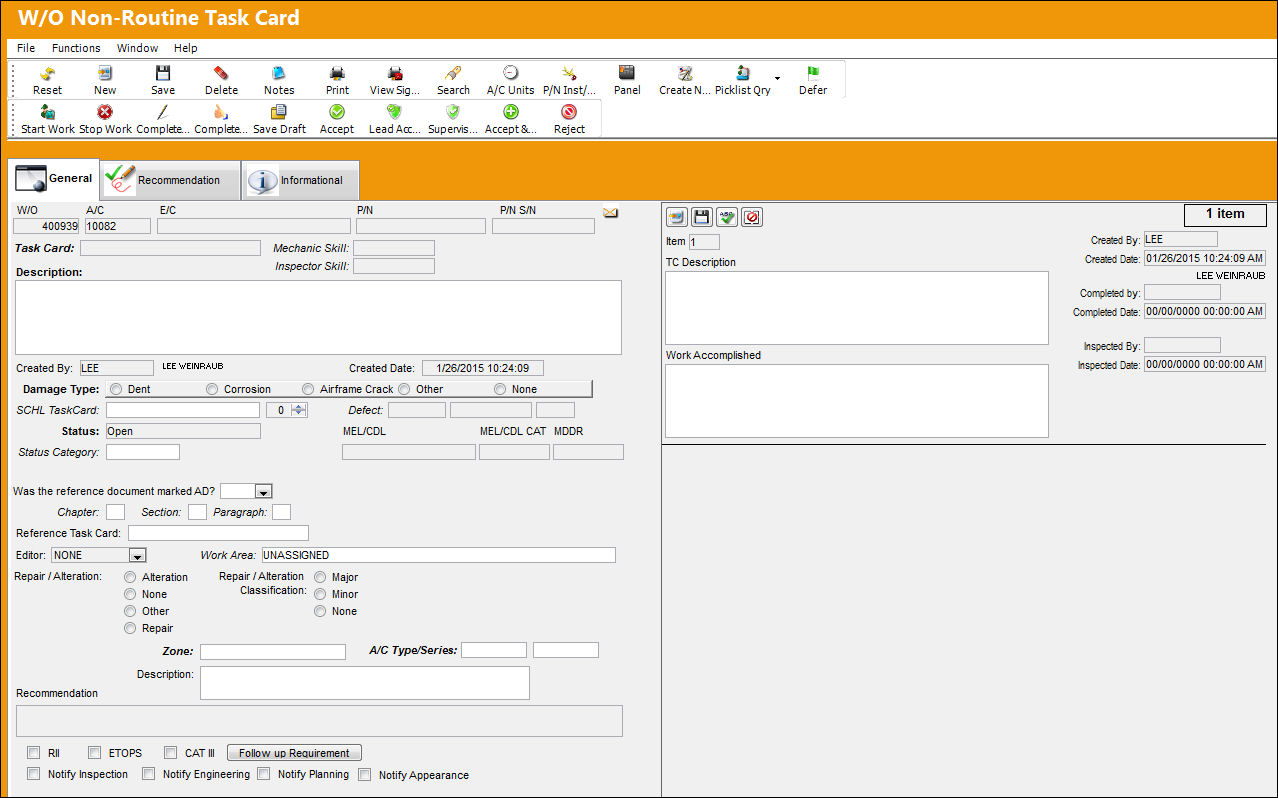
 This window is security-controlled via Production/ Update/ W/O Task Card and Non-Routine Search. For more information refer to the Security Explorer via the System Administration Training Manual.
The following information/options are available in this window:
_____________________________________________________________________________________
W/O
The Work Order used to categorize, manage, and schedule work requirements for aircraft maintenance.
A/C
The individual aircraft tail number.
E/C
The Engineering Control that specifies aircraft or component scheduled maintenance intervals.
P/N
The Part Number reference for the aircraft part.
P/N S/N
The Serial Number for the specific serialized part.
Task Card
The Task Card / Job Card that details the scheduled maintenance work.
Rev
The Task Card's most recent authorized revision number.
CAT
The Task Card's Category, as defined in Task Card Category transaction code via the Engineering Transaction Codes. Task Card Authorization Steps are defined in System Transaction Codes by Task Card Category.
Type
The Task Card Type, as defined in the Transaction Code. This code can be used to sort and locate Task Cards.
Mechanic Skill
The Skill required by the Mechanic to complete the required work.
Inspector Skill
The Skill required by the Inspector to complete the required work.
Description
Brief text describing the Non-Routine Task Card.
Status Indicator icons
Part Status Indicator  icon (green) - The green status icon indicates that all spares required are available in inventory.
Part Status Indicator  icon (yellow) - The yellow status icon indicates that some, but not all spares are available in inventory.
Part Status Indicator  icon (red) - The red status icon indicates that no spares are available in inventory.
Reservation Status Indicator  icon (green) - All parts have been reserved for the Work Order.
Reservation Status Indicator  icon (yellow) - Some parts have been reserved for the Work Order.
Reservation Status Indicator  icon (red) - No parts have been reserved for the Work Order.
Reservation Status Indicator  icon (teal) - Task have been added to the original Work Order and parts have not yet been reserved for those tasks.
Part Issued  icon (green) - All parts have been issued to the Work Order.
Part Issued  icon (yellow) - Some parts have been issued to the Work Order.
Part Issued  icon (red) - No parts have been issued to the Work Order.
Rejection  icon - Indicates that an item on the Non-Routine Task Card has been rejected by an Inspector.
In Progress  icon - Indicates to users that work has been started on the Non-Routine Task Card or an Item on the N/R T/C. or that a T/C has been signed off or created.
Damage Type radio buttons
These radio buttons allow users to categorize the type of damage sustained. The Damage options are the following:
- Dent
- Corrosion
- Airframe Crack
- Other
- None (set by default)
Once one of these radio buttons are selected (not including 'Other' and 'None'), the Damage tab becomes available. The fields in the Damage tab change depending on the Damage Type selected. For detailed information refer to the W/O Non-Routine Task Card Express, Damage Tab.
In order to edit these radio buttons, users must have security access to the Damage Tab via Production/ Update/ W/O/ W/O Non Routine Express Damage Tab. For more information refer to the Security Explorer via the System Administration Training Manual.
Material Necessary checkbox
Choose whether any material is necessary to complete the Task Card (Yes/ No). This is informational only.
SCHL Task Card
Allows for associating a scheduled or non-scheduled Task Card created via Engineering/ Update/ Task Card and associate it to the Non-Routine Task Card. This can also be used to specify a Task Card that triggered the Non-Routine Task Card.
When a FUR E/C is created via the Follow Up Requirement button, the Scheduled Task Card automatically becomes the E/C Document for the FUR E/C. For detailed information refer to the Document Button, via Engineering Control in the Engineering - E/C Training Manual.
Defect
The defect number (or log book number). The three fields correspond to the Defect Type, Defect, and Item of the Defect Report. This field is only informational.
This field is security-controlled via Production/ Update/ W/O/ W/O Non Routine Express Defect Type, Defect Number, Defect Item fields. For more information refer to the Security Explorer via the System Administration Training Manual.
Allow Edit Data  button
Select this button to open the fields in the Non-Routine Task Card to allow for edit.
Status drop down
The current status of the Non-Routine Task Card. The status of the N/R Task Card is helpful in determining the stage the Task Card is at with regard to it's completion. Ultimately, the completion of the Task Cards will result in the closing of the Work Order.
Draft - The N/R T/C automatically is set to Draft while the N/R is being created/drafted. It remains in Draft Status until it is released for authorization.
Pending - Indicates that the N/R T/C has been saved but not released for authorization by the user who created it. New N/R T/Cs should default to this Status.
Creator Authorized - Indicates that the N/R T/C has been released for authorization by the Non-Routine creator. N/R T/Cs should automatically move to this status after it has been released for authorization.
Lead Mechanic Authorized - Indicates that the card has been authorized by the lead mechanic (for W/Os requiring lead mechanic authorization). N/R T/Cs should automatically move to this status after it has been authorized by the lead mechanic.
Open - Indicates that the N/R T/C has been through all required authorization steps for the W/O type.
For W/Os requiring no authorization steps, the N/R T/C moves to Open status when the creator Accepts the N/R T/C.
For W/Os requiring Creator Release for authorization and Lead Mechanic authorization, the N/R T/C moves to Open status after the Lead Mechanic authorizes the N/R T/C.
For W/Os requiring Creator Release for authorization, Lead Mechanic authorization, and Supervisor Authorization, the N/R T/C moves to Open status after the Supervisor authorizes the N/R T/C.
Pending Inspection - Indicates one of the following possibilities: 1) the N/R T/C has been completed and is waiting on inspection, 2) the user has selected the inspection department checkbox on the N/R T/C, or 3) the mechanic has entered the follow-up requirements and completed all open items on the N/R T/C.
N/R T/Cs should automatically move to this status after all items on the N/R T/C have been completed for W/Os with an inspection skill set up in the N/R T/C defaults for the W/O Category Trans Code.
Pending Deferral - The N/R T/C has been deferred by the mechanic but is waiting on inspection.
Rejected - The N/R T/C has been rejected by the inspector for reason OR The follow-up requirements have been rejected on the Follow Up Requirements tab.
Closed - All Items on the N/R T/C have been completed by mechanic and inspector.
Deferred - The N/R T/C has been deferred.
Status Category
The sub-status of the card (hold/defer reason).
This field is security-controlled via Production/ Update/ W/O/ W/O Non Routine Express Status Category. For more information refer to the Security Explorer via the System Administration Training Manual.
Created By
The user who created the record.
Created Date
The date the record was created.
MEL/CDL
The MEL/CDL field allows the user to enter the MEL or CDL reference related to the deferral. MEL/CDL may be defined, entered or digitally imported in the MEL Master. For additional information, refer to the MEL Master via the Settings Training Manual.
MEL/CDL CAT
Minimum Equipment List Category that is defined in the associated Defect Report. The MEL number and the MEL category can be associated to one another via the MEL Master. This field is only informational.
MDDR
This is also known as a Deferred Maintenance Item (DMI). This field allows users to enter the deferment on one defect report (aircraft log page) by using the MDDR number on another defect report (aircraft log page) so that the user may resolve the MDDR. This field is informational only.
Draft Date / Hour/Minute
The date and time that the N/R T/C was drafted.
Draft Station
The work station where the N/R T/C was drafted.
Was the reference document marked AD? drop down
Users can indicate whether or not the reference document is related to an AD (Airworthiness Directive). The options are Yes or No.
The drop down field will automatically default to 'Yes' if the associated Scheduled Task Card Category code is 'EA-AD, EO-AD or ROUTN-AD'. This field will default to 'No' if one of the specified Category codes is not selected. A user without permissions will not be able to change the defaulted values.
This field is security-controlled via Production/ Update/ W/O/ W/O Non Routine Express Reference Task Card field. For more information refer to the Security Explorer via the System Administration Training Manual.
Chapter/Section/Paragraph
The ATA chapter/section/paragraph, as applicable.
Reference Task Card
Additional Reference for Customer Task Cards.
This field is security-controlled via Production/ Update/ W/O/ W/O Non Routine Express Reference Task Card field. For more information refer to the Security Explorer via the System Administration Training Manual.
Editor drop down
The application that will be used to edit the Task Card information. The application will also be used to edit Task Cards when those Task Cards are placed on Work Orders via Production/Update/Work Order. Selectable formats include: Word ®, TASKCARD, or the default Powerbuilder ® RTF (i.e. NONE). This is a customized layout for the Task Card.
The Editor type is selected depending on the configuration of Engineering Switch  NREDITOR. For more information refer to the Engineering Switches Manual.
Work Area
Allows users to move Non-Routine Task Cards along with the progress of the check. This field is controlled via the Production System Transaction Code 'W/O Area.'
This field is security-controlled via Production/ Update/ W/O/ W/O Non Routine Express Work Area Field. For more information refer to the Security Explorer via the System Administration Training Manual.
Repair/Alteration radio buttons
Defines if the record requires Repair or Alteration.
Alteration - This compliance of the Task Card will alter the component (i.e. the removal or addition of sub-components).
None - Indicates that no repairs or alterations are required.
Other - The component is neither altered or repaired. This is a miscellaneous option.
Repair - The compliance of the Task Card will repair the component (i.e. a structural component has sheet metal work completed to strengthen the integrity of the structure).
Repair/Alteration Classification radio buttons
The level of Repair/Alteration (Major, Minor) required for this Task Card. The options are Major, Minor, or None.
Due At fields
The schedule information for N/Rs that were created from a deferred defect. The fields include A/C Hours/Days/Cycles and Due Date.
Zone
The Zone area for the Task Card. This field will be populated from the selected SCHL Task Card (above). In the N/R Express window, only one Zone can be entered for each N/R T/C. If the SCHL Task Card has multiple Zones, the first one will be selected automatically.
A/C
The Aircraft Type and Series/Fleet assignment. This field is auto-populated when the Zone is entered. This field is only informational.
Description
The Zone description for the Task Card. This field is auto-populated when the Zone is entered.
Recommendation
Allows lead mechanics or supervisors to provide recommendations to the mechanic(s) working on the W/O Non-Routine Task Card. This information in field is copied over from the Recommendation tab. For more information refer to the W/O Non-Routine Task Card Express, Recommendation Tab.
RII checkbox
Indicates if the Item requires inspection. This is only available for Items following the first Item.
When this checkbox is selected or deselected in the N/R Express window, the RII checkbox is also selected in the W/O Non-Routine Task Card, Optional 3 tab and Work Accomplished tab. If selected or deselected in these mentioned tabs, the checkbox is reflected in the N/R Express window.
ETOPS checkbox
Select this checkbox to indicate that the Task Card is relevant to ETOPS operations.
CAT III
Indicates that the N/R T/C is a Category III.
Follow Up Requirement button
This button allows users to view or enter any Follow Up Requirements that must be completed after the required work of the N/R T/C has been accomplished. When selected, the Follow Up Requirements window pops up. For more information on this window, refer to the Follow Up Requirements, via Non-Routine Express.
This button is security-controlled via Production/ Update/ W/O/ W/O Non Routine Express FUR Button. For more information refer to the Security Explorer via the System Administration Training Manual.
Notify Inspection checkbox
Allows users to notify the Inspection department which is assigned the N/R T/C. This checkbox is only available for the first Item.
Notify Engineering checkbox
Allows users to notify the Engineering department which is assigned the N/R T/C. This checkbox is only available for the first Item.
Notify Planning checkbox
Allows users to notify the Planning department which is assigned the N/R T/C. This checkbox is only available for the first Item.
Notify Appearance checkbox
Allows users to notify the Appearance department which is assigned the N/R T/C. This checkbox is only available for the first Item.
Items section
Items are the individual procedures necessary to complete the N/R T/C work. In the N/R Express window, the functionality found in the Items  button and its tabs are located in the bottom of the General tab.
When a selected Item is saved or worked on, the Item remains selected when the window is refreshed.
The available fields and buttons are as follows:
New  button - Select to add new Items to the N/R T/C.
This button is security-controlled via Production/ Update/ W/O/ W/O Non Routine Express New Item Button. For more information refer to the Security Explorer via the System Administration Training Manual.
Save  button - Select to save the Item.
This button is security-controlled via Production/ Update/ W/O/ W/O Non Routine Express Save Item Button. For more information refer to the Security Explorer via the System Administration Training Manual.
Spell Check  button - Select to check the spelling of the Description text.
Deselect All  button - Deselects all highlighted Items.
Item - The Item number. Every N/R T/C has at least one Item by default.
TC Description - The description of the Item. The text of this field is copied from the Description field of the N/R T/C.
This field cannot be edited once the T/C Work is completed.
If the Editor field is set to 'STYLESHEET,' when the user selects into the Item Text field the following toolbar appears to editing purposes:

Work Accomplished - The Item work that was performed by the mechanic.
If there are multiple Items associated to the N/R Task Card, the Work Accomplished field for the first Item is grayed out until the other Items are completed. For more information refer to the Complete Work Button, via Non-Routine Express.
This field cannot be edited once the T/C Work is completed.
Item Text - This field is used for the description of the item (i.e., the actual work instructions required for the completion of the Task Card item). This is available for Items following the first Item.
Entered In Error checkbox - Select this checkbox if the Item was entered in error.
Item entries cannot be deleted. Items entered in error will still be visible by supervisors after the N/R T/C Item work is accomplished.
This checkbox is security controlled via Production/ Update/ W/O/ W/O Non Routine Express Entered in Error. For additional information, refer to the Security Explorer, via the System Administration Training Manual.
RII checkbox - Indicates if the Item requires an Inspection. This is only available for Items following the first Item.
Inspection Only Item checkbox - Indicates that any Item after the first Item does not require to be signed-off by an inspector. The same person can complete the Item and the Work Accomplished for the Item, The first Item cannot be selected as Inspection Only.
Created By - The user who created the record.
Created Date - The date the record was created.
Completed By - The user who completed the Item.
Completed Date - The date and time that the Item was completed.
Inspected By - The user who inspected the Item.
Inspected Date - The date and time that the Item was inspected.
Entered in Error By - The user who entered the error for the Item.
Entered in Error Date - The date and time the error was entered.
_____________________________________________________________________________________
Share
Print
|
©1997-2026 Trax USA Corp. All rights reserved. This manual may not be copied, photocopied, reproduced, translated, or converted to any electronic or machine-readable form, in whole or in part, without prior written approval from Trax USA Corp. |
 |