
 Share
Share
 Print
Print
|
|
|
|
|


The Follow Up Requirements window pops up when the Follow Up Requirements button is selected in the N/R Express, General tab, W/O Non-Routine Task Card window, or the Defect Report, Resolution tab. The Follow Up Requirements (FUR) window allows users to create Engineering Controls with adjustable maintenance schedules that allow tracking via Planning. These FUR E/Cs are meant to address further necessities required after the creation of a N/R T/C or a Defect Report. When created from the Non-Routine Express window, users can view all FURs for a Non-Routine Task Card by going to the Follow Up Required tab in the N/R Express window.
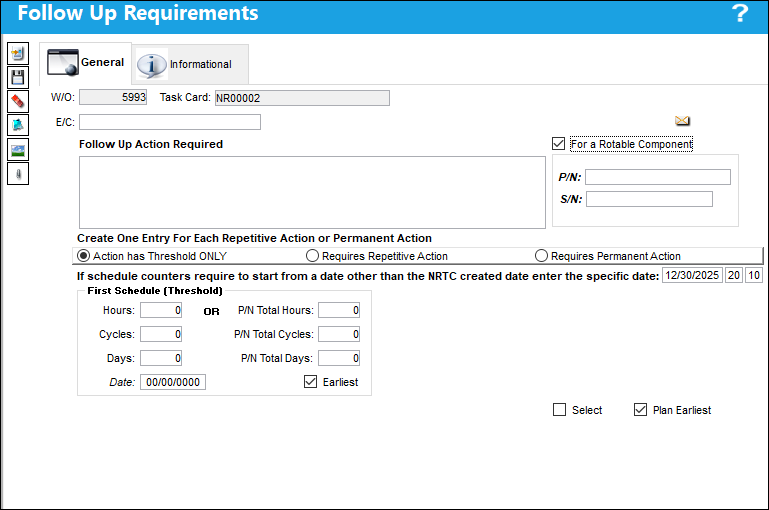
When the button is selected, the Follow Up Requirements window appears as follows:

 Note: The New button is security-controlled via Production/ Update/ W/O/ W/O Non Routine Task Card FUR/ W/O Non Routine Task Card Fur Button New. For more information refer to the Security Explorer via the System Administration Training Manual.
Note: This window is security-controlled via two separate locations: via Production/ Update/ W/O/ W/O Non Routine Express FUR Button and via Technical Records/ Update/ Defect Reports/ Resolution Tab FUR Button. For more information refer to the Security Explorer via the System Administration Training Manual.
 This functionality was designed as specified by a TRAX customer. The procedures intended through this functionality are part of their customized program and therefore cannot be modified by any other TRAX customer.
The following information/options are available in this window:
_____________________________________________________________________________________
W/O
The Work Order used to categorize, manage, and schedule work requirements for aircraft maintenance.
Task Card
The Task Card / Job Card that details the scheduled maintenance work.
Control
The Control (A/C, P/N, A/C Type, or ALL) used to auto generate the E/C reference. This field is used for naming purposes only. When the 'ALL' option is selected the E/C Control field will not auto generate the E/C reference. The E/C reference will auto generate from the Sub E/C field.
: This field is only available when the switch  COMPANYMULTI is set to yes.
Note: This field is security-controlled via Production/ Update/ W/O/ W/O Non Routine Task Card FUR/ W/O Non Routine Task Card Fur Control. For more information refer to the Security Explorer via the System Administration Training Manual.
Company
The name of the airline company for which the E/C will be utilized.
:This field is only available when the switch COMPANYMULTI is set to yes.
Note: This field is security-controlled via Production/ Update/ W/O/ W/O Non Routine Task Card FUR/ W/O Non Routine Task Card Fur Company. For more information refer to the Security Explorer via the System Administration Training Manual.
E/C
The Engineering Control that specifies aircraft or component scheduled maintenance intervals. The Engineering Control being created. Once created, the E/C name is auto-generated and becomes a hyperlink. When the E/C hyperlink is selected, an informational Engineering Control window appears as follows.
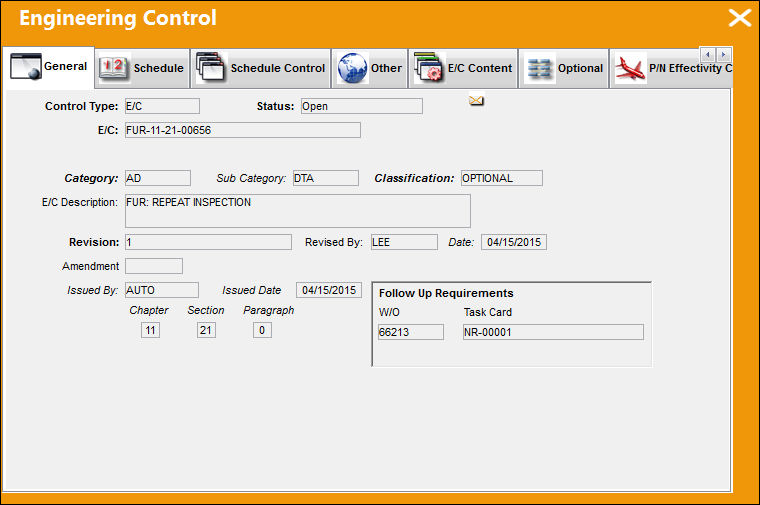
When an E/C is renamed, the FUR record will be updated accordingly.
The user may elect to auto default certain fields in the Engineering Control window. For additional information, refer to the FUR Configuration Button, via Company Profile of the Settings Training Manual.
Follow Up Action Required
Users must add a description of the required follow up procedures. Once the FUR is saved, the description in the E/C starts with the text, 'FUR: ....'
Note: This field is security-controlled via Production/ Update/ W/O/ W/O Non Routine Task Card FUR/ W/O Non Routine Task Card Fur Description. For more information refer to the Security Explorer via the System Administration Training Manual.
For a Rotable Component checkbox
Indicates if the associated component is a rotable part. Having this checkbox selected makes the FUR a P/N E/C. When selected, the P/N and S/N fields appear in the window. This checkbox is not selected by default. Also, when selected, the First Schedule fields contain P/N Total time fields; when not selected, the First Schedule fields contain A/C Total time fields.
This Check Box is security-controlled via Production/ Update/ W/O/ W/O Non Routine Task Card FUR/ W/O Non Routine Task Card Fur For Rotable Component. For more information refer to the Security Explorer via the System Administration Training Manual.
P/N - The Part Number reference for the aircraft part. This field is only available when the for a Rotable Component checkbox is selected.
S/N - The Serial Number for the specific serialized part. This field is only available when the for a Rotable Component checkbox is selected.
Document Control button 
Select to attach a document to the Follow-Up Requirement record. Note the attachment will be loaded against the selected FUR record if there are multiple lines. The Document Control button is a standard button found throughout the system. For more information, refer to the System Standards Training Manual.
Effective Date ('If schedule counters require to start from a date other than the NRTC created date enter the specific date' field)
This field functions as an E/C Effective Date. If the schedule for the E/C is to begin on a date that is not the same as the Defect Report or the N/R T/C Created Date, the effective date must be specified through this field. Otherwise, the E/C Schedule will begin on the Defect Report or N/R T/C Created Date.
This Field is security-controlled via Production/ Update/ W/O/ W/O Non Routine Task Card FUR/ W/O Non Routine Task Card Fur Effective Date. For more information refer to the Security Explorer via the System Administration Training Manual.
This Field is security-controlled via Production/ Update/ W/O/ W/O Non Routine Task Card FUR/ W/O Non Routine Task Card Fur Effective_hour. For more information refer to the Security Explorer via the System Administration Training Manual.
This Field is security-controlled via Production/ Update/ W/O/ W/O Non Routine Task Card FUR/ W/O Non Routine Task Card Fur Effective Minute. For more information refer to the Security Explorer via the System Administration Training Manual.
Action Has Threshold ONLY radio button
Indicates that the follow up schedule is a one time E/C with a First Schedule only. This radio button is typically used for one time inspections. When selected, only the First Schedule (Threshold) fields are available.
This Button is security-controlled via Production/ Update/ W/O/ W/O Non Routine Task Card FUR/ W/O Non Routine Task Card Fur Action Radio Button. For more information refer to the Security Explorer via the System Administration Training Manual.
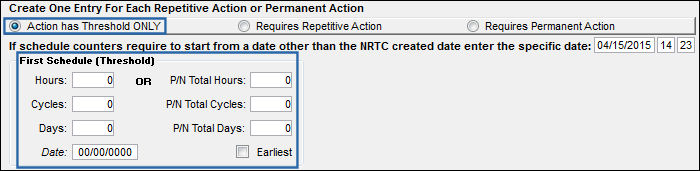
When selected, the FUR E/C's Repair/Alteration 'Other' radio button is selected by default in the Engineering Control, Other tab. The Repair/Alteration Classification 'None' radio button is selected by default in all releases.
When selected, the Engineering Control that is created through this FUR will not have the Plan E/C checkbox selected in the Engineering Control, Schedule tab.
First Schedule (Threshold) fields
The First Schedule is the parameter for the initial occurrence of the E/C. Some E/Cs may have multiple schedules. For example an AD may have a First Schedule of 1000 hours/500 cycles/30 days. When an E/C has multiple schedules, the Earliest checkbox is pivotal in the configuration as the E/C may call for the compliance to be accomplished at the latest occurrence. These fields are not available if the Requires Permanent Action radio button is selected.
The First Schedule information must be entered in order for the Repeat Schedule to be applicable.
Hours/Cycles/Days - The initial Schedule Hours/Cycles/Days threshold parameter for this E/C. The system will default to the Earliest occurrence of these parameters, unless the Earliest flag is unchecked, then it will be the latest occurrence.
First Schedule Date - The initial Schedule Date limit (due date) on this E/C. For example, an AD might have a NLT (No Later Than) Date for the First Schedule of the E/C.
A/C Total Hours/Cycles/Days - The A/C Total Hours/Days/Cycles to be used for the First Schedule. These fields are A/C Total fields if the 'For a Rotable Component' checkbox is not selected.
P/N Total Hours/Cycles/Days - The P/N Total Hours/Days/Cycles to be used for the First Schedule. These fields are P/N Total fields only when the 'For a Rotable Component' checkbox is selected.
Earliest checkbox - Select if the E/C Schedule parameters are to be planned at the earliest occurrence. For the latest occurrence, this option should not be selected.
Multiple First Schedule validations prevent users from saving FURs with conflicting P/N Serial Number and Aircraft schedules.
Requires Repetitive Action radio button
Indicates that the follow up schedule is a repeat schedule E/C. When this radio button is selected, only the First Schedule (Threshold) fields, the Repeat Schedule fields, and the 'Repetitive Follow Up Action to be done with' field are available.
When selected, the FUR E/C's Repair/Alteration 'Other' radio button is selected by default in the Engineering Control, Other tab. The Repair/Alteration Classification 'None' radio button is selected by default in all releases.
Note: This Button is security-controlled via Production/ Update/ W/O/ W/O Non Routine Task Card FUR/ W/O Non Routine Task Card Fur Action Radio Button. For more information refer to the Security Explorer via the System Administration Training Manual.
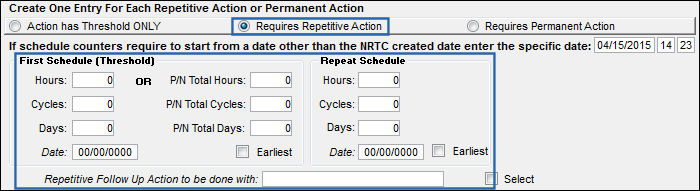
Repeat Schedule fields
If the E/C has a Repeat Number greater than 1, then the Repeat Schedule is the parameter for the subsequent repetitive occurrences of the E/C. As with the First Schedule, some E/Cs may have multiple schedules. For example an AD may have a Repeat Schedule of 1000 hours/500 cycles/30 days. When an E/C has multiple schedules, the Earliest checkbox is pivotal in the configuration as the E/C may call for the compliance to be accomplished at the latest occurrence.
These fields are only available when the Requires Repetitive Action radio button is selected.
The First Schedule information must be entered in order for the Repeat Schedule to be applicable.
Repeat Schedule Hours/Cycles/Days - The Repeat Schedule Hours/Cycles/Days threshold parameter for this E/C (If applicable). The system will default to the Earliest occurrence of these parameters, unless the Earliest flag is unchecked, then it will be the latest occurrence.
Repeat Schedule Date - The Repeat Schedule Date limit (due date) on this E/C. This is most common for an initial inspection and a follow up inspection. For example, the first inspection must be accomplished by April 1 and the follow up inspection by October 1.
Earliest checkbox - Select if the E/C Schedule parameters are to be planned at the earliest occurrence. For the latest occurrence, this option should not be selected.
When the Requires Repetitive Action radio button is selected, and the E/C is created, an E/C/ T/C Link is created. For additional information, refer to the Task Card Control Button, via Engineering Control Buttons of the Engineering - E/C Training Manual. In addition, the Task Card Range is also created. For additional information, refer to the Task Card Range Button, via Task Card Buttons of the Engineering - T/C Training Manual.
Repetitive Follow Up Action to be done with
Allows users to link other repetitive repair E/Cs to the repetitive FUR E/C. This field ('Repetitive' Follow Up Action) is only available when the Requires Repetitive Action radio button is selected.
Requires Permanent Action radio button
Indicates that the follow up schedule us a one time E/C that can be re-used. This radio button is typically used for permanent repairs. When selected, only the Permanent Action Within fields and the 'Permanent Follow Up Action to be done with' field are available.
The FUR E/C's Repair/Alteration 'None' radio button is selected by default in the Engineering Control, Other tab. The Repair/Alteration Classification 'None' radio button is selected by default.
Note: This Button is security-controlled via Production/ Update/ W/O/ W/O Non Routine Task Card FUR/ W/O Non Routine Task Card Fur Action Radio Button. For more information refer to the Security Explorer via the System Administration Training Manual.
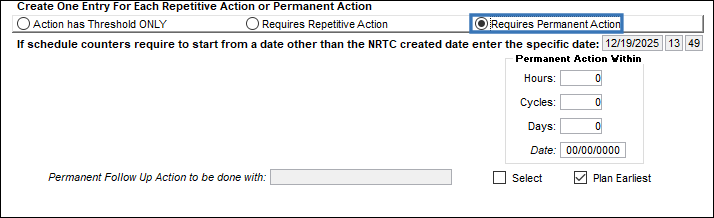
Permanent Actions Within fields
These schedule fields are used for a one time, permanent repair. These fields are only available when the Requires Permanent Action radio button is selected.
Permanent Action Schedule Hours/Cycles/Days - The initial and only Schedule Hours/Cycles/Days parameter for this E/C.
Permanent Action Schedule Date - The permanent Schedule Date limit (due date) on this E/C.
'Permanent Follow Up Action to be done with' field
Allows users to link other permanent repair E/C to the permanent FUR E/C. This field ('Permanent' Follow Up Action) is only available when the Requires Permanent Action radio button is selected.
Note: This Field is security-controlled via Production/ Update/ W/O/ W/O Non Routine Task Card FUR/ W/O Non Routine Task Card Fur Permanent Follow Up. For more information refer to the Security Explorer via the System Administration Training Manual.
Plan Earliest Checkbox - Select if the E/C Schedule parameters are to be planned at the earliest occurrence. For the latest occurrence, this option should not be selected.
Note: This Checkbox is security-controlled via Production/ Update/ W/O/ W/O Non Routine Task Card FUR/ W/O Non Routine Task Card Fur Plan Earliest. For more information refer to the Security Explorer via the System Administration Training Manual.
_____________________________________________________________________________________
FUR Authorization: Accepted
To authorize a FUR, it must first be saved. Once saved, the Accept and Reject radio buttons appear at the bottom of the window. Select the Accept radio button then select the Accept  button.
Note: The authorization fields and buttons are security-controlled via Production/ Update/ W/O/ W/O Non Routine Follow Up Requirements Authorization. For more information refer to the Security Explorer via the System Administration Training Manual.
Note: This Button is security-controlled via Production/ Update/ W/O/ W/O Non Routine Task Card FUR/ W/O Non Routine Task Card Fur Accept. For more information refer to the Security Explorer via the System Administration Training Manual.
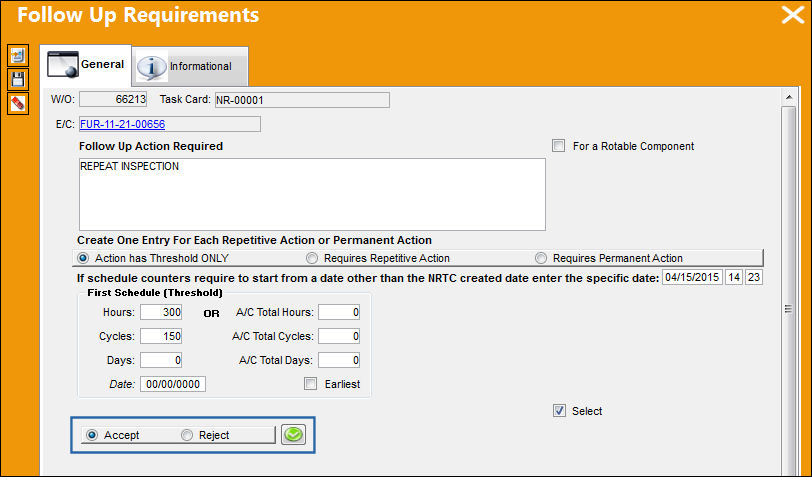
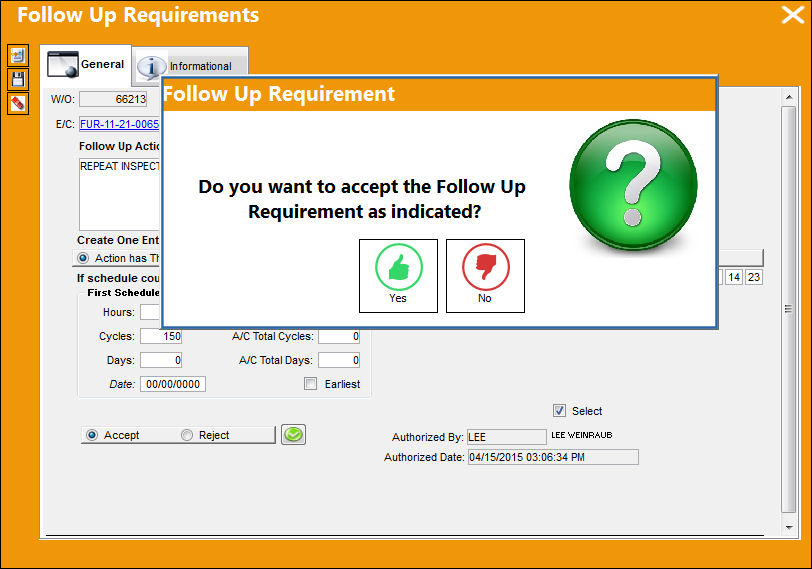
The following prompt then appears. Select Yes to authorize.
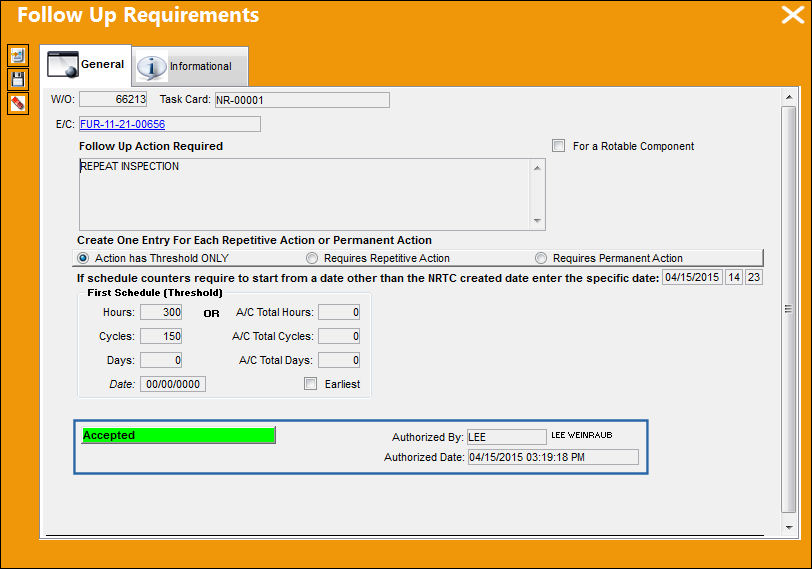
Once authorized, the green Accepted icon appears and the Authorized By/Date information is displayed.
Note: This Field is security-controlled via Production/ Update/ W/O/ W/O Non Routine Task Card FUR/ W/O Non Routine Task Card Fur Authorized By. For more information refer to the Security Explorer via the System Administration Training Manual.
Note: This Field is security-controlled via Production/ Update/ W/O/ W/O Non Routine Task Card FUR/ W/O Non Routine Task Card Fur Authorized Date. For more information refer to the Security Explorer via the System Administration Training Manual.
FUR Authorization: Rejected
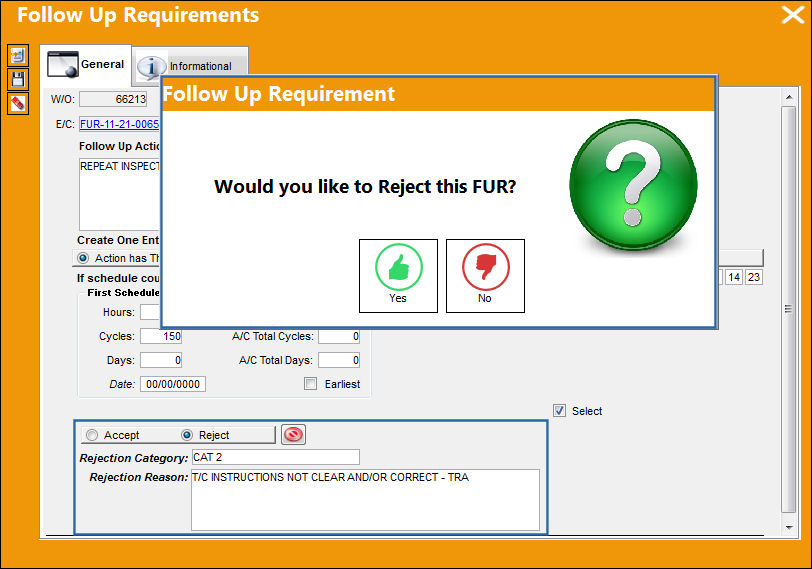
To reject a FUR, it must first be saved. Once saved, the Accept and Reject radio buttons appear at the bottom of the window. Enter the Rejection Category and the Rejection Reason. Select the Reject radio button then select the Reject  button. Select Yes at the following prompt.
Note: The Button fields and buttons are security-controlled via Production/ Update/ W/O/ W/O Non Routine Task Card FUR Reject. For more information refer to the Security Explorer via the System Administration Training Manual.
Once rejected, the red Rejected icon appears and the Authorized By/Date information is displayed.
Note: This Field is security-controlled via Production/ Update/ W/O/ W/O Non Routine Task Card FUR/ W/O Non Routine Task Card Fur Rejection Category. For more information refer to the Security Explorer via the System Administration Training Manual.
Note: This Field is security-controlled via Production/ Update/ W/O/ W/O Non Routine Task Card FUR/ W/O Non Routine Task Card Fur Rejection Reason. For more information refer to the Security Explorer via the System Administration Training Manual.
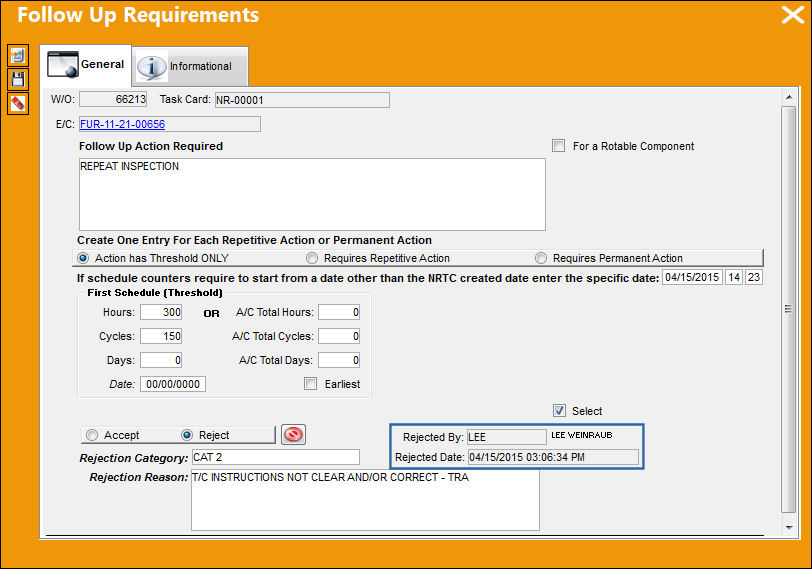
Users can view all accepted, rejected, or pending FURs for a N/R T/C by going to the Follow Up Requirements tab in the N/R Express window.
FUR Schedule Validation Scenarios
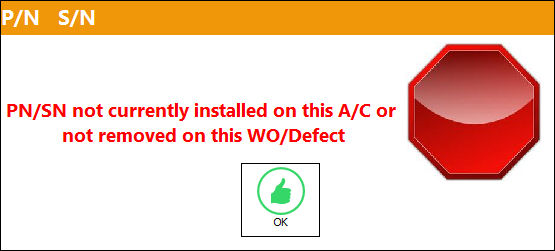
1. The Part Number Serial Number entered against the FUR must be currently installed on the Aircraft associated to the N/R Task Card or Defect Report. If not, the P/N S/N must have been removed from the Aircraft through the FUR's N/R T/C or Defect Report. If the P/N S/N is not associated to the Aircraft in these ways, then the following warning message appears.
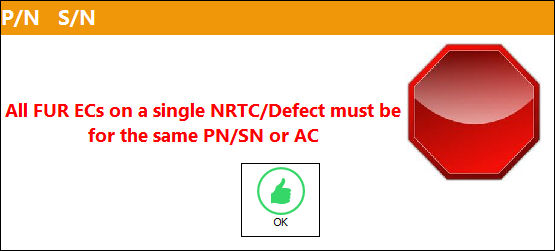
2. If multiple FURs are created for a given N/R T/C or Defect Report, each FUR must be for the same Part Number Serial Number or for the same Aircraft. If this is not the case, the following error message appears.
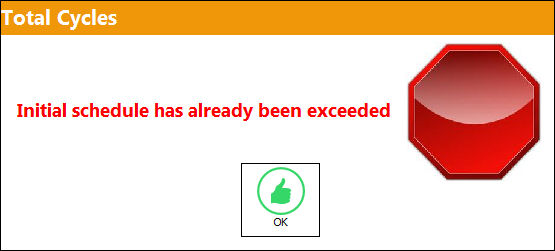
3. If the Part Number Serial Number that is associated to the FUR has a FUR First Schedule with P/N Total Hours or Cycles that is less than the current P/N Total Times for the P/N S/N, users are prevented from saving the FUR.
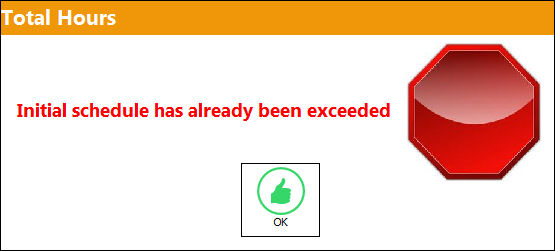
4. The same warning message appears if the Aircraft that is associated to the FUR has a FUR First Schedule with A/C Total Hours or Cycles that is less than the current A/C Total Times for the Aircraft, users are prevented from saving the FUR.
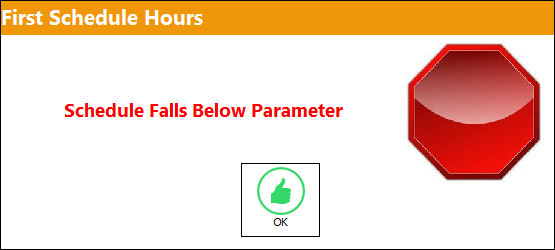
5. The First Hours, First Cycles, and First Days fields must be greater than the Limit Parameters specified in Production Switch LIMITFURCRITERIA when set to Yes.
The text in the warning message that appears from this error is customizable through the Config Other field of Switch LIMITFURCRITERIA.
Note: This window is security-controlled via Production/ Update/ W/O/ W/O Non Routine Task Card FUR/ W/O Non Routine Task Card Fur Schedule Limit Hours. For more information refer to the Security Explorer via the System Administration Training Manual.
Note: This window is security-controlled via Production/ Update/ W/O/ W/O Non Routine Task Card FUR/ W/O Non Routine Task Card Fur Schedule Limit Cycles. For more information refer to the Security Explorer via the System Administration Training Manual.
Note: This window is security-controlled via Production/ Update/ W/O/ W/O Non Routine Task Card FUR/ W/O Non Routine Task Card Fur Schedule Limit Days. For more information refer to the Security Explorer via the System Administration Training Manual.
Note: This window is security-controlled via Production/ Update/ W/O/ W/O Non Routine Task Card FUR/ W/O Non Routine Task Card Fur Schedule Limit Date. For more information refer to the Security Explorer via the System Administration Training Manual.
Share
Print
|
©1997-2026 Trax USA Corp. All rights reserved. This manual may not be copied, photocopied, reproduced, translated, or converted to any electronic or machine-readable form, in whole or in part, without prior written approval from Trax USA Corp. |
 |