
 Share
Share
 Print
Print
|
|
|
|
|


Theme Color Settings

Navigation Panel/ User Settings/ Theme Color Settings
In the Theme Color Settings, the user can change the color theme throughout the TRAX application to suit your personal needs.
The TRAX user login color may not be changed.
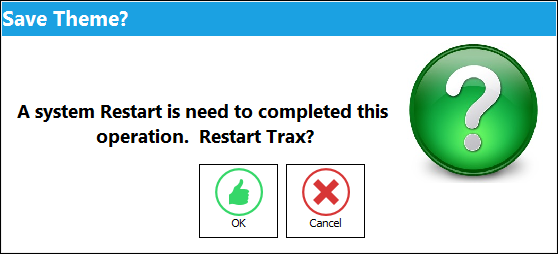
Once a new color is selected using any of the options listed below (Theme Settings, Custom Theme, or Apply To All Theme) the system will prompt you whether you wish to change the theme. If yes, a system restart is required.
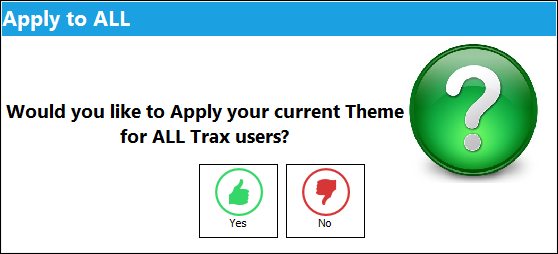
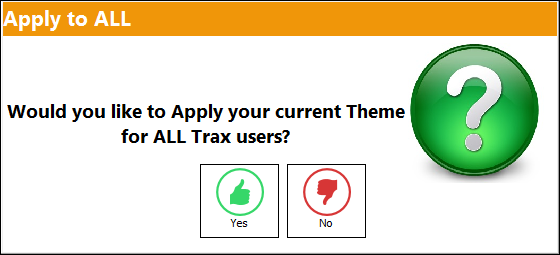
The system will prompt you twice, once in the current color theme and the second time in the chosen color theme.
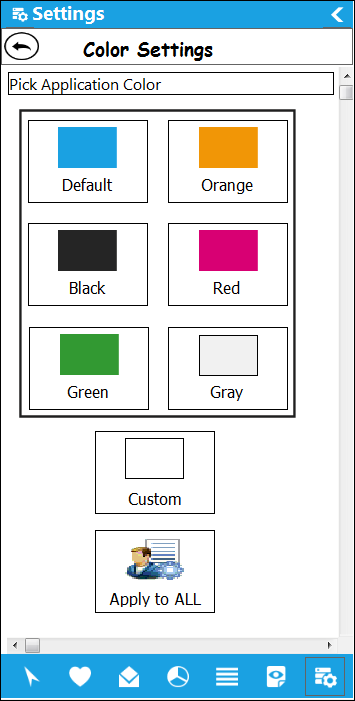
Theme Settings:
There are six available theme colors to select from: Blue, Orange, Black, Red, Green and Gray. The default TRAX Version 11 theme color is Orange.
 The Theme Color tab is security controlled via the Security Explorer/ System Administration/ Explorer/ User Menu Settings - Theme Settings. For additional information, refer to the Security Explorer via the System Administration Training Manual.
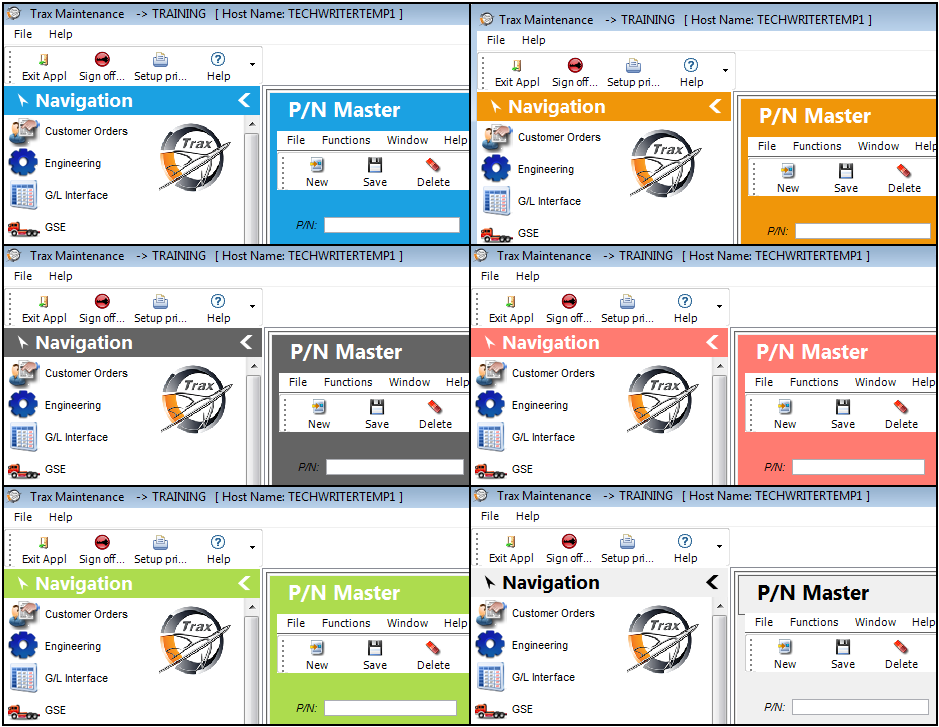
Below is a collage on how the system will display each color:
Custom Option:
If the six theme colors are not suitable, TRAX allows the user to select a custom theme color that better suits their needs.
The Custom option is security controlled via Security Explorer/ System Administration/ Explorer/ User Menu Settings - Custom. For additional information, refer to the Security Explorer via the System Administration Training Manual.
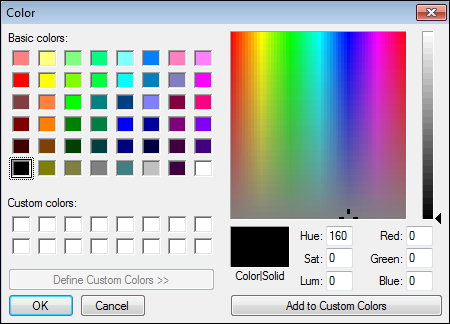
Select the Custom Option.
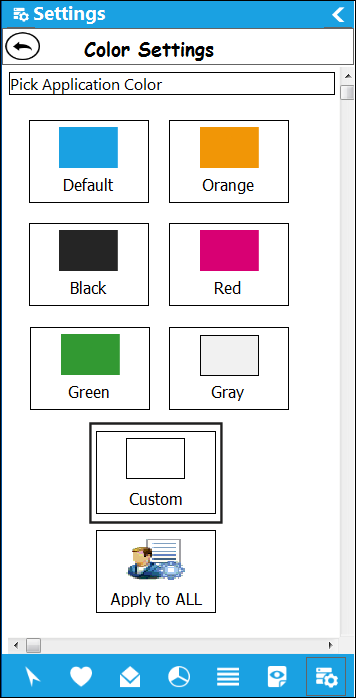
The user is able to select from a variety of colors to customize their theme color.
Apply to ALL Option:
The Apply to ALL option allows the user to apply their current theme color to all TRAX users.
The Apply to ALL option is security controlled via Security Explorer/ System Administration/ Explorer/ User Menu Settings - Theme Settings - Apply to ALL. For additional information, refer to the Security Explorer via the System Administration Training Manual.
Select the Apply to ALL option.
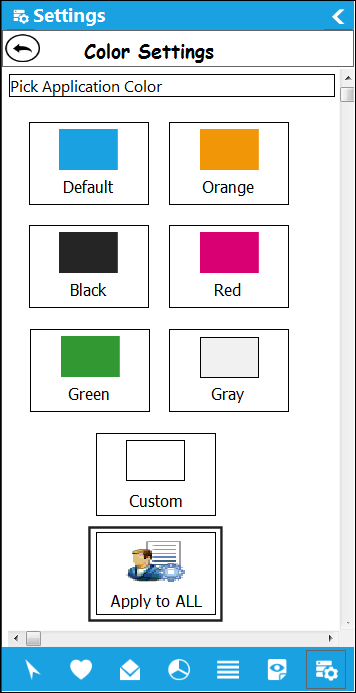
The following prompt appears asking the user if they would like to apply their current theme to all TRAX users.
Share
Print
|
©1997-2026 Trax USA Corp. All rights reserved. This manual may not be copied, photocopied, reproduced, translated, or converted to any electronic or machine-readable form, in whole or in part, without prior written approval from Trax USA Corp. |
 |