
 Share
Share
 Print
Print
|
|
|
|
|


Repair Order Header, General Tab
The Repair Order Header, General tab allows the user to access open orders created by the user and create new orders.
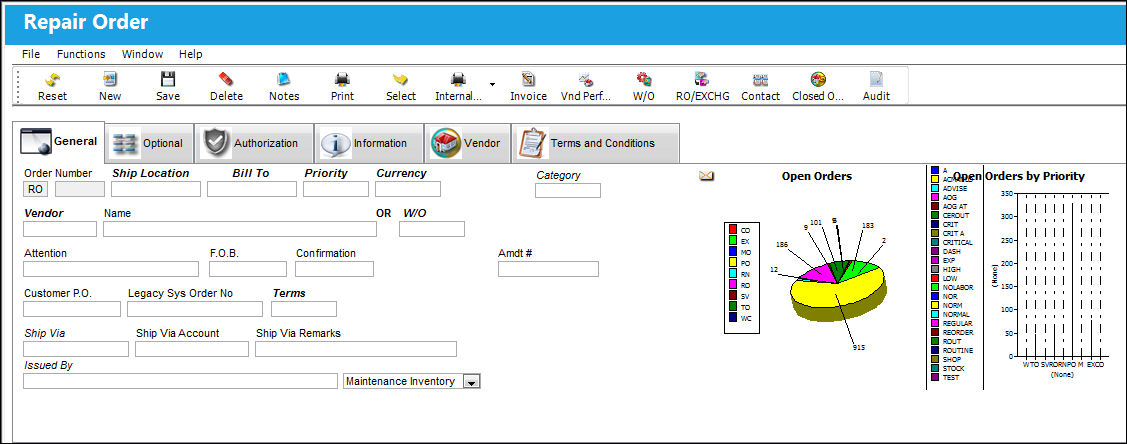
The following information/options are available in this window:
_____________________________________________________________________________________
Order (Order Type)
Type of Order. By order type, certain receiving and financial behaviors will be assigned to the order at receiving of the various Order Types. These order types exist under the Orders or Customer Orders Modules exclusively. All Order Types are Hard Coded into the programming syntax.
Number (Order Number)
An auto-generated unique sequential number is assigned to each order. All Order Types which exist under the Order Module will receive their number for the following configuration:
 POSEQ - (Orders Next Sequence Number) - Next number for an Order. The start number is set at implementation. The Config Number field is used.
Ship Location
The location where the transaction will be shipped to. All locations are defined in the Location Master. All Ship Locations must be identified as an Inventory Location in the Location Master, if a physical part or item is to be received. If the Location is not identified in Inventory a warning will be received upon entry and the user will not be able to save the order header. For additional information, please refer to the Location Master, General Tab section of the Settings Training Manual.
Bill To
This may be different from the Ship Location and may be pre-defined for each location. The Bill To location may be changed for a particular order as required. For additional information, please refer to the Location Master, General Tab section of the Settings Training Manual.
Priority
The priority placed on the transaction (e.g., routine, AOG, etc.). For additional information and functionality, refer to the Priority transaction code via the Orders Transaction Codes.
Currency
The currency that will be used for the order transaction. Currencies may be defined for the Customer/Vendor in the Customer/Vendor Master and overridden at the order level. For additional information, please refer to the Currency section of the G/L Interface, System Transaction Code Training Manual.
Company
The company the order is being created for. This field appears only when G/L Interface Switch COMPANYMULTI is set to 'Yes.' This feature is part of the Multi-Company functionality. Parent company's airlines are entered into this field. Then, when the P/N is entered into the detail window, the G/L field will be auto-populated with this airline's previously created G/L Account. When the switch is set to 'No' the field is titled Category and functions as defined above. For more information see the G/L Interface Switch COMPANYMULTI via the G/L Interface Switches Manual.
Category
The appropriate category for this transaction. This also works with the Authorization Process as defined against the Order Type. The configuration of Switch ROCATMAN applies to this field, requiring it to be mandatory if set to Yes.
This field appears with Switch COMPANYMULTI set to No.
Vendor
The system code for the service/part provider. The vendors are defined in the Vendor Master. All vendors must have the required criteria (i.e. supplier, service, etc) to be used against the particular order type. Otherwise, the below message may be received stating that the user will not be able to save the order with that particular vendor.
Enter either the Vendor or Work Order. Both will not be allowed.
When a user references a Work Order and then removes the referenced Work Order number to enter a Vendor, a soft warning will appear.
If selecting Yes, the Repair Order will be booked to the previously referenced Work Order number.
The 'Book To' functionality is used for the charges to be reflected in the Work Order expense accounts once the Work Order is closed. Journal entries are also affected when this functionality is used.
Name
The name of the vendor who was selected in the vendor field will appear here as defined in the Vendor Master.
W/O
The Work Order used to categorize, manage, and schedule work requirements for aircraft maintenance.
If this Repair Order is for an internal repair (repaired by your company's shops) the Vendor field will be null and the Shop Work Order selected or created for this Repair Order. The user may also select the W/O  button to create a new Shop Work Order. The following window will appear:
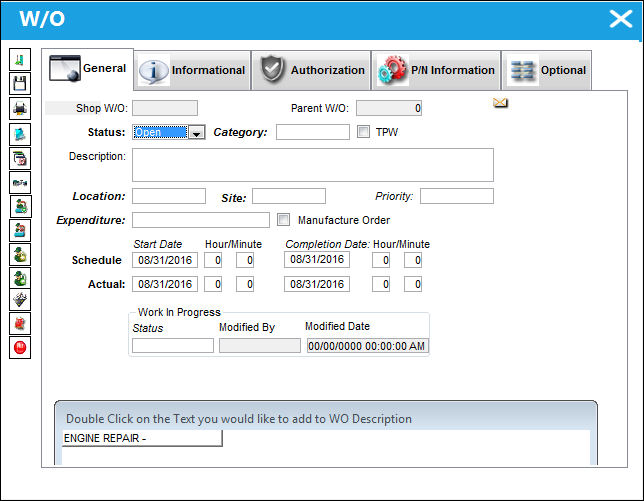
Enter all required information and save. For additional information, please refer to the TRAX Shop Training Manual.
If the user does not wish to create a new Shop Work Order but rather attach the Repair Order to an existing Open Shop Work Order, please right click in the Work Order field.
Locate the desired Shop Work Order and double Select the Work Order to attach the Repair Order.
When a line item is added to the Repair Order Detail, and that Repair Order is associated with a Shop Work Order (created via Shop/ Update/ Work Order), the appropriate P/N S/N will also appear on the P/N Information tab of the Shop Work Order.
Enter either the Vendor or W/O, both will not be allowed.
Attention
Name of person who should receive the order. This field may be pre-defined in the Main Contact field on the Vendor Master, Mailing Address Tab. The main contact will default upon order creation. Additional contacts may be defined in the Vendor Master and selected against the order. For additional information, please refer to the Vendor Master, Contact Button section of Settings Training Manual. For a listing of available contact associated to the vendor, select the Contact  button. Select the required vendor contact to populate the Attention field with an alternate contact.
F.O.B.
Freight On Board information (sometimes referred to as Free On Board). This information may be pre-defined by vendor. For additional information please refer to the Vendor Master, Shipping Information Tab of the Settings Training Manual.
Confirmation
The confirmation reference along with applicable information.
Amdt #
The amendment reference number for the order.
B2B ID
The business-to-business user identification number in Aeroxchange. With the B2B ID, Orders created by the user will be under the user’s account in the AEX portal, and users can receive emails on their Orders, etc. This field acts as the sender in Spec2000, EOS, and ROS configurations. The tables involved are the RELATION_MASTER, ORDER_HEADER, and the Trax AEX Interface to hold AEX messages. The B2B ID must be an alphanumeric string between 4 and 30 characters.
Note: When the ROS_ORDER checkbox is selected in the Vendor Master ROS tab, the B2B ID field is available.
Customer P.O.
For Third Party purchase, if purchase is on behalf of a customer the PO number may be entered here. Additional Use - if a Sales Order is generated in the system for the service requirement, it may cross reference here as well. This is to be defined by the company procedures. This does not invoice or charge the customer for any service provided. It is only used as a reference number.
Legacy System Order Number
The legacy number related to the order. The legacy number is typically identified and used by customers during implementation to cross reference their old systems order number to the new systems order number.
Terms
The terms of payment, including the amount of days in which the payment must be made, may be defined by selecting from the pre-defined listing established in the System Transaction Codes. Terms may be changed for a particular order as required. For additional information, please refer to the Terms section of the System Trans Codes Training Manual.
Ship Via
Ship Via code and method to be used. This information may be pre-defined by vendor, but may be changed for a particular order, as required. For additional information please refer to the Vendor Master, Shipping Information Tab of the Settings Training Manual.
Ship Via Account
Shipping-related account number. This information may be pre-defined by vendor, but may be changed for a particular order, as required. For additional information please refer to the Vendor Master, Shipping Information Tab of the Settings Training Manual.
Ship Via Remarks
Shipping-related notes. This information may be pre-defined by vendor. Ship Via Remarks may be changed for a particular order as required. For additional information please refer to the Vendor Master, Shipping Information Tab of the Settings Training Manual.
Issued By
The employee who issued the order. If left blank, the system will consider the user who created the order as the issuer.
Inventory Type drop down
The type of inventory the item is registered as in the system. The available options are All, General, GSE and Maintenance Inventory. All is set as the default.
Open Orders graph 
A pie chart displaying the amount of open orders created by the user, divided by Order Type, with the number of open orders for each type. This graph is not functional, but utilized as a reference. An example of the graph can be seen in the following: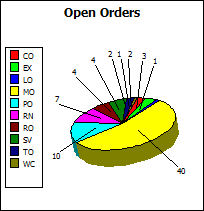
Open Orders by Priority graph
A bar graph displaying the amount of open orders created by the user, divided by Priority, for each Order Type. This graph is not functional, but utilized as a reference. An example of the graph can be seen in the following: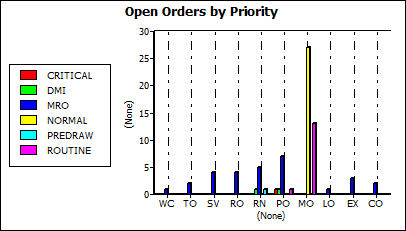
_____________________________________________________________________________________
TRAX will prompt to the Order Detail window. Additionally, all open saved Orders will appear in the lower portion of the Order Header.
There are many warning messages which a user may receive while creating an order, for the meaning of any of these warning messages please refer to the Orders Module Warning Messages section of the Orders Training Manual.
The vendor selected must be set up as a service provider for the Repair Order to be valid.
The Order Number field can be used to filter the open orders created by the user to access a particular order.

Share
Print
|
©1997-2026 Trax USA Corp. All rights reserved. This manual may not be copied, photocopied, reproduced, translated, or converted to any electronic or machine-readable form, in whole or in part, without prior written approval from Trax USA Corp. |
 |