
 Share
Share
 Print
Print
|
|
|
|
|


Multi Company Configurations: Switches
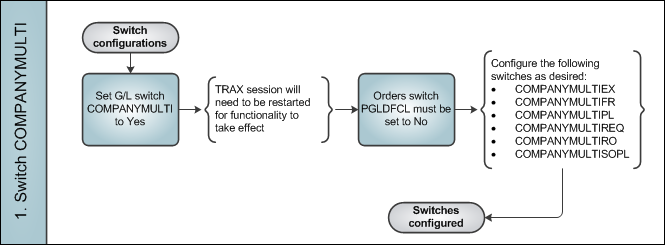
In order to utilize the Multi Company functionality, G/L switch  COMPANYMULTI must be set to Yes. When set to Yes, the the Company field becomes accessible in windows throughout the system.
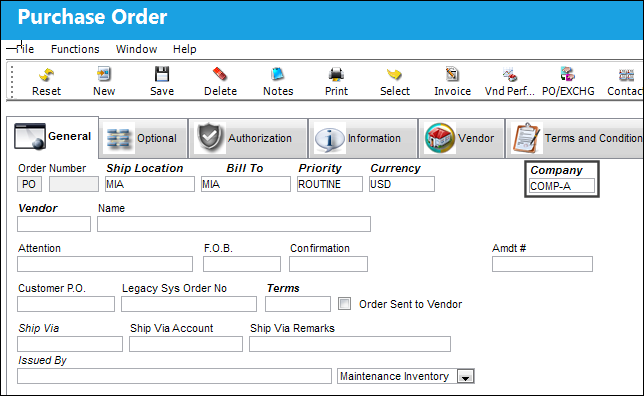
When COMPANYMULTI is set to Yes, the Category field in the Order Header window (for all order types) changes to the Company field. The order along with the part details, G/L impacts, inventory control, and so on will therefore correspond to the specified Company.
Keep in mind that Orders switch PGLDFCL must be set to No for COMPANYMULTI to function correctly.
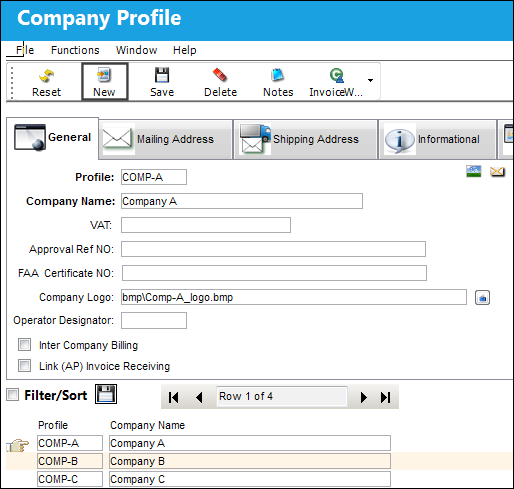
Further, when set to Yes, the New  button in the Company Profile window will be available to created profiles for each of the necessary companies.
Additional Configurations
Aside from the primary switch, the following switches are available to further configure the Multi Company functionality:
- - When set to Yes, the system will not validate that the Company of the Exchange Order is the same as the Company for the P/N used to complete an Exchange Issue transaction. When set to No, the system will validate that the Company of the Exchange Order is the same as the Company for the P/N used to complete an Exchange Issue transaction.
- - When set to Yes, the Company field is displayed in the System Forms revision window and functions in conjunction with the Company field designated at the User profile level. The specified form with the designated Company and Form Revision Number entered will display the revision number on the print. When set to No, the Company field is not available and the Form Revision Number will not display on the print.
- - When set to Yes, when trying to reserve a P/N (or create a Picklist), the inventory location for the selected P/N must share the same Company as the Work Order the Picklist is being created for. When set to No, TRAX will allow the reservation of a P/N where the inventory location for the selected P/N does not share the same Company as the Work Order the Picklist is being created for.
- - When set to Yes, the Company field is not available in the Requisition Header window. When set to No, the Company field is available in the Requisition Header window.
- - If set to Yes, when creating a Repair Order from the P/N Explorer window, the G/L entered in the R/O detail window is not validated by the part Company in the R/O header window. If set to No, when creating a Repair Order from the P/N Explorer window, the G/L entered in the R/O detail window is validated by the part Company in the R/O header window.
- - When set to Yes, upon reserving a P/N (or creating a Picklist) from a Sales Order, the Inventory Location for the selected P/N must share the same Company as the S/O the Picklist is being created for. When set to No, the system will allow the reservation of a P/N, even when the Inventory Location for the selected P/N does not share the same Company as the S/O the Picklist is being created for.
Share
Print
|
©1997-2026 Trax USA Corp. All rights reserved. This manual may not be copied, photocopied, reproduced, translated, or converted to any electronic or machine-readable form, in whole or in part, without prior written approval from Trax USA Corp. |
 |