
 Share
Share
 Print
Print
|
|
|
|
|


The R/O Control tab allows the user to specify what P/N Controls and P/N E/Cs were complied with while the part was at the vendor. Over due items must be complied with/reset in order to be received in a serviceable location.
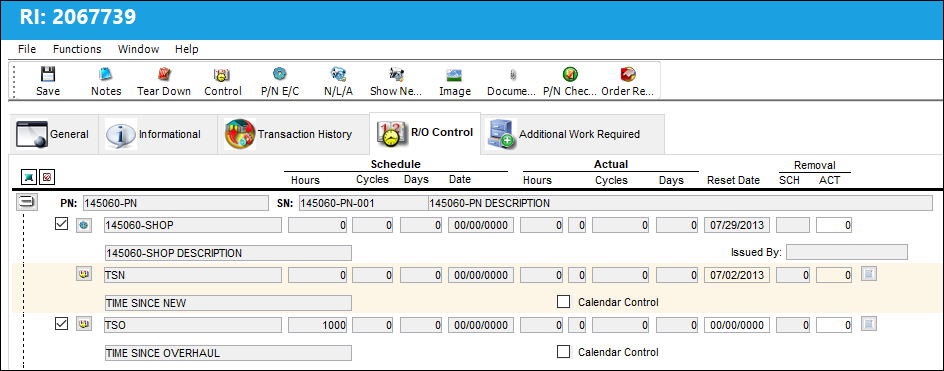
The switch  ROCTLRI determines whether this tab appears in either Order Receiving or Receiving Inspection window. If set to Yes, the system will reset the part control for repair orders after receiving inspection. The R/O Control Tab will appear via the Receiving Inspection option, not the Order Receiving option. If set to NO, the R/O Control Tab will appear via the R/O Receiving window.
The following information/options are available in this window:
_____________________________________________________________________________________
Expand  button/Collapse
  button
Select the Expand button to expand the P/N line for a tree view of all associated Controls and relevant information. Select the Collapse button to collapse the tree.
P/N
The Part Number reference for the aircraft part. Please note that any additional Part Numbers which may appear on this tab may be NLA to the NHA which appears on the Report Order Detail, General tab. ALL NLA component controls will appear under the appropriate P/N S/N.
S/N
The Serial Number for the specific serialized part. Please note that any additional Serial Numbers which may appear on this tab may be NLA to the NHA which appears on the Report Order Detail, General tab. ALL NLA component controls will appear under the appropriate P/N S/N.
P/N Description
The description of the part.
Select checkbox
Check to make the time control effective to that part number. Once this checkbox is selected, the option to edit the reset date of that particular time control and/or removal actuals becomes available (if applicable).
Deselecting a control in the Receiving Inspection Detail, R/O Control tab will not affect that control's value in the Repair Order Detail, Control tab.
Control
The time control related to the part (e.g., TSN, TSO, etc.) used to define its limits.
Overdue indicator
'Overdue' appears in red for each Control that is overdue. It appears once the Save button is selected for a Receiving Inspection. A warning prompt also pops up indicating that at least one P/N Control or one P/N E/C has reached scheduled time and will become unserviceable. To see the prompt, refer to the Receiving Inspection Detail, General Tab.
Schedule Hours/Cycles/Days
The control's hours/cycles/days schedule, as applicable.
Actual Hours/Cycles/Days
The number of hours/cycles/days accumulated against the time control schedule.
Reset Date
Date and time at which control information was reset for having been performed/complied.
Removal Schedule
The Removal Schedule allows for a method of tracking tire removal information. Upon removal from the aircraft this number will automatically increment for each removal. At Receiving, the Removal Schedule information will appear, can be edited as required or reset with the reset of the P/N Control. Security access to this feature must be granted. The Removal Schedule information can also be updated via Technical Records/ Update/ P/N Control Adjustment.
Removal Actual
The number of times the component has been removed from an aircraft. The actuals' figure is automatically adjusted with each A/C P/N transaction.
Audit  button
Select the Audit button to view the P/N Inventory Control Audit window.
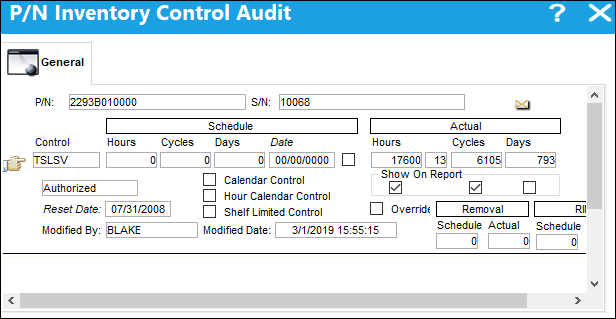
For additional information regarding the fields and function in the above window, refer to the Control Button, via the Inventory Query Detail Buttons of the Inventory Training Manual.
Calendar Control
When the Calendar Days/Control checkbox is selected, planning calculates the controls due date based on calendar days starting from the controls Effective Date (reset/last compliance date). When the Calendar Days/Control checkbox is not selected, planning calculates the controls due date starting from the associated P/N S/N installed date (if the P/N S/Ns installed date is after the controls Effective Date).
_____________________________________________________________________________________
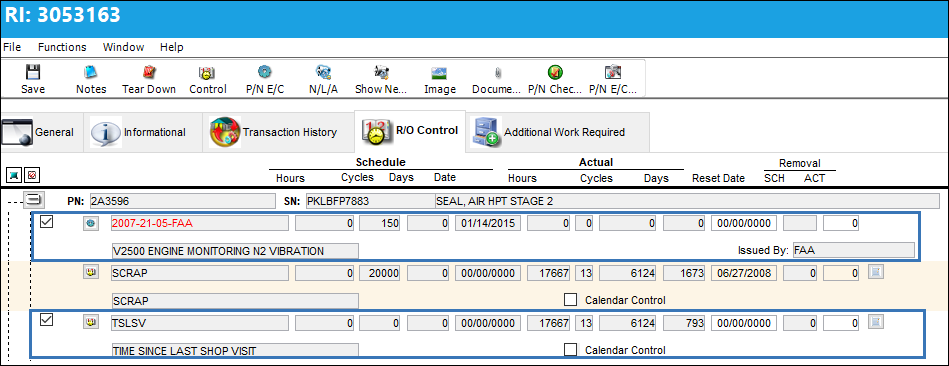
Enter/verify the following information for an Engineering Control:
_____________________________________________________________________________________
Select checkbox
Check to make the engineering control effective to that part number. Once this checkbox is selected, the option to edit the reset date of that particular time control and/or removal actuals becomes available (if applicable).
E/Cs with a Mandatory Classification cannot be deselected. The following error message 'Reset De-Selection' appears:
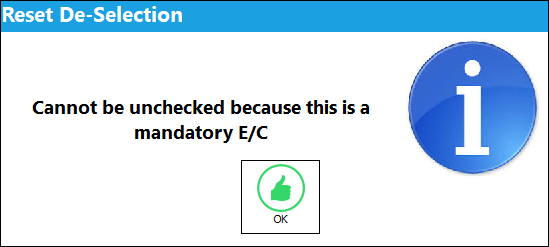
De-selecting a control in the Receiving Inspection Detail, R/O Control tab will not affect that control's value in the Repair Order Detail, Control tab.
 This checkbox is security controlled via Receiving/ Update/ Receiving Inspection/ Deferred at RI. For additional information, refer to the Security Explorer via the System Administration Training Manual. When security to this option is disabled, Receiving Inspectors can defer mandatory requirements during the Receiving Inspection process. For information on this option, refer to Deferred at RI, via the Receiving Inspection Detail, R/O Control Tab.
Control
The time control related to the part (e.g., TSN, TSO, etc.) used to define its limits.
E/Cs with a Mandatory Classification are displayed in red and cannot be deselected. For more information refer to the Engineering Control, General Tab via the Engineering - E/C Training Manual.
Schedule Hours/Cycles/Days
The control's hours/cycles/days schedule, as applicable.
Actual Hours/Cycles/Days
The number of hours/cycles/days accumulated against the time control schedule.
Reset Date
Date and time at which control information was reset for having been performed/complied.
Removal Schedule
The Removal Schedule allows for a method of tracking tire removal information. Upon removal from the aircraft this number will automatically increment for each removal. At Receiving, the Removal Schedule information will appear, can be edited as required or reset with the reset of the P/N Control. Security access to this feature must be granted. The Removal Schedule information can also be updated via Technical Records/ Update/ P/N Control Adjustment.
Removal Actual
The number of times the component has been removed from an aircraft. The actuals' figure is automatically adjusted with each A/C P/N transaction.
Calendar Control
When the Calendar Days/Control checkbox is selected, planning calculates the controls due date based on calendar days starting from the controls Effective Date (reset/last compliance date). When the Calendar Days/Control checkbox is not selected, planning calculates the controls due date starting from the associated P/N S/N installed date (if the P/N S/Ns installed date is after the controls Effective Date).
_____________________________________________________________________________________
When an Engineering Control is updated before the part passes Receiving Inspection, the R/O Control tab will reflect any of the changes made to the E/C (including if the control becomes overdue).
After clicking on the Save  button, the system will ask if you require re-printing the tag.
After the receiving inspection transaction is carried out, the item will be available for issue to an aircraft.
Link P/N Control to Shop E/C:
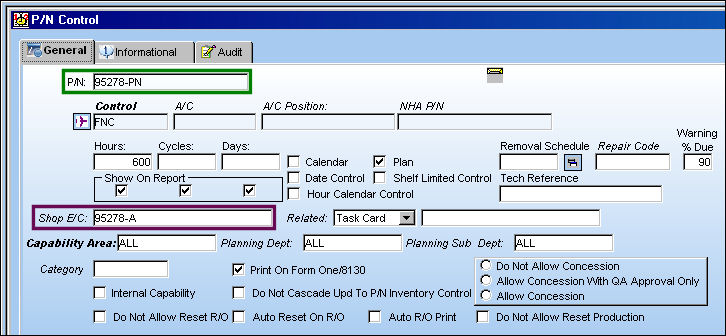
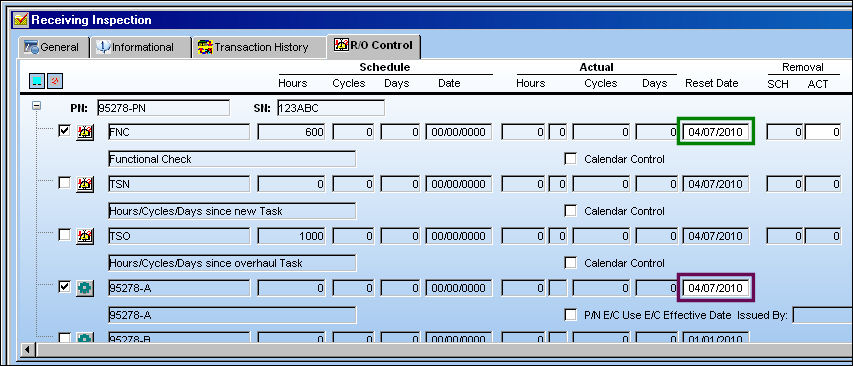
The relationship between the P/N Control and Shop E/C are now linked. This is shown in the Receiving Inspection, R/O Control tab.
The following P/N Control is linked to the below Shop E/C:
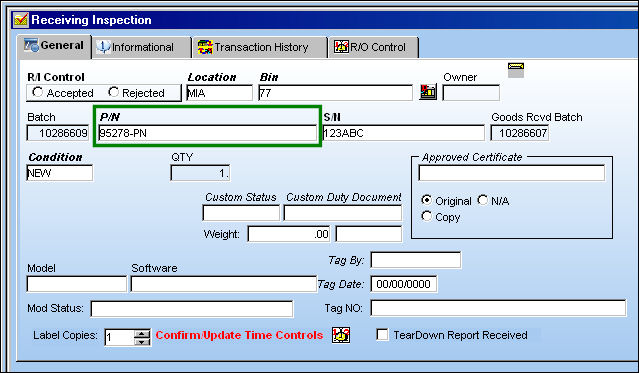
The part has been received:
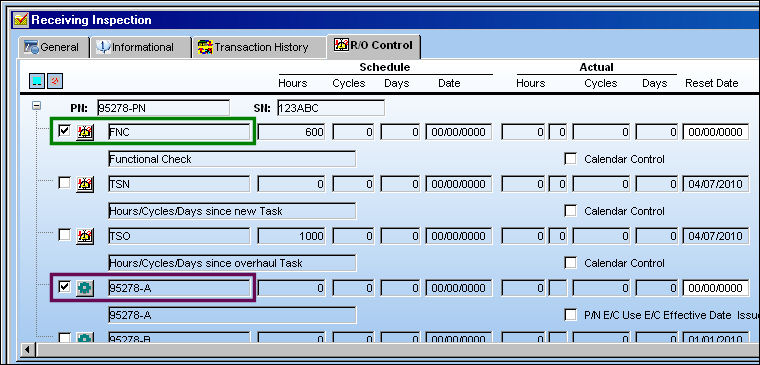
Go to the Receiving Inspection, R/O Control tab:
When the Control checkbox for FNC is selected, the Control checkbox for 95278-A is selected. Similarly, if one checkbox is de-selected, the other becomes de-selected.
When the Reset Date is populated for the FNC:
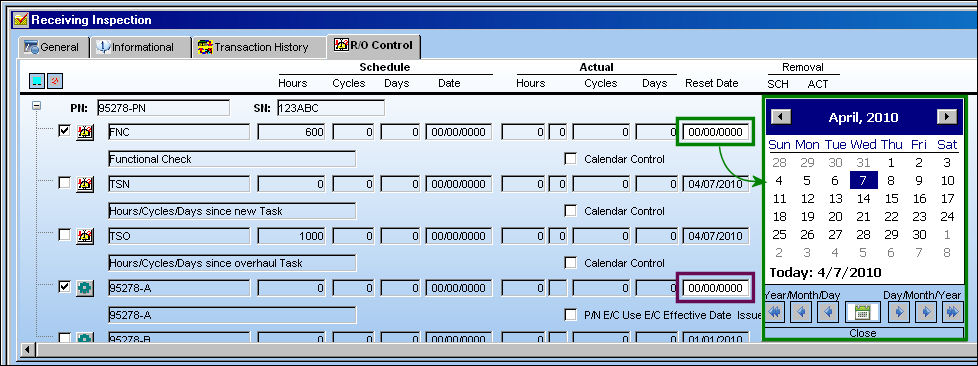
. . . the Reset Date becomes populated for the 95278-A:
The linked relationship between the P/N Control and Shop E/C can also be seen in Repair Order Detail, Control Tab, via Repair Order which can be found in the Orders Training manual.
Share
Print
|
©1997-2026 Trax USA Corp. All rights reserved. This manual may not be copied, photocopied, reproduced, translated, or converted to any electronic or machine-readable form, in whole or in part, without prior written approval from Trax USA Corp. |
 |