
 Share
Share
 Print
Print
|
|
|
|
|


The Program View  window is the second available function under the View Options menu of the Security Explorer. Through this view, administrators can assign security access to various users and group profiles from within a specific program at a time. The Program View is an alternative to the classic TRAX method of applying security one user/group at a time. This newer method can be advantageous for administrators because it allows them to assign security for a specific program to as many users as they wish as quickly as possible.
The Program View is displayed as follows:
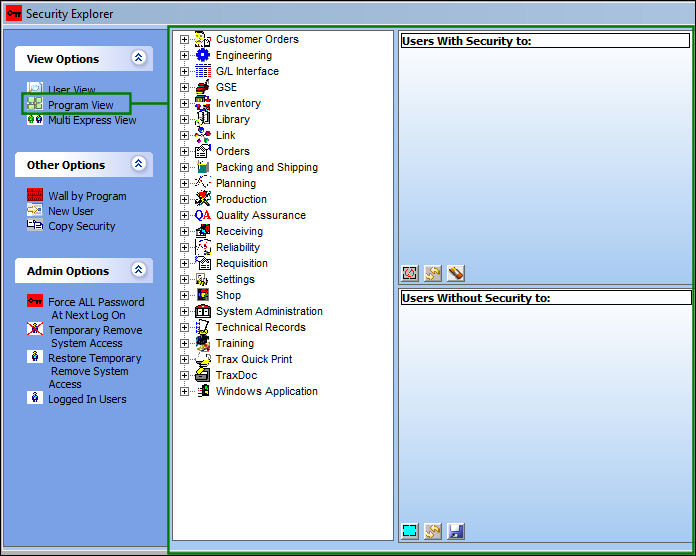
The Program View window is split up into two main panes. The left pane lists all of the modules and sub-categories that are security protected. The right pane lists the users who have security access to the selected window on the top and the users who do not have security access on the bottom.
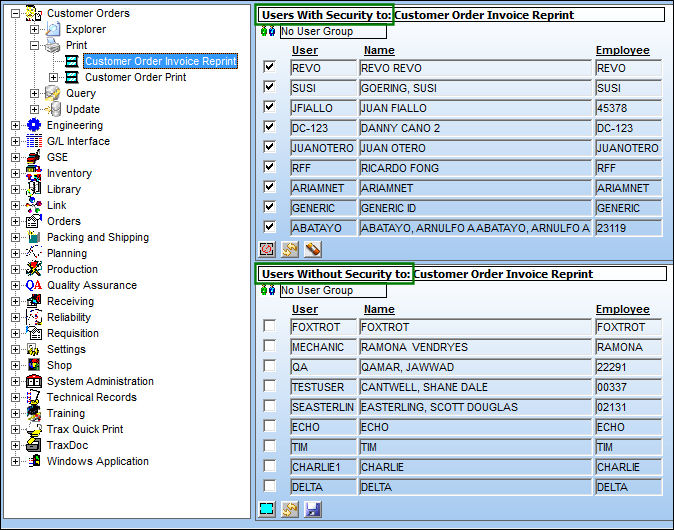
In the above example, the users with security access to the Engineering Authorization Supervisor window are listed on the top pane. The users without access are on the bottom. In order to move one or more users from the top to the bottom (ie: to remove access from users), the checkbox to the left of the user(s) will need to be unchecked and saved. To carry this out there are several options.
Select either of the following:
_____________________________________________________________________________________
De-select All  button
De-selects all users by removing the check from the checkboxes next to their names.
Reset  button
All of the deselected checkboxes will be selected again.
Delete  button
All of the deselected users will be removed from the 'Users With Security to' field and will be placed in the 'Users Without Security to' field.
_____________________________________________________________________________________
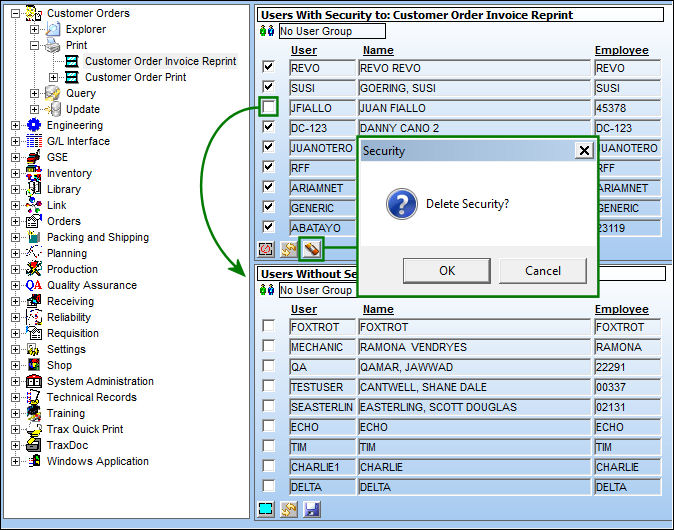
After selecting the Delete button, a pop-up message will ask, 'Delete Security?' Select OK.
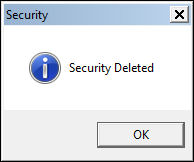
The following prompt indicates that security was removed from the user.
After selecting OK the user(s) will have their security access removed for the particular program and will be placed in the below section, 'Users Without Security to.'
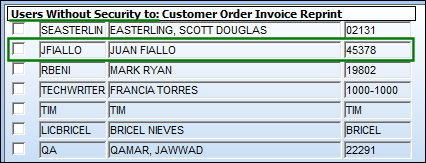
To give access to one or more users that are in the 'Users Without Security to' field, the checkbox to the left of the user(s) will need to be selected and saved. To carry this out there are several options.
Select either of the following:
_____________________________________________________________________________________
Select All  button
Selects all users by placing a check in the checkbox next to the user's names.
Reset button
All of the selected checkboxes will be unselected.
Save  button
All of the selected users will be removed from the 'Users Without Security to' field and will be placed in the 'Users With Security to' field.
_____________________________________________________________________________________
After selecting the Save button, a pop-up message will ask, 'Add Security?' Select OK.
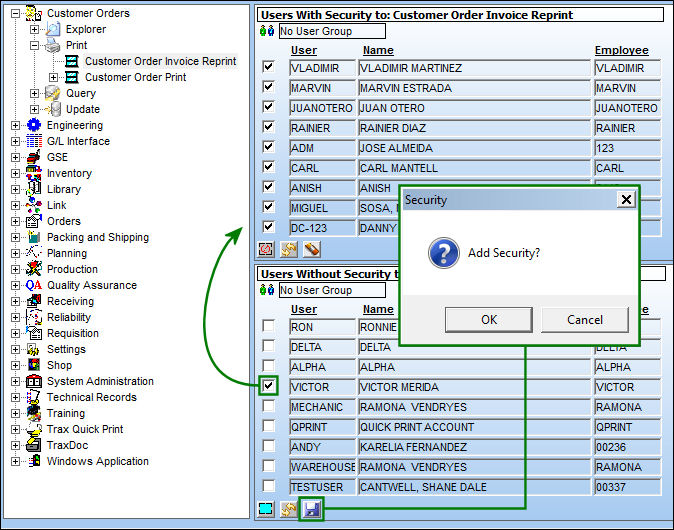
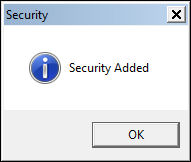
The following prompt indicates that security was added to the user.
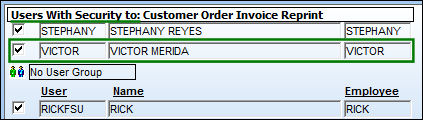
After selecting OK the user(s) will be given security access and will be placed in the above section, 'Users With Security to.'
Share
Print
|
©1997-2026 Trax USA Corp. All rights reserved. This manual may not be copied, photocopied, reproduced, translated, or converted to any electronic or machine-readable form, in whole or in part, without prior written approval from Trax USA Corp. |
 |