
 Share
Share
 Print
Print
|
|
|
|
|


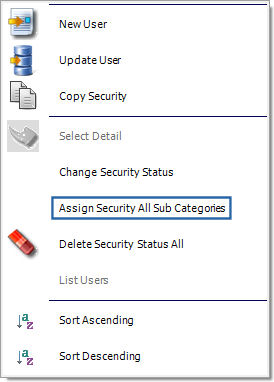
The Assign Security All Sub Categories button provides the same feature as the Change Security Status function only the security access is added to all sub-categories of a specific parent category. This button is accessed by right-clicking over a security-controlled category with sub-categories in the Security Explorer.
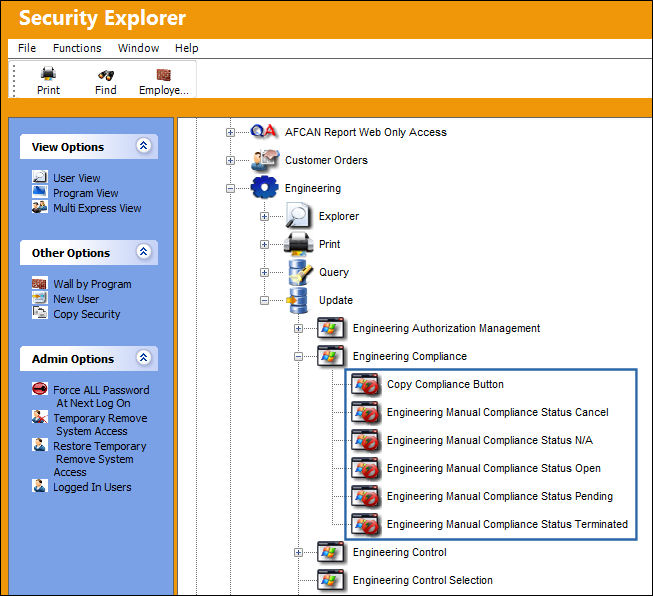
For example, notice how each of the sub-categories under the Engineering Compliance category display the Access Denied  icon:
icon:
Right-click over the Engineering Compliance parent category and select the Assign Security All Sub Categories button.
All of the Engineering Compliance sub-categories will be available as indicated by the Access Granted  icons.
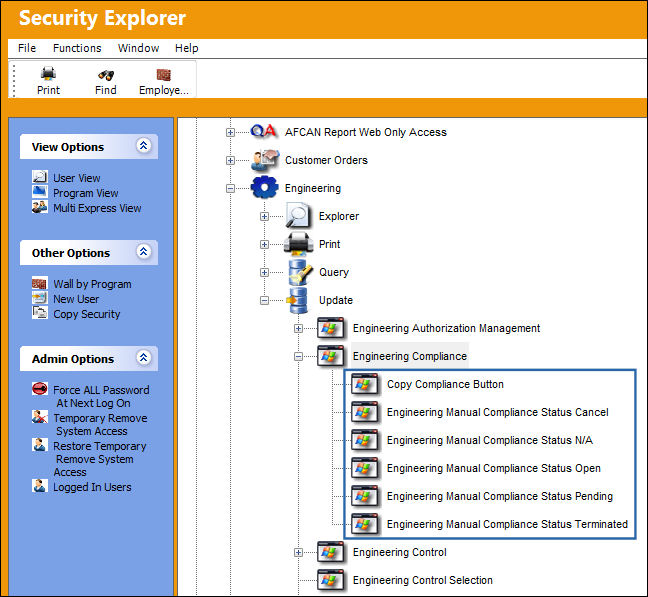
In order to see the changes applied to the sub categories, the parent category must be refreshed. To do this, close the parent category by selecting the collapse  icon to its left then open it again.
For information on removing access to a collection of sub categories, refer to the Delete Security Status All Button.
Share
Print
|
©1997-2026 Trax USA Corp. All rights reserved. This manual may not be copied, photocopied, reproduced, translated, or converted to any electronic or machine-readable form, in whole or in part, without prior written approval from Trax USA Corp. |
 |