
 Share
Share
 Print
Print
|
|
|
|
|


Customer Contract Header, General Tab
The Customer Contract Header, General tab is used to enter general information to create the Customer Contract Header.
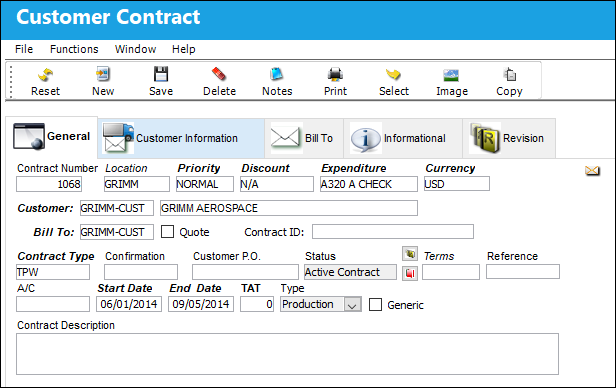
The following information/options are available in this window:
_____________________________________________________________________________________
Contract
The unique Customer Contract number.
 CUSTOMERCONTRACT - (The sequence number of the Customer Contract Order). The Config Other Field is used. This number is usually set at implementation. The Config Flag field may be set to Yes or No.
Location
The Location for maintenance events, inventory stores, orders, transactions, or training events.
Priority
The priority that will be placed on this contract (i.e. Critical, Normal, etc.). For additional Information, please refer the System Tran Codes Training Manual, Priority.
Discount
Select the discount amount from the drop down selection if applicable.
Expenditure
The Expenditure Code to associate with the contract. If the Customer Contract does not have a defined Expenditure Code, the system will use the W/O Expenditure Code to capture and record all financial impacts. Financial transactions are recorded and available for view via the G/L Interface/Query/Journal Entry Query. Expenditure Codes may be created via G/L Interface/Update/Journal Entries Expenditure. For more information, please refer to the Creating a New Expenditure Code section of the G/L Interface manual.
This code is mandatory in the Work Order. The user will not be able to create the Work Order without defining the Expenditure Code in the Work Order.
Currency
This will be populated with the customer's default currency as defined in the Customer Master but may be overridden on the Customer Contract Header. All printed Customer W/O Invoices will be printed in the converted amount.
The Currency within TRAX while defining the Customer Contract will always be in the local company currency. For additional information on default primary Currency, please refer to both the Currency Set Up and Currency (G/L Interface) sections of the TRAX Training Manuals.
Customer
The customer whom the agreed upon terms are for.
Bill To
The location that will receive the Order Invoice (Bill). This may be different from the Ship Location and may be pre-defined for each location. For additional information, please refer to the Location Master, General Tab section of the Settings Training Manual. The Bill To location may be changed for a particular order as required.
Quote checkbox
Users can check this box if they would like to use this record strictly as a quote for a print. Deselect checkbox to exclude the word 'quote' from the contract header print which includes all terms of the contract. This is informational only.
Contract Type
Classification of Contract Type may be defined here (i.e., Heavy Check, AOG,TPW, PBH, Line, etc.).
Confirmation
The confirmation reference along with applicable information.
Customer P.O.
For Third Party purchase, if purchase is on behalf of a customer the PO number may be entered here. Additional Use - if a Sales Order is generated in the system for the service requirement, it may cross reference here as well. This is to be defined by the company procedures. This does not invoice or charge the customer for any service provided. It is only used as a reference number.
Does not apply to CO, MO or WC order types.
Status
The status of the contract:
Active Contract - The contract is active. It cannot be edited, but can be associated to a Third Party Work Order. Contracts in 'Active Contract' status can be re-opened at any time by selecting the Revision Button. They can also be closed at any time by selecting the Close Button.
Revision  button - Select this button to create a Revision Control for the selected Customer Contract. This button is only available for contracts that are in 'Active' or 'Under Revision' status. When selected the Revision Control is displayed in the Customer Contract, Revision Tab. For additional information, refer to the Revision Button, via Customer Contract Header, General Tab.
For information regarding a previously invoiced contract that is revised while there are currently open invoices based on the pre-revision contract, refer to the Customer Invoice Contract Re-Post, via Customer Contract Header, General Tab.
Close  button - Select this button to close an Active Contract. Once the button is selected, a popup will appear confirming whether or not to close the Contract. For additional information, refer to the Close Button, via the Customer Contract Header, General Tab.
Under Revision - Indicates that the contract is not currently active because the terms of the contract are being edited. Contracts in this status can be edited but cannot be applied to Third Party Work Orders until they are classified as active.
Closed Contract - Indicates that the contract is no longer in use. Contracts can be closed manually or they can close automatically once their End Date is reached.
Open  button - Select this button to open a contract that has been closed. Once the button is selected, the following warning will appear. The user can then save the current revision and open a new revision of the contract and edit that revision. For additional information, refer to the Open Button, via the Customer Contract Header, General Tab. For more information, refer to the Open Button, via the Customer Contract Header, General Tab.
Terms
The terms of payment, including the amount of days in which the payment must be made, may be defined by selecting from the pre-defined listing established in the System Transaction Codes. Terms may be changed for a particular order as required. For additional information, please refer to the Terms section of the System Trans Codes Training Manual.
Reference
Reference number or code.
A/C
The individual aircraft tail number. The aircraft, if the terms of this contract is for a particular aircraft number.
Start Date
The start date for the contract.
End Date
The completion date for the contract. If a Customer Order (S/O) is associated to a Customer Contract with the Completion Date prior to the date of association, the user will receive a hard warning.
TAT
Turn Around Time for the contract.
Type drop down
Select from one of the following contract types to indicate which department should be billed.
- Production
- Shop
- Training
- PBH
- GSE
When the Shop type is selected, the Shop Approved P/N checkbox appears.
Shop Approved P/N checkbox - When this checkbox is selected, only the approved Shop P/N's (per specific contract) will be allowed on a repair order.
Generic checkbox 
Select this checkbox for a generic contract that can be used temporarily for customers that do not have a valid contract at the time that the customer is requesting work (i.e., after-hours or on weekends). This contract can then be linked to the Third Party W/O in order to perform the requested work. The valid contract can then be linked to the 3rd party W/O at a later time.
Users have the option of validating the generic contract at time of W/O Closing. When switch GENCONTRACT is set to Yes, the generic contract will be validated and the W/O cannot be closed until a valid contract is linked to the W/O. When set to No, the W/O can be closed with a generic contract. Refer to GENCONTRACT for more information.
_____________________________________________________________________________________
Share
Print
|
©1997-2026 Trax USA Corp. All rights reserved. This manual may not be copied, photocopied, reproduced, translated, or converted to any electronic or machine-readable form, in whole or in part, without prior written approval from Trax USA Corp. |
 |