
 Share
Share
 Print
Print
|
|
|
|
|


Customer Contract Detail
The Customer Contract Detail window contains an interactive display that allows users to set up all necessary Customer Contract options from the same window.
When either button is selected, a selection window pops-up where exact information (such as material and labor pricing configurations, flat rate fees and rules, tax percentages, etc.) can be added to the contract.
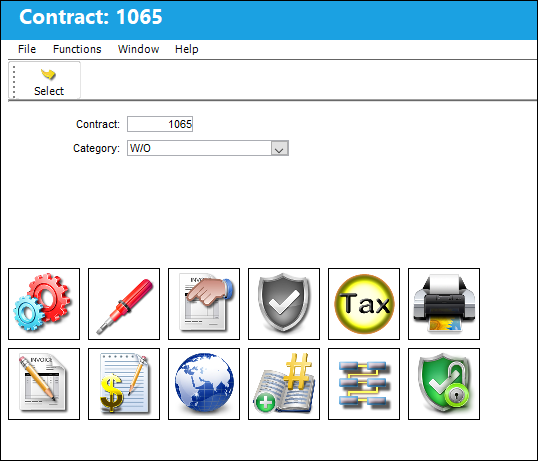
The following information/options are available in this window:
_____________________________________________________________________________________
Contract
The unique Customer Contract number.
Category drop down
Users can select the Customer Contract category. The options are Work Order, Task Card, or Non-Routine Task Card.
Task Card - The Task Card / Job Card that details the scheduled maintenance work. This option is only available when the Task Card Category option is selected in the Category field above.
Options
Material  - Use this option to apply sell configurations for each type of material linked to the contract. Rules are established on how to handle the materials by their P/N Category, and they can be specified for certain Conditions or all Conditions. These available configurations include markups percentages, handling fees, sell amount limits, and more. These rules serve as a baseline for materials that may then be subject to additional flat rate rules for Task Cards and their Non-Routines (via the Flat Rate Task Card option).
Labor  - Use this option to override labor sell rates for specific Skills linked to the contract. These available configurations include each skill's hourly, overtime, and double time rates. These rates serve as a baseline for labor fees that may then be subject to additional flat rate rules for Task Cards and their Non-Routines (via the Flat Rate Task Card option). If the labor rates for any particular Skill are not updated here, then the contract will default to the rates specified in the Skill Master.
Orders  - Use this option to add order markup percentages for any Repair Orders, Exchange Orders, Loan Order, and/or Service Orders that may be necessary as part of the third party work being performed. (For instance, if a part must be repaired in order to complete the work, a Repair Order would be created to capture the repair and its costs. As such, a markup percentage may be applied through the contract in consideration for the Repair Order performed for the customer.)
Authorization  - Use this option to require the customer's authorization when a Max Material Cost or a Non-Routine's Max labor Hours amount is exceeded. (For instance, before work is performed that will exceed a certain cost threshold, the customer will need to authorize the pending work before the work can be be performed.) These authorizations can be set up for specific P/N Categories (Consumable, Kit, Repairable, or Serialized), or for the labor hours accrued against a Non-Routine Task Card.
Tax  - Use this option to add Value Added Tax (VAT) percentages to the total cost of the work. These taxes will be applied to the total after all other configurations and rules are applied to the work.
Print  - Allows users to print the Customer Contract.
Invoice/Quoted Flat Rate  - Use this option to establish payment terms for the contracted work. From this window, a flat rate will be established for the contracted work in the Sell Amount field, then a breakdown of the payments that will need to be made throughout the life of the contract will be specified in the Due List button. The flat rates and payment terms can be specified for materials and labor individually.
Credit Limit  - Use this option to specify the amount of credit the contract's customer is alloted. Work will be conducted until this credit limit threshold is reached, whereupon the customer must provide payment for the remaining work to be carried out. If the Customer goes over their credit limit, it will appear in red in the W/O TPW Balance window.
Flat/Surcharge Rate Other  - Use this option to add flat rates and/or surcharges to all labor and materials on the contract. Flat rates would override the Material and Labor costs set up in the Material and Labor buttons, while surcharges would be added to the costs. Additionally, this option allows users to add addbills to the contract for work that falls outside of the scope of the Task Cards and Non-Routines (e.g., addbills for towing, fueling, cleaning, etc.). This window allows users to enter multiple flat rates to help identify their categories (e.g., one materials rate for aircraft parts and a separate one for tools, or one addbill for towing and another one for cleaning). (This option is different from the CAP Rules option because this one applies lump sum charges to all E/Cs and T/Cs against the W/O, as opposed to the CAP Rules option which can be applied to specific E/Cs, T/Cs, EC/TC Categories, etc., and for diverse labor and material scenarios.)
Flat Rate Task Card  - This option allows the vendor to designate flat rates and cap limits for material and/or labor captured on Task Cards and Non-Routine Task Cards. For all material or labor costs that fall under the cap limit, there will not be any additional charges. But if these limits are exceeded, then the specified overage fees will be charged to the customer at the rates specified through this option. Once the caps are exceeded, these configurations will override the rules set up through the Material and Labor buttons. Multiple Cap Rules can be applied for different scenarios.
Classic  - Select this button to view the classic layout of the Customer Contract Detail window.
Release for Authorization  - Once the Contract is ready to be authorized, click the Release
  button. Doing so will release the contract for authorization. Once authorized and in open status, the Customer Contract cannot be edited unless a new revision is opened.
_____________________________________________________________________________________
As configurations are added, they will be listed in the Contract Detail, General Tab. This window is accessible by clicking the Select  button and the Classic button (above).
Share
Print
|
©1997-2026 Trax USA Corp. All rights reserved. This manual may not be copied, photocopied, reproduced, translated, or converted to any electronic or machine-readable form, in whole or in part, without prior written approval from Trax USA Corp. |
 |