
 Share
Share
 Print
Print
|
|
|
|
|


The different Line items of the Customer Contract, along with their information can be viewed in this General tab through selecting the Select  button of the Customer Contract Detail.
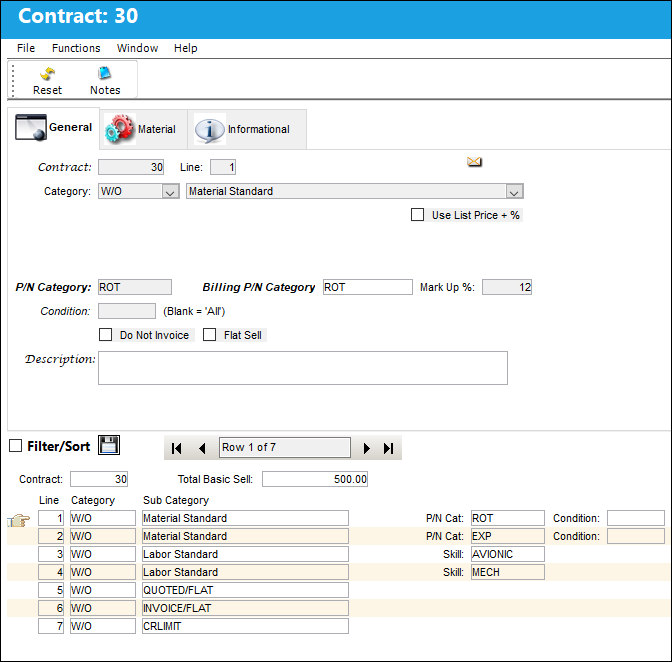
The following information/options are available in this window:
_____________________________________________________________________________________
Contract
The unique Customer Contract number.
Line
Each term of the contract is allocated a sequential line number.
Category drop down
Users can select the Customer Contract category. The options are Work Order, Task Card, or Non-Routine Task Card.
W/O - The Work Order used to categorize, manage, and schedule work requirements for aircraft maintenance.
Task Card - The Task Card / Job Card that details the scheduled maintenance work.
Non-Routine Task Card - The Non-Routine Task Card that details non-scheduled maintenance work / findings.
Sub Category
Select from one of the following drop down options:
Credit Limit - The financial credit limit for the Vendor. If the Vendor goes over their credit limit, it will appear in red in the W/O TWO Balance window. For additional information, refer to the Balance Sell Button via Work Order Buttons which can be found in the Production Training manual.
Exchange Order Markup - Rate of markup to be charged for any materials being exchanged.
Flat Rate VAT - VAT tax against any Flat Rate. When the Flat Rate VAT Sub Category is selected, the Vat Code and Tax fields appear.
Invoice Flat Rate - Allows a flat rate fee to be invoiced and paid in increments based on percentage breakdowns of the total fee. This functionality allows flat amounts to be paid before, during and after the work is performed. For detailed information refer to the Invoice Flat Rate window via the Customer Contract section of the Production Training Manual.
Labor Flat - If Labor Flat is selected, then manual Labor hours will be tracked. The Sell Amount price will be charged to the MRO's customer if the amount of Labor Hours is under the amount of Max Hours. If the amount Max Hours is surpassed, then HRS Rate will be applied. See the Apply Full Amount checkbox for more information.
Labor Standard - Hourly rate applied to labor. This includes a regular hourly rate, overtime and double time.
When Labor Standard is selected, the Customer Quoted Rate checkbox and field appear. For additional information, refer to Customer Quoted Rate.
Labor Surcharge - Surcharge in addition to cost of labor.
Labor VAT - Rate to be charged for labor regardless of calculated cost including the VAT tax. When the Flat Rate VAT Sub Category is selected, the Vat Code and Tax fields appear.
Loan Order Markup - Rate of markup to be charged for any materials being loaned.
Material Flat - Rate to be charged for materials regardless of calculated cost.
Material Standard - Standard cost of materials including sell amount and percentage of Markup.
When Material Standard is selected, the P/N Category  button appears.
Material Surcharge - Surcharge in addition to cost of material.
Material VAT - Rate to be charged for materials regardless of calculated cost including the VAT tax. When the Flat Rate VAT Sub Category is selected, the Vat Code and Tax fields appear.
Misc VAT - Any miscellaneous charges including the VAT tax. When the Flat Rate VAT Sub Category is selected, the Vat Code and Tax fields appear.
Order VAT (RO, LO, EX, SV) - Additional VAT tax against any Order. When the Flat Rate VAT Sub Category is selected, the Vat Code and Tax fields appear.
Quoted Flat Rate - Any quotes against any Order. The purpose is to charge the customer a percentage of the Quoted Flat Rate before any work is done. This option works the same as the Invoice Flat Rate, however the Quoted Flat Rate is based off of the total customer quoted amount from W/O Bid Sheet. This quote will include Task Card labor, material, miscellaneous, and Book To Orders.
Repair Order Markup - Rate of markup to be charged for any repairs to materials.
When Repair Order Markup is selected, the Customer Quoted Rate checkbox appears. For additional information, refer to Customer Quoted Rate.
Require Authorization For Consumable P/N - Requires authorization if the Consumable radio button has been flagged in the System Transaction Code. For more information, please refer to the P/N Category section of the Settings Transaction Code Manual.
Require Authorization For Kit P/N - Requires authorization if the Kit radio button has been flagged in the System Transaction Code. For more information, please refer to the P/N Category section of the Settings Transaction Code Manual.
Require Authorization For N/R - Requires authorization if a N/R is created against a Work Order. For more information please refer to the Non Routine Task Card section of this manual.
When Require Authorization For N/R is selected, the Customer Quoted Rate checkbox and Max Hours field appear.
Require Authorization For Repairable P/N - Requires authorization if the Repairable radio button has been flagged in the System Transaction Code. For more information, please refer to the P/N Category section of the Settings Transaction Code Manual.
Require Authorization For Serialized P/N - Requires authorization if the Serialized radio button has been flagged in the System Transaction Code. For more information, please refer to the P/N Category section of the Settings Transaction Code Manual.
Service Order Markup - Rate of markup to be charged for any services.
When Service Order Markup is selected, the Customer Quote Rate checkbox and field appear. For additional information, refer to Customer Quoted Rate.
Vat Code
Allows the user to add a Value After Tax percentage to the order. This is set up through the VAT Code System Tran Code.
Tax
The percentage being taxed for the VAT Code. This field is automatically populated, but it can be edited.
Sell Amount
The flat rate fee for all material or labor against the Work Order.
This field only appears when the Labor Flat, Labor Standard, Labor Surcharge, Material Flat, Material Standard, and Material Surcharge Sub Categories are selected from the Sub Category drop down selection.
Tax %
The percentage of tax on all materials.
This field only appears when the Exchange Order Markup, Labor Flat, Labor Standard, Labor Surcharge, Material Flat, Material Standard, Material Surcharge and Repair Order Markup Sub Categories are selected from the Sub Category drop down selection.
Max Material Cost
The maximum cost of all materials required for the specified P/N Category.
This field only appears when the Material Flat and Material Standard Sub Categories are selected from the Category drop down selection.
Max Hours
The highest amount of hours worked.
This field only appears when the Labor Flat and Require Authorization For N/R Sub Categories are selected from the Sub Category drop down selection.
Any Task Card associated to a Customer Contract that requires more Man Hours than the value saved in the Max Hours field will require authorization. For additional information regarding the Customer Authorization process, refer to Customer Authorization which can be found in the Production Training manual.
HRS Rate
The Labor rate for each labor hour on a Non-Routine Task Card occurring after the Max Hours have been used up. In other words, the initial Max Hours are charged at the rate indicated by the Sell Amount; each hour after those Max Hours will be charged at the HRS Rate until the labor is completed. This field is only available when the Sub Category drop down is set to Labor Flat. For more information refer to Flat Rate Labor HRS Rate via the Production Training Manual.
O/T
The Overtime rate per hour. This field in this window overrides the O/T Sell rate for the Skill in the Skill Master.
This field only appears when the Labor Standard Sub Category is selected from the Sub Category drop down selection.
D/T
The Double Time rate per hour. This field in this window overrides the D/T Sell rate for the Skill in the Skill Master.
This field only appears when the Labor Standard Sub Category is selected from the Sub Category drop down selection.
P/N Category
Enter the P/N Category here. When the P/N is applied to the P/N Category classification, the associated Billing P/N Category will appear on the Customer Work Order invoice.
This field only appears when the Material Standard Sub Category is selected from the Sub Category drop down selection.
P/N Category button
The P/N Category button allows the user to quickly assign Billing P/N Category to all P/N Categories for a given contract.
This button only appears when the Material Standard Sub Category is selected from the Sub Category drop down selection.
When the P/N Category button is selected, the P/N Category Selection window appears:
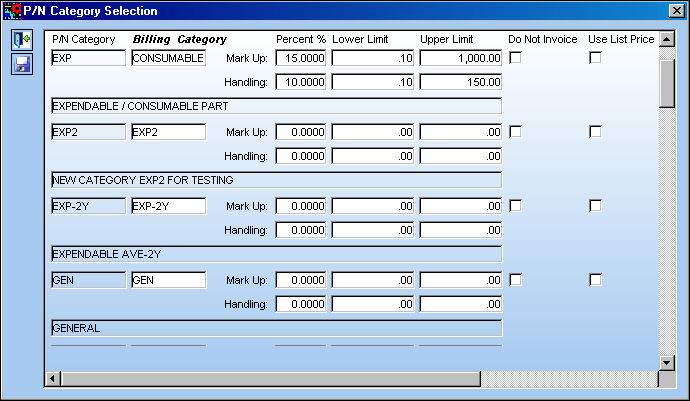
P/N Category - The category of the part as defined in Settings/ Explorer/ System Transaction Code Explorer/ Settings/ P/N Category (e.g. Rotable, Consumable, Repairable) and entered for the particular part in the P/N Master.
Billing Category - The materials' category classification for customer contracts that may not necessarily exist in the system as a P/N Category but will appear on the Customer Work Order Invoice for all parts issued for that part category. For example, the P/N Category in the system may be 'expendable,' however materials in the invoice may appear as 'supplies', as defined in this field in the Customer Contract.
Mark Up % - The percentage the materials will be marked up. This percentage will be applied to the sell price of the material. The markup percentage will never be lower than the Lower Limit, or higher than the Higher Limit (if Lower and Higher Limits are set up). (Example: If a part's sell price is $50.00 and the Mark Up is 10%, the part's invoice price will be $55.00.)
Lower Limit - The minimum amount of markup that will be charged. This is a specific fee and not a percentage.
Upper Limit - The maximum amount of markup that will be charged. This is a specific fee and not a percentage.
Do Not Invoice checkbox - When selected, the material or labor specified will be displayed in the invoice, but the customer will not be charged for the material or labor specified. (For example, this could include materials such as gloves, or labor such as cleaning of an aircraft that should be listed in the invoice but the customer may not be required to pay for.) For additional information, refer to the Do Not Invoice Checkbox topic.
Use List Price checkbox - When selected, the system will use the Sell Price from the P/N Master (via the P/N Sell button). (Additionally, if there is no List Price then the Average Cost will be used > if there is no Average Cost then the Reference Cost will be used > if there is no Reference Cost then the Market Value will be used.)
If the checkbox is not selected, the system will use the Unit Cost of the issued part. (Additionally, if there is no Unit Cost then the Average Cost will be used > if there is no Average Cost then the Reference Cost will be used > if there is no Reference Cost then the Market Value will be used.)
Handling - The percentage being charged for handling fees (i.e., shipping costs, receiving). This percentage will be applied to the sell price of the material. The handling percentage will never be lower than the Lower Limit, or higher than the Higher Limit (if Lower and Higher Limits are set up).
Description
P/N Category Description as defined in the System Transaction Codes.
Billing P/N Category
The materials' category classification for customer contracts that may not necessarily exist in the system as a P/N Category but will appear on the Customer Work Order Invoice for all parts issued for that part category. For example, the P/N Category in the system may be 'expendable,' however materials in the invoice may appear as 'supplies', as defined in this field in the Customer Contract.
This field only appears when the Material Standard Sub Category is selected from the Sub Category drop down selection.
Skill
Enter the required Skill here. When the Skill is applied to a Work Order, the associated Billing Skill will appear on the Customer Work Order Invoice. (Blank = ALL Skills)
This field only appears when the Labor Standard Sub Category is selected from the Sub Category drop down selection.
Skill  button
P/N Category Selection button allows the user to quickly assign Billing P/N Category to all P/N Categories for a given contract.
This button only appears when the Labor Standard Sub Category is selected from the Sub Category drop down selection.
When selected the following window will appear:
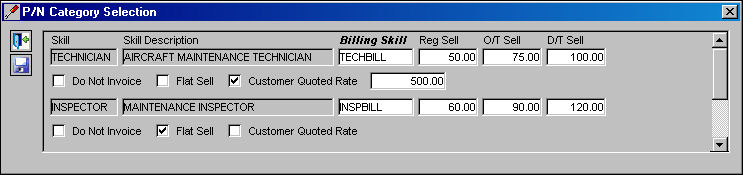
Skill - All Skills defined in the Skill Master will appear in this window. For additional information, please see the Skill Master, General Tab section of the Settings TRAX Training Manual.
Skill Description - The long description for the Skill as defined in the Skill Master.
Billing Skill - The Billing Skill classification for customer contracts does not necessarily exist in the Skill Master but will appear on the Customer Work Order Invoice for the Skill applied to the Work Order (i.e. the Skill in the system may be a specific type of technician; however, the Billing Skill classification may appear as 'Mechanic' if defined here).
Reg Sell - The sell price for each labor hour. This field in this window overrides the Reg Sell rate for the Skill in the Skill Master.
O/T Sell - The Overtime rate per hour. This field in this window overrides the O/T Sell rate for the Skill in the Skill Master.
D/T Sell - The Double Time rate per hour. This field in this window overrides the D/T Sell rate for the Skill in the Skill Master.
Do Not Invoice checkbox - When selected, the material or labor specified will be displayed in the invoice, but the customer will not be charged for the material or labor specified. (For example, this could include materials such as gloves, or labor such as cleaning of an aircraft that should be listed in the invoice but the customer may not be required to pay for.)
Flat Sell checkbox - This is the flat chargeable amount for material and or labor. Flat rate is in company currency. This checkbox appears only when the Do Not Invoice checkbox is deselected.
Customer Quoted Rate checkbox - This checkbox is selected when a customer is quoted in customer currency per contract. This checkbox cannot be overridden from this window, therefore must be defined in the customer contract, if required. When this checkbox is selected, the Customer Quoted field will appear.
Billing Skill
The Billing Skill classification for customer contracts does not necessarily exist in the Skill Master but will appear on the Customer Work Order Invoice for the Skill applied to the Work Order (i.e. the Skill in the system may be a specific type of technician; however, the Billing Skill classification may appear as 'Mechanic' if defined here).
This field is based on a trans code listing with multiple billing skills to choose from. The transaction code is found via Settings/Explorer/System Transaction Codes/Production/Billing Skill.
This field only appears when the Labor Standard Sub Category is selected from the Sub Category drop down selection.
Mark Up %
The percentage the materials will be marked up. This percentage will be applied to the sell price of the material. The markup percentage will never be lower than the Lower Limit, or higher than the Higher Limit (if Lower and Higher Limits are set up). (Example: If a part's sell price is $50.00 and the Mark Up is 10%, the part's invoice price will be $55.00.)
This field only appears when the Exchange Order, Repair Order and Service Order Sub Categories are selected from the Sub Category drop down selection.
Do Not Invoice checkbox
When selected, the material or labor specified will be displayed in the invoice, but the customer will not be charged for the material or labor specified. (For example, this could include materials such as gloves, or labor such as cleaning of an aircraft that should be listed in the invoice but the customer may not be required to pay for.)
Description
Free text field that allows for notes created against a contracted item(s).
_____________________________________________________________________________________
Share
Print
|
©1997-2026 Trax USA Corp. All rights reserved. This manual may not be copied, photocopied, reproduced, translated, or converted to any electronic or machine-readable form, in whole or in part, without prior written approval from Trax USA Corp. |
 |