
 Share
Share
 Print
Print
|
|
|
|
|


Select the Labor  button to override labor sell rates for specific Skills linked to the contract. These available configurations include each skill's hourly, overtime, and double time rates. These rates serve as a baseline for labor fees that may then be subject to additional flat rate rules for Task Cards and their Non-Routines (via the Flat Rate Task Card option). If the labor rates for any particular Skill are not updated here, then the contract will default to the rates specified in the Skill Master.
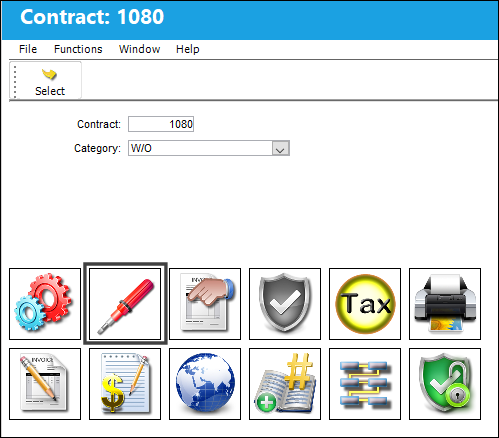
The Skill Selection window appears.
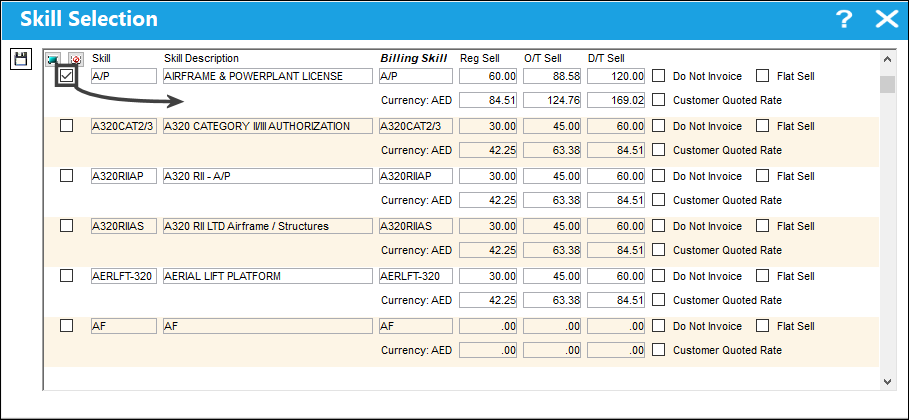
- Select a Skill.
- Enter the Billing Skill (this is the code that the customer will see in the invoice for the type of labor).
- Enter the hourly cost for the Skill in the Reg Sell field, the hourly cost for overtime work in the O/T Sell field, and the hourly cost for double-time work in the D/T Sell field.
- If the customer will not be paying the labor costs for this skill, then select the Do Not Invoice checkbox. The costs will be listed in the invoice as information but the customer will not be expected to pay.
- Repeat the above steps for each applicable Skill. (Skills that are not selected will not follow any rules set up through this contract.)
Each Skill must be configured one at a time.
The following information/options are available in this window:
_____________________________________________________________________________________
Select checkbox
Selects the Skill entry along with its Billing information. These checkboxes must be selected in order for the Skills to be in effect for the contract.
Skill
The Skill required by employees to perform the task.
Skill Description
The long description for the Skill as defined in the Skill Master.
Billing Skill
The Billing Skill classification for customer contracts does not necessarily exist in the Skill Master but will appear on the Customer Work Order Invoice for the Skill applied to the Work Order (i.e. the Skill in the system may be a specific type of technician; however, the Billing Skill classification may appear as 'Mechanic' if defined here).
This field is based on a trans code listing with multiple billing skills to choose from. The transaction code is found via Settings/Explorer/System Transaction Codes/Production/Billing Skill.
Reg Sell
The sell price for each labor hour. This field in this window overrides the Reg Sell rate for the Skill in the Skill Master.
O/T Sell
The Overtime rate per hour. This field in this window overrides the O/T Sell rate for the Skill in the Skill Master.
D/T Sell
The Double Time rate per hour. This field in this window overrides the D/T Sell rate for the Skill in the Skill Master.
Do Not Invoice checkbox
When selected, the material or labor specified will be displayed in the invoice, but the customer will not be charged for the material or labor specified. (For example, this could include materials such as gloves, or labor such as cleaning of an aircraft that should be listed in the invoice but the customer may not be required to pay for.) For more information refer to Do Not Invoice Checkbox.
Flat Sell checkbox
This is the flat chargeable amount for material and or labor. Flat rate is in company currency. This checkbox appears only when the Do Not Invoice checkbox is deselected.
Customer Quoted Rate checkbox
This checkbox is selected when a customer is quoted in customer currency per contract. This checkbox cannot be overridden from this window, therefore must be defined in the customer contract, if required. When this checkbox is selected, the Customer Quoted field will appear. For more information refer to the Customer Quoted Rate via the Production Training Manual.
_____________________________________________________________________________________
Share
Print
|
©1997-2026 Trax USA Corp. All rights reserved. This manual may not be copied, photocopied, reproduced, translated, or converted to any electronic or machine-readable form, in whole or in part, without prior written approval from Trax USA Corp. |
 |