
 Share
Share
 Print
Print
|
|
|
|
|



The Flat Rate Task Card  button allows the vendor to designate flat rates and cap limits for material and/or labor captured on Task Cards and Non-Routine Task Cards. For all material or labor costs that fall under the cap limit, there will not be any additional charges. But if these limits are exceeded, then the specified overage fees will be charged to the customer at the rates specified through this option. Once the caps are exceeded, these configurations will override the rules set up through the Material and Labor buttons. Multiple Cap Rules can be applied for different scenarios.
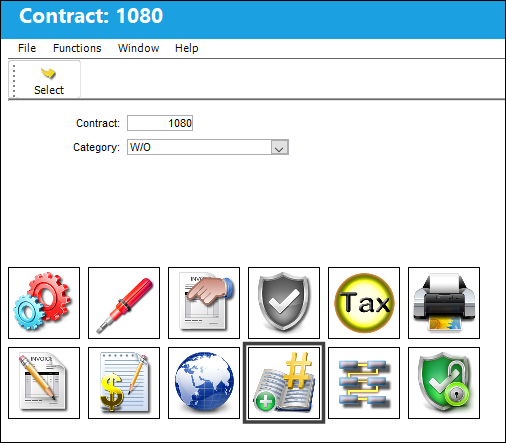
The Flat Rate window pops up as follows.
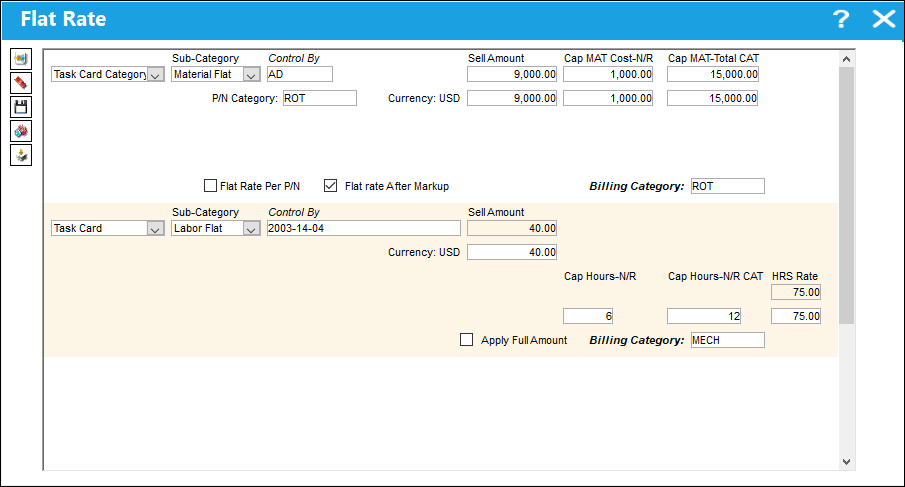
Multiple rules can be input to capture as many scenarios as needed by clicking the New  button then following these steps:
1. Define the Category for the rule in the dropdown: either for a specific Task Card or a Task Card Category.
2. Enter the Task Card or Task Card Category in the Control By field.
3. Choose whether the rule is for a Material or Labor flat cost in the Sub-Category dropdown. The available options will change depending on this selection.
4. If is selected, the following options are available:
a. Enter the P/N Category this rule will apply to.
b. Enter the flat rate fee in the Sell Amount field, and/or the Cap MAT Cost-N/R field, and/or the Cap MAT-Total CAT field.
c. Specify if the overage fees should be applied to each Non-Routine Task Card that exceeded the Man Hours (Flat Rate Per P/N checkbox)
d. Specify if this is a Flat Rate After Markup
5. If is selected, the following options are available:
a. Enter the flat rate fee in the Sell Amount field
b. For Non-Routines created from an applicable scheduled T/C, enter the Cap Hour-N/R, the Cap Hours-N/R CAT, and the HRS Rate (price per hour).
c. Specify if the HRS Rate should be applied to the total amount of hours (Apply Full Amount checkbox)
6. Enter the Billing Category for the rule that will be displayed in the invoice.
7. Click the Save  button.
8. If additional rules are required, click the New button.
Repeat the above steps for any additional rules.
Refer to the below table for more information on each of these options.
The following information/options are available in this window:
_____________________________________________________________________________________
Control By drop down
These rates can either be applied to specific Task Card or to all Task Cards for a certain T/C Category.
Task Card - If Task Card is selected, enter the specific Task Card that these rates will be applied to in the Control By field.
Task Card Category - If Task Card Category is selected, enter the T/C Category that these rate will be applied to in the Control By field. All Task Cards with this Category will be applicable to this rate.
Sub-Category drop down
This option determines whether this Cap Limit will affect Non-Routine labor or materials. As such, the options are Labor Flat or Material Flat:
Labor Flat - If Labor Flat is selected, then manual Labor hours will be tracked. The Sell Amount price will be charged to the MRO's customer if the amount of Labor Hours is under the amount of Max Hours. If the amount Max Hours is surpassed, then HRS Rate will be applied. See the Apply Full Amount checkbox for more information.
Material Flat - If Material Flat is selected, then the sell prices of Material components issued to Non-Routine Task Cards will be tracked. The Sell Amount price will be charged to the MRO's customer if the sell price is under the Material's Unit Sell. If the Max Material Cost is surpassed by the material component's Unit Sell, then the difference in sell price will be charged.
Labor Flat options
Sell Amount - If Labor Flat is selected, the Sell Amount will be the flat rate fee applied for labor. This flat rate will override the sell prices of each labor hour accumulated by the W/O. However, if the Cap Hours per N/R or the Cap Total Hours are surpassed, then additional fees may be applied to the invoice for those overages.
Max Hours - This is the threshold amount of quoted hours for each individual N/R. Once exceeded, the HRS Rate will be applied to every hour over this cap.
This field is not available in TRAX Version 15 and all later releases. Instead users have the Cap Hours-N/R and Cap Hours-N/R CAT fields (below).
Cap Hours-N/R  - This field signifies the cap limit hours for manual labor against related Non-Routine Task Cards and is only available when Labor Flat is selected. If the amount of labor hours required for the Non-Routine work is below these Max Hours, then the Sell Amount will be the hourly rate applied. If the Max Hours are surpassed, then the HRS Rate will be the hourly rate applied.
Cap Hours-N/R CAT - This field signifies the cap limit hours for manual labor against related Non-Routine Task Card for the T/C Category and is only available when Labor Flat is selected. If the amount of labor hours required for the Non-Routine work is below these Max Hours, then the Sell Amount will be the hourly rate applied. If the Max Hours are surpassed, then the HRS Rate will be the hourly rate applied.
HRS Rate - The Labor rate for each labor hour on a Non-Routine Task Card occurring after the Max Hours have been used up. In other words, the initial Max Hours are charged at the rate indicated by the Sell Amount; each hour after those Max Hours will be charged at the HRS Rate until the labor is completed. This field is only available when the Sub Category drop down is set to Labor Flat. For more information refer to Flat Rate Labor HRS Rate via the Production Training Manual.
Flat Rate Per N/R checkbox - When selected, the overage fees are applied to each Non-Routine Task Card that exceeded the Man Hours. Only the overages for each Non-Routine will be billed individually. For example, if one N/R T/C goes 2 hours over the Max Hours limit and another N/R T/C goes 1 hour over the Max Hours, then only 3 hours will be billed at the HRS Rate. When not selected, the overages fees for each Non-Routine Task Card are combined and applied to the routine Task Card. Once the cap limit Sell Amount is reached for all N/R T/Cs, the total amount of overage hours for all N/R T/Cs will be billed. For example, if the total hours of two N/R T/Cs is 15 but the Max Hours limit is 6, then the totaled 9 overage hours will be billed at the HRS Rate. This checkbox is only available for Labor Flat cap limits.
Apply Full Amount checkbox - When selected, the HRS Rate is applied to the total amount hours (all hours leading up to the Max Hours and all hours exceeding the Max Hours). When not selected, the HRS Rate is applied only to the amount of hours that went over the Max Hours. For instance, assume that the checkbox is selected, the Max Hours is 10 and the HRS Rate is 20. The Labor hours comes in for 12 total hours. Because the checkbox is selected, the labor charge is 240 because all 12 hours are being charged the HRS Rate of 20. If the checkbox were not selected, only the 2 hours that went over would be charged the HRS Rate (the charge would be 40).
Material Flat options
P/N Category - The specific P/N Category that is affected by this cap limit. This field is only available when Material Flat is selected.
This specific P/N Category must also be selected in the Material  button of the Customer Contract.
Sell Amount - If Material Flat is selected, the Sell Amount will be the flat rate fee applied for parts. This flat rate will override the sell prices of each part issued to the W/O. However, if the Cap Total Cost amount is surpassed by the price(s) of materials issued to the W/O, then additional fees may be applied to the Invoice for those overages.
Max Material Cost - This field signifies the cap limit for Material components (for Scheduled and N/R Task Cards) and is only available when Material Flat is selected. If the cost of material components is below this Cap, then the materials will not be charged in the invoice. If the cost of Material Components is above this Cap, then the material component(s) will be charged in the invoice.
This field is not available in TRAX Version 15 and all later releases. Instead users have the Cap MAT Cost-N/R and Cap MAT-Total CAT fields (below).
Cap MAT Cost-N/R - This field signifies the cap limit for Material components for the related Non-Routine Task Card(s) and is only available when Material Flat is selected. If the cost of Material components is below this Max Material Cost, then only the Sell Amount will be applied. If the cost of Material Components is above this Max Material Cost, then the difference between the Max Material Cost and the actual cost of the material component must be paid by the customer.
Cap MAT-Total CAT - This field signifies the cap limit for Material components for the related scheduled Task Card or T/C Category and is only available when Material Flat is selected. If the cost of Material components is below this Max Material Cost, then only the Sell Amount will be applied. If the cost of Material Components is above this Max Material Cost, then the difference between the Max Material Cost and the actual cost of the material component must be paid by the customer.
Flat Rate Per P/N checkbox - When selected, multiple instance of the same P/N will be grouped together and summed; this sum will be compared to the Flat Cap.
When not selected, all parts will be grouped together and summed; this sum will be compared to the Flat Cap. (Therefore, if two different parts have a unit sell of 1000 each and the flat rate is 1200, the total cost for both parts will be added and will trigger an overage. If this sum does not surpass the cap limit, then a cap limit overage will not be triggered.)
This checkbox is only available for Material Flat cap limits.
Flat Rate After Markup checkbox - When selected, a separate charge will be added in the Actuals for the Markup price. When not selected, the markup price will be included within the existing Actuals for the cap limits/cap limit overage. This checkbox is only available for Material Flat cap limits.
P/N Category Load  button - Select this button to add a Material Flat cap limit for a specific P/N Category. Multiple P/N Categories can be selected when through this button. This button offers one option on how to do this; for more information refer to the P/N Category Load Button. The other option is detailed below in the Material Flat section.
Billing Category
The materials' category classification for customer contracts that may not necessarily exist in the system as a P/N Category but will appear on the Customer Work Order Invoice for all parts issued for that part category. For example, the P/N Category in the system may be 'expendable,' however materials in the invoice may appear as 'supplies', as defined in this field in the Customer Contract.
Import  button
Select this button to import an excel file with multiple cap limit entries into the Flat Rate Task Card Customer Contract. This import file should include all of the data options listed in this window. Once this button is clicked, the import .txt file must be selected to import the data.
_____________________________________________________________________________________
Select the New button to create a new Cap Limit entry. Each Cap Limit could be for either Labor or Material Flat fees and each could vary for different Task Cards, Task Card Categories, or P/N Categories (when applicable).
Select the Delete  button to delete the selected cap limit entry.
Select the Save button to save the new or updated cap limit entry.
Refer to the following processes for examples on how the Material Flat and Labor Flat cap limits trigger overage fees.
Material Flat Cap Limit Overage:
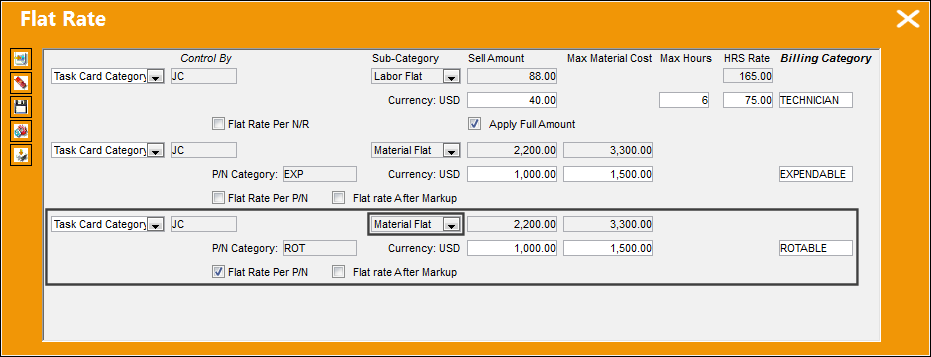
Cap Limits for materials issued to Non-Routine Task Cards can be configured by selecting the Material Flat option in the Sub-Category dropdown. Notice the data entered: cap limits will be applied to T/C Category 'JC,' P/N Category 'ROT,' a Sell Amount of 1000, and a Max Material Cost of 1500.
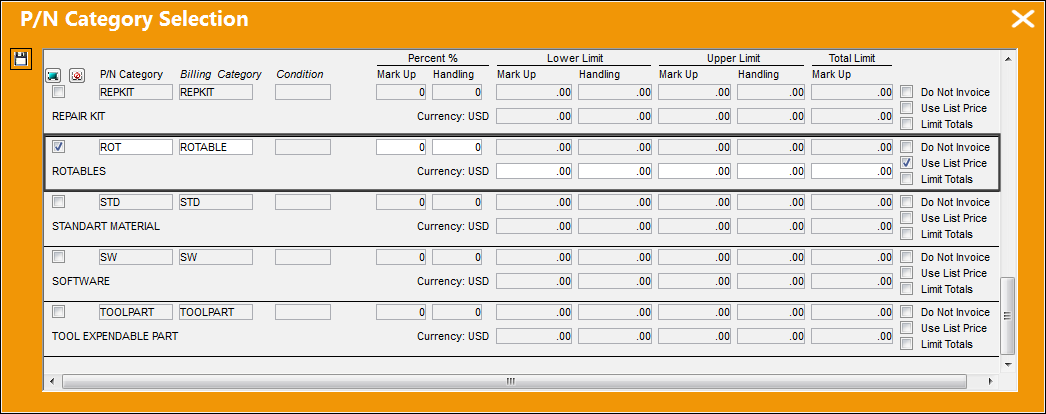
From the Material button of the Customer Contract, notice that P/N Category 'ROT' has been selected. Also notice that the Use List Price checkbox has been selected; this checkbox must be selected in order for a cap limit overage to be triggered for this P/N Category. The Use List Price checkbox indicates that the Customer Contract will refer to the component's P/N Sell price.
Alternatively, a Material Flat cap limit can be created by selecting the P/N Category Load Button.
Once the Customer Contract is active, it can be linked to a Third Party Work Order.
Notice that the following scheduled Task Card, with the same Category as the one specified in the customer contract ('JC'), has been linked to the W/O.
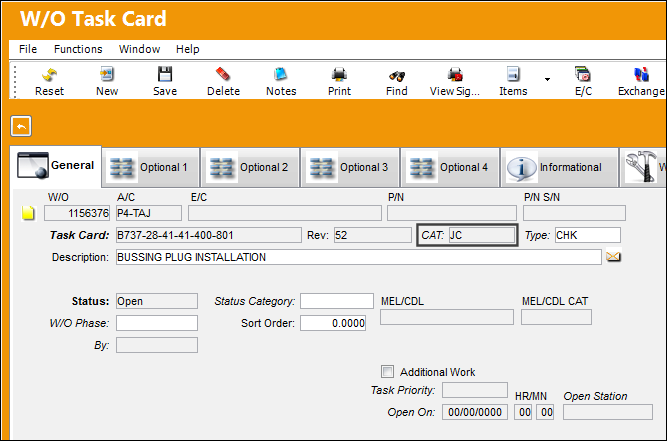
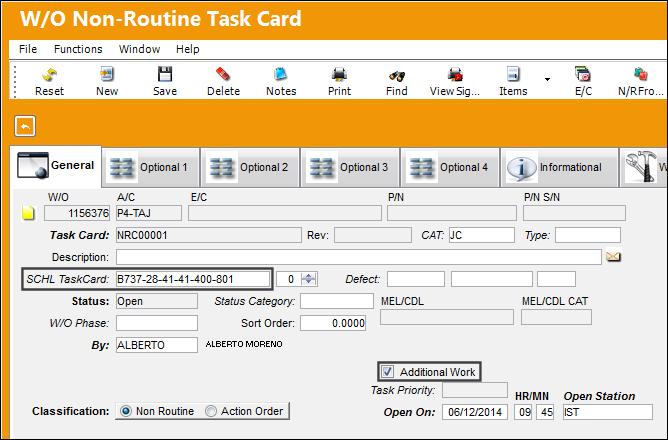
As the scheduled T/C is being completed, a non-routine issue is discovered. At that point, a Non-Routine Task Card is created and linked to the W/O as well as to the Scheduled W/O Task Card.
For the N/R Task Card to reflect the cap limits specified in the customer contract, the Scheduled T/C must be linked and the Additional Work checkbox must be selected.
To complete the N/R Task Card, the following part is required. This part has the same P/N Category as specified in the customer contract ('ROT'), and the part has a registered Unit Sell price of 1800.
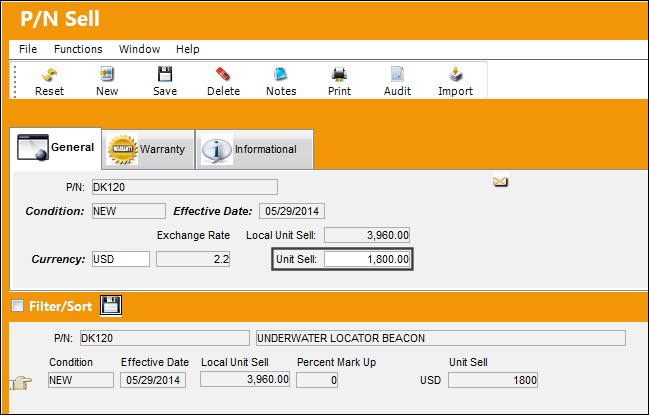
This Unit Sell price will be linked to the customer contract because the Use List Price checkbox was selected from the Material button. To access the part's Unit Sell price, select the P/N Sell  button from the P/N Master.
At this point, the required part was issued from inventory to the N/R Task Card.
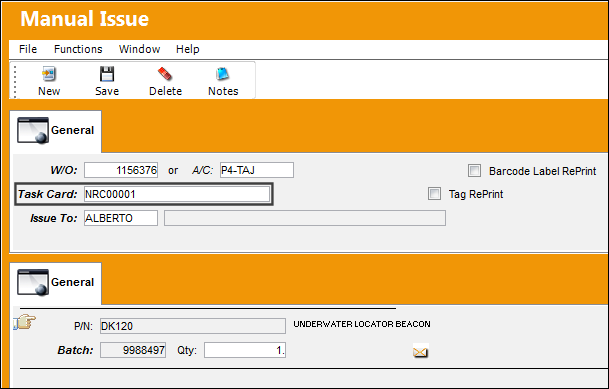
Now notice the W/O Actuals that have been triggered based on the Customer Contract specifications. The following are the Actuals that capture the Material costs.
- - Indicates that a material component was issued from inventory to the N/R Task Card. In this example, only one part was issued to the N/R Task Card.
- - Indicates that the cost of the component issued to the N/R Task Card surpasses the Max Material Cost cap limit of 1500, as specified in the contract. Because the Unit Sell of the part was 1800 (as listed above in the P/N Sell window) and the Max Amount in the contract is 1500, the difference of 300 must be paid by the customer.
- If the Flat Rate Per P/N checkbox were not selected in the contract, then the actual would be triggered. When the Flat Rate Per P/N checkbox is selected, individual parts that exceed the cap limit will trigger the overage. When not selected, the flat rate cap limit will consider the total of all parts issued to the N/R T/C. (Therefore, if two parts are issued to the N/R T/C and each part costs under the Max Cost [800 each], the total cost for both parts will be added [1600 total]. If this sum surpasses the cap limit [which is 1500], then the cap limit overage will be triggered [by 100].)
- - Indicates the flat cost of the material component issued to the N/R Task Card. This amount was specified in the contract's Sell Amount.
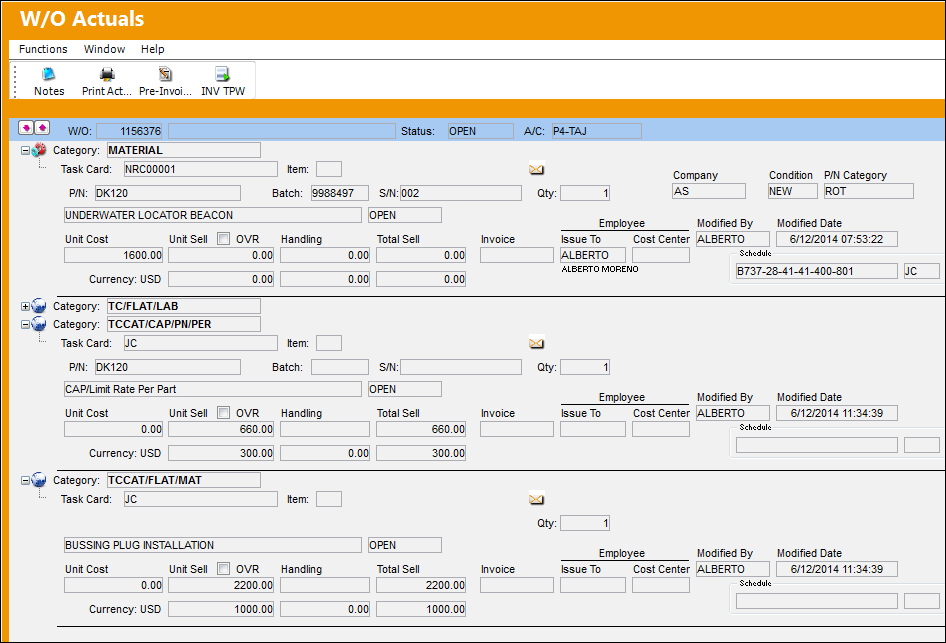
The Customer Contract can now be invoiced. The Invoice number will be listed in each Actual.
Labor Flat Cap Limit Overage:
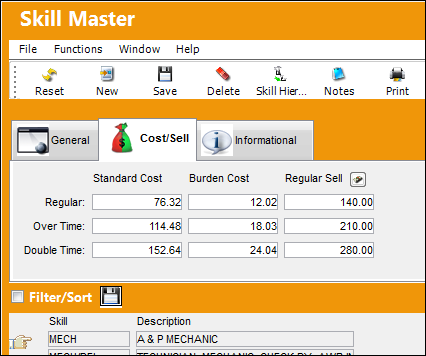
Cap Limits for Non-Routine Task Card Labor can be configured by selecting the Labor Flat option in the Sub-Category dropdown. Notice the data entered: cap limits will be applied to T/C Category 'MP,' with a Sell Amount of 250, a Max Hours of 6, and an HRS Rate of 60 applied for each labor hour over the Max Hours.
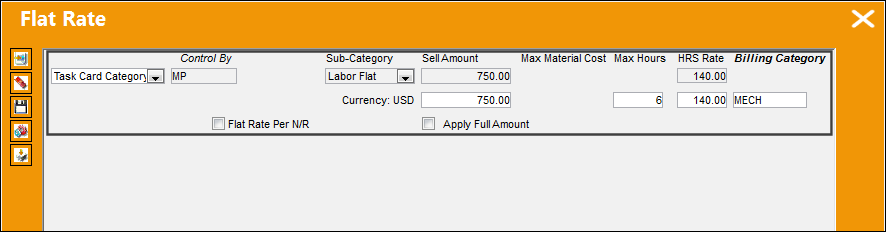
From the Skill Master, Cost/Sell tab, notice that the Regular Sell fields have been populated.
Once the Customer Contract is active, it can be linked to a Third Party Work Order.
Notice that the following scheduled Task Card, with the same Category as the one specified in the customer contract ('MP'), has been linked to the W/O.
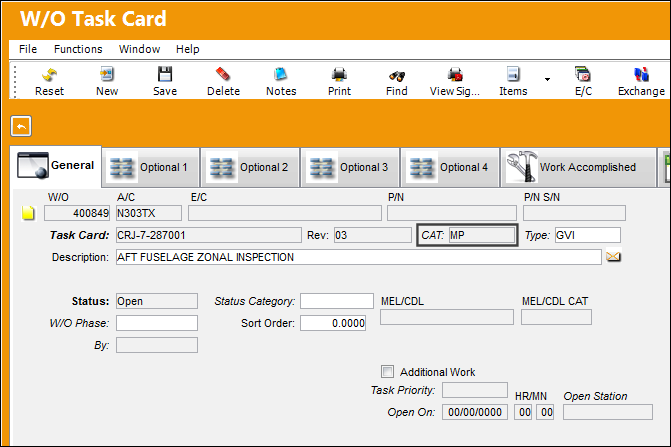
As the scheduled T/C is being completed, a non-routine issue is discovered. At that point, a Non-Routine Task Card is created and linked to the W/O as well as to the Scheduled W/O Task Card.
For the N/R Task Card to reflect the cap limits specified in the customer contract, the Scheduled T/C must be linked and the Additional Work checkbox must be selected.
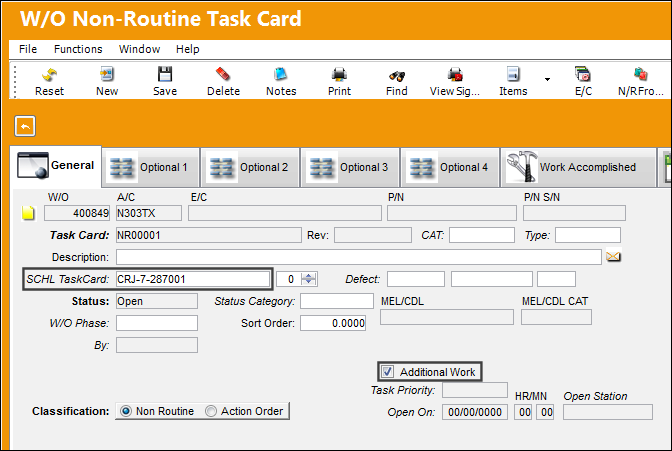
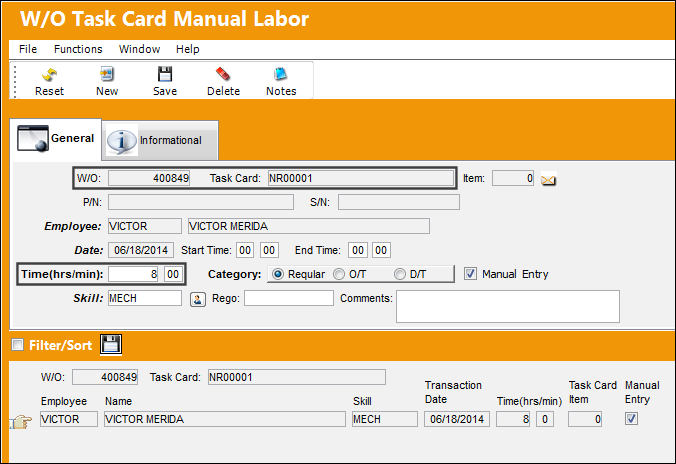
The Manual Labor required to complete the non-routine work was then added to the N/R Task Card. Notice that 8 hours were required.
Now notice the W/O Actuals that have been triggered based on the Customer Contract specifications. The following are the Actuals that capture the Labor costs.
- - Indicates that a manual labor was performed for the N/R Task Card. This labor charge notes the Unit Cost per hour (Standard Cost + Burden Cost) as defined in the Skill Master; the Unit Sell is not listed because the Customer Contract is overriding this Sell price.
- - Indicates that the cost of the labor performed for the N/R Task Card surpasses the Max Hours cap limit of 6, as specified in the contract. Because the labor hours (8) surpassed the Max Hours (6) for the cap limit, the customer is charged the overage 2 labor hours at the HRS Rate (2 hours x 140 HRS Rate = 280).
- If the Apply Full Amount checkbox were selected in the contract, then the HRS Rate would have been applied to the total amount of performed labor hours (8), not only the overage hours (2) that exceeded the Max Hours cap limit (6). Therefore, the HRS Rate (140) would have been applied to all 8 hours for a Total Sell of 1120.
- - Indicates the flat cost of the labor performed against the N/R Task Card. This amount was specified in the contract's Sell Amount (750).
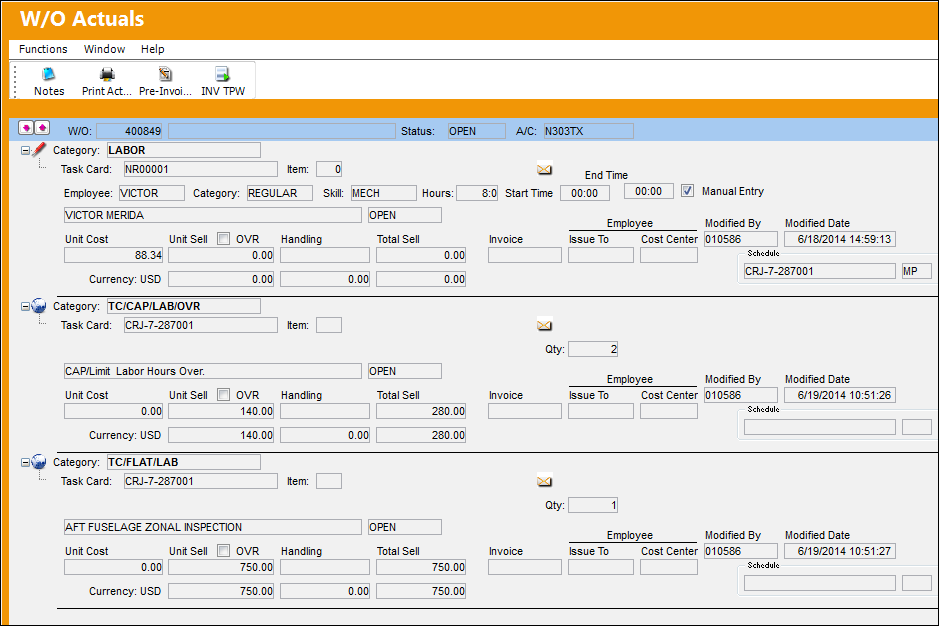
The Customer Contract can now be invoiced. The Invoice number will be listed in each Actual.
Share
Print
|
©1997-2026 Trax USA Corp. All rights reserved. This manual may not be copied, photocopied, reproduced, translated, or converted to any electronic or machine-readable form, in whole or in part, without prior written approval from Trax USA Corp. |
 |