
 Share
Share
 Print
Print
|
|
|
|
|


Select the Material  button to apply sell configurations for each type of material linked to the contract. Rules are established on how to handle the materials by their P/N Category, and they can be specified for certain Conditions or all Conditions. These available configurations include markups percentages, handling fees, sell amount limits, and more. These rules serve as a baseline for materials that may then be subject to additional flat rate rules for Task Cards and their Non-Routines (via the Flat Rate Task Card option).
Steps:
- Click the Material button.
- Choose whether the terms will be applied to individual Conditions or to ALL Conditions.
- Select a P/N Category to set its terms for the contract. (Repeat this step for all desired P/N Categories.)
- If a single Condition was selected, repeat the steps for each additional Condition.
Choose the applicable Conditions
When the Materials button is selected, a drop down selection window appears.
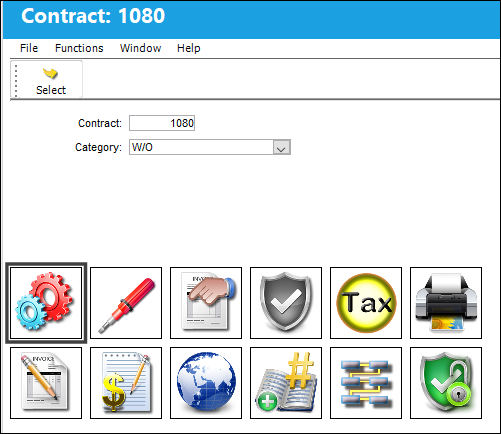
Users have two options:
select a Condition in the selection window to apply the contract terms to that single Condition.
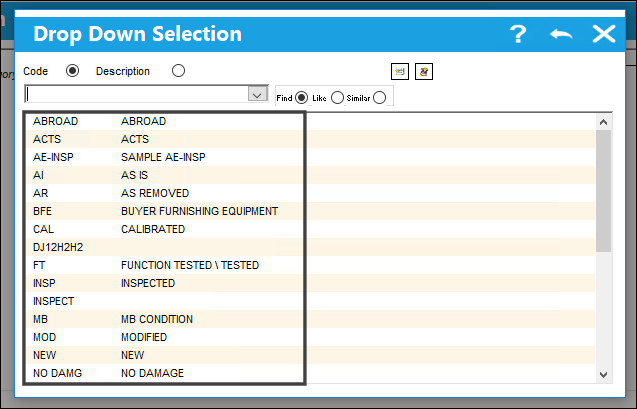
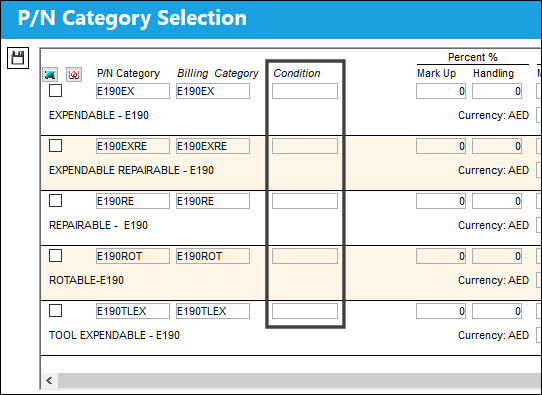
Notice that the selected Condition is listed. This means that the terms for the selected P/N Categories will be applied to a single Condition.
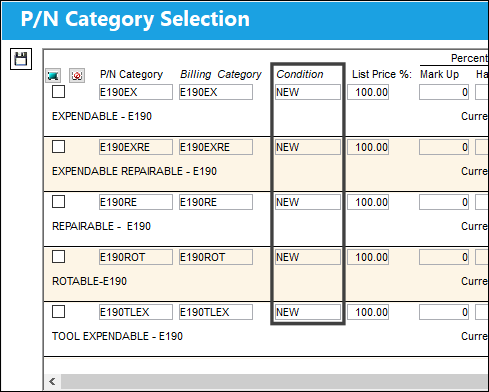
exit the selection window to apply the terms of the contract to ALL part Conditions.
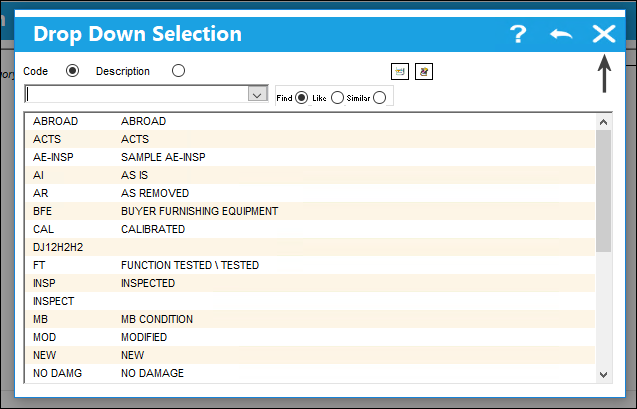
Notice that no Conditions are listed. This means that the terms for the selected P/N Categories will be applied to ALL Conditions.
Set the rules for the P/N Categories
From the P/N Category Selection window, terms are applied to Materials for specific P/N Categories. Each P/N Category can have unique terms.
To edit the rules for a P/N Category, select the P/N Category.
Users can select and edit the Billing Category, Mark Up percentages, and all other applicable fields for the selected P/N Category.
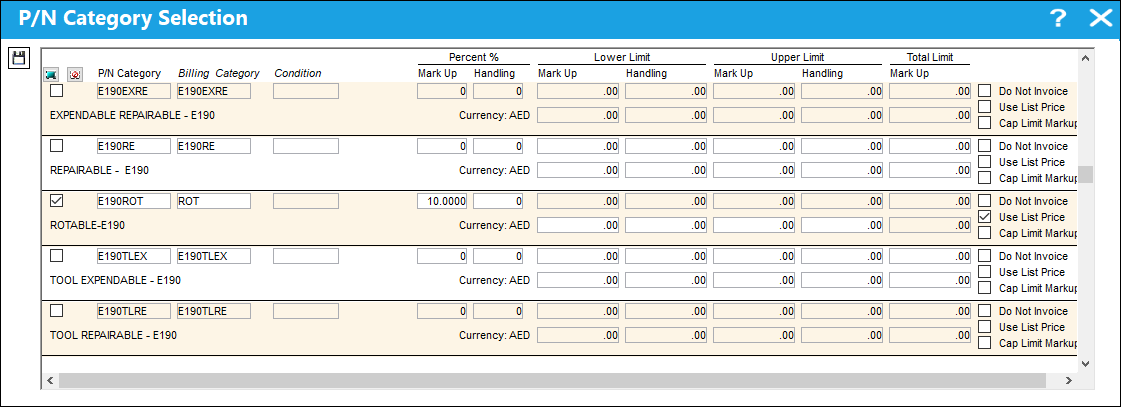
All fields will be greyed out until the P/N Category is selected. Multiple P/N Categories can be configured for the contract, but this information must be configured for each individual P/N Category manually.
The following information/options are available in this window:
_____________________________________________________________________________________
Select checkbox
Select a P/N Category to establish its rules for this contract. Each Category that requires rules for the contract must be selected individually to have its rules applied.
Only the selected P/N Categories can have their fields edited. Otherwise all fields for the deselected Categories will be greyed out.
Select All  / Deselect All
  buttons
Selects all or deselects all of the P/N Category entries.
P/N Category
The category of the part as defined in Settings/ Explorer/ System Transaction Code Explorer/ Settings/ P/N Category (e.g. Rotable, Consumable, Repairable) and entered for the particular part in the P/N Master. When the P/N is applied to the P/N Category classification, the associated Billing P/N Category will appear on the Customer Work Order invoice.
Billing Category
The materials' category classification for customer contracts that may not necessarily exist in the system as a P/N Category but will appear on the Customer Work Order Invoice for all parts issued for that part category. For example, the P/N Category in the system may be 'expendable,' however materials in the invoice may appear as 'supplies', as defined in this field in the Customer Contract.
Condition
The Condition of the material part involved in the order. Each P/N Category's rules for the contract can either be set up for specific Conditions or for all Conditions. When the Materials button is selected, the Condition selection pop-up window appears. If a Condition is selected, then that condition will be listed in this field; if the pop-up window is closed and no Condition is selected, then the Condition field will be blank and the rule will apply to all conditions.
List Price %
This field allows user to specify what percentage of the part's sell price should be charged to the customer for a part in that particular Condition. This field defaults to 100%, but it can be updated manually. The List Price refers to the Sell price of the part (via the P/N Sell button of the P/N Master).
This field is only available if a Condition is specified when the Material button is selected. See above.
Mark Up / Percent %
Percent % section Mark Up - The percentage the materials will be marked up. This percentage will be applied to the sell price of the material. The markup percentage will never be lower than the Lower Limit, or higher than the Higher Limit (if Lower and Higher Limits are set up). (Example: If a part's sell price is $50.00 and the Mark Up is 10%, the part's invoice price will be $55.00.)
Handling - The percentage being charged for handling fees (i.e., shipping costs, receiving). This percentage will be applied to the sell price of the material. The handling percentage will never be lower than the Lower Limit, or higher than the Higher Limit (if Lower and Higher Limits are set up).
Lower Limit section
These fees are minimum amount that the customer will be charged.
For example, if a part costs $400 but the Lower Limit is set at $500 (either the Mark Up or Handling fee), then the customer will be charged $500 because that is the minimum charge. If the part costs $600, then the Lower Limit threshold will be ignored and the full $600 will be charged.
Mark Up Curr - The minimum amount of markup that will be charged. This is a specific fee and not a percentage.
Handling Curr - The minimum amount of handling that will be charged. This is a specific fee and not a percentage.
Upper Limit section
The Upper Limit fees are the maximum amount fees that the customer will be charged.
For example, if a part costs $110,000 but the Upper Limit fee is set at $100,000, then the the customer will only be charged $100,000 because that is the maximum cost threshold. If the part costs $95,000, then the Upper Limit threshold will be ignored and the $95,000 will be charged.
Mark Up Curr - The maximum amount of markup that will be charged. This is a specific fee and not a percentage.
Handling Curr - The maximum amount of handling that will be charged. This is a specific fee and not a percentage.
Total Limit section 
Mark Up - When this field is used, this value becomes the maximum that will be invoiced for a particular P/N (not for the total value of parts under the Category). When used, all other markup/handling rates in this window will be overridden. This max price will be applied to each rotable P/N, not against all parts issued to the W/O.
(For example, because this field sets a limit price per P/N, if the Total Limit value is $1,000, but eleven Serial Numbers of the same P/N are issued at $100 each, the total invoice charge for the specific P/N would be limited to $1000, not $1,100. However, if PN-123 and PN-ABC are issued to the W/O at $600 per part, then the total invoice charges for the two P/Ns would be $1,200 -- they would not apply this Total Limit value.)
This field is only available when the Limit Totals / Cap Limit Markup checkbox is selected to the right of this window.
Do Not Invoice checkbox
When selected, the material or labor specified will be displayed in the invoice, but the customer will not be charged for the material or labor specified. (For example, this could include materials such as gloves, or labor such as cleaning of an aircraft that should be listed in the invoice but the customer may not be required to pay for.) For more information refer to Do Not Invoice Checkbox.
Use List Price checkbox
When selected, the system will use the Sell Price from the P/N Master (via the P/N Sell button). (Additionally, if there is no List Price then the Average Cost will be used > if there is no Average Cost then the Reference Cost will be used > if there is no Reference Cost then the Market Value will be used.)
If the checkbox is not selected, the system will use the Unit Cost of the issued part. (Additionally, if there is no Unit Cost then the Average Cost will be used > if there is no Average Cost then the Reference Cost will be used > if there is no Reference Cost then the Market Value will be used.)
Limit Totals / Cap Limit Markup checkbox
Select this checkbox to utilize the Mark Up field in the Total Limit section (see above).
In TRAX Version 15, this checkbox's name has been changed from 'Limit Totals' to 'Cap Limit Markup'.
_____________________________________________________________________________________
Share
Print
|
©1997-2026 Trax USA Corp. All rights reserved. This manual may not be copied, photocopied, reproduced, translated, or converted to any electronic or machine-readable form, in whole or in part, without prior written approval from Trax USA Corp. |
 |