
 Share
Share
 Print
Print
|
|
|
|
|


The Flat/Surcharge Rate Other  button is used to add flat rates and/or surcharges to all labor and materials on the contract. Flat rates would override the Material and Labor costs set up in the Material and Labor buttons, while surcharges would be added to the costs. Additionally, this option allows users to add addbills to the contract for work that falls outside of the scope of the Task Cards and Non-Routines (e.g., addbills for towing, fueling, cleaning, etc.). This window allows users to enter multiple flat rates to help identify their categories (e.g., one materials rate for aircraft parts and a separate one for tools, or one addbill for towing and another one for cleaning). (This option is different from the CAP Rules option because this one applies lump sum charges to all E/Cs and T/Cs against the W/O, as opposed to the CAP Rules option which can be applied to specific E/Cs, T/Cs, EC/TC Categories, etc., and for diverse labor and material scenarios.)
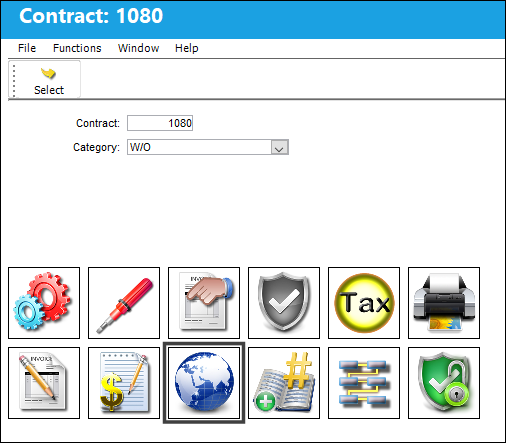
The Flat/Surcharge Rate Other window pops up as follows.
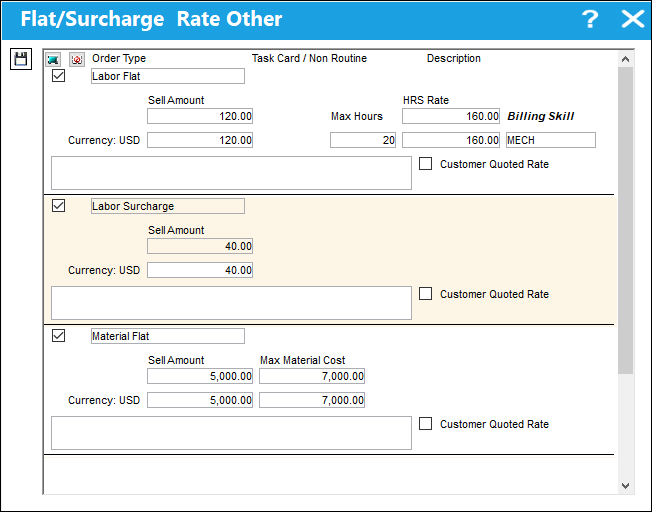
Each option is detailed in the following sections:
- Material Flat
- Material Surcharge
- Labor Surcharge
- Labor Flat
Material Flat
Choose 'Material Flat' to charge a flat rate for all materials used through the contract. The flat rate is entered in the Sell Amount Curr field.
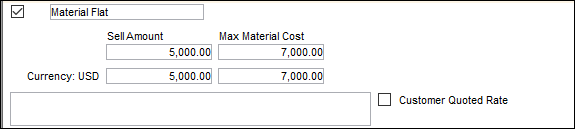
The Currency field is indicating the customer's currency for the Contract (as input in the Customer Contract, General tab).
The Sell Amount Curr and Max Material Cost Curr fields in the bottom represent the customer's currency. Values are entered in the customer's currency.
The Sell Amount and Max Material Cost fields in the top represent the vendor's currency (which is based on the Company entered in the Customer Contract, General tab). These vendor currency fields at the top are auto-populated based on the values inserted in the customer currency fields at the bottom.
Material Surcharge
Choose 'Material Surcharge' to apply a surcharge fee that is additional to the costs of materials accrued to complete the work. This surcharge is entered in the Sell Amount Curr field.
The material fees, separate from the surcharge fee, will be accrued based on the configurations made through the Material button.
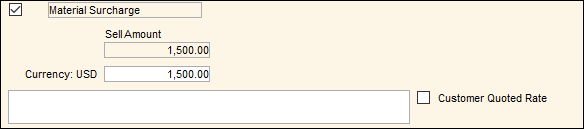
The Currency field is indicating the customer's currency for the Contract (as input in the Customer Contract, General tab).
The Sell Amount Curr field in the bottom represents the customer's currency. Values are entered in the customer's currency.
The Sell Amount field in the top represent the vendor's currency (which is based on the Company entered in the Customer Contract, General tab). These vendor currency fields at the top are auto-populated based on the values inserted in the customer currency fields at the bottom.
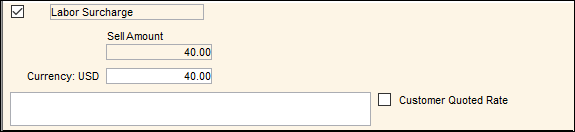
Labor Surcharge
Choose 'Labor Surcharge' to apply an hourly surcharge fee that is additional to the costs of labor fees accrued to complete the work. This surcharge is entered in the Sell Amount Curr field.
The labor fees, separate from the surcharge fee, will be accrued based on the configurations made through the Labor button.
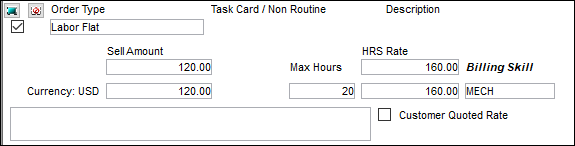
Labor Flat
Choose 'Labor Flat' to charge a flat rate for each labor hour accrued through the contract. The hourly flat rate is entered in the Sell Amount Curr field.
Share
Print
|
©1997-2026 Trax USA Corp. All rights reserved. This manual may not be copied, photocopied, reproduced, translated, or converted to any electronic or machine-readable form, in whole or in part, without prior written approval from Trax USA Corp. |
 |