
 Share
Share
 Print
Print
|
|
|
|
|


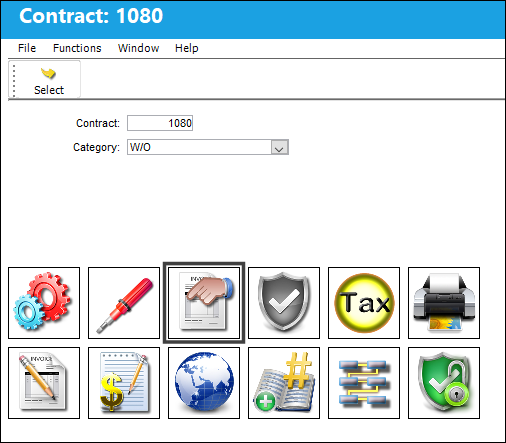
Select the Order  button to add order markup percentages for any Repair Orders, Exchange Orders, Loan Order, and/or Service Orders that may be necessary as part of the third party work being performed. (For instance, if a part must be repaired in order to complete the work, a Repair Order would be created to capture the repair and its costs. As such, a markup percentage may be applied through the contract in consideration for the Repair Order performed for the customer.)
The Order Mark Up Selection window opens as follows.
- Select an Order Type.
- Enter the markup percentage. This percentage will be applied to the cost of the order.
- Repeat for each applicable order type. (Order types that are not selected will not follow any markup rules set up through this contract.)
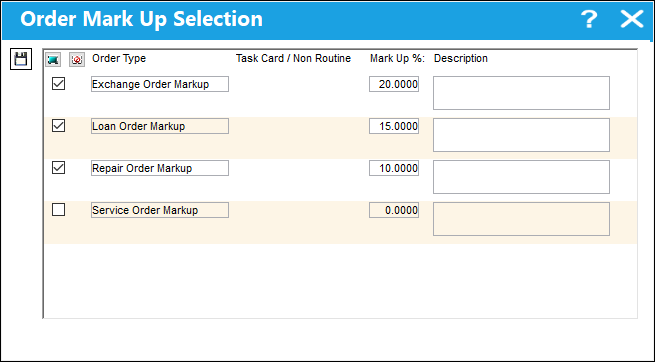
The following information/options are available in this window:
_____________________________________________________________________________________
Select checkbox
Selects the Order Type entry along with the Mark Up information. These checkboxes must be selected in order for the Order Types to be in effect for the contract.
Order Type
The type of order affected by the Mark Up. Each order type can have it's own unique markup rate. The options are:
- Repair Order Markup
- Exchange Order Markup
- Loan Order Markup
- Service Order Markup
Task Card / Non-Routine
The Task Card / Job Card that details the scheduled maintenance work. The Non-Routine Task Card that details non-scheduled maintenance work / findings.
Mark Up %
The percentage that the repair, exchange, loan, or service order has been marked up. This percentage will be applied to the cost of the order in the customer's invoice.
An order is required to complete the third party work. If the order's total cost is $500.00, and a 15% markup is applied here for that order type, the customer will be charged $575.00 for the order.
Description
A description of the Mark Up.
_____________________________________________________________________________________
Example: Service Order Mark Up
In this example, a user has created a Customer Contract with a Service Order mark up of 5%.
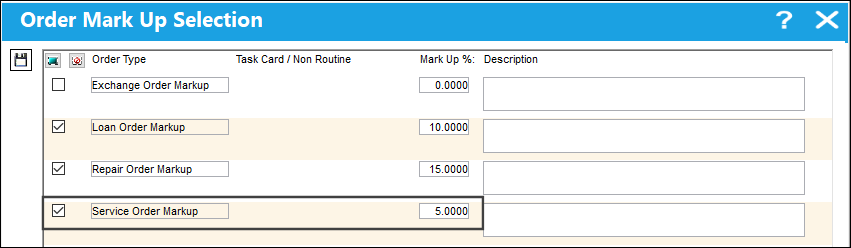
A third party W/O has been created and linked to this contract.
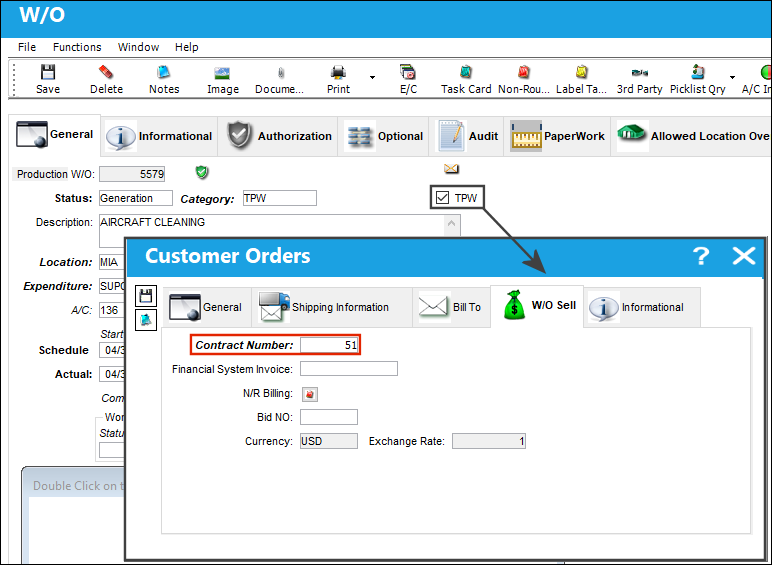
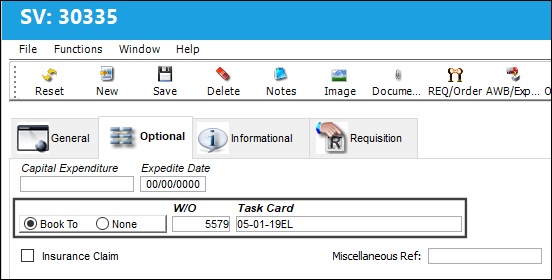
A Service Order is then booked to this TPW W/O.
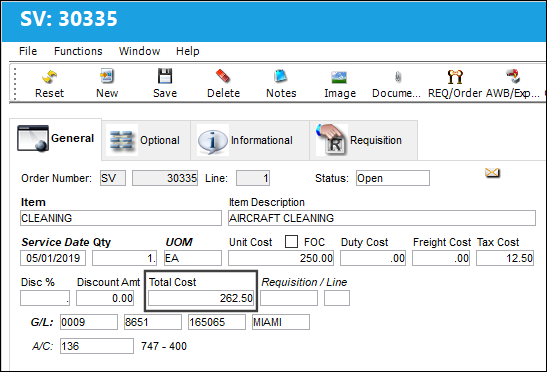
Note the total cost (262.50) that has been specified on the S/V. This cost does not yet include the mark up that will be applied as a result of the contract.
Once the S/V has been received, the TPW W/O's Actuals window indicates the total sell price (275.63) of the order.
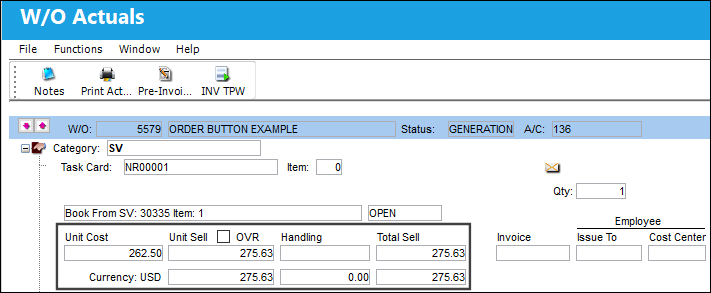
The total sell price is higher than the Unit Cost due to the 5% mark up (13.125, rounded up to 13.13).
For information on how to link an Order to a Third Party Work Order, refer to the Customer Invoice Authorization Charges section of the Production Training Manual.
Share
Print
|
©1997-2026 Trax USA Corp. All rights reserved. This manual may not be copied, photocopied, reproduced, translated, or converted to any electronic or machine-readable form, in whole or in part, without prior written approval from Trax USA Corp. |
 |