
 Share
Share
 Print
Print
|
|
|
|
|


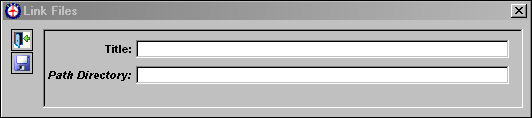
From the File Manager tab, select the Create a link to a file  button. The Link Files window appears. In the Title field, create a title for the link to be created. Right click in the Path Directory field.
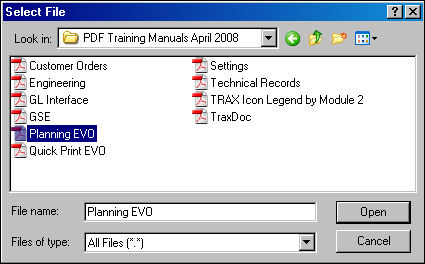
The Select File window appears. Select a file to create a link to. Select 'Open.'
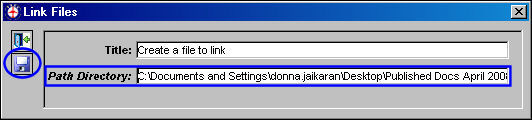
The folder appears in the Files Directory field. Select the Save  button.
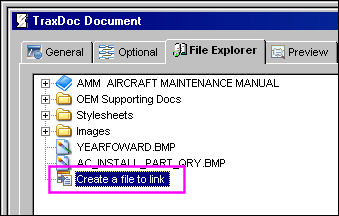
Go to the File Explorer Tab. The link appears as shown below. To view the link, right click on the link and select the View File  button.
Share
Print
|
©1997-2026 Trax USA Corp. All rights reserved. This manual may not be copied, photocopied, reproduced, translated, or converted to any electronic or machine-readable form, in whole or in part, without prior written approval from Trax USA Corp. |
 |