
 Share
Share
 Print
Print
|
|
|
|
|


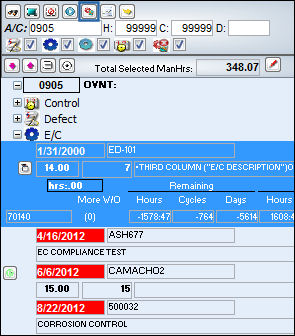
From the Planning Element Detail Area, highlight a maintenance event and select the Create Work Order  button.
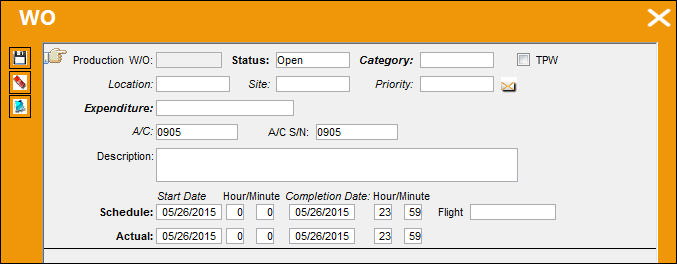
The following W/O window will appear. Create a Work Order and select the Save  button.
Return to the maintenance event in the Planning element Detail Area. The Work Order icon now appears beside the maintenance event as shown below:
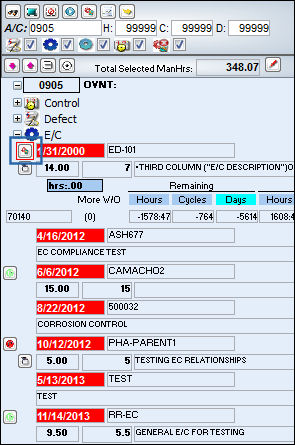
Users can then select the Work Order button to make changes to view or make changes to the W/O.
For planning purposes, users can be sent System Notifications when a Production Work Order schedule date or time is changed. For more information refer to the Production W/O Schedule Date/Time Change via the Settings Training Manual.
Share
Print
|
©1997-2026 Trax USA Corp. All rights reserved. This manual may not be copied, photocopied, reproduced, translated, or converted to any electronic or machine-readable form, in whole or in part, without prior written approval from Trax USA Corp. |
 |