
 Share
Share
 Print
Print
|
|
|
|
|


The Turn On Detail View  button allows the user to filter and sort that data within the Planning Element Detail Area.
From the Planning Element Detail Area, select the Turn On Detail View button.
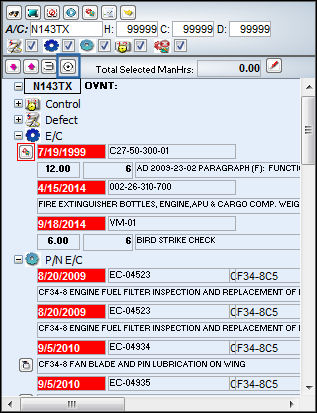
The view of the window changes slightly. Right-click into the window.
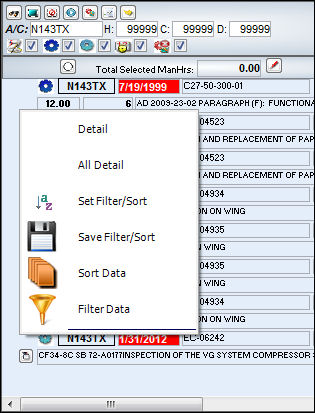
The above options are standard TRAX options. For more information, refer to the System Standards Training Manual.
The Filter/ Sort data that is saved via the Save Filter/Sort option can be viewed by selecting the Set Filter/Sort option. For more information on Filter/Sort options refer to the Filter Data and Sort Data sections System Standard Training Manual.
Share
Print
|
©1997-2026 Trax USA Corp. All rights reserved. This manual may not be copied, photocopied, reproduced, translated, or converted to any electronic or machine-readable form, in whole or in part, without prior written approval from Trax USA Corp. |
 |