
 Share
Share
 Print
Print
|
|
|
|
|


Filter Data
Many combinations of filters can be applied to reports and queries. The following are samples of how to apply the filters for several types of scenarios:
Example: A report contains all the employees in a particular organization.
Using the Filter Data functionality, users can temporarily change the filtering of the data on an ad-hoc basis.
The report must first be run (via Settings/ Print/ Employee Print in this example).
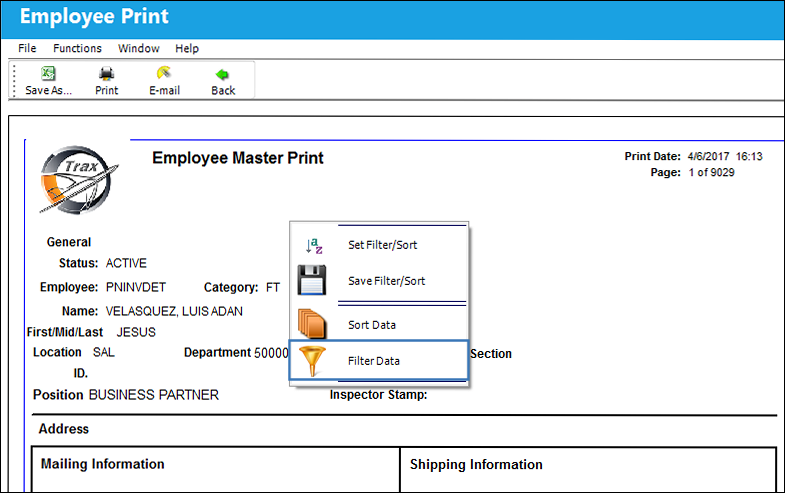
Right click on the report and choose Filter Data. The following screen will appear:
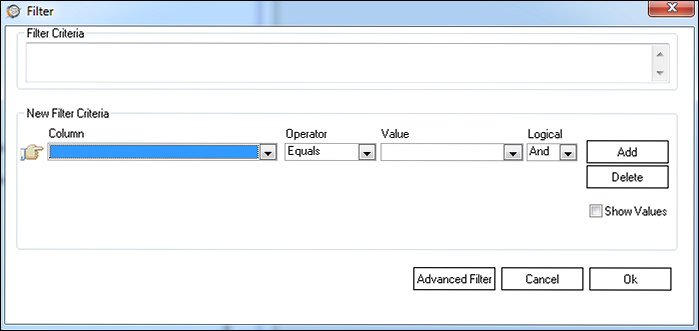
Click on the Advanced Filter button. TRAX displays the following:
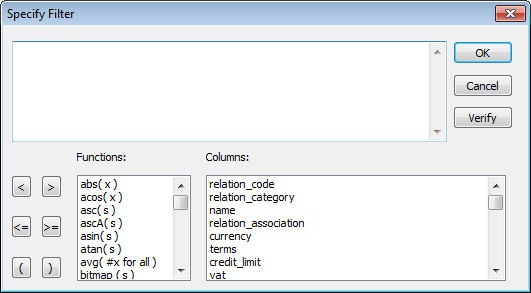
The columns can be selected by clicking on the fields required in the Columns section at the bottom right of the window. The basic filter language is quite simple, although it is possible to get very complicated. Users can also manually enter the statements in the area at the top of the window.
Click on any of the columns and functions to create statements that will filter the data as required.
Some of the filter terms a user can use are: And, Or, or Not.
Users must use single quotes ( ‘ ) or double quotes ( “ ) for fields that contain text elements.
Use single quotes ( ‘ ) on a number function. Use double quotes ( “ ) on alpha numeric functions.
Users may sometimes have a numeric value, but it is held in a text field.
Users must use single quotes ( ‘ ) if they want to Save the filter.
Share
Print
|
©1997-2026 Trax USA Corp. All rights reserved. This manual may not be copied, photocopied, reproduced, translated, or converted to any electronic or machine-readable form, in whole or in part, without prior written approval from Trax USA Corp. |
 |